Have you ever tried to delete a photo, rename a video, or move a document only to get a message saying the file is open in COM Surrogate? That frustrating popup stops you cold. You open Task Manager and see one or more entries labeled COM Surrogate running as dllhost.exe. Suddenly you wonder if the process is safe, where it lives on your drive, or how to close it so you can finish the job. Many people assume the worst and start searching for ways to delete the file or kill the process permanently.
The truth is simpler and less scary. dllhost.exe COM Surrogate is a normal Windows process that hosts certain system components outside the main programs that need them. When something goes wrong with a thumbnail generator, media codec, or shell extension, the surrogate takes the hit instead of crashing File Explorer or another app. Most of the time it works quietly in the background. Problems appear when a faulty codec, corrupted thumbnail cache, or third-party extension keeps a file locked or causes the process to crash.
This article walks you through exactly what the process does, where the legitimate file lives, how to close it safely when needed, and the practical steps that fix the most common errors. You will learn trusted methods that work on current Windows versions without risky workarounds or outdated advice. By the end you will know how to free locked files, calm high resource use, and keep the process healthy so it stays out of your way.
What is dllhost.exe COM Surrogate File
dllhost.exe is the executable that powers the COM Surrogate process in Windows. COM stands for Component Object Model, a Microsoft technology introduced in the early 1990s that lets software components talk to each other even if they were written in different languages. Those components often live inside DLL files.
When an application such as File Explorer needs one of those components, Windows can load it directly into the application’s own process. That works fine until the component has a bug or crashes. Then the whole host application goes down with it. Microsoft solved this by creating a separate host process that can run the component in isolation. That host is dllhost.exe, better known in Task Manager as COM Surrogate.
Think of it as a sacrificial container. Explorer fires up a COM Surrogate whenever it needs to generate thumbnails for images, videos, or documents. The surrogate loads the thumbnail handler, does the work, and returns the result. If the handler fails, only the surrogate process stops. Explorer keeps running. The same isolation protects media playback, shell extensions, and other out-of-process COM servers.
The legitimate file sits in two standard places. On a 64-bit system the main copy is at C:\Windows\System32\dllhost.exe. A 32-bit version lives in C:\Windows\SysWOW64\dllhost.exe so older components can still run. You can confirm the location yourself. Open Task Manager, find COM Surrogate, right-click, and choose Open file location. If the path points anywhere else, treat it with suspicion and run a full malware scan.
Multiple instances of the process can appear at once. Each one may host a different COM object. Normal resource use stays low, usually a few megabytes of memory and almost no CPU once the task finishes. High or sustained usage often points to a problem with a specific codec or extension rather than the host itself.
You should never try to delete the real dllhost.exe file. Windows needs it for everyday tasks. Removing or permanently disabling it breaks thumbnail generation and can cause other COM-based features to fail. The correct approach is to manage the process when it locks a file or becomes unstable, then fix the underlying cause so the problem does not return.
Common COM Surrogate File Errors and Solutions
Users run into several recurring issues with the process. The most common complaints involve a file that stays locked, the process that stops working, or unexpected high resource use. Below you will find the practical fixes that resolve these problems on Windows 10 and Windows 11. Start with the simplest steps and move down the list only if needed.
1. File Is Open in COM Surrogate or COM Surrogate File in Use
This error shows up when you try to delete, rename, or move a file. The message usually says “The action cannot be completed because the file is open in COM Surrogate.” The process is still holding the file open, most often because it is creating a thumbnail or preview in the background. Until that handle is released, Windows will not let you make changes to the file.
Method 1: End the COM Surrogate process
- Press Ctrl + Shift + Esc to open Task Manager.
- Click the Details tab.
- Look for every entry named dllhost.exe or COM Surrogate
- Right-click each one and select End task.
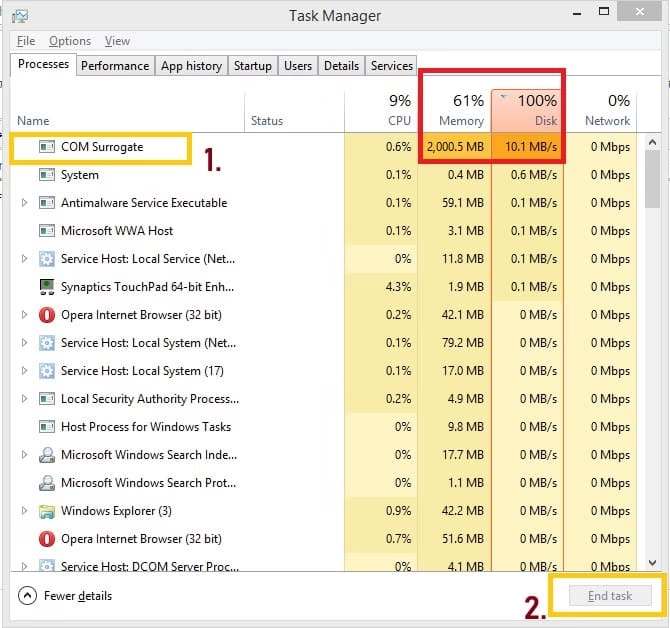
- Go back and try deleting, renaming, or moving the file again.
Method 2: Clear the thumbnail cache
- Open File Explorer and click This PC.
- In the address bar type ::{645FF040-5081-101B-9F08-00AA002F954E} and press Enter.
- In the window that opens, go to the View tab
- Tick the box that says Always show icons, never thumbnails.
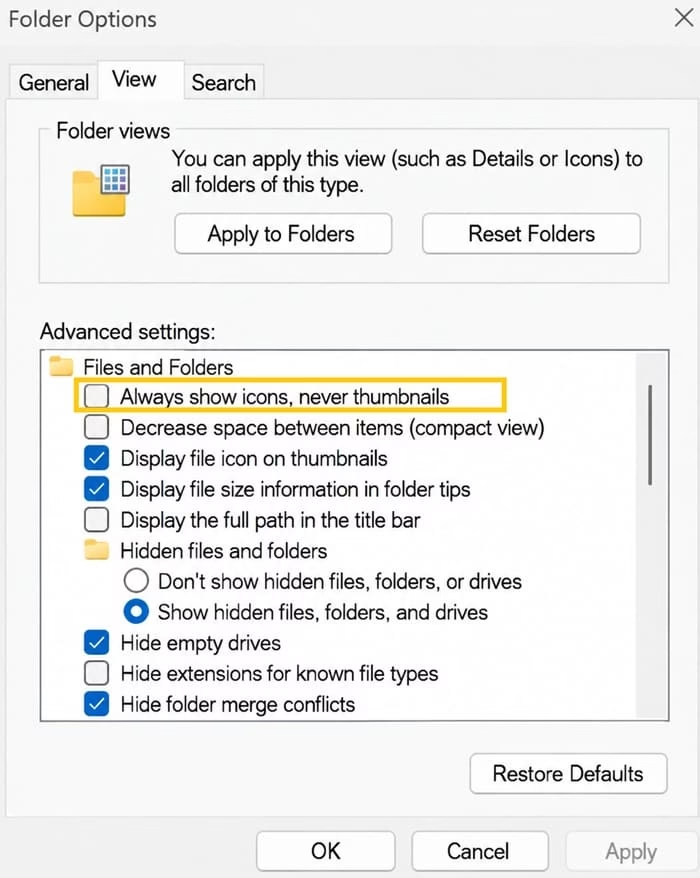
- Click Apply and then OK
- Restart File Explorer or reboot your computer
- Try the file operation once more (you can turn thumbnails back on later if you want)
Method 3: Perform a Clean Boot
- Press Win + R, type msconfig and press Enter.
- On the Services tab, tick Hide all Microsoft services.
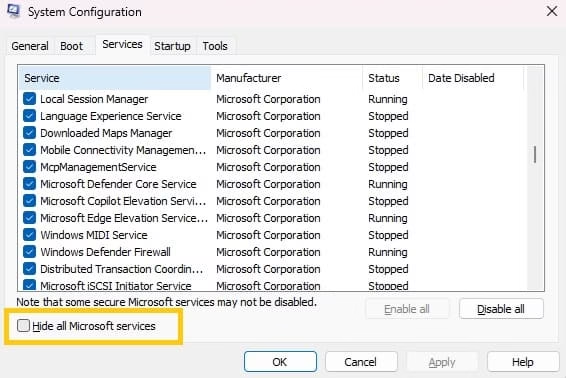
- Click Disable all.
- Go to the Startup tab, open Task Manager, and disable all listed items.
- Restart your computer and test the file again.
Also know: Best Methods to Emptying Recycle Bin in Windows 11
2. COM Surrogate Has Stopped Working
This crash message usually appears when you browse folders that contain videos, photos, or other media files. A faulty video codec or thumbnail extractor is the most common reason. When the component fails, the COM Surrogate process ends and Windows shows the error message.
Method 1: Update media codecs and Windows
- Install the latest Windows updates through Settings.
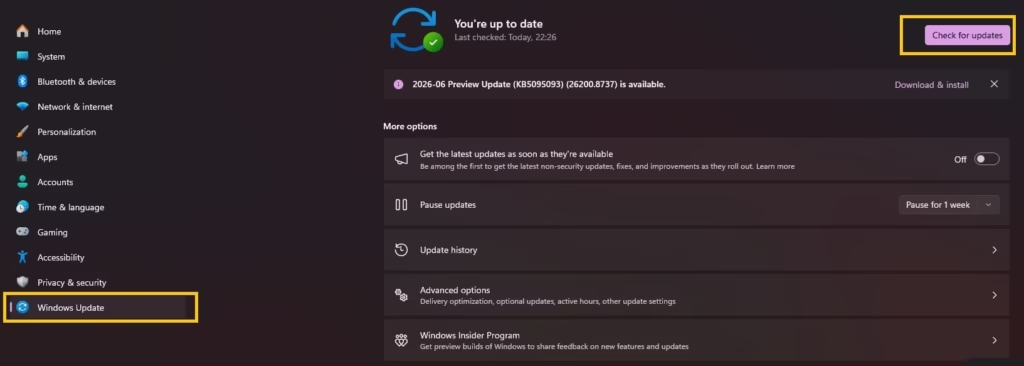
- Or install a reliable media codec pack from a trusted source.
- Restart your computer and open the same folder again to check if the crash is gone.
Method 2: Add dllhost.exe to the DEP exception list
- Right-click This PC and select Properties
- Click Advanced system settings
- Under the Performance section, click Settings
- Open the Data Execution Prevention tab
- Select the option Turn on DEP for all programs and services except those I select.
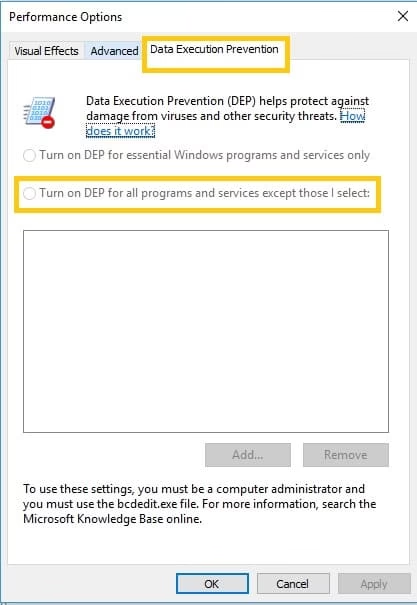
- Click Add.
- Browse to C:\Windows\System32\dllhost.exe and add it.
- On 64-bit Windows also add C:\Windows\SysWOW64\dllhost.exe if it appears.
- Click Apply, then OK, and restart your computer.
Method 3: Repair system files with SFC and DISM
- Open Command Prompt as Administrator.
- Type sfc /scannow and press Enter.
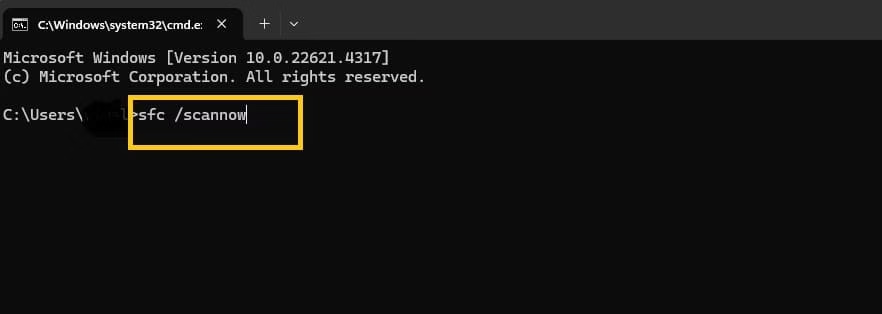
- Wait until the scan finishes.
- Next type: DISM /Online /Cleanup-Image /RestoreHealth and press Enter.
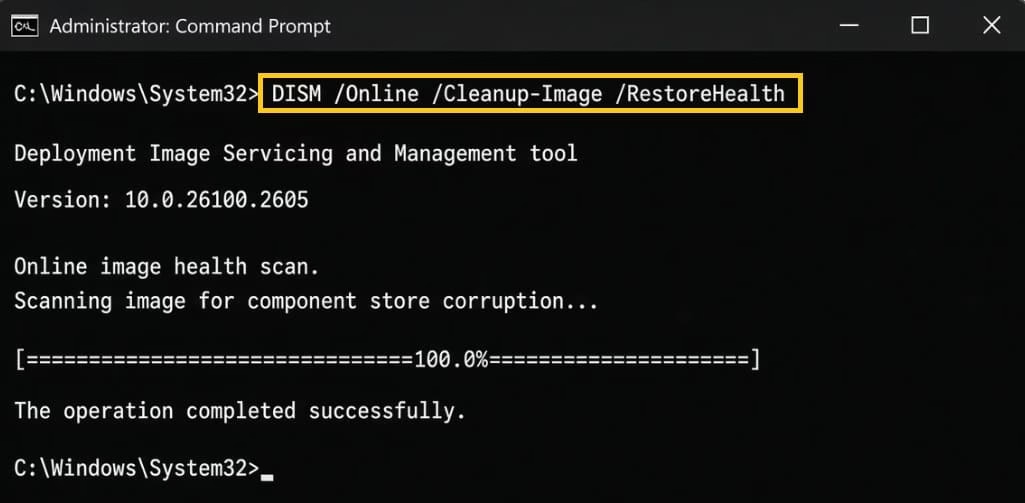
- Restart your computer after both commands complete.
3. High CPU or Memory Use by dllhost.exe
When dllhost.exe keeps using high CPU or a large amount of memory for a long time, a shell extension, preview handler, or media codec is usually stuck in a loop. The process itself is not the real problem. Something it loaded is causing the heavy load.
Method 1: Identify the problematic component
- Download Process Explorer from the official Microsoft Sysinternals site.
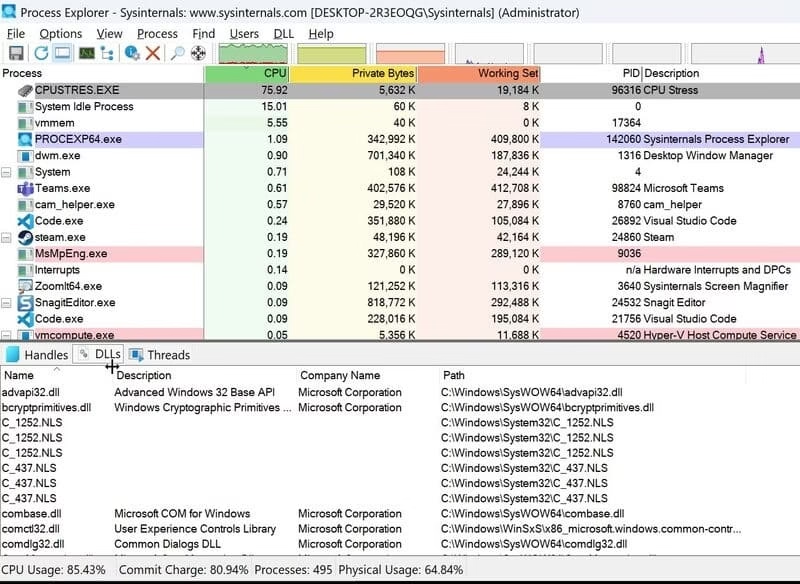
- Run the tool and find the dllhost.exe process.
- Hover over it or right-click and check the loaded modules or DLLs.
- Note which software installed that component.
- Update or uninstall that program and restart your computer.
Method 2: Disable hardware acceleration
- Open any media player or graphics-related app you use often.
- Go into its settings and turn off hardware acceleration or GPU acceleration.
- Close the app and check Task Manager to see if dllhost.exe usage has dropped.
Method 3: End the process and monitor
- Open Task Manager with Ctrl + Shift + Esc.
- End every dllhost.exe or COM Surrogate process.
- Watch the resource usage for a few minutes.
- If the high usage returns quickly, go back to Method 1 and check which component is loading again.
Also know: How to Fix Lag on Pc While Working and Gaming
How to Close COM Surrogate Safely
Sometimes you need to close COM Surrogate (dllhost.exe) so you can delete or move a locked file. Closing it is safe and temporary. Windows will start the process again automatically whenever it needs to generate thumbnails or load a COM component. You should never try to permanently delete or disable the real system file.
Method 1: Close using Task Manager (easiest and safest)
- Press Ctrl + Shift + Esc to open Task Manager.
- If you see only a short list, click More details at the bottom.
- Go to the Processes or Details tab.
- Look for every entry named COM Surrogate or dllhost.exe.
- Right-click each one and select End task.
- Confirm if Windows asks.
- Now try the file operation you were trying earlier.
Method 2: Close using Command Prompt or PowerShell (faster for multiple instances)
- Press the Windows key, type cmd or PowerShell.
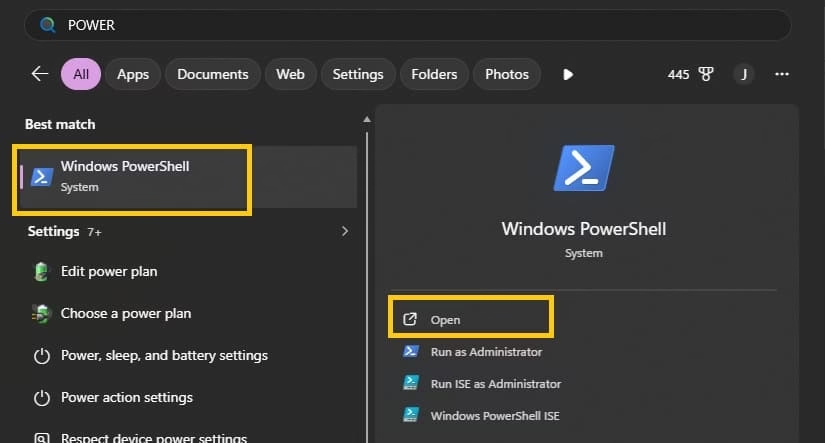
- Right-click the result and choose Run as administrator.
- Type this command and press Enter:.
taskkill /f /im dllhost.exe.
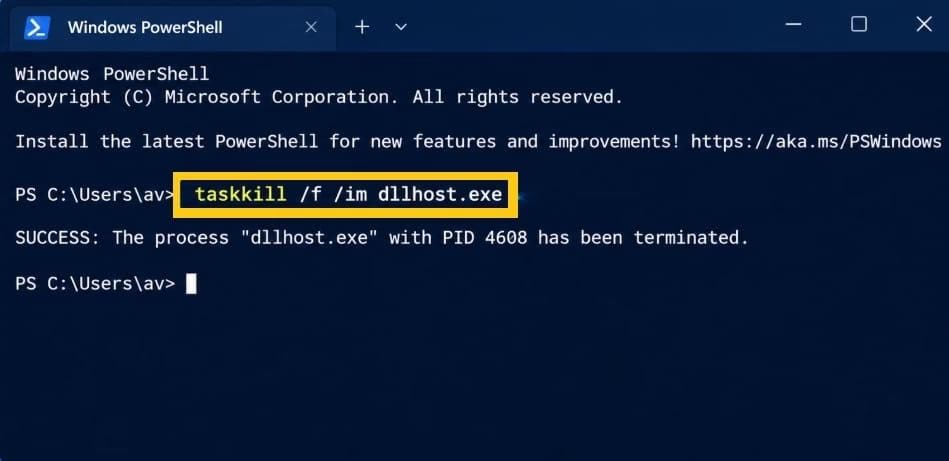
- All running COM Surrogate processes will close at once.
- Close the command window and test your file again.
Important notes after closing:
- Thumbnails or previews may temporarily stop working. They will return once Windows restarts the process.
- Do not try to delete the actual dllhost.exe file from System32 or SysWOW64. That can cause system problems.
- If the process keeps restarting immediately and locking the same file, clear the thumbnail cache (as shown in the earlier section) or perform a clean boot.
COM Surrogate Location and Verification
The real dllhost.exe file has only two trusted locations on a Windows computer. Checking the location is the best way to confirm that the process you see is genuine and not malware pretending to be COM Surrogate. Multiple instances running at the same time are completely normal and do not mean there is a problem.
Method 1: Check location from Task Manager
- Press Ctrl + Shift + Esc to open Task Manager.
- Find any COM Surrogate or dllhost.exe entry.
- Right-click it and select Open file location.
- Windows will open the folder that contains the file.
- The correct paths are only these two:
- C:\Windows\System32\dllhost.exe
- C:\Windows\SysWOW64\dllhost.exe (this is the 32-bit version on 64-bit Windows).
- If the folder that opens is anywhere else (Downloads, Temp, AppData, Program Files, or a random folder), treat it as suspicious.
Method 2: Manual check of the system folders
- Open File Explorer.
- Go to C:\Windows\System32.
- Look for the file named dllhost.exe.
- Also check C:\Windows\SysWOW64 for the same file.
- Right-click the file → Properties → Details tab if you want to see version information.
- The legitimate file is a Microsoft Windows system file.
Also know: How to Restart Bluetooth Service Windows
Additional Reliability Steps
Keep Windows Update current so that media foundation and shell components receive the latest fixes. Avoid installing random codec packs from unknown sites. When a new program adds shell extensions, test thumbnail generation and file operations right away. If trouble starts, uninstall the program before the problem becomes permanent.
These steps resolve the majority of reported cases involving locked files, crashes, and resource spikes. They rely on built-in Windows tools and documented Microsoft practices rather than third-party scripts or registry hacks that can create new issues.
Conclusion
dllhost.exe COM Surrogate is a normal and useful part of Windows. It isolates potentially unstable components so that everyday tools such as File Explorer stay stable. Problems arise mainly when a thumbnail handler, codec, or extension misbehaves and keeps a file locked or causes a crash.
You now know the legitimate location of the file, how to close the process safely when a file stays open in COM Surrogate, and the practical sequence of fixes that clear the most common errors. End the process, clear the thumbnail cache, perform a clean boot, adjust DEP settings, or repair system files as needed. Always verify the file path before taking stronger action, and never delete the real system copy.
With these steps you can free locked files, stop unexpected crashes, and keep the process running quietly in the background where it belongs. Regular Windows updates and careful software choices further reduce the chance of future trouble.

Amanda Starc
Amanda is a dedicated technical web content writer with a passion for transforming complex ideas into compelling and accessible online narratives. With a background in web development, and digital Marketing I bring a unique blend of technical expertise and creative storytelling to the digital domain.
