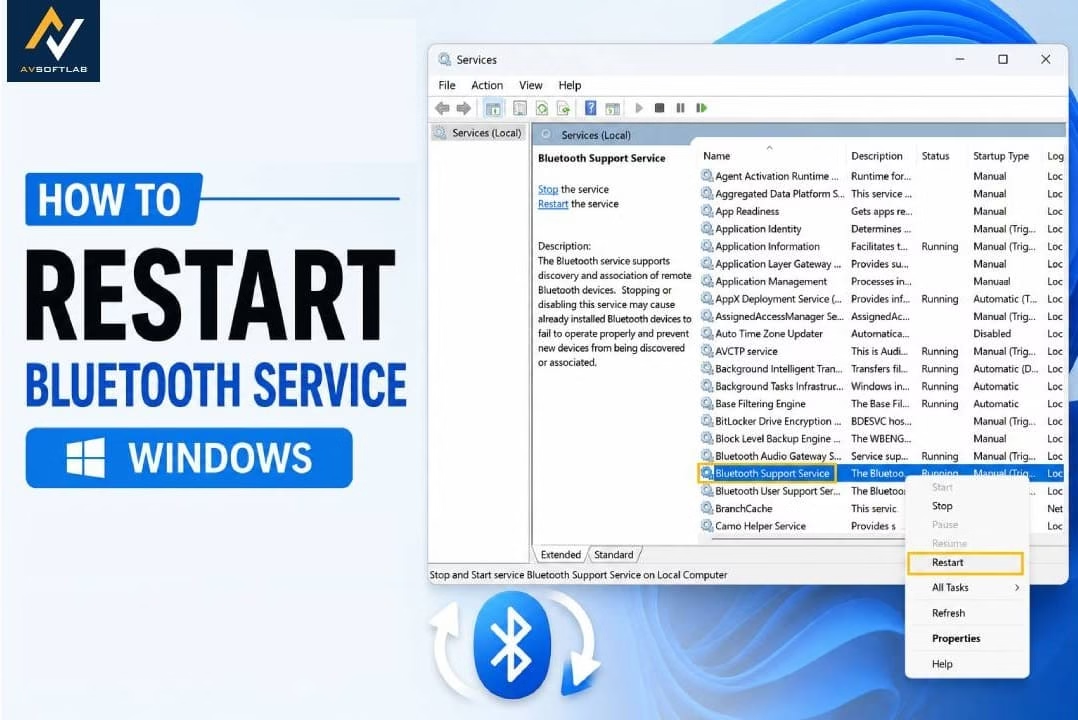
Bluetooth on your Windows PC suddenly stops working. Your headphones refuse to pair. The mouse cursor freezes mid-air. The toggle in Settings sits grayed out or the icon vanishes completely. These moments frustrate anyone who relies on wireless devices for daily work or entertainment.
The good news is that many of these glitches trace back to a single background process: the Bluetooth Support Service. When this service stalls, crashes, or fails to start properly, the entire Bluetooth stack suffers. Restarting it often restores functionality without a full system reboot or driver reinstall. In this guide you will learn exactly what this service does and the practical ways to restart it on Windows 11 using methods drawn from Microsoft’s own documentation and reliable system tools.
What is Bluetooth Service
The Bluetooth Support Service, known internally as bthserv, forms a core part of how Windows handles wireless connections. It manages the discovery of nearby Bluetooth devices and handles the association process so your PC can pair with them. Without this service running, already paired devices may stop responding and new ones cannot be found or connected.
Microsoft describes it as the component that supports discovery and association of remote Bluetooth devices. Stopping or disabling it can cause installed devices to fail and block new pairings. The service typically runs under the Local Service account and loads through svchost.exe. Its default startup type is often Manual or Manual (Trigger Start), which means Windows starts it when needed rather than at every boot. Related services such as Bluetooth User Support Service and Bluetooth Audio Gateway Service work alongside it for user-specific features and audio streaming.
In simple terms, think of the Bluetooth Support Service as the quiet coordinator that keeps the radio stack talking to your accessories. When it hangs after a Windows update, a sleep cycle, or a driver hiccup, connections drop. Restarting it refreshes that coordination layer and frequently clears the problem.
Methods to Restart Bluetooth Service in Windows 11
Windows offers several reliable paths to restart the Bluetooth Support Service. Each method targets the same underlying process but suits different comfort levels and situations. The approaches below follow Microsoft’s recommended troubleshooting patterns and common high-success practices reported across support channels. Start with the simplest and move deeper only if needed.
1. Restart Bluetooth Support Service via Services Console
This remains the most direct and widely recommended method. Opening the Services console lets you view the exact status of the Bluetooth Support Service, restart it cleanly, and adjust its startup behavior so the issue is less likely to return. The process takes under a minute and requires no command-line knowledge. Many users find that a simple restart here resolves pairing failures and missing Bluetooth icons after recent updates or system sleep.
- Press the Windows key and R together to open the Run dialog.
- Type services.msc and press Enter.
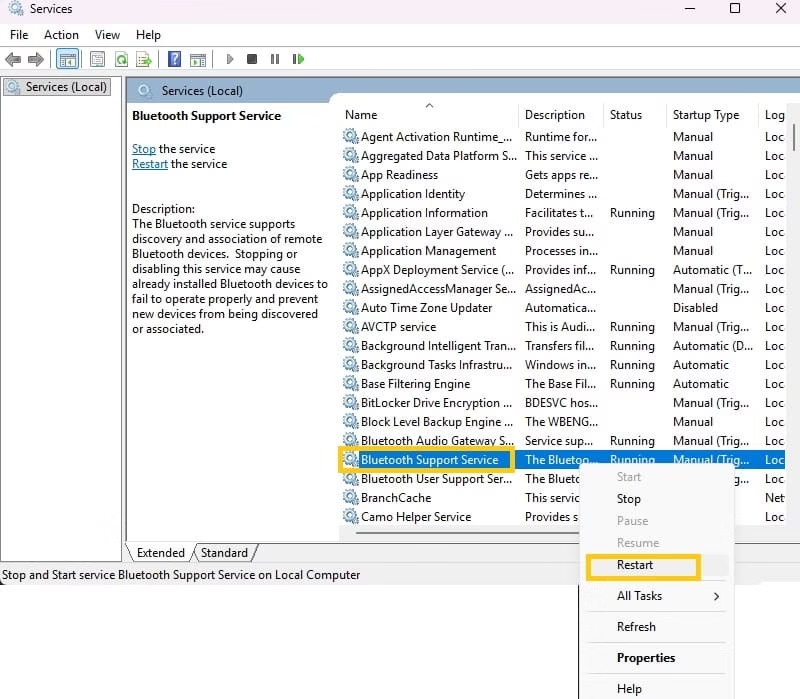
- In the Services window, scroll down the alphabetical list until you locate Bluetooth Support Service.
- Right-click the entry and choose Restart.
- Double-click the service name to open its Properties window.
- In the Startup type drop-down, select Automatic.
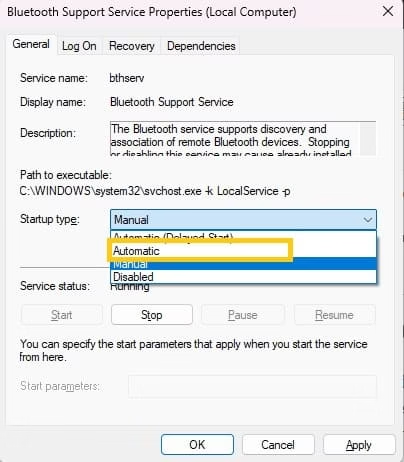
- Click Apply, then OK.
- Close the Services window and test your Bluetooth devices.
After the restart, open Settings and confirm Bluetooth is toggled on. Pair or reconnect your accessories. Setting the service to Automatic helps it launch reliably each time Windows boots.
Also know: Best USB Bluetooth Dongles for Windows PC
2. Toggle Bluetooth Off and On in Settings or Quick Settings
Sometimes the service needs only a gentle reset rather than a full restart. Turning Bluetooth off and back on in the user interface often forces the underlying service to reinitialize. Microsoft notes that this simple toggle can clear temporary connection glitches and is the first step many support guides recommend. It works especially well when the radio appears active but devices will not stay connected.
- Click the Network, Sound, or Battery icons on the right side of the taskbar to open Quick Settings.
- Locate the Bluetooth tile and click it to turn the feature off.
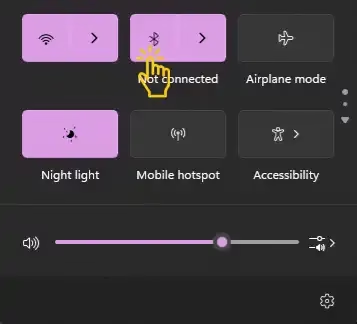
- Wait ten to fifteen seconds.
- Click the tile again to turn Bluetooth back on.
- Alternatively, open Settings, go to Bluetooth and devices, and use the main Bluetooth switch the same way.
- Confirm that Airplane mode remains off, since it disables Bluetooth along with other radios.
Once the toggle completes, check whether your devices reappear and reconnect automatically. This method refreshes the service without opening advanced tools.
3. Run the Built-in Bluetooth Troubleshooter
Windows includes an automated troubleshooter that examines the Bluetooth stack, including related services, and attempts repairs. Microsoft positions this as a primary diagnostic step for Windows 11. The tool can restart stalled services, reset configurations, and surface driver problems in one pass. It proves useful when the issue feels intermittent or when multiple small glitches appear together.
- Open Settings and navigate to System, then Troubleshoot, then Other troubleshooters.
- Find Bluetooth in the list and select Run.
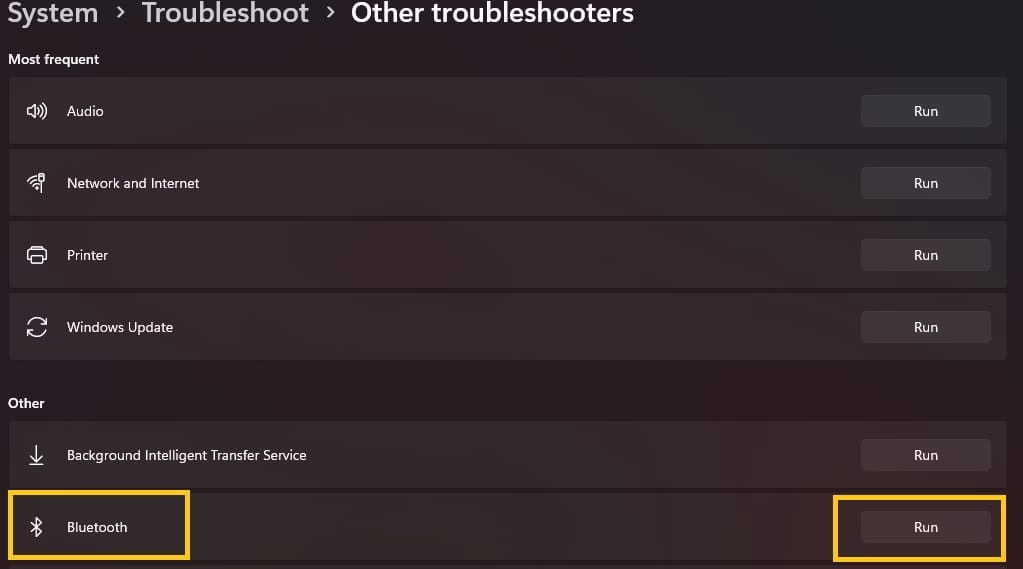
- Allow the troubleshooter to complete its scans and apply any suggested fixes.
- Follow on-screen prompts if it asks you to restart a service or reboot.
- After it finishes, test your Bluetooth connections again.
The troubleshooter often restarts the Bluetooth Support Service behind the scenes as part of its repair routine. If it reports success yet problems linger, return to the Services console for a manual restart.
4. Restart Related Bluetooth Services Together
Bluetooth relies on a small group of cooperating services. Restarting the Support Service alone sometimes leaves sibling processes in an inconsistent state. Addressing Bluetooth User Support Service and Bluetooth Audio Gateway Service at the same time produces a more complete refresh. Support discussions and system guides frequently list these three together when audio or pairing issues persist.
- Open the Services console with Windows key plus R, then type services.msc and press Enter.
- Locate Bluetooth Support Service, Bluetooth User Support Service, and Bluetooth Audio Gateway Service.
- Right-click each one in turn and select Restart (or Start if stopped).
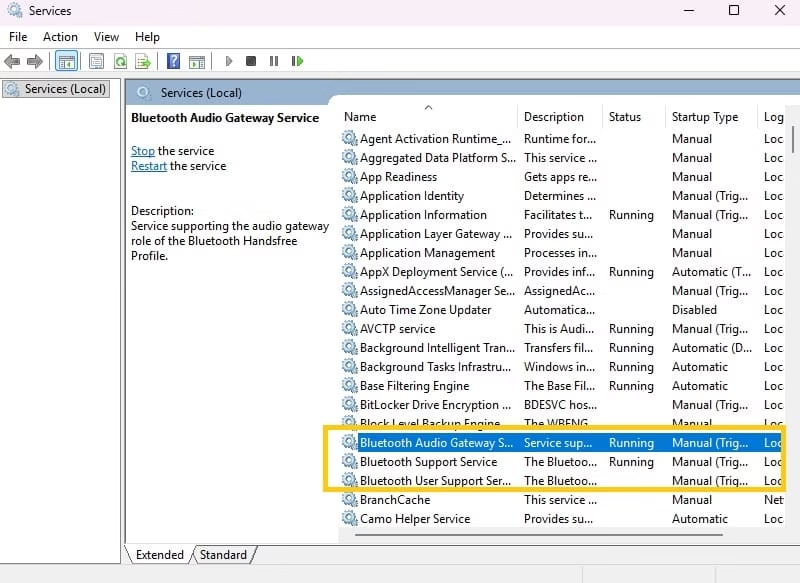
- For each service, open Properties and set Startup type to Automatic where available.
- Apply the changes and close the window.
- Restart your PC for a clean slate if connections still feel unstable.
This broader reset ensures the full Bluetooth stack reloads cleanly. Audio devices in particular often respond better after all three services refresh.
5. Restart the Service with Command Prompt or PowerShell
Advanced users or those managing multiple machines sometimes prefer a command-line approach. The net stop and net start commands target the service by its short name (bthserv) and achieve the same result as the graphical method. This works well in scripts or when the Services console is slow to respond.
- Right-click the Start button and choose Terminal (Admin) or Windows PowerShell (Admin).
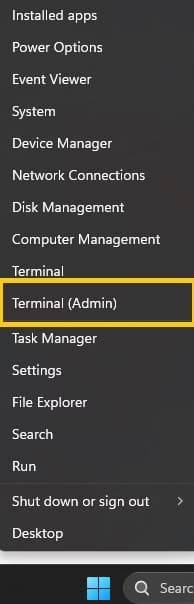
- Type “net stop bthserv” and press Enter.
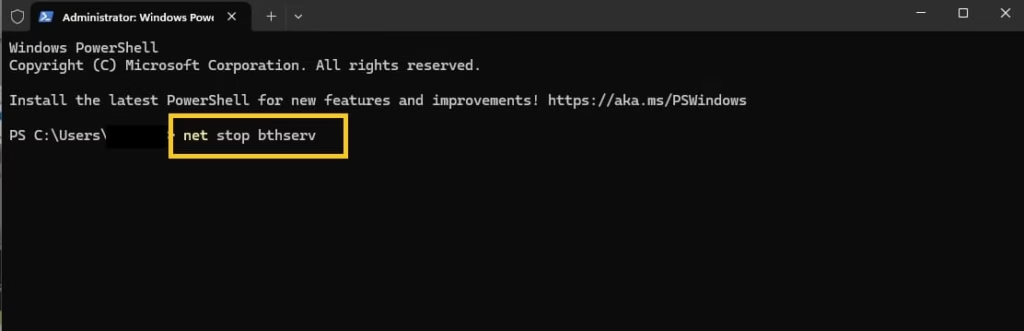
- Wait for confirmation that the service stopped.
- Type “net start bthserv” and press Enter.
- Confirm the service started successfully.
- Optionally run the same sequence for related services if needed.
Close the window and verify Bluetooth function. Use this method only when you feel comfortable with administrative commands, as incorrect syntax can produce error messages.
Also know: DPC Watchdog Violation (0x00000133): Meaning and Fixes
Conclusion
Restarting the Bluetooth Support Service solves a surprising number of everyday wireless problems on Windows 11. Whether the issue appears as failed pairing, silent headphones, or a missing toggle, the service often sits at the center of the trouble. The methods above give you clear paths from the simplest toggle to a full service refresh, all grounded in Microsoft’s guidance and practical system tools.
Begin with the Services console or a quick toggle. Most users regain full Bluetooth function within minutes. If problems continue after these steps, move on to driver updates through Device Manager or Windows Update, as those address deeper hardware communication issues. Keeping the service set to Automatic reduces the chance of repeat failures after sleep or updates. With these tools in hand, wireless devices should stay reliably connected.
FAQs
Q1. What happens if I disable the Bluetooth Support Service?
Disabling the service prevents Windows from discovering or associating with Bluetooth devices. Existing connections usually fail and new pairings become impossible. Re-enable and start the service to restore normal function.
Q2. Does restarting the Bluetooth service delete my paired devices?
No. Restarting the service reloads the process without erasing stored pairings or drivers. Your devices remain listed and should reconnect once the service runs again.
Q3. Why does the Bluetooth service keep stopping after I restart it?
Frequent stops often point to driver conflicts, incomplete Windows updates, or power management settings that suspend the radio. Update the Bluetooth driver through Device Manager, check for Windows updates, and ensure the service remains set to Automatic.

