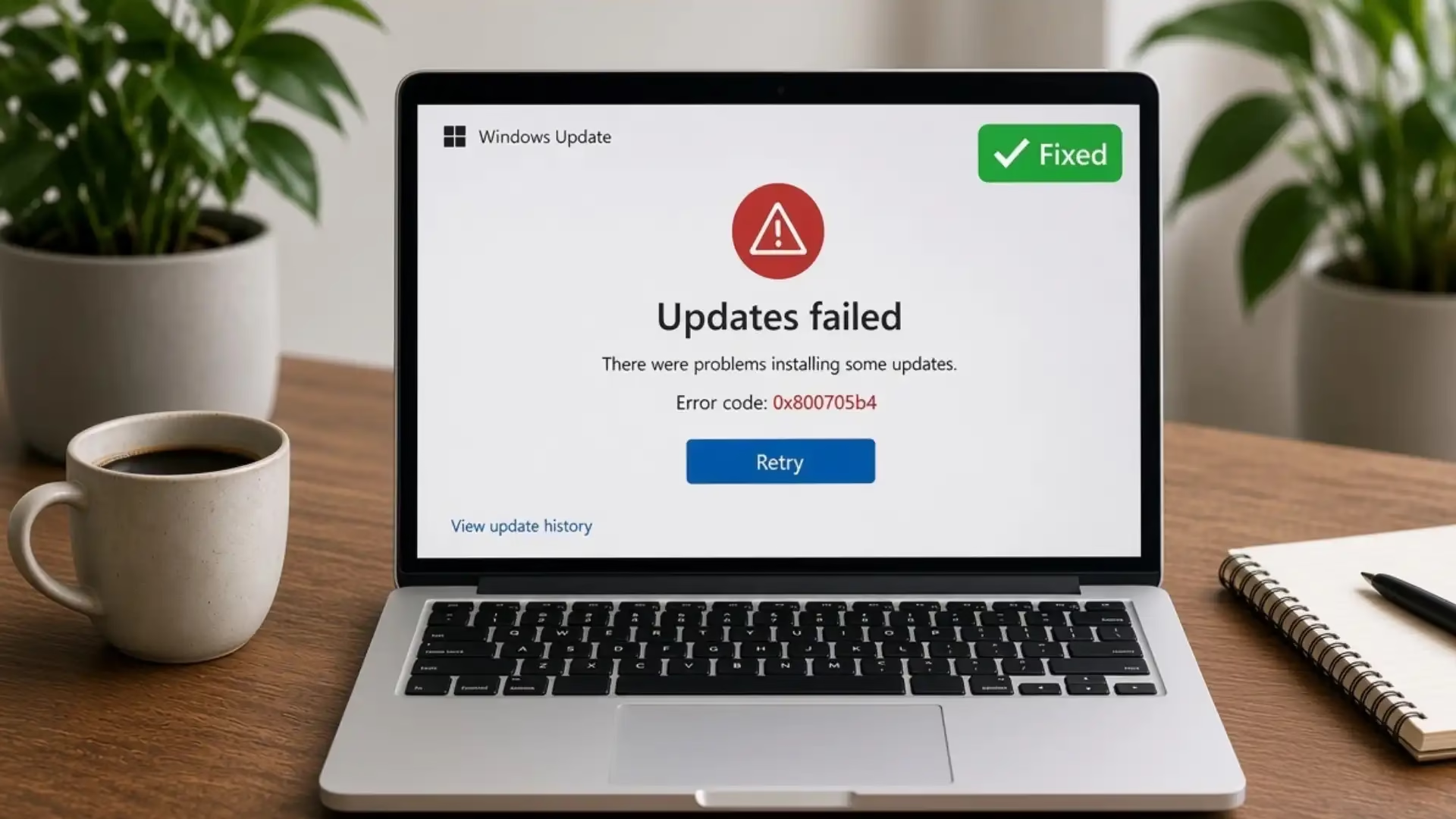

You open Settings, hit Check for updates, and Windows sits there for a long time before throwing 0x800705b4. Sometimes the progress bar freezes. Other times it fails right away. Either way the update does not finish.
The code itself is a system timeout. Windows waited for a response from a service, a download, or an installation step and the waiting period expired. Microsoft documents this as ERROR_TIMEOUT. It is not a single broken file or a virus by default. Unstable internet, a crowded SoftwareDistribution folder, low free space on the system drive, a paused service, third-party security tools, or even an incorrect date and time can all produce the same result.
I put this guide together so you can move past the error without guessing. You will start with the lightest checks and move only as far as you need. Every method uses tools already built into Windows or steps that Microsoft support pages and community answers from Microsoft Q&A repeatedly recommend. No third-party “repair” suites required. By the end you should have a clear path to get Windows Update working again on both Windows 10 and Windows 11.
Best Methods to fix 0x800705b4 windows update Error
When Windows Update stops with 0x800705b4 the problem is almost always that something took too long or got interrupted. The methods below follow the order that works for most people. Begin at the top. After each one, restart and try checking for updates again before moving further. Keep the computer plugged in and avoid heavy downloads while an update is running.
Method 1. Restart the PC and clear simple interruptions
A fresh restart often clears temporary locks that cause the timeout. Follow these steps in order.
Step 1: Save all your work and close every open program. Pay special attention to browsers, cloud sync apps like OneDrive or Dropbox, and any large downloads or game launchers.
Step 2: Restart your computer the normal way. After the desktop appears, wait a full minute so background services can settle completely.
Step 3: Check your internet connection. Prefer a wired Ethernet connection cable if you have one. If you are on Wi-Fi, move closer to the router or try a different network for the test.
Step 4: Temporarily disconnect any VPN you are using.
Step 5: Open Settings, go to Time & language, and turn on the options that set the date, time, and time zone automatically. An incorrect clock can stop Windows from talking cleanly to Microsoft servers.
Step 6: Check free space on the C: drive. Quality updates usually need a few gigabytes free. Feature updates need more. If the drive is nearly full, free some room with Disk Cleanup or by moving large files to another drive.
Step 7: Return to Windows Update and check for updates again. Many readers find the error disappears after these simple checks.
Also know: Resolving High Contrast Problems in Windows 11
Method 2. Run the Windows Update troubleshooter
Windows includes a dedicated troubleshooter that looks for the most common update problems and applies fixes automatically. This is the first real diagnostic step Microsoft recommends.
Step 1: On Windows 11, open Settings, choose System, then Troubleshoot, then Other troubleshooters.
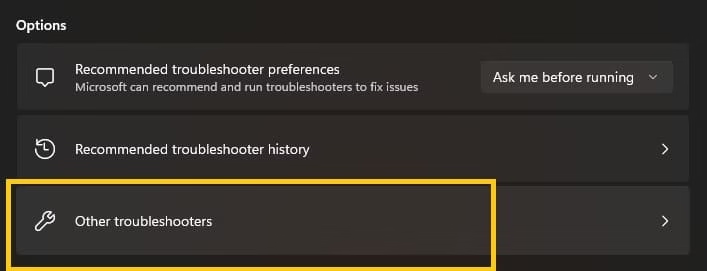
Step 2: Find Windows Update in the list and select Run. You can also open the Get Help app and search for the Windows Update troubleshooter.
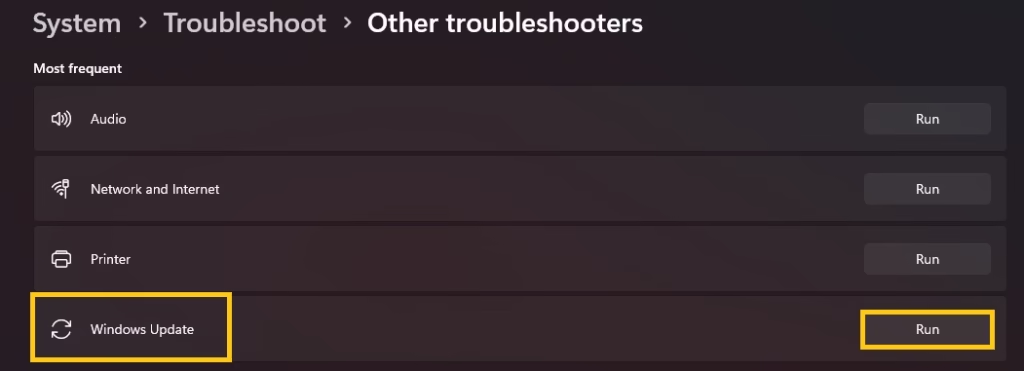
Step 3: Let the tool finish completely. Apply any suggested repairs it offers.
Step 4: Restart the computer when the troubleshooter asks you to.
Step 5: After the restart, open Windows Update once more and check for updates. Give the next update attempt a full chance to complete. The troubleshooter often restarts stuck services or repairs simple configuration issues that lead to the 0x800705b4 timeout.
Method 3. Uninstall a problematic update
Sometimes a recently installed update itself becomes the reason for the 0x800705b4 timeout. In that case, removing the problematic update can help Windows Update start working again.
Step 1: Open Settings and go to Windows Update.
Step 2: Click on Update history.
Step 3: Scroll down and select Uninstall updates. You will see a list of recently installed updates.
Step 4: Look for the update that was installed just before the error started appearing. It is usually a cumulative update, security update, or feature update.
Step 5: Click the Uninstall button next to that update and confirm when Windows asks.
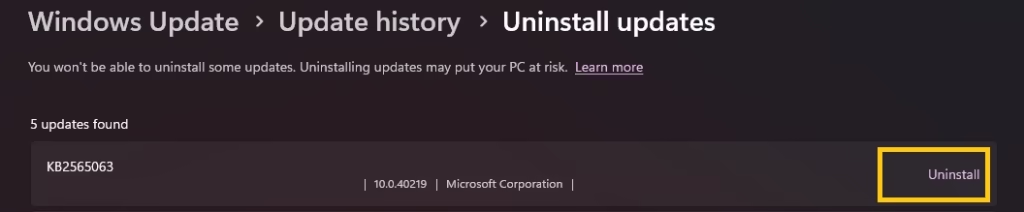
Step 6: Restart your computer after the uninstall finishes.
Step 7: Go back to Windows Update and check for updates again. See if the 0x800705b4 error is gone.
Note: Some updates cannot be uninstalled. Also, removing an update may temporarily reduce security protection, so install a newer working update as soon as possible.
Method 4. Reset Windows Update components and clear the cache
When the troubleshooter is not enough, the local update cache is frequently the culprit. Windows stores update-related files in two important folders:
1. SoftwareDistribution – This is where Windows keeps downloaded updates, temporary files, and update history.
2. catroot2 – This folder holds cryptographic catalog files that Windows uses to verify updates.
Incomplete or damaged files inside the SoftwareDistribution folder can make Windows keep retrying the same broken payload until it times out.
Step 1: Search for Command Prompt, right-click it, and choose Run as administrator.
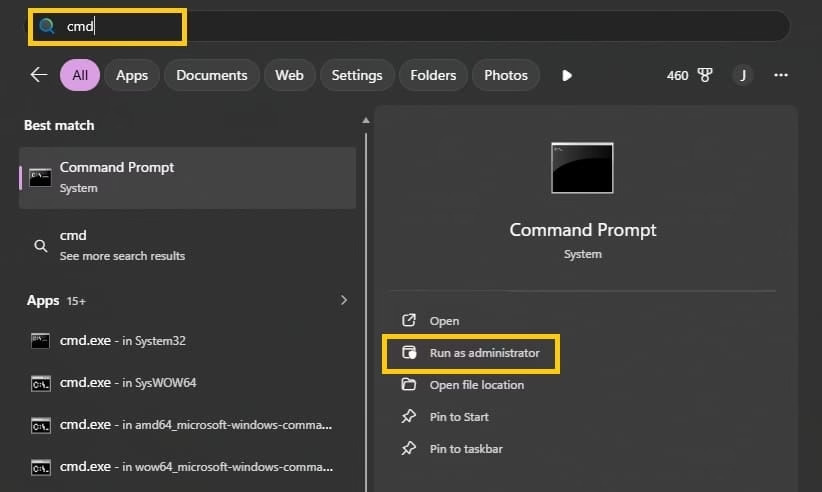
Step 2: Type the following commands one at a time, pressing Enter after each:
net stop wuauserv
net stop bits
net stop cryptsvc
net stop msiserver
Step 3: Rename the two folders that hold the cache by typing these commands one at a time:
ren %systemroot%\SoftwareDistribution SoftwareDistribution.old
ren %systemroot%\System32\catroot2 catroot2.old
Step 4: Start the services again with these commands:
net start msiserver
net start cryptsvc
net start bits
net start wuauserv
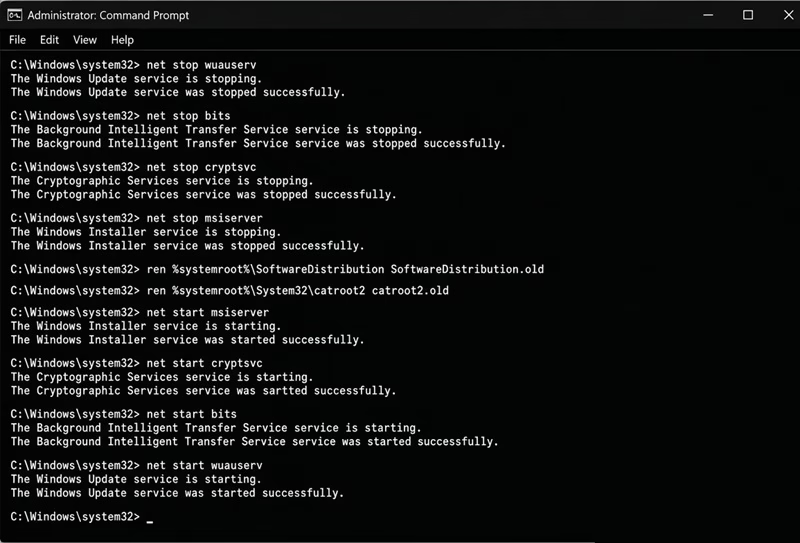
Step 5: Close the Command Prompt window and restart the PC.
Step 6: After the restart, check for updates again. The first check may take longer because Windows has to rebuild the cache from scratch. That is normal. This reset is one of the most reliable ways to clear a hanging update process that produces 0x800705b4.
Method 5. Repair system files with DISM and SFC
If the cache reset still leaves the error, the Windows component store or protected system files may be damaged. Two built-in tools handle this cleanly.
Step 1: Open an elevated Command Prompt or Windows Terminal (right-click and choose Run as administrator).
Step 2: Type this command and press Enter:
DISM /Online /Cleanup-Image /RestoreHealth
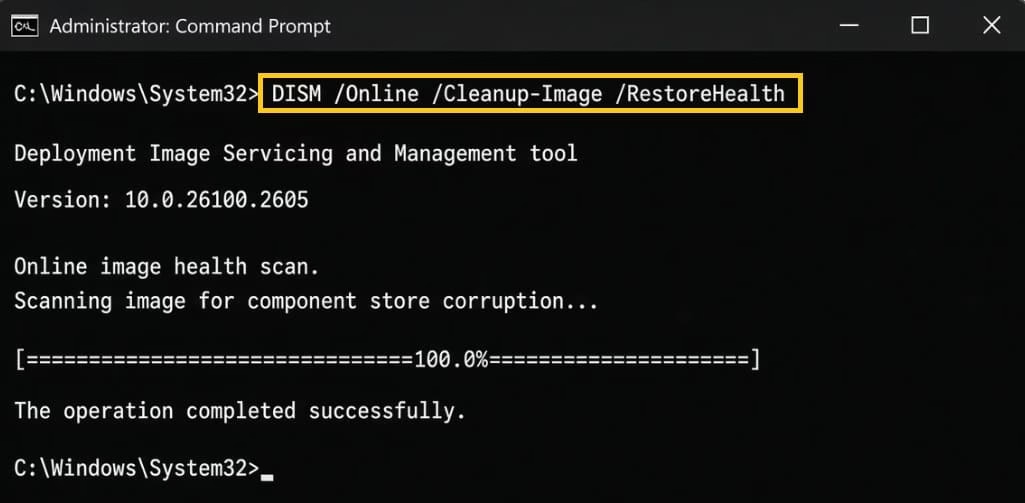
This command can take a while and may appear to pause at certain percentages. Leave it alone until it finishes. It downloads clean files from Windows Update when needed, so a working internet connection helps.
Step 3: When DISM completes successfully, type this command and press Enter:
sfc /scannow
System File Checker examines protected files and replaces any that fail the integrity check.
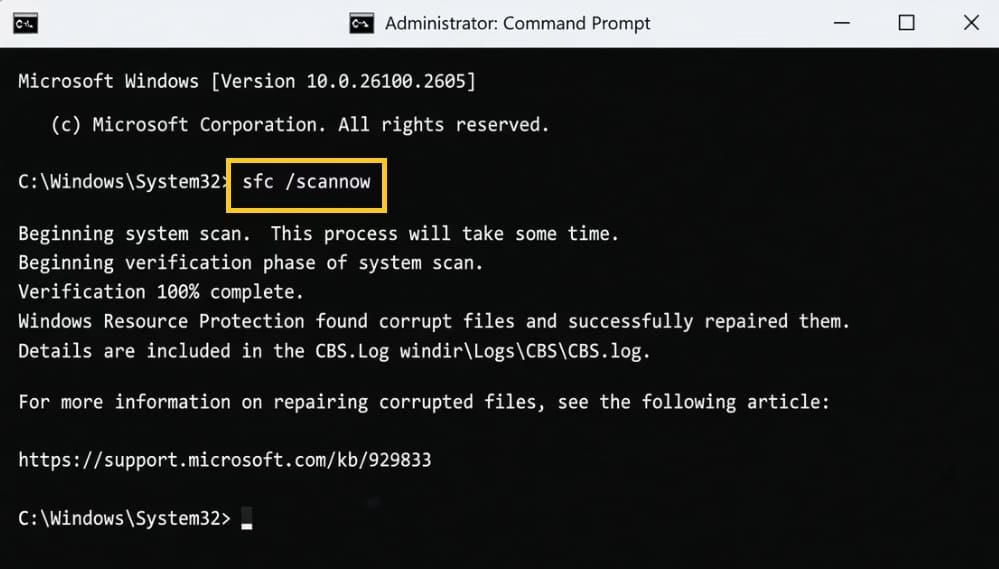
Step 4: After both tools finish, restart the computer.
Step 5: Try Windows Update once more. These two commands together resolve many cases where the timeout was caused by underlying file problems rather than a simple network glitch.
Method 6. Check services, third-party software, and pending restarts
A few more targeted checks help when the previous steps fall short.
Step 1: Press Windows key + R, type services.msc, and press Enter.
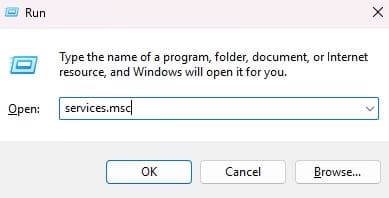
Step 2: Locate these four services: Windows Update, Background Intelligent Transfer Service, Cryptographic Services, and Windows Installer. Make sure each one is running. Set the startup type to Automatic or Manual as appropriate. Restart any service that shows as stopped.
Step 3: Temporarily pause or disable real-time protection in any third-party antivirus or firewall program. Do this only for the duration of the update test. Re-enable protection immediately afterward. The same advice applies to aggressive VPN clients or proxy tools.
Step 4: Open Windows Update and look for any message that asks you to restart to finish installing previous updates. Complete that restart before trying new ones. Leaving a restart hanging can cause later updates to time out.
Also know: Fixing Lock Screen Timeout in Windows 11 and 10
Method 7. Install a specific update manually when the KB number is known
If you can see the exact knowledge base number of the failing update in Update history, you can sometimes bypass the normal download path.
Step 1: Open Settings, go to Windows Update, then Update history. Note the exact KB number of the update that failed (for example KB5034441).
Step 2: Visit the official Microsoft Update Catalog website and search for that KB number.
Step 3: Download the version that matches your Windows edition and architecture (x64 or ARM64).
Step 4: Open the downloaded file and follow the on-screen prompts to install it.
Step 5: After the manual install finishes, return to Windows Update and check for updates again. This approach works best for cumulative updates or security intelligence updates that keep failing through the regular Windows Update interface.
Conclusion
The 0x800705b4 error is frustrating because it does not point to one obvious broken part. It simply says the operation took too long. In practice that usually means a stuck service, a corrupted cache, low disk space, network interference, or damaged system files. Working through the methods in order solves the problem for the large majority of readers I hear from.
Start with a clean restart and the built-in troubleshooter. Move to the cache reset and the DISM plus SFC sequence only if needed. Keep the computer powered and connected to a reliable network while updates run. Once Windows Update is healthy again, let it finish any remaining packages and stay current. Regular updates remain the simplest way to keep the system secure and stable.
If you still see the same code after every step, note the exact Windows version, the KB numbers that fail, and any recent third-party software you installed. That information makes further help more precise. Most of the time, though, one of the methods above brings the timeout to an end and lets updates finish normally.