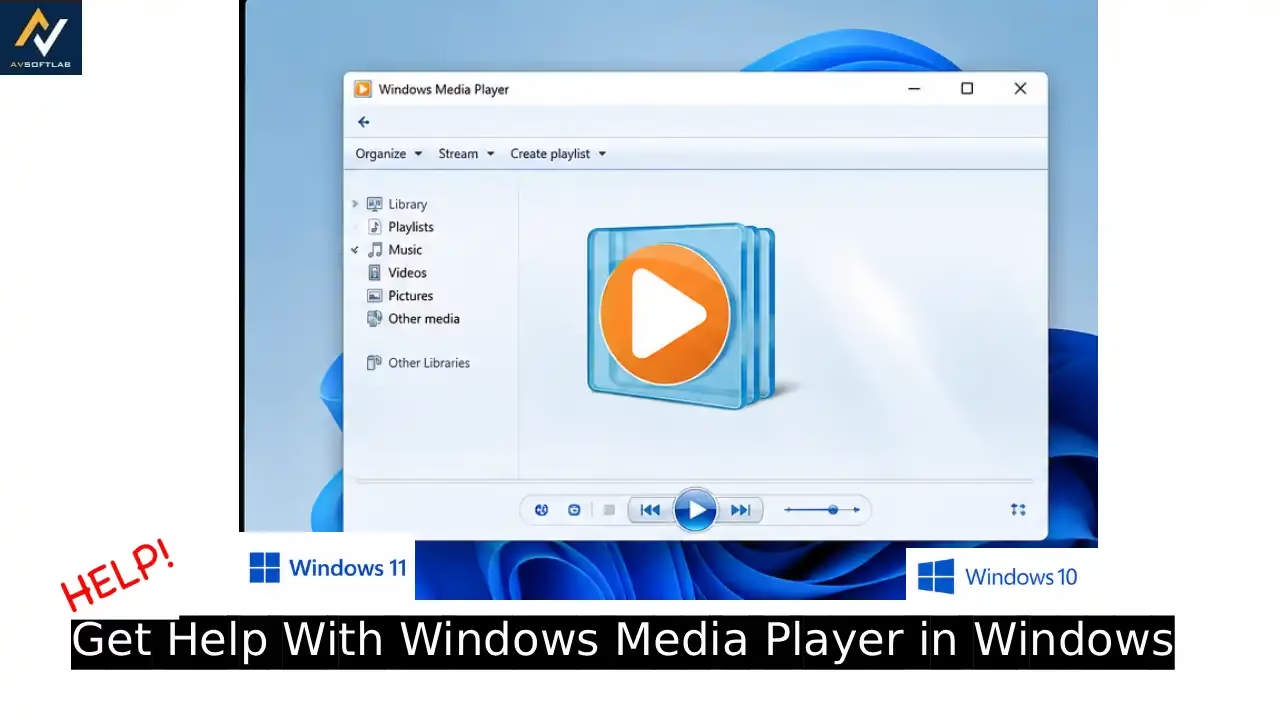
Windows Media Player has quietly handled music, videos, and even old CDs for a huge number of people over the years. It never needed much fuss. You double-clicked a file and it just played. That simple reliability is exactly why so many users still look for it on Windows 11 and Windows 10.
The trouble starts when the familiar player suddenly goes missing after an update, refuses to open, or throws up errors about codecs and unsupported formats. On Windows 11 the classic version is no longer installed by default. Microsoft moved it to optional features and pushed a newer Media Player app instead. Windows 10 users often keep the old player, yet they still run into blank screens, library problems, or files that will not play. These issues feel random, but most of them have clear causes and straightforward fixes.
This article gives you practical, step-by-step ways to get the classic player working again. You will see how to restore Windows Media Player Legacy, repair it when it crashes, run the built-in troubleshooter, and set the right file associations. Later sections cover the most common errors and a few solid alternatives if the old player no longer fits your needs. Microsoft confirms Windows Media Player Legacy is officially still available as an optional feature on both Windows 10 and Windows 11, and the steps below follow that guidance directly.
Get Help With Windows Media Player in Windows 11 and Windows 10
Windows Media Player still works on both Windows 11 and Windows 10, but the experience differs. On Windows 11 the classic version appears as Windows Media Player Legacy. Microsoft moved the main media experience to a newer Media Player app, so the older player is no longer installed by default on many systems. Windows 10 usually keeps the full classic player available.
When the player disappears, fails to open, or cannot play certain files, the first step is restoring access and checking basic settings. The methods below cover the most common routes people use to regain control. Each approach stays straightforward and relies on built-in Windows tools or official options.
1. Restore Windows Media Player Legacy through Optional Features
Microsoft didn’t delete the classic player when it disappeared from your Start menu. It just tucked it away under optional features so it doesn’t sit there taking space by default. This is the fastest fix, and Microsoft’s own support documentation for Windows Media Player Legacy lists this exact route as the recommended way to bring it back.
- Press the Windows key and the letter I together to open Settings.
- Click Apps on the left side then search “Optional features“.
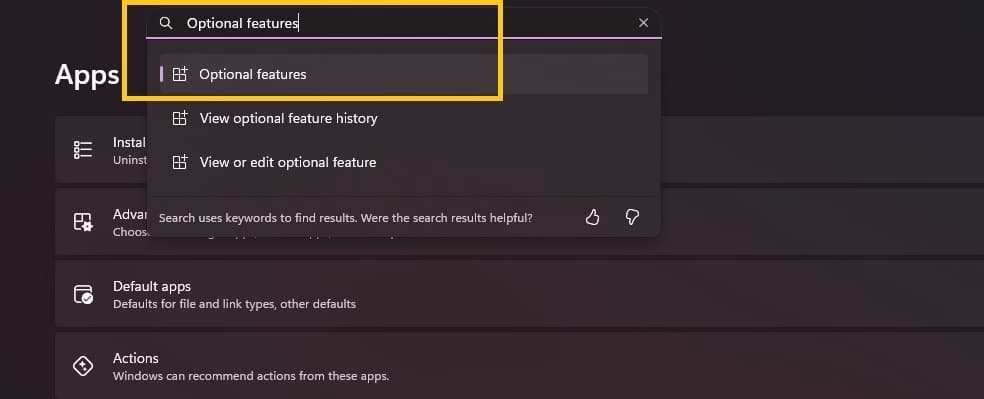
- Near the top you’ll see a View features button (sometimes it says Add an optional feature). Click it.
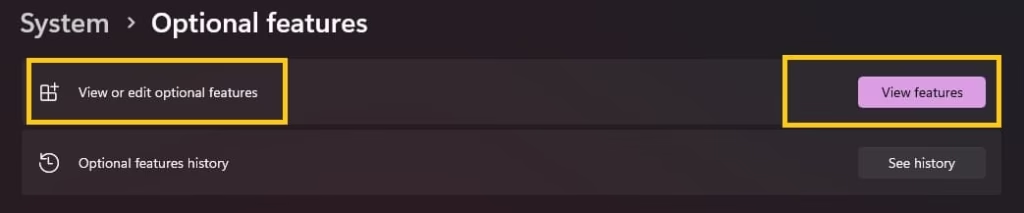
- Type Windows Media Player Legacy in the search box and wait a second.
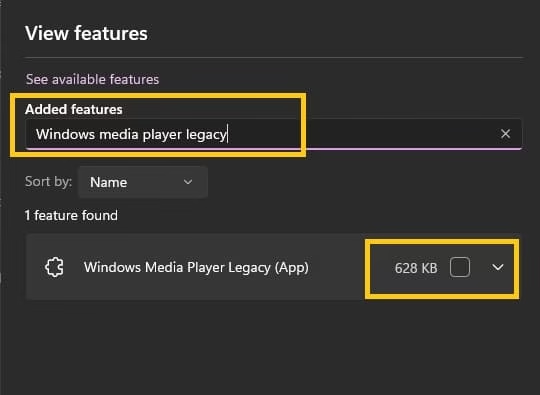
- Tick the box next to it when it appears and Hit Next, then Install.
- Give it a minute or two to finish. The time depends on your internet and how busy your PC is.
- Restart the computer if Windows asks. Even if it doesn’t ask, a quick restart is still smart.
- After restart, open the Start menu and type Windows Media Player. You should see Windows Media Player Legacy.
- Right-click it and pin it to Start or the taskbar so you don’t have to search every time.
Still not showing up? Sign out of your account and sign back in, then search again.
Also know: Easy Ways to Sync Refresh Rates for Smooth Playback Windows 11/10
2. Repair or Reset the Player through Apps and Features
Not every player problem means it’s missing. Sometimes it’s installed but still won’t open, freezes on a blank screen, or crashes the second you try to play something. Windows gives you two built-in tools for this, Repair and Reset, and neither one touches your actual music or video files.
- Open Settings with Windows key + I.
- Go to Apps, then Installed apps.
- Scroll or search for Windows Media Player or Windows Media Player Legacy.
- Click the three little dots next to it and choose Advanced options.
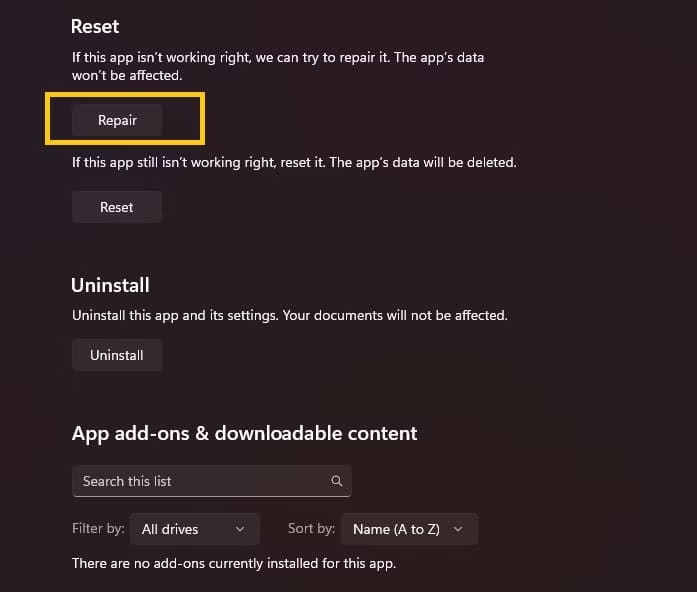
- You’ll see a Reset section.
- Click Repair and wait till it finishes. A small progress bar will show up.
- Close Settings and try opening the player.
- Still broken? Come back to the same page and click Reset this time. Confirm when it asks.
- Restart your computer after the reset.
- Open the player and test it with a simple MP3 or a short video you know works.
- Once it’s behaving, you can slowly add your library folders back.
Always try Repair before Reset. It keeps your settings intact, while Reset wipes them and starts from scratch.
3. Run the Windows Media Player Troubleshooter
Windows still has a quiet little troubleshooter that checks a bunch of common media problems for you. It looks for missing pieces, wrong file associations, stopped services, and a few other things that often stop the player from working.
- Open Settings (Windows key + I).
- Type Troubleshoot in the search box at the top and open Troubleshoot settings.
- Click Other troubleshooters (on older Windows 10 it might say Additional troubleshooters).
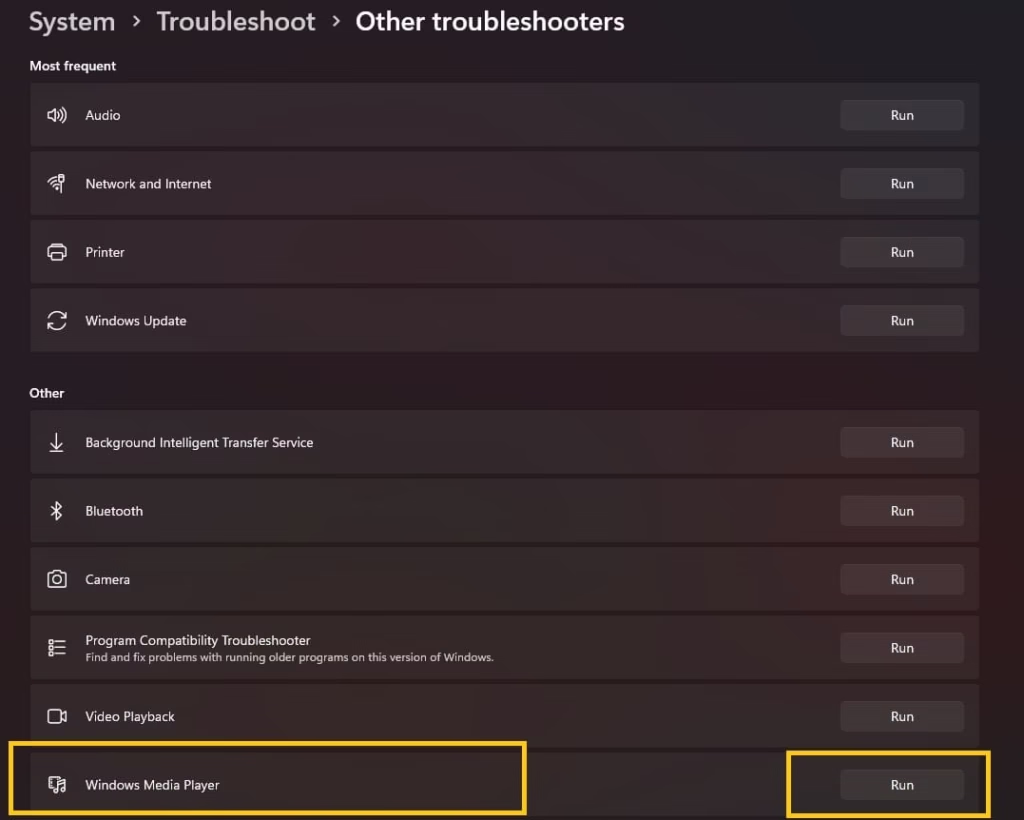
- Scroll until you see Windows Media Player or Playing Audio.
- Click Run next to it.
- Follow the steps on the screen. It will scan and show what it finds.
- When it offers a fix, choose Apply this fix and let it finish.
- If it finds more than one issue, apply each one.
- Close the troubleshooter when it’s done.
- Restart your computer so the changes settle in.
- Open the player and try a few different files (an MP3, a WMA, and a short video) to make sure everything plays.
If it says nothing is wrong, that’s actually useful information. It tells you the problem sits somewhere the troubleshooter doesn’t check, most likely file associations or a deeper repair issue, so move on to the next two fixes.
4. Check File Associations and Default Apps
This one catches a lot of people off guard. The player itself can be perfectly healthy while Windows quietly hands your music and videos to a different program instead. It usually happens after installing new media software that grabs the defaults without asking.
- Open Settings with Windows key + I.
- Click Apps, then Default apps.
- In the search box type Windows Media Player or Windows Media Player Legacy.
- Click it when it shows up.
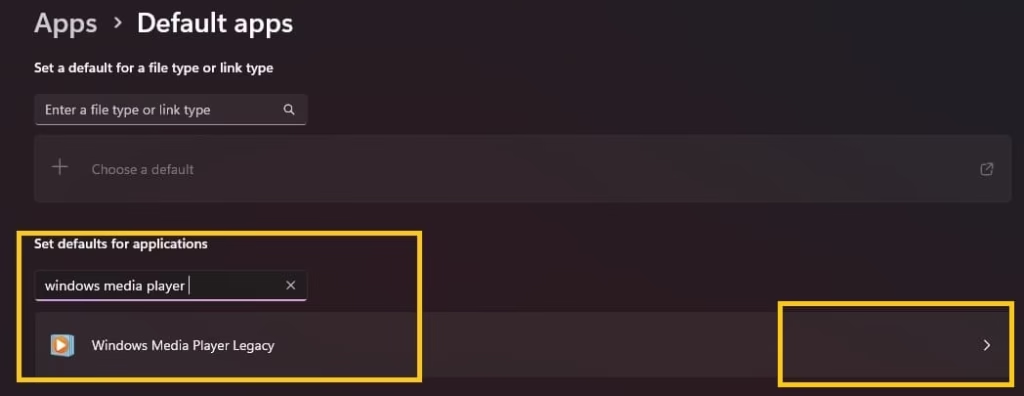
- You’ll see a list of file types like .mp3, .wma, .wmv, .avi and others.
- Click each one you want the classic player to handle and choose Windows Media Player Legacy.
- Do this for every common audio and video format you use regularly.
- Another easy way: open File Explorer, right-click any media file, choose Open with, then Choose another app.
- Select Windows Media Player Legacy and tick the box that says Always use this app to open these files.
- Click OK.
- Test it by double-clicking a few different media files and making sure they open in the classic player.
Want to switch back later or hand a format to a different app? Just repeat the same steps and pick whichever program you want instead.
Also know: How to Fix Lag on Pc While Working and Gaming
Windows Media Player Errors and Troubleshooting
Even after restoring the player, specific errors can still appear. Playback may stop, the library can fail to load, or the program may freeze during use. Most of these problems have clear causes and practical fixes. The sections below cover the errors people report most often and the steps that usually resolve them.
1. Player Does Not Start or Shows a Blank Window
Clicking the icon and getting nothing, or a completely blank window, is one of the more frustrating problems. In most cases the player files themselves are fine. What usually goes wrong is a corrupted settings folder or a background process that gets stuck.
- First, make sure no copy of the player is running in the background.
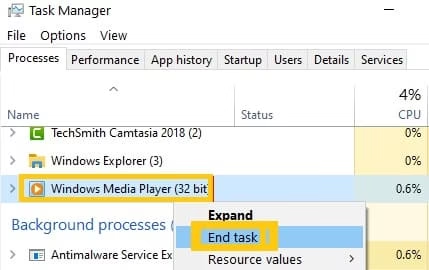
- Press Ctrl + Shift + Esc to open Task Manager.
- Look under the Processes tab for anything named Windows Media Player or wmplayer.exe. If you see it, select it and click End task.
- Press the Windows key + R to open the Run box.
- Type %localappdata%\Microsoft\Media Player and press Enter.
- File Explorer will open the folder that stores the player’s settings.
- Right-click the Media Player folder and choose Rename. Change the name to something like Media Player Backup. This keeps your old settings safe in case you ever need them.
- Restart your computer. When Windows comes back up, open Windows Media Player again. It will create a brand-new settings folder automatically.
- Test the player with a simple audio or video file.
- If it still shows a blank window or fails to start, temporarily turn off your antivirus software and try opening the player once more. Some security programs block parts of the classic player.
- Once the player works, turn your antivirus back on right away.
This forces the player to rebuild its configuration from scratch while leaving all your actual media files untouched.
2. Codec or Format Not Supported Errors
Not every file will play, and that’s not always a sign of something broken. Windows Media Player can only handle formats it recognizes, and newer video files or less common audio formats regularly fall outside that list.
Start by checking whether the file plays in another program. Open it with the newer Microsoft Media Player app or with VLC. If it plays there, the file itself is fine and the gap is in Windows Media Player’s codec support specifically.
If you’re on a Windows N or KN edition, media features are stripped out entirely by design, not by accident. Microsoft’s own documentation for these editions confirms N and KN builds ship without Windows Media Player and related technologies, and the fix is installing the Media Feature Pack from the Microsoft Download Center for your Windows version, then restarting.
Beyond that:
- Make sure Windows is fully updated through Settings, Windows Update. Newer updates often include improved media components.
- Right-click the problem file, choose Properties, and open the Details tab to see the exact video and audio format, which tells you what’s actually missing.
- For wider format support, either switch to a player with its own built-in codecs, such as VLC, or stick with Windows Media Player and add a well-known codec pack from a trusted source only. Skip random codec packs from unknown websites.
Many newer formats simply work more smoothly in the modern Media Player app or in VLC, so those remain good long-term options if you hit this wall often.
Also know: Best Sound Software for Better Gameplay
3. Library Does Not Load or Media Files Are Missing
An empty library or missing folders usually points to one of three causes: a recent Windows update, moved music or video folders, or the player simply losing track of the locations it’s supposed to watch. Rebuilding the library list fixes most of these.
- Open Windows Media Player.
- Click Organize at the top, then choose Manage libraries. You will see separate options for Music, Videos, and Pictures.
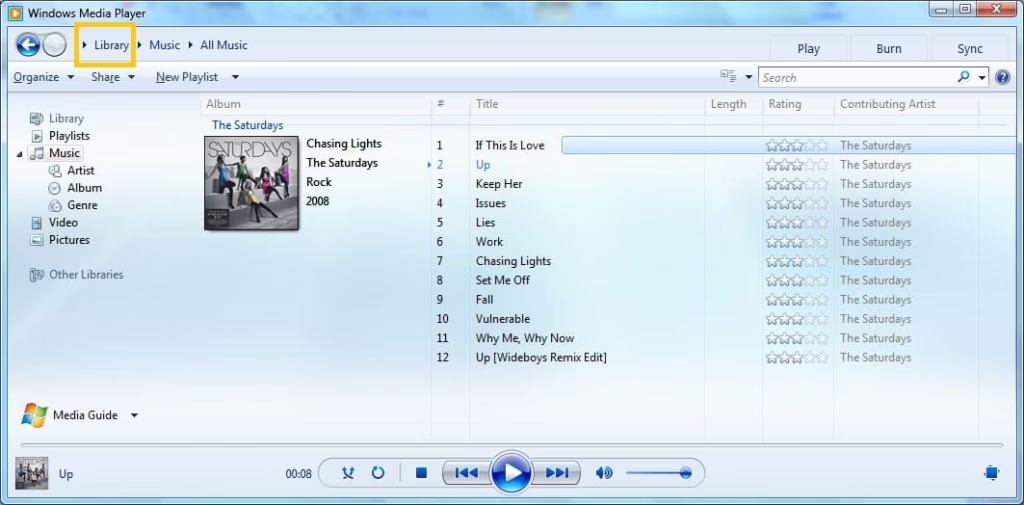
- Select each library one by one and check that the correct folders are listed. If a folder is missing, click Add and browse to its location.
- After you have added or confirmed the folders, click OK.
- If you see an option that says Apply media information changes under the Library menu, click it. This forces the player to refresh the details of your files.
- Close the player completely and open it again. Give it a minute to scan the folders.
- If items still do not appear, run the Windows Media Player troubleshooter once more from Settings, System, Troubleshoot, Other troubleshooters.
Keeping your main media folders on the same drive where Windows is installed reduces path problems and helps the library stay stable over time.
4. Network Sharing or Streaming Issues
Streaming to another device on your home network and getting nothing back is rarely a problem with the files themselves. Nine times out of ten it’s the firewall blocking the connection or the media sharing service sitting stopped in the background.
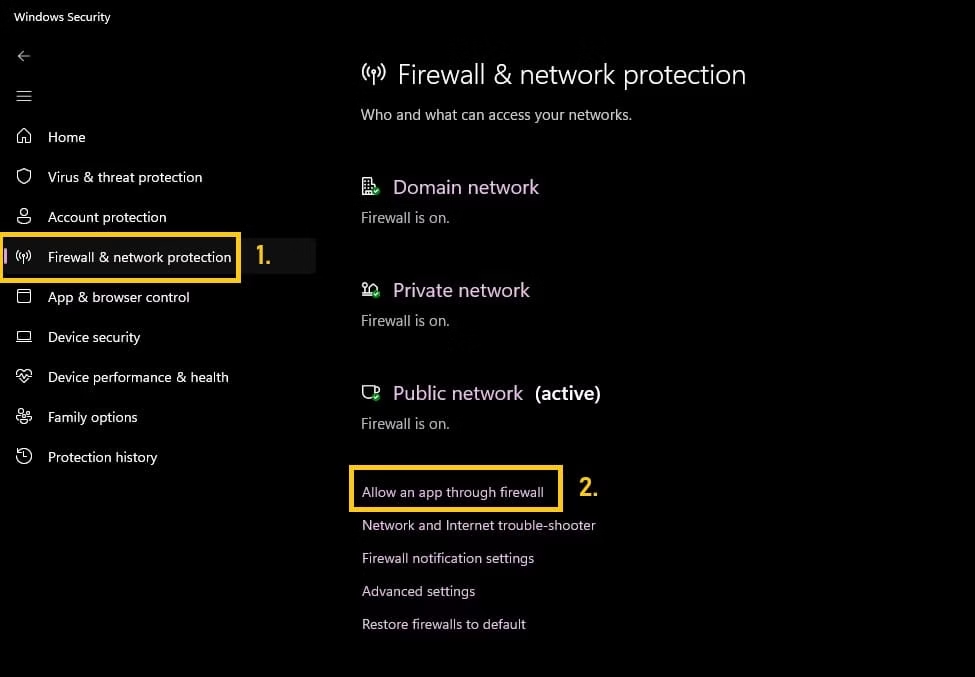
- Open Windows Security (or Windows Defender Firewall) and click on Allow an app through firewall under the Firewall and network protection.
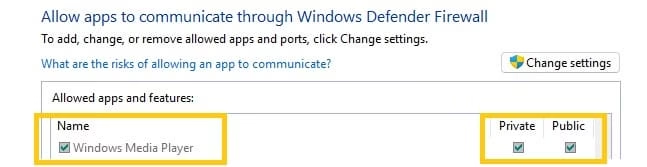
- Make sure Windows Media Player is allowed on private networks.
- Open Windows Media Player, click the Stream menu at the top, and choose Turn on media streaming. Follow the prompts and turn streaming on for your home network.
- Press Windows key + R, type services.msc, and press Enter. Scroll down to Windows Media Player Network Sharing Service. Right-click it, choose Restart, and also make sure its Startup type is set to Manual or Automatic.
- After each change, test streaming to another device on the same Wi-Fi network.
- If you use a third-party antivirus or firewall, temporarily disable it and test again to see whether it was blocking the connection. Turn it back on when you finish testing.
Best Windows Media Player Alternatives to Use
If the classic player keeps causing trouble, or you just want more features, a few alternatives consistently hold up well across both Windows 11 and Windows 10.
1. VLC Media Player
VLC has earned its reputation the hard way. For years it’s been the player people turn to when everything else fails, opening almost every audio and video format without asking you to hunt for extra codecs. Subtitles work smoothly, damaged files often still play, and the program stays stable across Windows versions. Many people keep VLC installed even after trying newer players because it rarely lets them down.
2. The Newer Windows Media Player app from Microsoft
feels like a fresh start. It comes preinstalled on most Windows 11 computers and is downloadable from the Microsoft Store on Windows 10. It connects with OneDrive, so your music and videos can follow you across devices, and because it updates through the Store, you get improvements and bug fixes automatically without doing anything.
3. PotPlayer
sits in a different spot entirely, aimed at people who want more control. You can tweak nearly every part of playback, turn on hardware acceleration for smoother video, and adjust the interface until it feels exactly right. Beginners can keep the menus simple while experienced users dig into the deeper settings, which makes it a player that can grow with you.
The best choice depends on whether you value simplicity, Microsoft integration, or advanced control.
Also know: All SpiderMan Movies in Order
Conclusion
Getting help with Windows Media Player on Windows 11 and Windows 10 usually starts with restoring the legacy version, repairing the app, or running the built-in troubleshooter. Most common errors respond well to clearing configuration data, checking associations, or updating media components. When the classic player no longer meets your needs, reliable alternatives such as VLC, the new Microsoft Media Player, or PotPlayer provide strong replacements.
Follow the steps that match your specific problem and test after each change. With a few careful adjustments the player, or a suitable alternative, should handle your media smoothly again.
FAQs
Q1. Why is Windows Media Player missing on Windows 11?
Microsoft made the classic player an optional feature on Windows 11. You can restore it through Settings, Apps, Optional features by installing Windows Media Player Legacy.
Q2. How do I fix Windows Media Player when it will not open?
Try repairing or resetting the app in Settings, Apps, Installed apps. You can also rename the Media Player configuration folder in %localappdata%\Microsoft and restart the computer.
Q3. What should I use if Windows Media Player keeps failing?
VLC Media Player is a free, reliable choice that supports nearly every format. The newer Microsoft Media Player app and PotPlayer are also strong options for everyday use.

Amanda Starc
Amanda is a dedicated technical web content writer with a passion for transforming complex ideas into compelling and accessible online narratives. With a background in web development, and digital Marketing I bring a unique blend of technical expertise and creative storytelling to the digital domain.
