You know that moment when you’re rushing to find a document, double-click the File Explorer icon, and suddenly everything freezes, crashes, or a random help page pops up in your browser? It’s incredibly frustrating. In my experience working with countless Windows users, this exact issue—often tied to the “Get help with File Explorer in Windows” search or popup—hits at the worst times.
This article dives deep into why File Explorer acts up in Windows 10 and 11. We’ll cover the main triggers, practical fixes that actually work, and scenarios where it sneaks up on you. Whether it’s slow loading, constant “Not Responding” messages, crashes, or that pesky F1-triggered Bing search, I’ve got you covered with straightforward steps.
People search for this because File Explorer is the heart of Windows file management. One glitch and your workflow grinds to a halt—lost productivity, missed deadlines, mounting annoyance. The good news? Most problems stem from common culprits like cache buildup or minor corruptions, not major hardware failures. By the end, you’ll feel confident tackling it yourself.
Main Causes that Trigger “Get Help with File Explorer” Issues
File Explorer doesn’t break without reason. Here are the usual suspects I’ve seen time and again.
1. Corrupted or Overloaded Quick Access and History Cache
Quick Access tries to be helpful by showing recent files and folders, but when its cache gets corrupted, it drags everything down. Explorer freezes, shows “Working on it…” forever, or crashes. This is especially common after big updates or when pinning/unpinning lots of items.
2. Third-Party Shell Extensions and Context Menu Conflicts
Programs like antivirus, cloud sync tools (OneDrive, Dropbox), compression apps, or even older context menu add-ons hook into Explorer. One bad extension and right-clicking or opening folders becomes a nightmare. In my testing, this often causes random crashes.
3. Corrupted System Files or Outdated Windows
Missing or damaged Windows files from incomplete updates, power outages, or malware remnants lead to instability. Windows Search service glitches can also freeze Explorer when indexing large drives.
4. GPU Driver Issues or Hardware Acceleration Problems
Modern Explorer uses graphics acceleration. Faulty or outdated GPU drivers (especially NVIDIA/AMD) cause freezes, particularly with thumbnails or large image folders.
5. Keyboard Shortcuts Gone Wrong (F1 Help Popup)
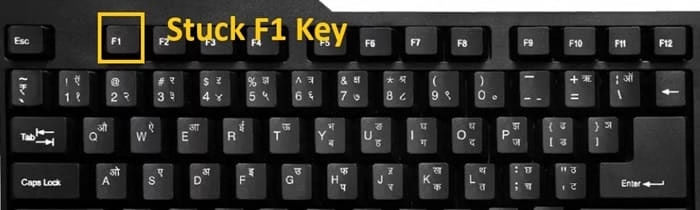
Pressing F1 in Explorer intentionally opens a Bing search for “Get help with File Explorer in Windows.” But a stuck key, accessibility software, or macro can trigger it endlessly. It’s not a virus—just Windows’ built-in behavior after they removed local help.
6. Too Many Files in One Folder or Indexing Problems
Huge directories without proper optimization, or a corrupted Windows Search index, make Explorer sluggish or unresponsive.
Other triggers include low RAM, conflicting startup apps, or even specific file types (like certain images or MSG Outlook files) that choke the preview pane.
Also know: How to Transfer Photos from iPhone to Laptop
Solutions for the “Get Help with File Explorer” Popup and Crashes
Don’t panic. Start simple and work up. These steps have helped most folks I’ve assisted.
Solution 1. Registry Tweak (Recommended and Instant)
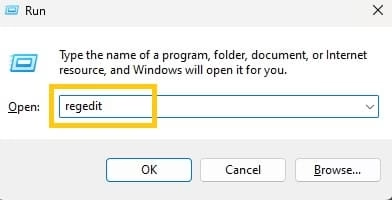
- Press Windows + R, type regedit, and hit Enter.
- Navigate to this path (copy-paste it in the address bar): HKEY_CURRENT_USER\SOFTWARE\Classes\TypeLib\{8cec5860-07a1-11d9-b15e-000d56bfe6ee}\1.0\0\win32
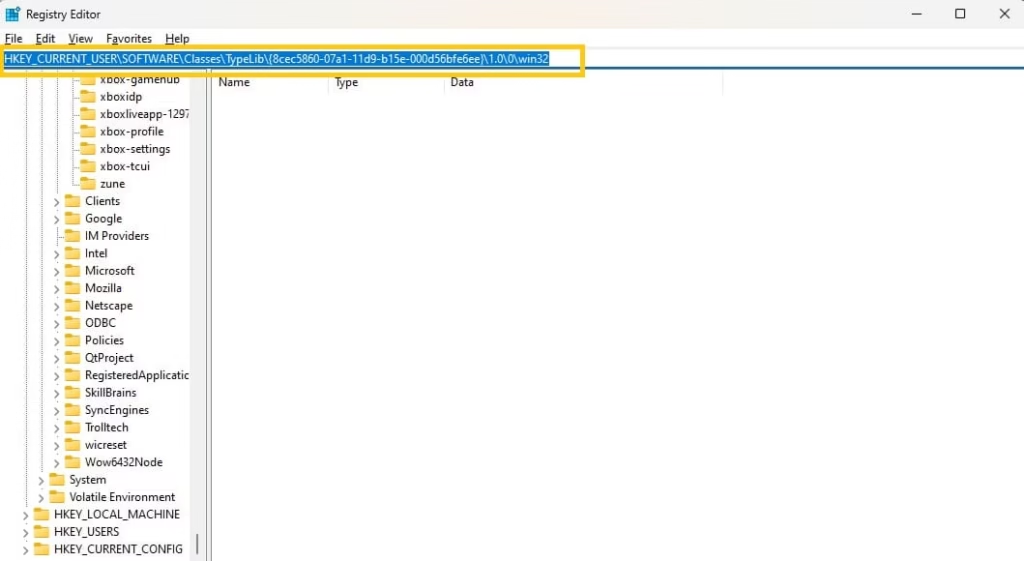
- Double-click the (Default) value on the right and clear its data (make it empty).
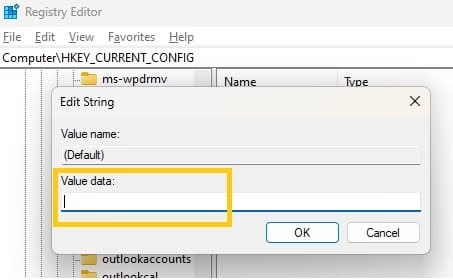
- Do the same for the win64 key in the same location if it exists: HKEY_CURRENT_USER\SOFTWARE\Classes\TypeLib\{8cec5860-07a1-11d9-b15e-000d56bfe6ee}\1.0\0\win64
- Close Registry Editor—no restart needed.
This stops F1 from launching the help page in Explorer. You can create a .reg file for easier future use or reverse it later if needed.
Solution 2: Quick Keyboard Check
- Test if your F1 key feels sticky.
- Clean it gently or try an external keyboard.
- In laptops, check if Fn lock is interfering.
Solution 3: AutoHotkey Script (For Advanced Users)
If you use AutoHotkey, a simple script like F1::return when Explorer is active can block it completely.
Solution 4: Quick Restart of File Explorer Process
This is my go-to first fix—often all you need.
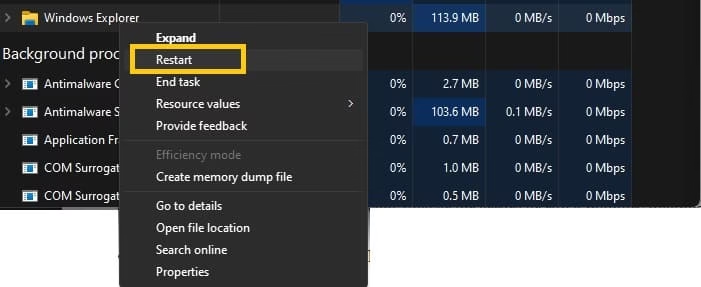
- Press Ctrl + Shift + Esc to open Task Manager.
- Find Windows Explorer under Processes.
- Right-click it and select Restart.
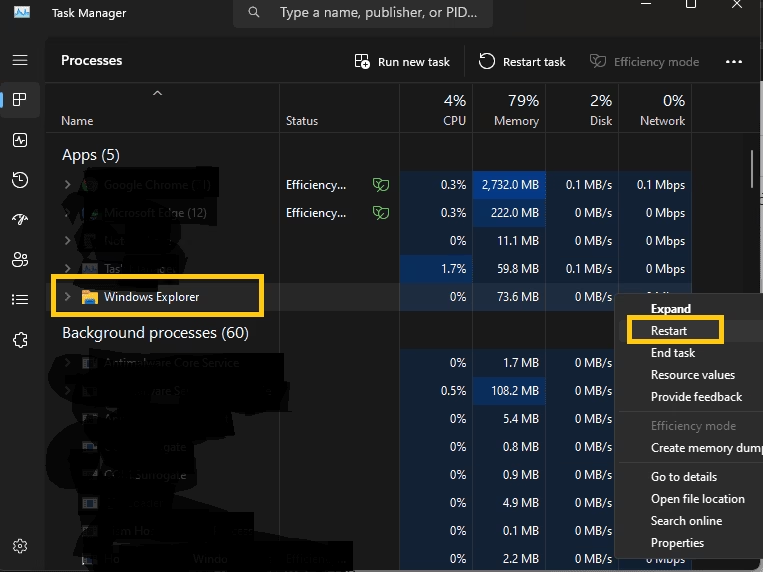
Your desktop icons might flicker briefly, but Explorer should refresh cleanly.
Solution 5: Clear File Explorer History and Cache
This wipes out corrupted recent items.
- Press Windows + R, type control folders, and hit Enter.
- Go to the General tab.
- Under Privacy, click Clear next to “Clear File Explorer history.”
- Click Apply > OK.
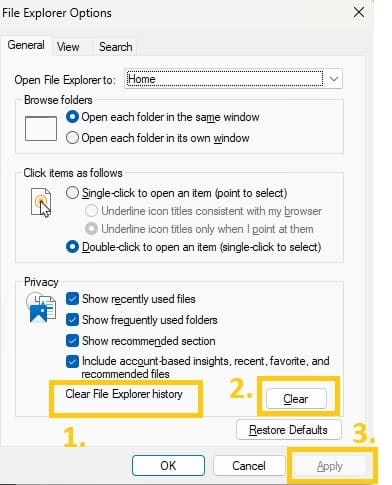
For deeper cleanup, delete the AutomaticDestinations folder contents (search online for the exact safe path if needed).
Solution 6: Disable or Reset Quick Access
If Quick Access is the villain:
- Open File Explorer Options (same as above).
- Under General, change “Open File Explorer to” from Quick Access to This PC.
- Unpin problematic items by right-clicking them.
Solution 7: Run System File Checker (SFC) and DISM
For corrupted files:
Open Command Prompt as Administrator and run these one by one:
sfc /scannow
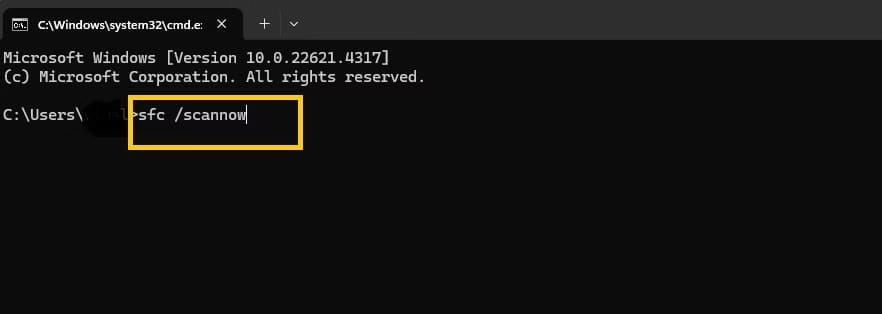
Then:
DISM /Online /Cleanup-Image /RestoreHealth
Restart afterward. This repairs core Windows components reliably.
Solution 8: Update Windows and Drivers
Go to Settings > Windows Update > Check for updates. Install everything, including optional driver updates. For GPU, visit your manufacturer’s site (NVIDIA GeForce Experience, etc.).
Solution 9: Check for Problematic Shell Extensions
- Download NirSoft ShellExView (trusted tool).
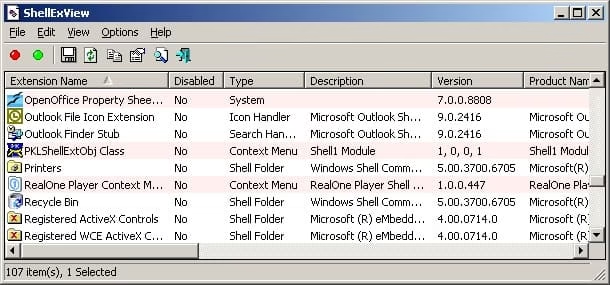
- Run it, sort by Company, disable non-Microsoft entries one by one, and test Explorer.
- Re-enable as needed. This pinpoints conflicts fast.
Solution 10: Additional Tweaks
- Restart Windows Search service via services.msc.
- Rebuild search index in Indexing Options.
- Run a full antivirus scan.
- For persistent issues, perform a Clean Boot to isolate software conflicts.
Also know: How to View Clipboard History in Windows 11
Understand and Use File Explorer in Windows 11
Windows 11 brought a fresher look to File Explorer. Gone is the old ribbon in favor of a cleaner command bar, plus handy tabs for juggling multiple folders. These changes make navigation snappier on modern screens, especially touch devices. Still, the core purpose remains: letting you browse, manage, and search your stuff with ease.
File Explorer Interface
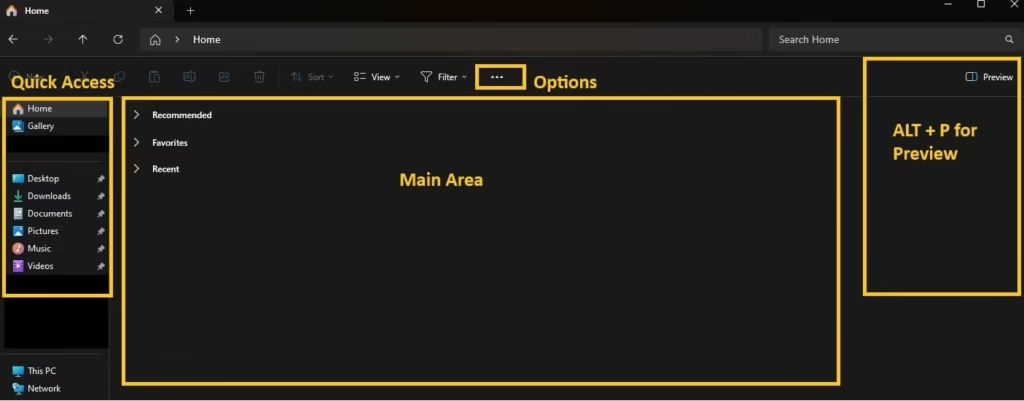
Launch File Explorer and you’ll notice a thoughtful layout. The top features a simplified toolbar with icons for common actions like cut, copy, paste, rename, share, and delete. Click the three dots (…) for more options, including Folder Options.
On the left sits the navigation pane. It shows Quick Access (now often called Home), your pinned folders, OneDrive, This PC with drives, and network locations. In recent Windows 11 versions, Home includes recent files, favorites, and shared items for quick jumps.
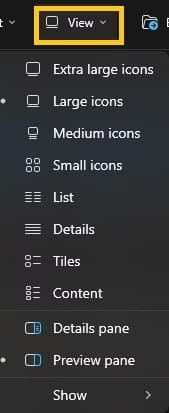
The main area displays your files and folders. Views range from large icons to detailed lists with columns for size, type, and modified date. Hover over the View button in the toolbar to preview changes instantly.
At the top, the address bar shows your current path. Click any part to jump back quickly. The search box at the top right proves powerful once you learn its tricks.
Tabs, added in later updates, change everything. Open multiple locations without cluttering your desktop. Press Ctrl + T for a new tab, or right-click a folder and choose “Open in new tab.” Switch with clicks or Ctrl + Tab. Close with Ctrl + W. I love this when comparing folders side by side.
A preview pane on the right (Alt + P) lets you peek at documents, images, or videos without opening them fully. Details pane shows metadata. These extras reduce back-and-forth.
The interface feels lighter than older versions. Microsoft focused on touch and simplicity, yet keyboard warriors still thrive with shortcuts.
Windows 11 File Explorer Settings
Customization turns File Explorer from decent to delightful. Open it, click the three dots, then Options. This opens the Folder Options dialog with General, View, and Search tabs.
General tab highlights:
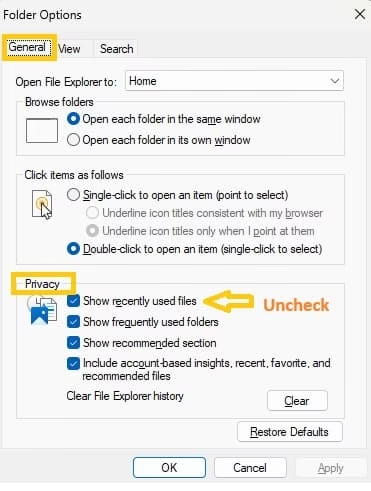
- Open File Explorer to: Switch from Home to This PC if you prefer seeing drives immediately. Many power users choose This PC for a classic feel.
- Privacy options: Uncheck “Show recently used files” or “Show frequently used folders” to keep things tidy. Clear history with one click if clutter builds up.
- Navigation pane: Show libraries, expand folders automatically, or display all folders.
View tab offers deeper tweaks:
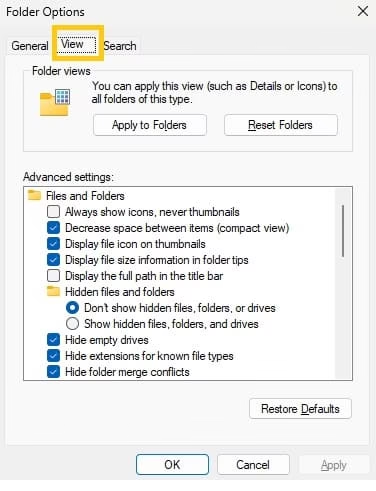
- Check “Display the full path in the title bar” so you always see exact locations.
- Show hidden files and folders for advanced work. Enable file name extensions (crucial when dealing with similar-looking files.)
- Adjust default view for folders. Set everything to Details for more info at a glance.
- Apply to all folders for consistency.
- Under Advanced settings, explore options like “Use check boxes to select items” for easier multi-select on touchscreens. Or disable “Hide extensions for known file types.”
Search tab:
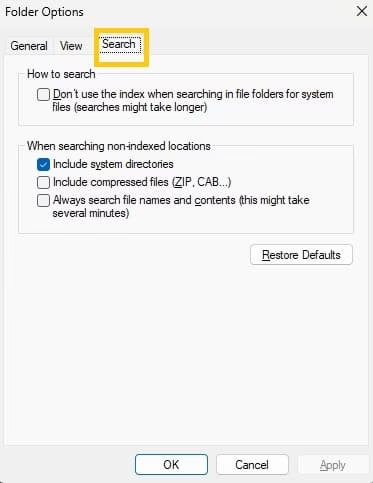
- Control indexing and what gets searched.
- Rebuild the index if searches slow down over time.
- These settings feel personal. I tweak mine based on projects — more previews during creative work, stricter views for archiving. You can also restore defaults easily if experiments go sideways. Just hit the Restore Defaults button in each tab.
Using File Explorer in Windows 11
Mastery comes from daily habits. Here’s how to make it work harder for you.
Opening and Navigating:
- Win + E remains the fastest launch. Pin it to your taskbar or Start for one-click access. Right-click the taskbar icon for recent folders.
- Drag folders to the navigation pane to pin them to Quick Access. Unpin when done. This beats hunting through deep trees.
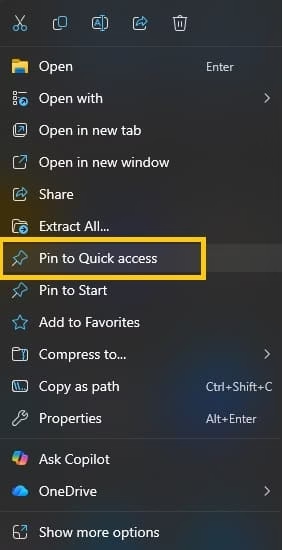
- Use the address bar like a pro. Type a path directly or click segments. Keyboard shortcut: Alt + D focuses it instantly.
Managing Files and Folders:
- Right-click menus stayed useful but streamlined.
- Create new folders with Ctrl + Shift + N. Rename with F2.
- Select multiple items with Ctrl or Shift.
- Tabs shine here. Work on Documents in one tab, Downloads in another. Drag files between tabs. Ctrl + click to select across views.
Views and Sorting:
- The View menu lets you choose icons, lists, or details.
- Sort by name, size, date, or type. Group items for visual clusters ( handy for photo libraries.)
- Preview pane helps verify content fast. For images, large thumbnails give quick overviews.
Searching Smarter:
- Type in the search box. Use filters like “type:pdf” or “date:today”. Advanced syntax includes quotes for exact phrases or operators like AND/OR.
- Index your important folders via Settings > Search > Indexing Options for faster results. Rebuild if things lag.

Advanced Tips I’ve Found Helpful:
- Keyboard navigation: Arrow keys, Enter to open, Backspace to go up.
- Quick Access to libraries: Show Libraries in navigation pane for grouped views of Documents, Music, etc.
- Drag and drop tweaks: Hold Shift for move, Ctrl for copy.
- Compress folders: Right-click > Send to > Compressed folder.
- Share directly: Select files and use the Share button for nearby devices or apps.
- Full path visibility: Enable in title bar for copy-paste ease.
Conclusion
Dealing with File Explorer issues can feel endless, but most stem from manageable cache, extension, or file corruption problems. In my experience, starting with a simple restart and cache clear resolves 70-80% of cases. Stay patient, apply updates regularly, and keep an eye on third-party tools that hook into the shell.
If nothing works, a repair install of Windows (keeping files) often does the trick without full data loss. Your files are too important to let Explorer hold them hostage. Try these steps today—you’ll be back to smooth sailing in no time.
Got a stubborn case? Drop details in the comments. At Avsoftlab, we’re here to make tech work for you.
FAQs
Q1. How to fix can’t open File Explorer?
This crops up after updates or software conflicts. First, try the basics. Restart your PC. Often, that clears temporary glitches.
- If not, open Task Manager with Ctrl + Shift + Esc. Find “Windows Explorer” under Processes, right-click, and select Restart. This refreshes the shell without full reboot.
- Still stuck? Run System File Checker. Search for Command Prompt as admin, type sfc /scannow, and let it repair corrupted files. Follow with DISM /Online /Cleanup-Image /RestoreHealth for deeper fixes.
- Check for Windows Updates. Microsoft often patches Explorer issues. If problems started after an app install, uninstall recent programs.
In rare cases, reset File Explorer settings via Options > Restore Defaults.
Q2. How to fix File Explorer not showing up?
Similar to opening issues but sometimes the window appears blank or frozen.
- Restart Explorer as above. Clear history in Folder Options > General tab.
- Disable thumbnail previews temporarily if large media folders cause hangs. Switch to Details view.
- For persistent problems, check Event Viewer for errors or run a memory diagnostic. Slow indexing can mimic this — rebuild it.
- Update graphics drivers, as visual glitches affect rendering. In my experience, combining restart with update checks solves most cases quickly.
Q3. Where is File Explorer located in Windows PC?
The executable is explorer.exe, typically in C:\Windows. You won’t need to browse there often.
- Launch via Win + E, taskbar folder icon, or Start menu search for “File Explorer.”
- For shortcuts, right-click the taskbar icon and pin it. Create desktop shortcuts with target explorer.exe followed by a path for specific folders.
This covers the essentials while leaving room for your own discoveries. File Explorer evolves with Windows 11 updates, so keep an eye on new features like enhanced AI search on supported hardware.
Experiment safely. Back up important data before big changes. Over time, you’ll develop habits that make file management feel effortless rather than a chore. If something specific trips you up, the community forums or Microsoft support offer tailored advice.
With these insights, you’re equipped to handle whatever Windows 11 throws at you through File Explorer.

