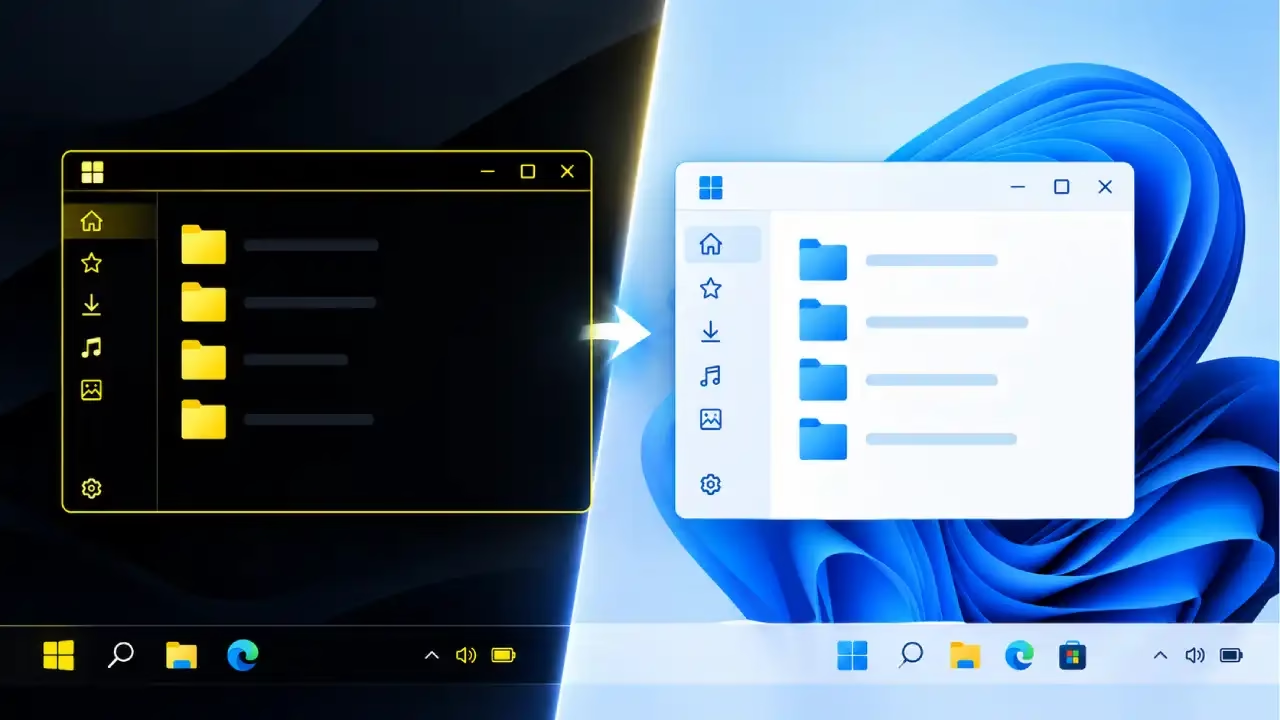

You may face high contrast problems in Windows 11. If you need any help to fix this issue, check out this guide.
Many people use high contrast themes (also called contrast themes) to make text and buttons easier to see. But sometimes the screen suddenly turns black and white, colors look strange, or you cannot turn the high contrast mode off. This usually happens because of an accidental key press, a wrong setting, or color filters getting turned on by mistake. As a result, the desktop looks completely different and becomes hard to use.
If you are facing this problem right now, don’t worry. The good news is that you can easily fix it with some simple methods. Below we have explained the causes and the best solutions in a clear way.
So without wasting time, let’s first understand why this problem occurs and then look at the methods to fix it.
What Causes High Contrast Problems in Windows
High contrast problems happen when Windows suddenly changes the colors on your screen. The desktop, apps, and websites start looking different. Text becomes very bright or very dark, backgrounds turn black or white, and everything feels sharper or more extreme than usual.
1. Accessibility Settings Turn On by Mistake
The most common reason is an accessibility setting that turns on by itself. Windows 11 calls this setting Contrast themes. In older Windows versions, it was known as High Contrast Mode. When this feature is active, Windows forces strong color pairs so that text stands out more. This helps people with low vision, but for most users it simply makes the screen look strange.
2. Accidental Keyboard Shortcut
A keyboard shortcut often triggers the problem. Pressing the Left Alt + Left Shift + Print Screen keys at the same time turns contrast themes on or off. Many people hit this combination by accident while typing, playing games, or using remote tools. The screen changes within a few seconds and stays that way until you turn it off.
3. Color Filters and Magnifier
Color filters can create a similar look. These filters are available in the Accessibility settings and can make the whole screen grayscale, inverted, or tinted. Magnifier with color inversion turned on can also flip colors while the tool is running.
4. Display and Graphics Issues
Display settings can also play a role. A wrong color profile, limited RGB range from the graphics card, or HDR settings can make everything look flat or overly sharp. Graphics drivers sometimes reset after an update and change how colors appear. Some apps or browsers may also force their own color themes and ignore system settings.
5. Theme Sync and Profile Problems
Theme sync across Microsoft accounts can bring an old contrast setting from another device. In rare cases, a corrupted user profile keeps the wrong colors even after you change the settings.
Most of the time, the cause is simple — an accessibility option got switched on without you noticing. Once you know where to check, fixing the problem becomes easy.
Best Methods to Fix High Contrast Problems in Windows 11
High contrast problems are not as difficult as they seem. You can solve them quickly using the methods given below.
Method 1. Use the Keyboard Shortcut to Turn Off High Contrast
This is the quickest method and works for most users.
- Press the Left Alt + Left Shift + Print Screen keys together at the same time.
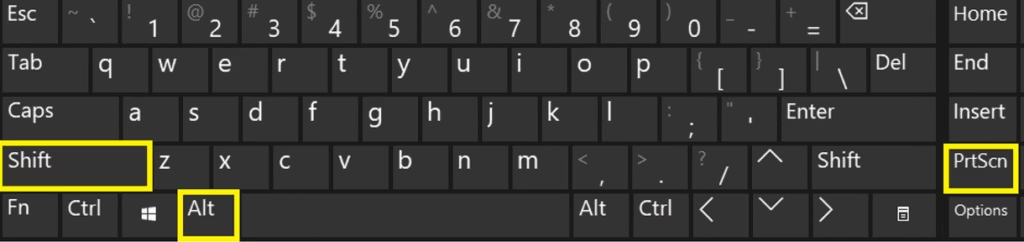
- If a confirmation box appears asking “Do you want to turn on high contrast?”, click No or simply wait.
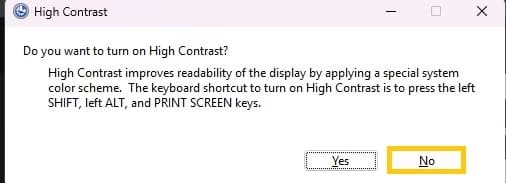
- Wait for a few seconds. The screen colors should return to normal.
If the colors still look wrong, press the same keys again. This simple step has fixed the problem for many people.
If this method does not work, try the next solutions.
Method 2. Turn Off Contrast Themes from Settings
Sometimes the keyboard shortcut does not work or the setting stays stuck. In that case, you can turn it off manually from Settings.
- Press Windows key + I to open Settings.
- Click on Accessibility from the left side.
- Select Contrast themes.
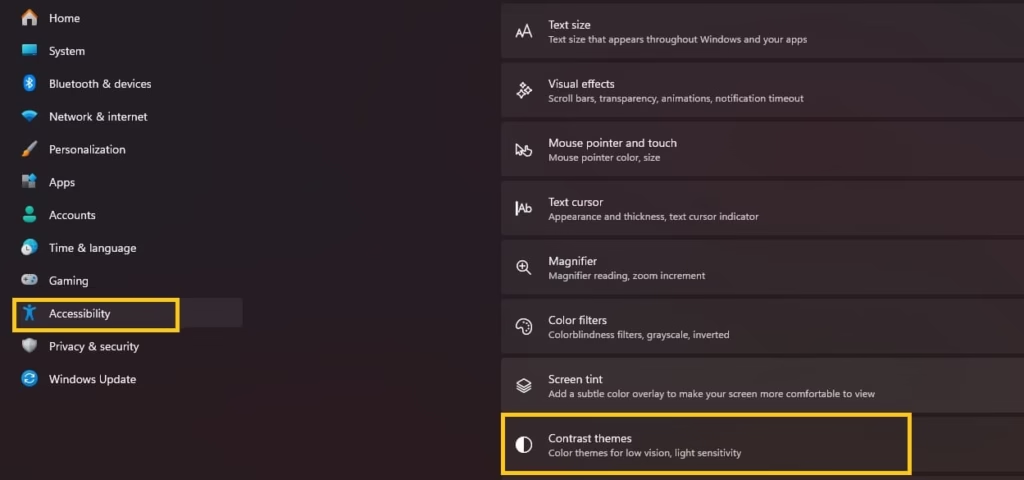
- Under the Contrast themes drop-down menu, choose None.
- Click the Apply button.
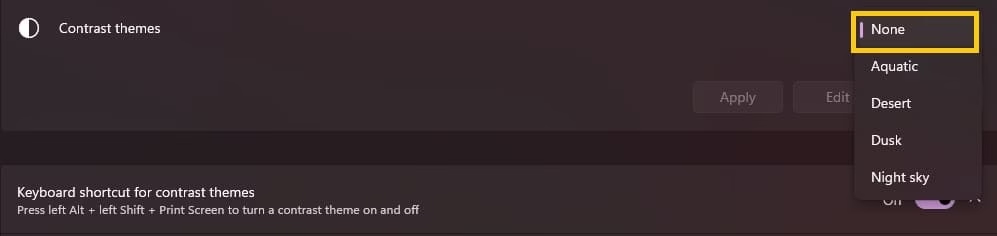
- Wait for a few seconds while Windows restores the normal colors.
After this, check if the high contrast look has gone. Your desktop should look normal again.
Also know: How to Change language in Windows
Method 3. Check and Turn Off Color Filters
Many times people think the problem is high contrast, but actually Color Filters are turned on. These filters can make the whole screen black and white, inverted, or strangely tinted.
- Open Settings.
- Go to Accessibility.
- Click on Color filters.
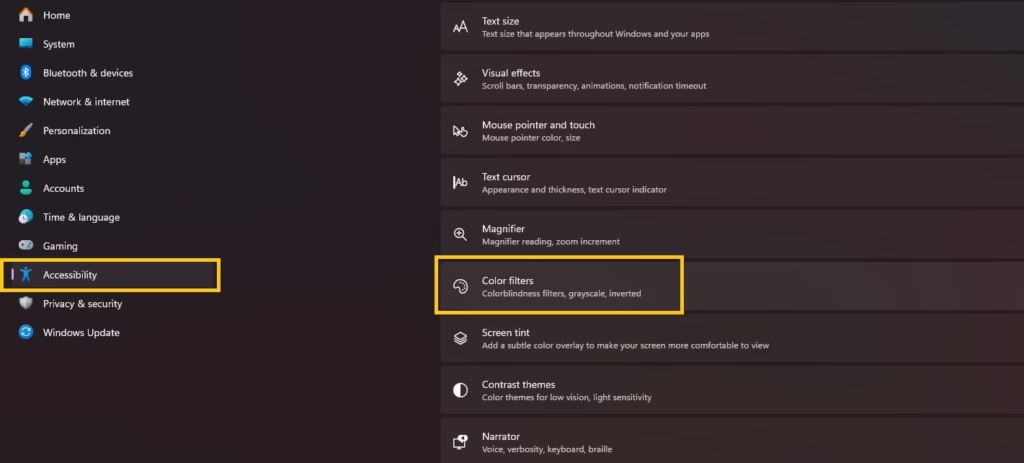
- Make sure the Color filters toggle is turned Off.
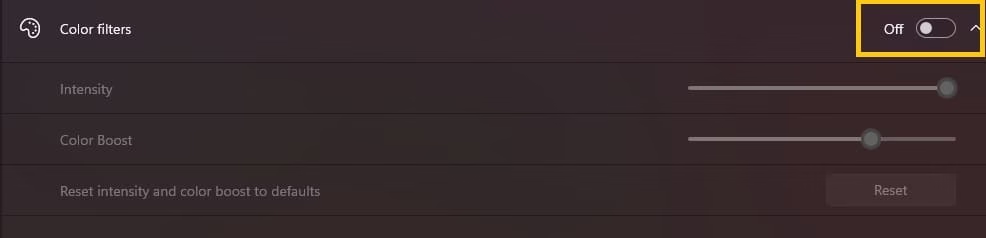
- You can also press Windows key + Ctrl + C to quickly toggle color filters.
Once you turn it off, the screen colors should become normal. This method has helped many users who were stuck with a grayscale look.
Method 4. Adjust Monitor Settings and Calibrate Display
Sometimes the problem is not caused by Windows settings. It can come from the monitor itself. In that case, try these steps.
Check the monitor’s own settings:
- Use the buttons on your monitor to open the on-screen menu.
- Set Brightness and Contrast to a medium level (don’t keep them too high).
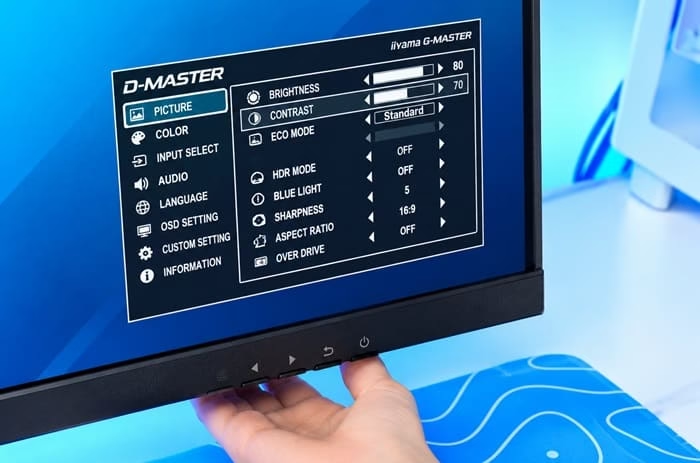
- Change the Picture Mode or Preset to Standard or sRGB.
- Set Color Temperature to Normal or Warm.
Use Windows Color Calibration:
- Type Calibrate display color in the Windows search bar and open it.
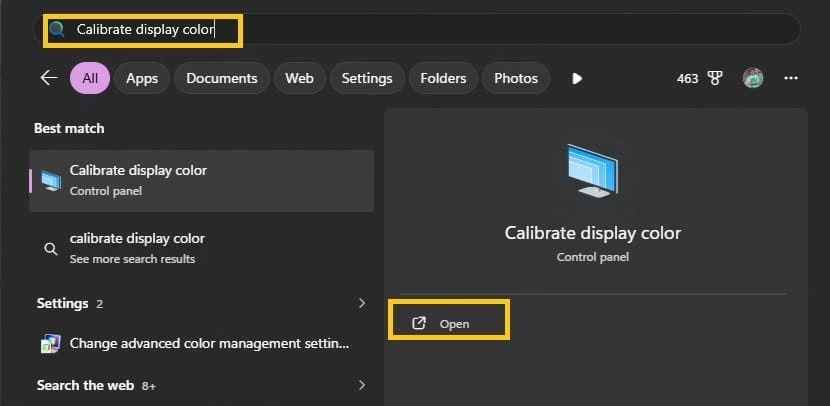
- Follow the on-screen instructions carefully.
- Adjust Gamma, Brightness, Contrast, and Color Balance as guided.
- Click Finish when done.
These monitor-related steps often fix remaining color and contrast issues that Windows settings alone cannot solve.
Method 5. Reapply a Normal Theme
Sometimes after turning off high contrast, the theme still looks incomplete. Applying a regular Windows theme usually helps.
- Open Settings.
- Go to Personalization.
- Click on Themes.
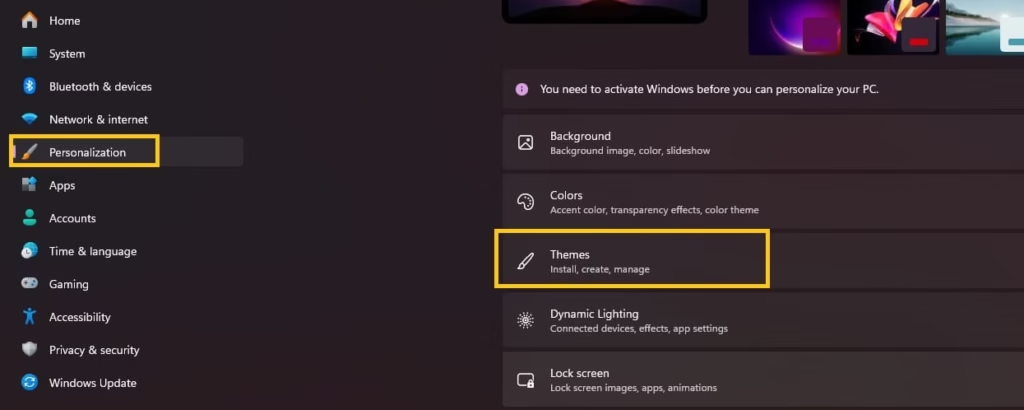
- Select any default theme such as Windows (light) or Windows (dark).
- You can also go to Colors and set “Choose your mode” to Light or Dark.
After applying the theme, sign out and sign back in if some apps still show wrong colors.
Method 6. Restart Windows Explorer or Sign Out
Some apps and windows keep the old high contrast colors until they refresh. A quick restart of Explorer or signing out usually fixes this.
- Press Ctrl + Shift + Esc to open Task Manager.
- Find Windows Explorer, right-click it, and select Restart.
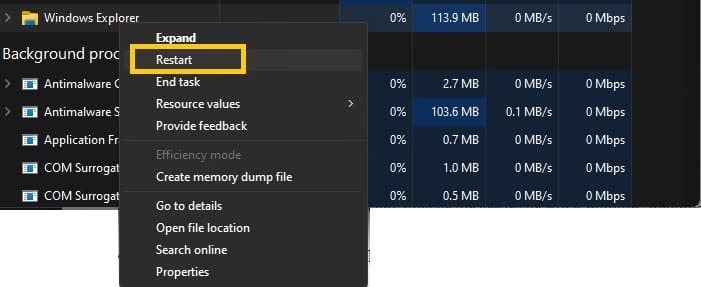
- Or simply go to Start, click your profile picture, and choose Sign out. Then sign back in.
This small step often clears the remaining high contrast problems.
Also know: Fixing Lock Screen Timeout in Windows
Method 7. Update Graphics Drivers (If Needed)
If none of the above methods work and colors still look washed out or wrong, the graphics driver may be causing the issue.
- Right-click the Start button and select Device Manager.
- Expand Display adapters.
- Right-click your graphics card (Intel, NVIDIA, or AMD) and choose Update driver.
- Select Search automatically for drivers.
- You can also check for optional updates in Settings > Windows Update > Advanced options > Optional updates.
After updating, restart your PC and check the display again.
High Contrast Problems Fixed
These are the most effective solutions for high contrast problems in Windows 11. Don’t worry if your screen suddenly changed colors or you were unable to turn the mode off. With the right steps, the issue can be fixed quickly.
We hope one of these methods solved the problem for you. If you fixed it using a different method, feel free to share it in the comments so others can also benefit.