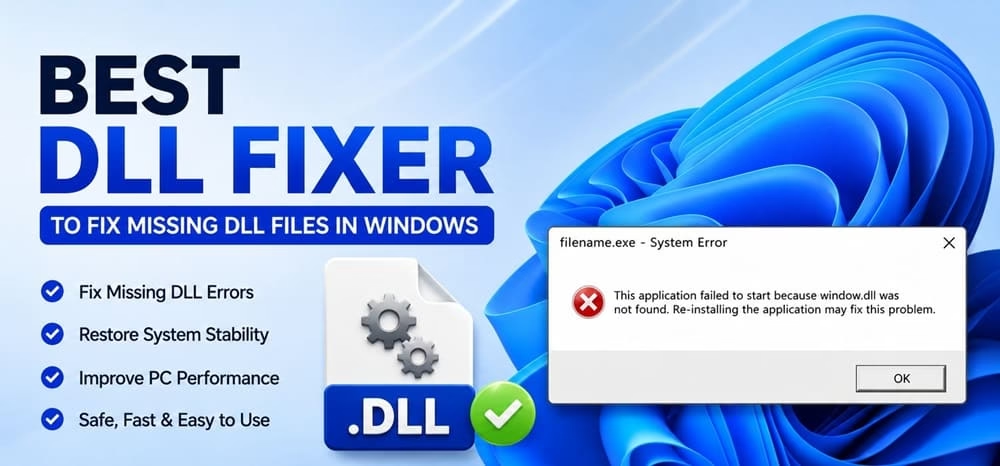
Missing DLL files rank among the most common frustrations for Windows users. You double-click a game, open a design program, or launch a simple utility, and an error pops up saying a specific .dll is missing or not found. Suddenly the software refuses to start. These Dynamic Link Library files hold shared code that many programs rely on. When one goes missing, becomes corrupted, or ends up in the wrong version, applications crash or fail to load.
I have run into this problem more times than I can count over the years. A recent Windows update, an incomplete software install, leftover files from an uninstall, or even malware can trigger it. Searching random sites for individual DLL downloads often leads to bigger headaches, including malware risks. That is exactly why a reliable Dll Fixer matters. These tools scan your system, locate missing or damaged files, and restore proper versions from trusted sources.
This article walks you through the strongest options available right now. I tested several of them on both Windows 10 and Windows 11 machines facing real missing DLL errors. You will see clear details on how each works, what stands out, the drawbacks, pricing, and compatibility so you can pick the right one for your setup.
What is Dll Fixer
A Dll Fixer is specialized software built to detect and repair missing, corrupted, or outdated Dynamic Link Library files on Windows. These files act as shared building blocks that programs use instead of carrying every piece of code themselves. When a DLL vanishes or breaks, the dependent application cannot run correctly.
The fixer scans system folders and the registry, matches the problem against a database of known good files, then replaces or restores the correct version. Many also clean related registry entries and handle common runtime packages. The goal is a quick, safer alternative to hunting individual files online or reinstalling Windows.
5 Best Dll Fixer to Fix Dll File Errors
After testing multiple tools on systems showing classic missing DLL messages, these five stood out for reliability, ease of use, and actual results. Each one approaches the problem a bit differently, so the best choice depends on whether you want a full system repair suite or a more focused option.
1. Iolo System Mechanic
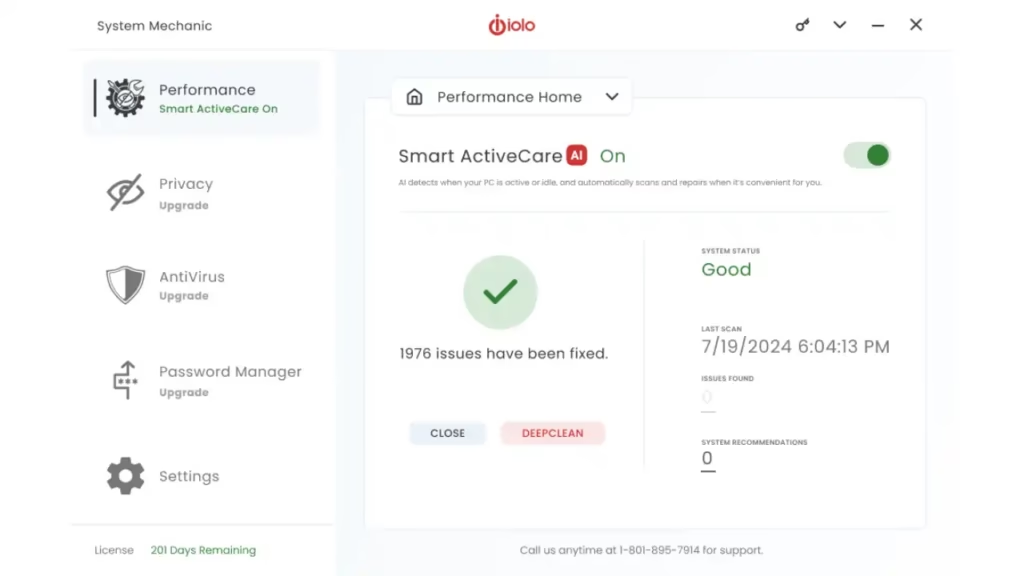
In my experience, Iolo System Mechanic handled registry-linked DLL problems especially well. On a Windows 11 test machine where several shared DLLs showed as missing after software removals, its registry repair tools cleaned invalid entries and helped the system locate the correct files again. The deep cleaning features also removed leftover clutter that often contributes to these errors.
Key features:
- Strong registry cleanup that fixes invalid entries pointing to missing or broken DLLs
- Deep system scanning for junk files and performance issues tied to DLL errors
- ActiveCare automation that repairs problems when the PC sits idle
- Multiple optimization tools including memory and startup management
- One-click repair options with detailed analysis reports
- Excellent at fixing registry problems that cause DLL errors
- Comprehensive suite that goes beyond basic file repair
- Real-time performance monitoring helps prevent recurring issues
- Does not always replace completely missing DLL files on its own
- Full feature set requires a paid subscription
- Interface can feel a bit dated compared to newer tools
- Price: Free trial available. Paid plans typically start around $40 to $50 per year for the base version, with higher tiers for added security features. Multi-PC coverage often included.
- Compatibility: Windows 10 and Windows 11 (also supports earlier versions).
Also know: Fixed: Out of Range Input Signal Error in Windows Monitor
2. Glary Utilities
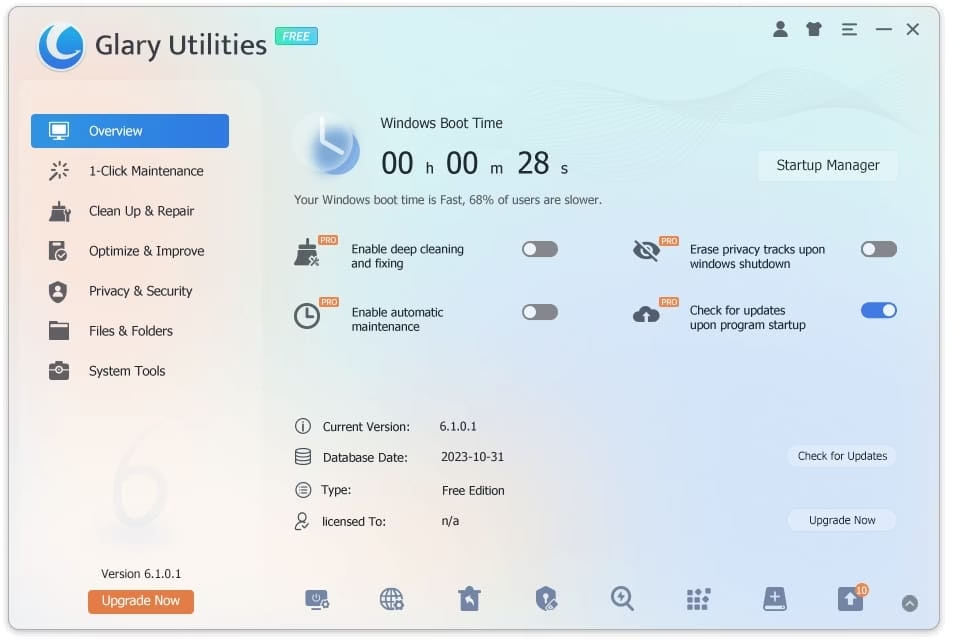
Glary Utilities impressed me with its flexible approach. You can use the full suite or lean on its dedicated DLL handling tools. During testing it successfully restored several missing runtime files and cleaned related registry clutter at the same time. The public DLL database on their site also lets you grab individual files when needed.
Key features:
- Built-in DLL fixer plus full system utilities for registry repair and cleanup
- Automatic scan and replacement of missing or damaged DLLs
- One-click maintenance that covers multiple problem areas
- Startup manager and junk file removal that help prevent future DLL issues
- Option for manual DLL installation support
- Free version covers many core tasks
- Combines DLL repair with broader system optimization
- Lightweight and straightforward interface
- Some advanced tools sit behind the paid upgrade
- Not as specialized solely for DLLs as dedicated fixers
- Price: Free version available. Pro version offers lifetime or annual options at moderate cost.
- Compatibility: Windows 10 and Windows 11 (plus older versions).
3. CCleaner
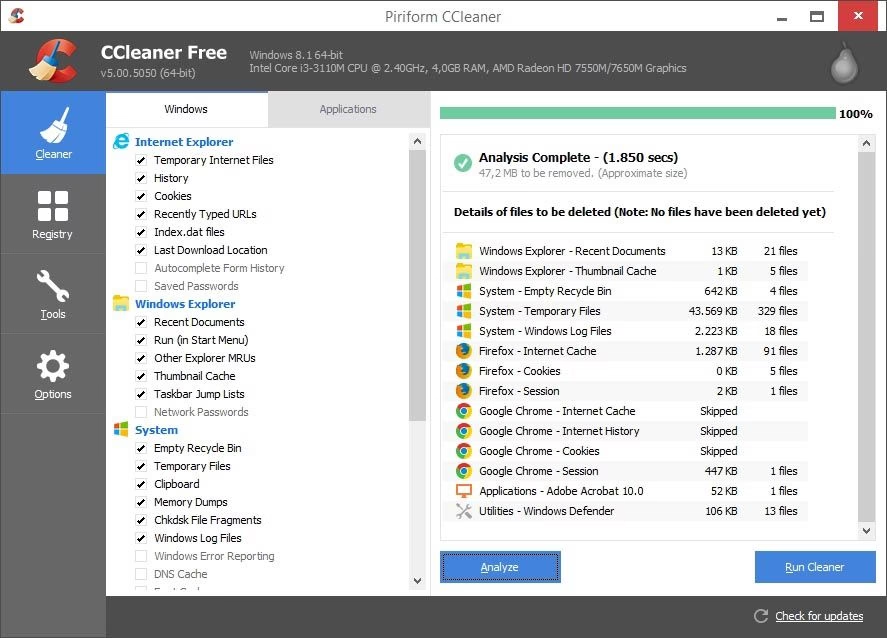
CCleaner remains a solid choice when the DLL problem ties into registry issues. I used its registry cleaner on a Windows 11 machine that kept throwing shared DLL errors after software removals. It identified and fixed several invalid entries linked to missing files, which resolved the crashes without needing separate downloads in those cases.
Key features:
- Advanced registry cleaning that detects missing shared DLL references
- Ability to restore or replace many common shared DLL files
- System cleanup tools that reduce leftover files contributing to errors
- Simple scanning and repair workflow
- Backup option before making changes
- Free version handles basic registry and cleanup tasks effectively
- Trusted name with long track record
- Quick scans that do not overload the system
- Limited pure DLL replacement compared to specialized tools
- Full features require the professional edition
- Price: Free version available. Professional plans start at a reasonable annual fee.
- Compatibility: Windows 10 and Windows 11.
4. DLL Suite
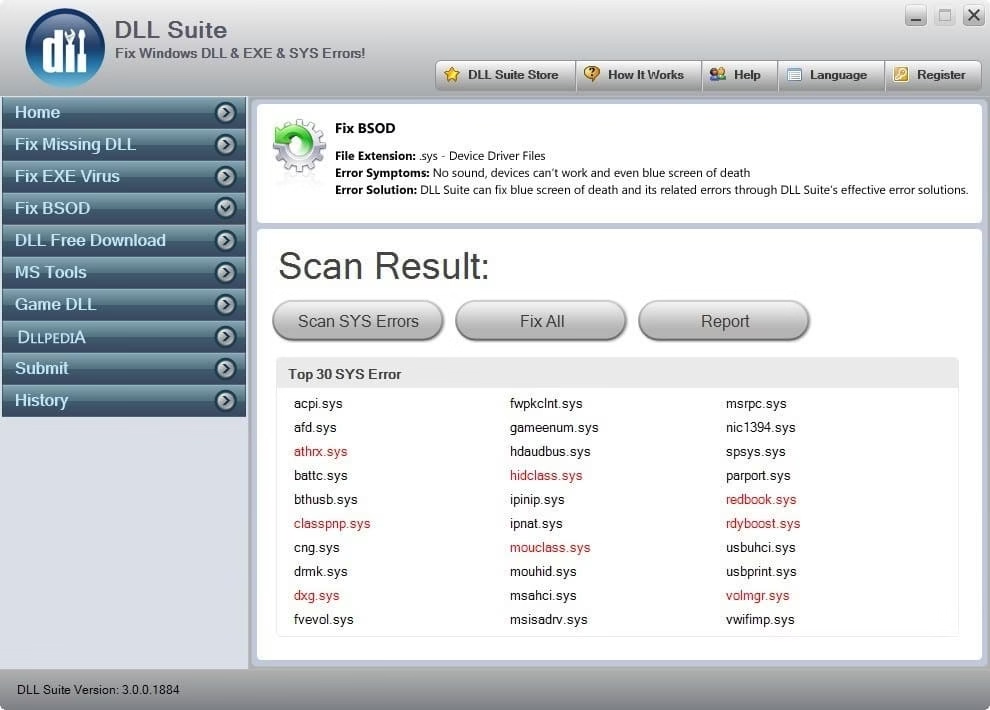
DLL Suite focuses tightly on the problem. In my tests it scanned the system, flagged missing files, and offered both automatic and manual repair paths. It carries a large database of DLL files across Windows versions, which helped when I needed specific older runtime components.
Key features:
- Large built-in DLL database covering multiple Windows versions
- Automatic scanning for missing, corrupted, or damaged files
- Manual search and repair option for specific DLLs
- Registry optimization and basic system cleanup
- History of previous repairs for easy rollback reference
- Strong dedicated focus on DLL problems
- Supports both automatic and hands-on fixes
- Generates reports of what it changed
- Interface can feel dated for some users
- Free version has more limited repair depth
- Price: Free trial or limited version available. Full license typically under $20 to $30.
- Compatibility: Windows 10 and Windows 11 (with support noted for earlier versions in many reviews).
Also know: DPC Watchdog Violation (0x00000133): Meaning and Fixes
5. Smart DLL Missing Fixer
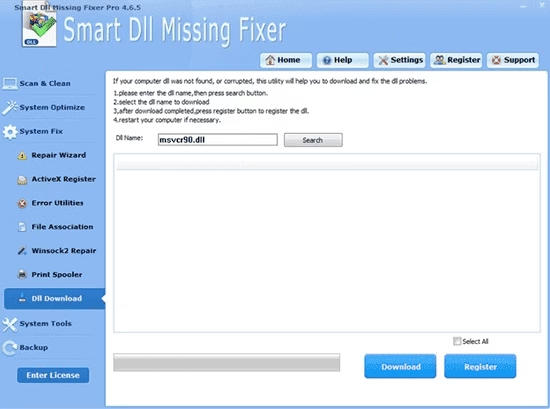
This tool kept things simple during my checks. It scanned quickly, located the missing files I had removed for testing, and restored them without extra steps. The larger database and system optimization extras made it useful beyond pure DLL repair.
Key features:
- Fast scan for missing and corrupted DLL files
- Large DLL database with direct fix options
- System optimization tools included
- Automatic registration of restored files
- Free version with optional pro upgrades for extra features
- Easy one-click approach that works well for beginners
- Combines DLL fixes with basic optimization
- Free download available for core functions
- Less comprehensive system repair than full suites
- Pro features locked behind payment
- Price: Free version available. Pro version offered at low cost.
- Compatibility: Windows 10 and Windows 11.
Conclusion
Missing DLL files do not have to stop your work or gaming sessions. The tools above give you practical ways to scan, restore, and stabilize your system without resorting to risky individual downloads. In my experience Iolo System Mechanic handled registry-related DLL cases effectively, while Glary Utilities and CCleaner offered strong everyday value, especially with free options.
Start with a free scan on the tool that fits your needs, create a restore point first, and always download from official sources. Keeping Visual C++ Redistributables and Windows itself updated also prevents many of these errors from appearing again. Choose the Dll Fixer that matches how deep you want the repair to go, and your programs should launch cleanly once more.

