
Frustrated with your windows pc or laptop when it lags while you are working. If you are then you are not alone after some time every machine needs refreshments and repairing and tuning. If you are getting errors like disconnection with Wi-Fi, Bluetooth or printer a windows restart can fix these kinds of problems.
This guide walks you through every practical way to restart Windows 11 in 2026. You will find the everyday Start menu method, keyboard shortcuts, command-line options, Task Manager routes, and one handy custom shortcut most people overlook. All steps come from current Microsoft-supported practices and work on recent Windows 11 builds. Save open work first. Then pick the method that fits your situation.
How to Restart Windows 11 in 2026
Restarting remains one of the simplest and most effective fixes for everyday Windows issues. It does not erase your files or settings. It simply closes running processes cleanly, reloads the operating system, and gives the hardware a fresh start. Microsoft still recommends the Restart option over a full shutdown-plus-power-on cycle for most maintenance tasks because it handles updates and background services more completely.
Below you will find several reliable approaches. Each one includes a short explanation followed by clear steps. Choose the one that matches how much access you still have to the interface. If the screen is completely frozen, jump to the force-restart guidance near the end.
1. Restart from the Start Menu
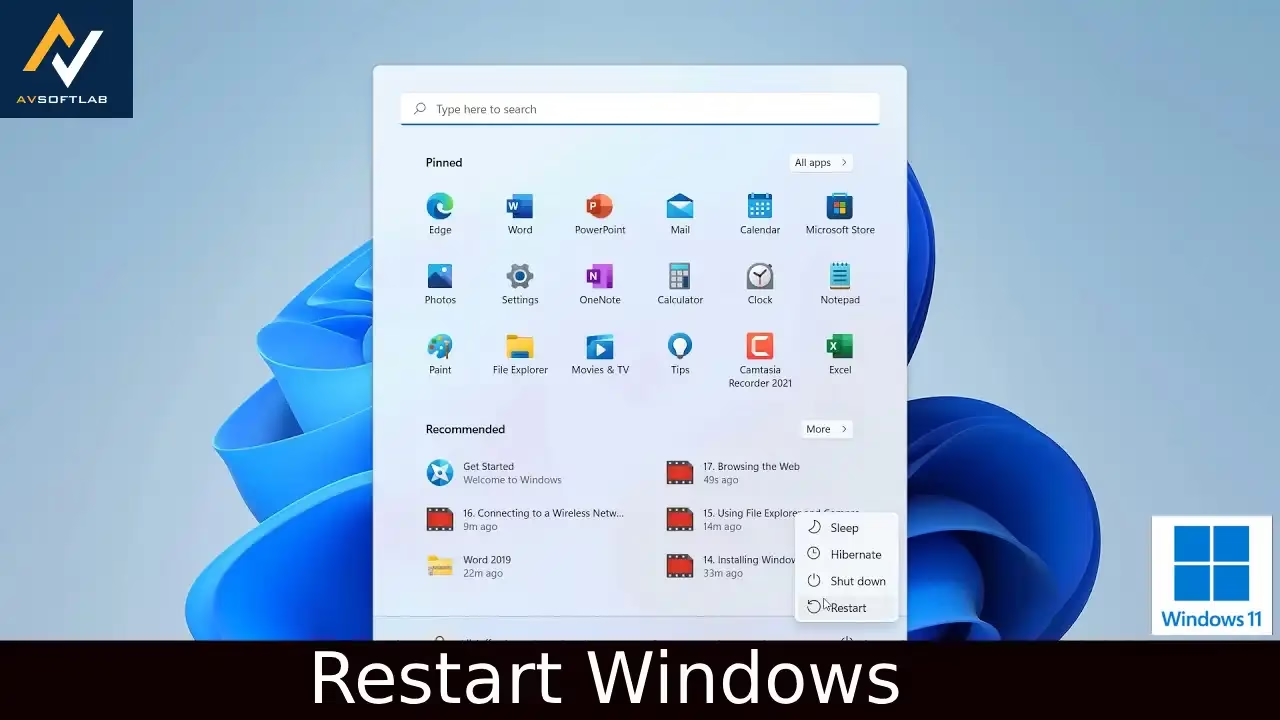
The Start menu method is the one Microsoft highlights first for good reason. It is visual, works for every skill level, and appears in the same place on Windows 11. You open the familiar menu, reach the power options, and choose Restart. The system then closes apps with prompts for unsaved work and reboots cleanly. This route is ideal when everything still responds normally and you simply want a routine refresh or need to finish installing updates.
- Click the Start button on the taskbar or press the Windows key.
- Look at the bottom-right corner of the Start menu and select the Power icon.
- Choose Restart from the list that appears.
- Wait while Windows closes open programs and restarts. Sign back in when the lock screen returns.
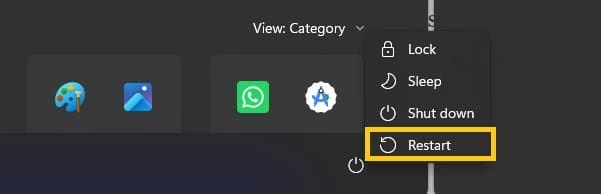
This process usually takes under a minute on modern hardware. If any apps refuse to close, Windows will give you a chance to save or force them shut.
Also know: How to Adjust Power and Sleep Settings in Windows 11
2. Restart with Keyboard Shortcuts
Keyboard shortcuts keep your hands on the keys and work even when the mouse feels sluggish. Windows 11 still supports the classic combinations plus the Power User menu. These options are fast once you learn the sequence. They prove especially useful on laptops or when the taskbar itself is acting slow.
Alt + F4 on the desktop
Press Windows + D to show the desktop if needed. Then press Alt + F4. A Shut Down Windows dialog appears. Use the arrow keys or mouse to select Restart in the drop-down and press Enter or click OK.
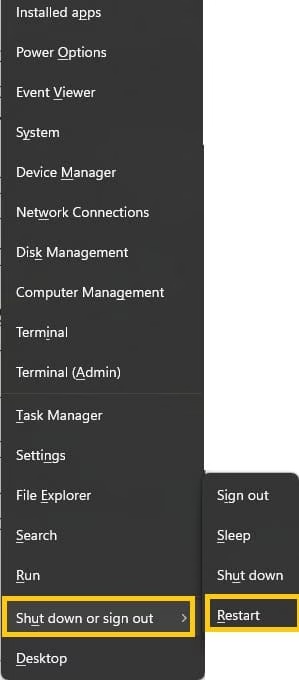
Windows + X Power User menu
Press Windows + X. Move to Shut down or sign out and select Restart. You can also press U then R after opening the menu for a pure keyboard path.
Ctrl + Alt + Delete
Press Ctrl + Alt + Delete. On the security screen that appears, click the power icon in the lower-right corner and choose Restart. This route often remains available even when the Start menu or taskbar freezes.
Practice these a couple of times. They become second nature and save clicks every day.
3. Restart from Task Manager
Task Manager offers a reliable backup when the Start menu or taskbar stops responding. You can still open Task Manager with Ctrl + Shift + Esc in most cases. From there you launch a restart command without needing the normal power menu. This method also lets you close stubborn processes first if you want a cleaner reboot.
- Press Ctrl + Shift + Esc to open Task Manager. If the simple view appears, click More details.
- Select File at the top, then Run new task.
- Type shutdown /r /t 0 and press Enter (or check the box to create the task with administrative privileges if needed).
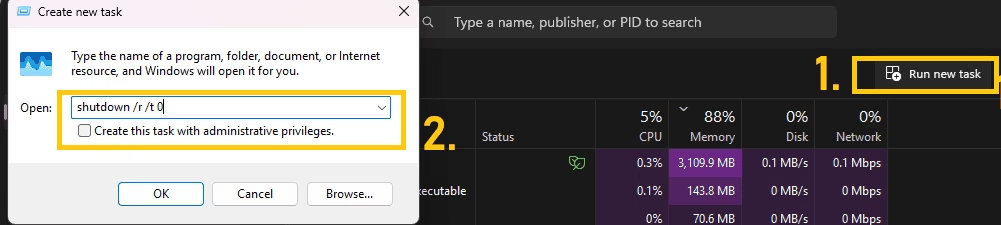
- Windows begins the restart sequence right away.
You can also end non-responsive apps in Task Manager before issuing the command. That extra step sometimes prevents the “programs are still running” warning.
4. Restart Using Command Prompt or PowerShell
Command-line tools give precise control and work well for scripts, remote sessions, or when the graphical interface is limited. The shutdown command has been part of Windows for years and remains fully supported. PowerShell offers a cleaner modern alternative. Both methods let you set a delay or force applications to close.
Command Prompt
- Open Start, type cmd, right-click Command Prompt, and choose Run as administrator.
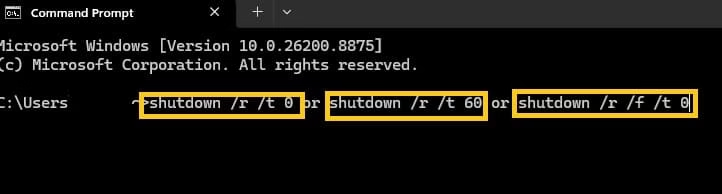
- Type shutdown /r /t 0 and press Enter for an immediate restart.
- For a short delay use shutdown /r /t 60 (the number is seconds).
- Add /f if you need to force close apps: shutdown /r /f /t 0.
PowerShell or Windows Terminal
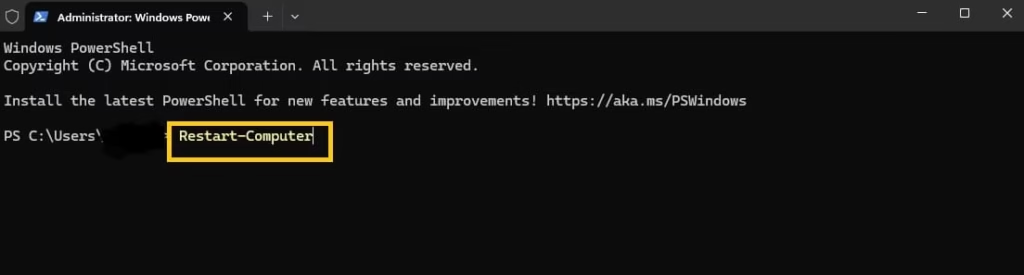
- Right-click Start and open Windows Terminal or PowerShell as administrator.
- Type Restart-Computer and press Enter.
- For a forced restart with no prompts use Restart-Computer -Force.
These commands are documented in Microsoft’s command-line reference and behave consistently across Windows 11 versions. Cancel a pending shutdown with shutdown /a if you change your mind.
Also know: Fixed: Out of Range Input Signal Error in Windows Monitor
5. Create a One-Click Desktop Restart Shortcut (Unique Method)
Most guides stop at the built-in menus. Creating your own desktop shortcut turns restart into a single double-click action. You can pin it to the taskbar or Start menu later if you like. This approach is handy for users who restart often or want a visible reminder without digging through menus.
- Right-click an empty spot on the desktop and choose New > Shortcut.
- In the location field type shutdown /r /t 0 and click Next.
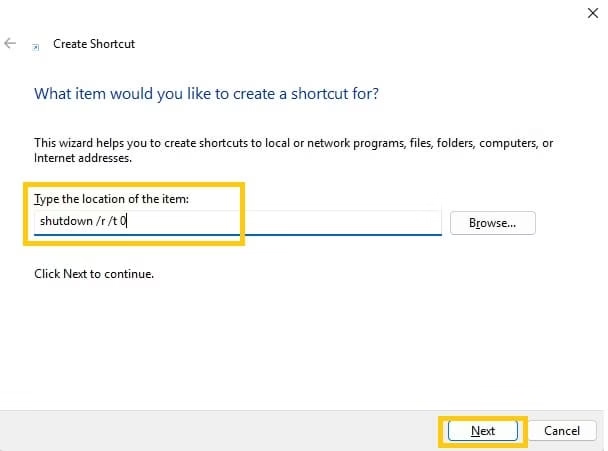
- Name the shortcut something clear such as Restart PC and click Finish.
- Right-click the new shortcut, choose Properties, then Change Icon if you want a different look. Select any system icon and apply.
- Double-click the shortcut whenever you need to restart. Confirm if Windows asks about closing programs.
You can also create a delayed version by changing the number after /t. Keep the shortcut in a convenient place. It works the same way every time and requires no extra software.
What to Do When Windows Freezes Completely
Sometimes the interface stops responding entirely. In that case a forced restart becomes necessary. Hold the physical power button on the computer or laptop for about 5 to 10 seconds until the screen goes dark and the machine powers off. Wait a few seconds, then press the power button again to turn it back on.
Use this only when the normal methods fail. Forced power-offs skip the clean shutdown process and can leave files in an incomplete state. After the system comes back, open any documents carefully and check for recovery versions. Microsoft recovery tools remain available if the problem continues after the forced restart.
Extra Tips for Smoother Restarts
1. Keep Windows updated. Many restarts become necessary simply to finish installing patches. Check Settings > Windows Update regularly.
2. Close heavy applications before restarting when possible. This shortens the process and reduces the chance of “this app is preventing shutdown” messages.
3. If you often need advanced options such as Safe Mode or recovery tools, hold the Shift key while clicking Restart from the Start menu power button. That combination boots into the Windows Recovery Environment instead of a normal restart.
Restart frequency depends on use. Daily users who leave the PC on for long stretches often benefit from a restart every few days. Occasional users can wait longer. Listen to the system. When it feels sluggish, a restart is usually the quickest first step.
Also know: Best Methods to Emptying Recycle Bin in Windows 11
Conclusion
Restarting Windows remains one of the most useful habits you can build. The Start menu route handles everyday needs. Keyboard shortcuts and Task Manager cover moments when the interface slows down. Command-line options give precision and flexibility. The desktop shortcut adds convenience that many users never discover.
Whatever method you choose, save your work first and let Windows finish the process. In most cases the computer returns faster, more stable, and ready for the next task. Bookmark this page or practice the shortcuts so the next time your PC feels off you already know exactly what to do.
Related: