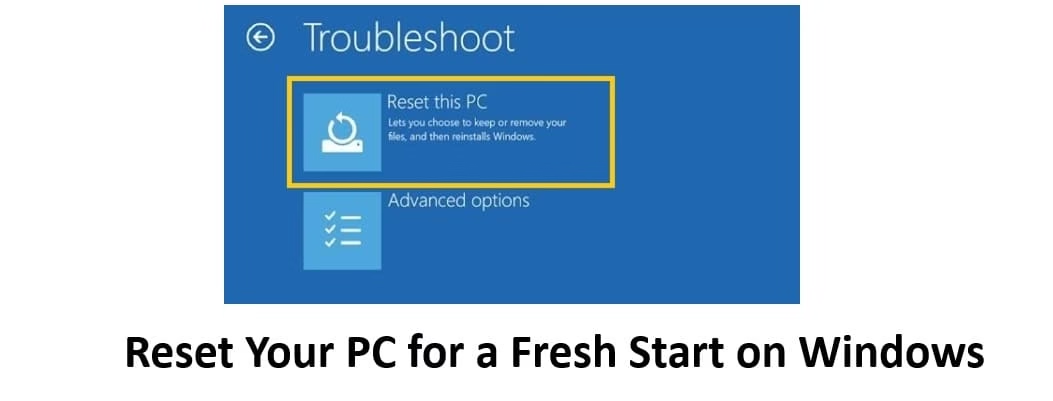
Hey everyone, it’s Amanda here! If your Windows PC has started feeling sluggish, full of random errors, or just isn’t as snappy as it used to be, you’re not alone. After years of installing apps, downloading files, and picking up little bugs along the way, sometimes the best thing you can do is reset your PC for a fresh start on Windows.
It’s like giving your computer a clean slate—reinstalling Windows while removing clutter, bloatware, and corrupted files. The best part? You get to choose whether to keep your personal files or wipe everything for a truly brand-new experience.
In this guide, I’ll walk you through working methods to reset your PC for a fresh start on Windows (works great on both Windows 10 and 11). I’ll keep the steps super simple and beginner-friendly so you can follow along without stress.
Best Methods to Reset Your PC for a Fresh Start
Method 1: Reset Your PC Using Windows Settings (Easiest for Most People)
This is my absolute favorite method because you can do everything right from your desktop—no extra tools needed. It’s quick, safe, and perfect if your PC still boots normally.
Here’s how to do it step by step:
- Press the Windows key + I to open Settings.
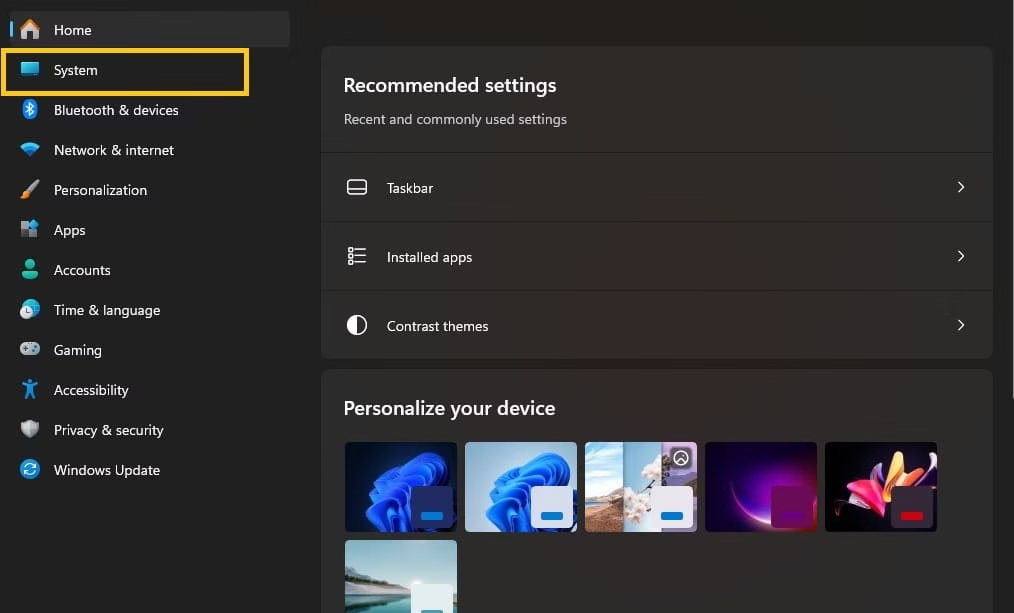
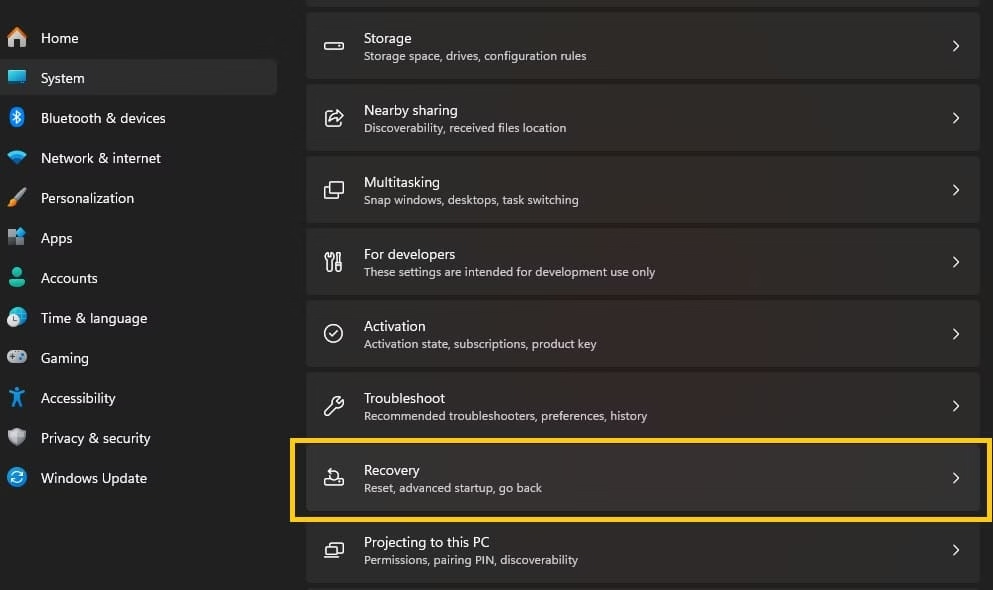
- Click on System in the left menu, then scroll down and select Recovery.
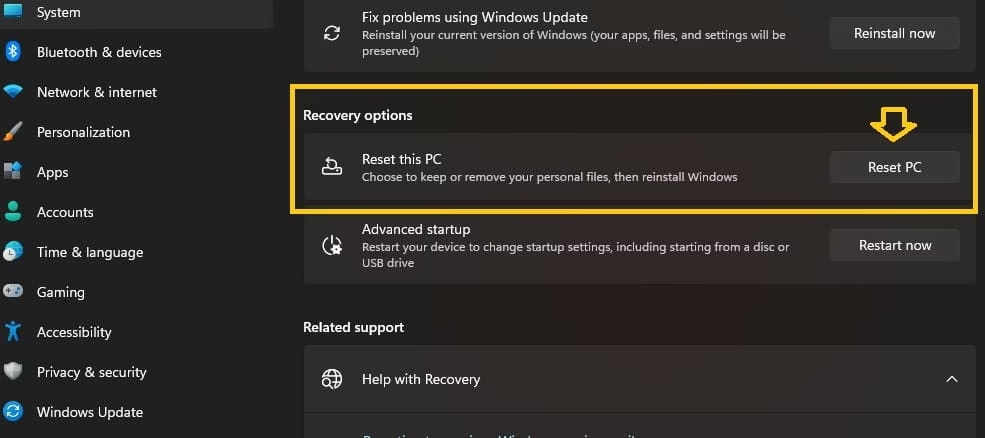
- Under “Recovery options,” click the Reset PC button.
- You’ll see two main choices:
-
- Keep my files – Removes apps and settings but keeps your documents, photos, and music.
- Remove everything – Gives you the true fresh start (this is what I usually recommend for maximum speed).
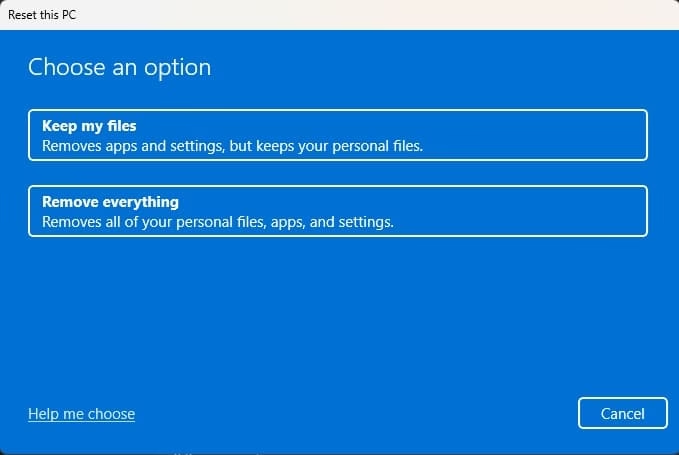
- Next, choose how Windows gets reinstalled:
- Cloud download (my top pick for a fresh start—it grabs the latest clean version straight from Microsoft).
- Local reinstall (faster if your internet is slow).
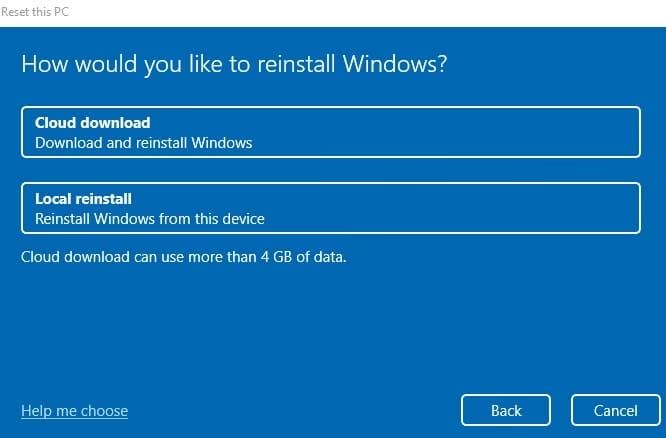
- Review everything, click Reset, and let Windows handle the rest. Your PC will restart a few times.
The whole process usually takes 30–60 minutes. When it’s done, you’ll feel like you just unboxed a new computer!
Also know: How to View Clipboard History in Windows 11
Method 2: Reset Your PC from Windows Recovery Environment (When Normal Boot Fails)
If your PC is too unstable to reach the desktop or Settings won’t open, don’t panic—this method lets you reset from the recovery screen.
Easy steps to follow:
- From the login screen, hold the Shift key and click Restart. (If you can’t reach the login screen, turn your PC on and off three times in a row to trigger Automatic Repair.)
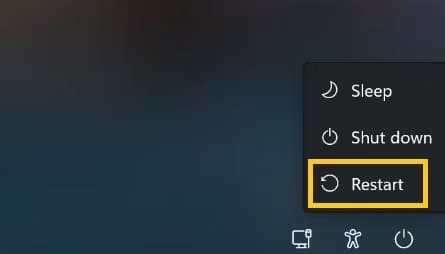
- On the blue recovery menu, choose Troubleshoot > Reset this PC.
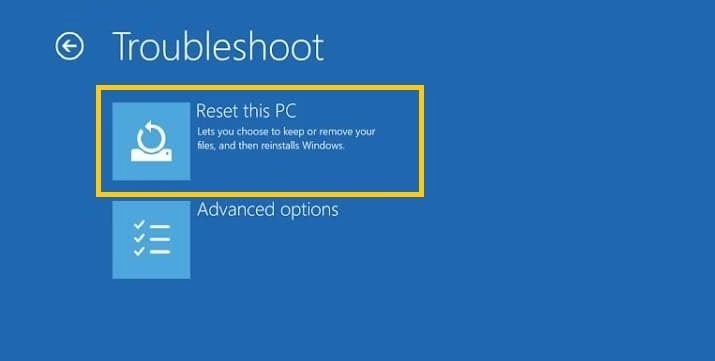
- Pick Keep my files or Remove everything.
- Then select Cloud download or Local reinstall.
- Follow the on-screen prompts, and Windows will do the heavy lifting.
This one is a lifesaver when things feel really broken, and it works just as cleanly as Method 1.
Method 3: Perform a Clean Install Using a Bootable USB (Most Thorough Option)
Want the absolute cleanest fresh start possible? This method wipes everything and installs Windows from scratch. It’s perfect if you suspect deep system issues or want zero leftover junk.
Here’s what to do (step by step):
- On another working computer, download the Media Creation Tool from Microsoft’s official website.
- Use it to create a bootable USB drive (you’ll need at least an 8GB USB stick).
- Insert the USB into the PC you want to reset.
- Restart your PC and press the boot menu key (usually F2, F10, F12, Del, or Esc—check your PC model) to enter BIOS/UEFI.
- Set the USB as the first boot device, save, and exit.
- In the Windows Setup screen, choose Custom install, delete all existing partitions on your main drive, and click Next to install fresh Windows.
It takes a bit more effort, but the result is the purest, fastest Windows experience you can get.
Also know: How to Clear Space to Run Games Smoothly on PC
Conclusion
Resetting your PC is honestly one of the quickest ways to make an older or glitchy Windows machine feel brand new again. Whether you just want to speed things up or you’re getting ready to sell or gift your computer, these methods have got you covered.
My personal recommendation as Amanda? Start with Method 1 (Reset via Windows Settings) using the Cloud download + Remove everything option. It’s the easiest, safest, and gives you a truly fresh Windows installation without any technical headaches. Only go to Method 2 or 3 if your PC won’t boot normally or you want the deepest clean possible.
Quick pro tip: Always back up your most important files first (especially if you choose “Remove everything”)—better safe than sorry! After the reset, take a few minutes to reinstall your favorite apps and drivers, and you’ll be good to go.
Have you ever reset your PC before? Drop a comment below and let me know how it went—I’d love to hear your experience!
FAQs
Q1. What does “Reset this PC” actually do?
Resetting your PC reinstalls a fresh copy of Windows while giving you two main choices:
- Keep my files — Removes apps, settings, and bloatware but safely keeps your personal documents, photos, and music.
- Remove everything — Wipes the entire drive for a completely clean slate (best for maximum performance or when selling/gifting the PC).
You can also choose Cloud download (gets the latest fresh Windows from Microsoft) or Local reinstall. It’s one of the easiest and safest ways to make your sluggish PC feel brand new again.
Q2. Which method should I use to reset my Windows PC?
- Easiest for most people: Use Method 1 (from Windows Settings → System → Recovery). It’s straightforward and works great on both Windows 10 and 11.
- PC won’t boot properly: Go for Method 2 (Shift + Restart from login screen to enter Recovery Environment).
- Want the deepest clean possible: Use Method 3 (Clean install with a bootable USB) — this is the most thorough but requires a bit more effort.
Most users get excellent results with the first method using Cloud download + Remove everything.
Q3. Do I need to back up my files before resetting Windows?
Yes, always back up important files! Even though the “Keep my files” option is quite safe, things can sometimes go wrong. If you choose “Remove everything,” your personal data will be deleted. Save your documents, photos, and any important data to an external drive, OneDrive, or another safe location before starting. It only takes a few minutes and gives you peace of mind.

Amanda Starc
Amanda is a dedicated technical web content writer with a passion for transforming complex ideas into compelling and accessible online narratives. With a background in web development, and digital Marketing I bring a unique blend of technical expertise and creative storytelling to the digital domain.
