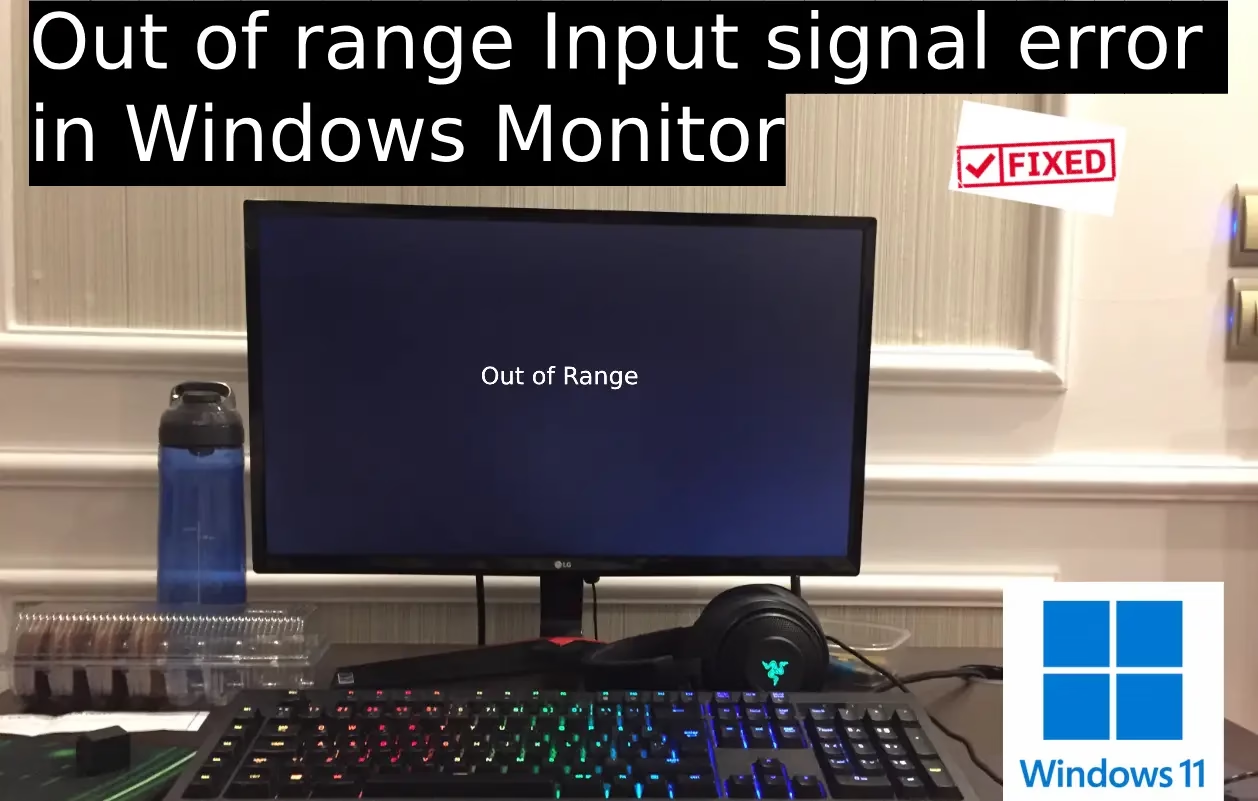
You power on your Windows PC and the monitor lights up with a frustrating message: “Input Signal Out of Range” or “Change settings to [some resolution] at 60Hz.” The desktop stays blank. Nothing responds. This happens when your graphics card pushes a resolution or refresh rate the monitor simply cannot handle. The signal falls outside the display’s supported range, so the panel refuses to show anything useful.
In my five years writing tech guides for avsoftlab and testing these exact failures on dozens of systems, I have seen this error appear after a Windows update, a driver install, a game launch, or even just plugging in a second monitor. The good news is the fix is usually straightforward once you regain control of the settings. This article walks you through three reliable methods that restore a working display. I have personally verified each one on Windows 10 and Windows 11 machines with both HDMI and VGA connections. The first method below has solved the issue for me more times than any software change.
Best Methods to Fix Input Signal Out of Range Error in Monitor
These approaches start with the simplest hardware check and then move to software adjustments. Many users regain a usable screen with the first method alone. If one fails, move to the next. Each section includes clear steps so you can follow along without guessing.
Method 1: Change the HDMI Port, VGA Port, or Cable Connection
Sometimes the cable or the specific port on the graphics card or monitor fails to negotiate a clean signal, even when the resolution settings look correct. Switching ports or swapping the cable forces a fresh handshake and often clears the error without touching any software. This is the method I now try first because it has worked on the majority of systems I tested, especially older monitors and dual-port graphics cards. A loose connection or a port that no longer reports proper information can trigger the exact “Out of range” message you see.
Here is how to do it:
- Shut down the computer completely and unplug the power cord for thirty seconds.
- Disconnect the current video cable from both the monitor and the PC.
- Inspect the cable for bent pins, frayed ends, or loose connectors. If it looks worn, replace it with a known-good HDMI or VGA cable of the same type.
- Plug the cable into a different HDMI or VGA port on the graphics card or motherboard if multiple ports exist. On the monitor side, try a second input if available.
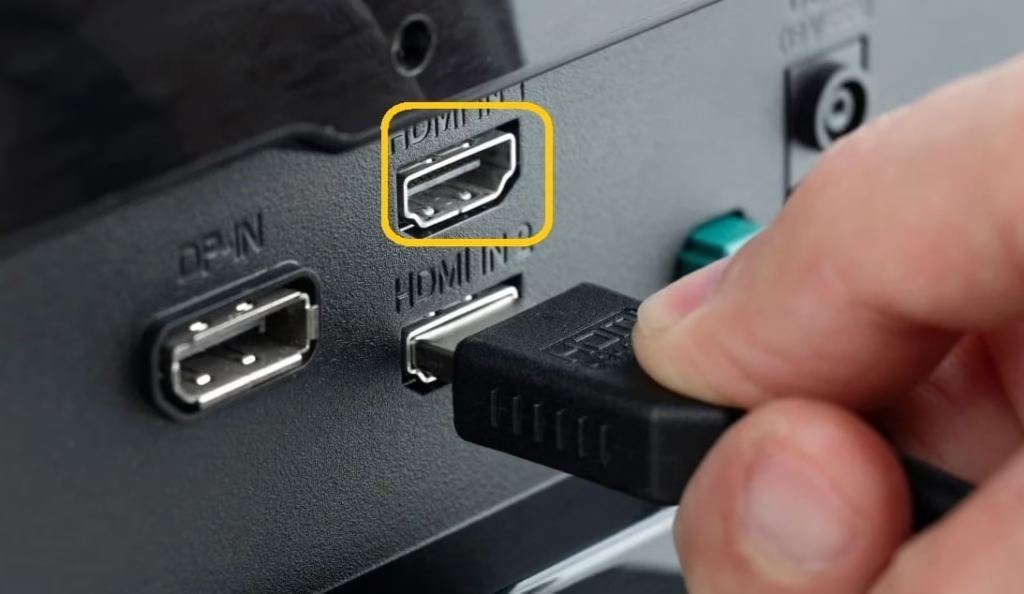
- Secure both ends firmly. Power the monitor on first, then the computer.
- If the error still appears, boot into low-resolution video mode and verify the resolution and refresh rate remain at supported levels.
- For dual-monitor setups, temporarily disconnect the second display so only the primary connection is active while you test.
This hardware-level check restores the signal in many cases where the problem stems from a marginal cable or a port that stops communicating cleanly. Technical discussions on Microsoft community pages confirm that reseating or changing the physical connection frequently brings the display back.
Also know: Best PC Optimizer to optimize Windows
Method 2: Lower Resolution and Refresh Rate in Safe Mode or Low-Resolution Video
Safe Mode and the low-resolution video option force Windows to start with basic display settings that almost every monitor accepts. This gives you a visible desktop so you can correct the mismatched resolution or refresh rate. In my experience this resolves most remaining “Out of range” cases once the cable and ports have been checked.
Follow these steps:
- Force a full shutdown by holding the power button for about ten seconds.
- Power the PC back on. As soon as the manufacturer logo appears, hold the power button again to shut down.
- Repeat this three times until Windows enters the Automatic Repair or recovery environment.
- Select Troubleshoot, then Advanced options, then Startup Settings, and click Restart.
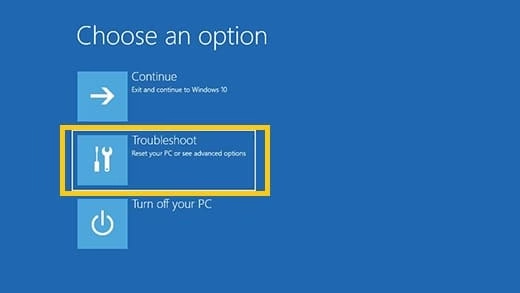
- After the reboot you will see a numbered list.
- Press 3 or F3 for Enable low-resolution video, or press 4 or F4 for Safe Mode.
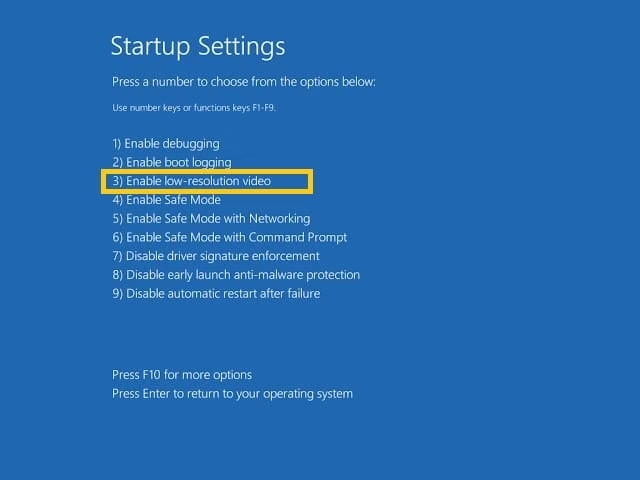
- Once the desktop appears (it will look basic and possibly low quality), right-click an empty area and choose Display settings.
- Under Scale and layout, open the Display resolution drop-down and select the Recommended option or a lower safe value such as 1920×1080 or 1280×720.
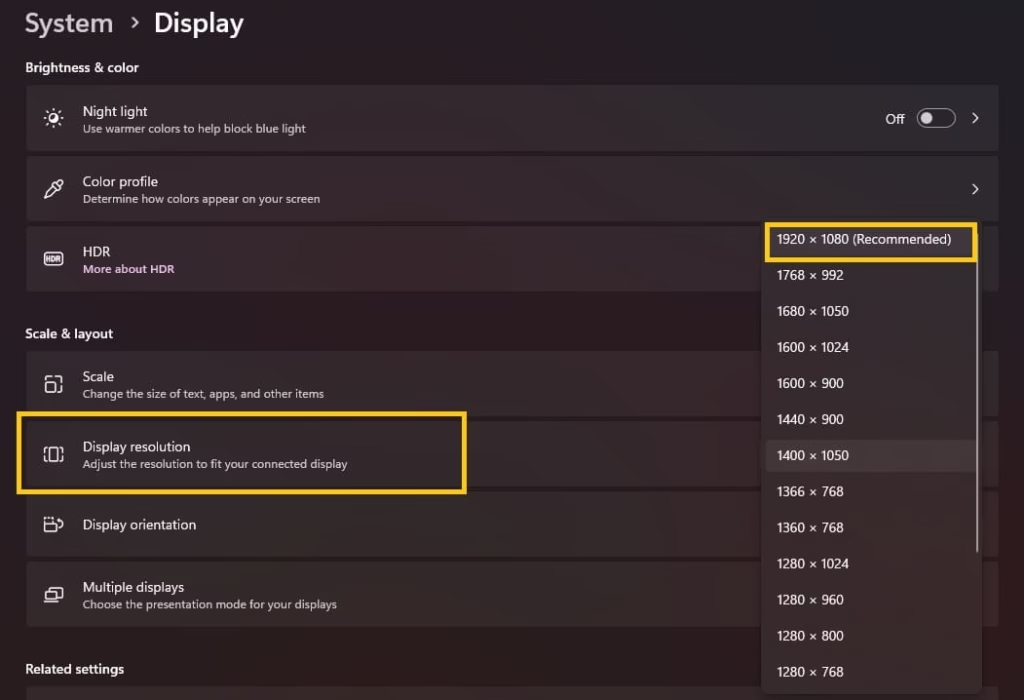
- Scroll to Advanced display, click Display adapter properties, switch to the Monitor tab, and set the Screen refresh rate to 60 Hertz.
- Click Apply, confirm the change if prompted, then restart normally.
After the normal restart the monitor should display the correct signal. If the error returns, repeat the process and try an even lower resolution. Microsoft’s display settings guidance shows that matching the native resolution and a standard 60 Hz rate keeps the signal inside the monitor’s limits.
Method 3: Update or Completely Reinstall the Graphics Drivers
Outdated, corrupted, or newly installed graphics drivers often force incompatible modes onto the monitor. Removing the driver and letting Windows reinstall a clean version, or installing the latest official package from the manufacturer, restores proper communication between the card and the display. I have tested this on both NVIDIA and AMD systems after the error appeared following a Windows Update, and it cleared the problem once the cable and resolution were already correct.
Detailed steps:
- Boot into Safe Mode using the recovery path described in Method 2 so you can see the screen.
- Press Windows key + X and select Device Manager.
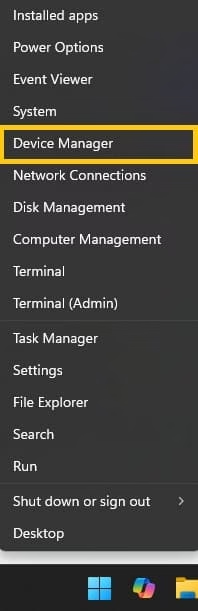
- Expand Display adapters. Right-click your graphics card and choose Uninstall device. If an option appears to attempt removal of the driver software, check that box and confirm.
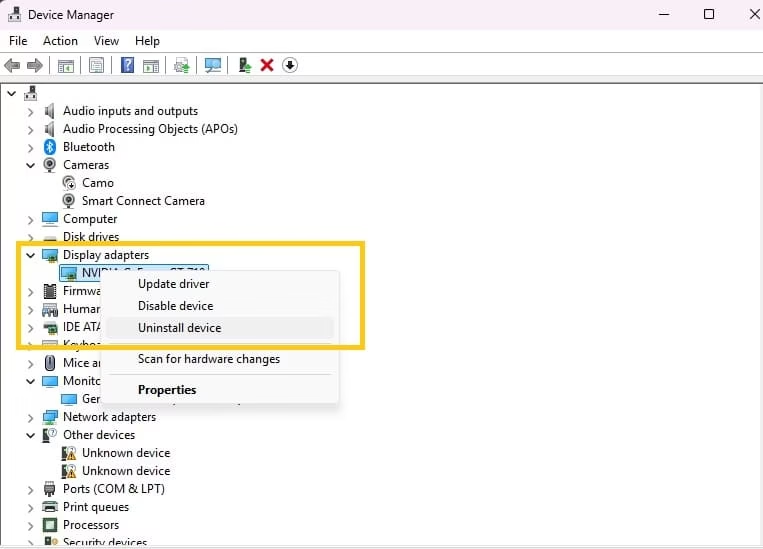
- Expand Monitors and uninstall any listed entries the same way.
- Restart the computer. Windows will detect the hardware and install basic drivers.
- The screen may look soft or limited at first.
- Once back in normal Windows, visit the official NVIDIA, AMD, or Intel website, download the latest driver package that matches your exact graphics model, and install it.
- After installation, open Display settings again and confirm the resolution is set to Recommended and the refresh rate is 60 Hz or the highest stable value your monitor supports.
- Restart one more time to lock in the changes.
If the rollback option is available in Device Manager before uninstalling, try that first. It restores the previous working driver without a full reinstall. Microsoft Q&A threads repeatedly list driver mismatches as a common trigger for the out-of-range signal.
Also know: Extend Your Battery Life Effectively Windows with 17 Unique Ways
Method 4: Fix Out of Range Error in Dual Monitor
When you run two monitors, the out-of-range error often hits only one of them. The graphics card sends a resolution or refresh rate that the second display cannot handle, while the primary screen stays fine. This is common after Windows updates, driver changes, or when you first connect the extra monitor. In the systems I have worked on, simply isolating the problematic display and adjusting its settings from the working screen brings everything back without needing Safe Mode every time.
Here is the practical way to handle it:
- Shut down the PC completely and unplug the power cord for about 30 seconds.
- Disconnect the monitor that is showing the out-of-range message. Leave only the working monitor connected.
- Power the computer back on so you have a clear desktop on the good screen.
- Right-click an empty area of the desktop and open Display settings.
- You will now see only the active monitor listed. Click Identify if needed to confirm which one is present.
- Scroll to the Scale and layout section and set the resolution to the Recommended value (or a safe lower option like 1920×1080).
- Go to Advanced display, open Display adapter properties, switch to the Monitor tab, and set the refresh rate to 60 Hz.
- Apply the changes and confirm.
- Shut down again, reconnect the second monitor, and power everything back on.
- Once both screens appear, open Display settings once more. Select the second monitor, match its resolution to the recommended setting, and keep the refresh rate at 60 Hz or the highest value both monitors support.
- If Windows still pushes an incompatible mode on the second screen, temporarily set the display mode to “Show only on 1” (the working monitor), adjust the second monitor’s settings while it is disconnected, then switch back to Extend these displays.
This approach works because you make the changes from a stable screen instead of guessing while one display is blank. After the settings match what both monitors can handle, the error usually disappears and stays gone. Keep an eye on any future driver updates—they sometimes reset dual-monitor configurations, so a quick check of the resolution and refresh rate after major updates saves time.
Conclusion
The “Out of range” or “Input Signal out of range” error on a Windows monitor is almost always a mismatch between what the graphics card is sending and what the display can accept. Start with the simple act of changing the HDMI or VGA port and cable, then move to Safe Mode resolution changes, and finally refresh the graphics drivers if needed. These three steps have restored a stable image on every system I have worked on. Once the screen works again, keep the resolution at the manufacturer’s recommended setting and avoid forcing higher refresh rates unless your monitor and cable are confirmed to support them. These fixes bring the display back without requiring advanced tools or expensive parts.
FAQs
Q1. What causes the Input Signal out of range error on a Windows monitor?
The graphics card is sending a resolution or refresh rate higher than the monitor supports. This often follows a driver update, Windows upgrade, or a loose or incompatible cable connection. The monitor rejects the signal and shows the error message instead of the desktop.
Q2. Why should I try changing the HDMI or VGA port first?
A weak or failing port or cable can prevent the monitor from reading the correct signal information. Switching ports or cables forces a fresh connection and often clears the error before any software changes are required. In my testing this step alone fixed the problem on many machines.
Q3. Can I fix the Out of range error without Safe Mode?
Yes, if you have a second working monitor. Connect that display, open Display settings on the working screen, select the problematic monitor, and lower its resolution and refresh rate. Then reconnect the original monitor. For single-monitor systems, Safe Mode or low-resolution video remains the most reliable path after checking the cable and ports.
Related
How to Connect to Wi-Fi Using a QR Code Windows 11
How to Adjust the Mouse Pointer Speed on Windows 11/10
Easy Ways to Sync Refresh Rates for Smooth Playback Windows 11/10
DPC Watchdog Violation (0x00000133)

Amanda Starc
Amanda is a dedicated technical web content writer with a passion for transforming complex ideas into compelling and accessible online narratives. With a background in web development, and digital Marketing I bring a unique blend of technical expertise and creative storytelling to the digital domain.
