You open your laptop and something feels off. The computer name looks wrong for network sharing. Performance slows after adding more RAM. Remote access refuses to connect. Or a recent update leaves System Restore points missing. These issues sit deep inside Windows system settings. Most people dig through Settings apps that shift layout with every version. The path feels longer than it needs to be.
sysdm.cpl is the classic System Properties window. One short command brings every core system detail into a single place. You can change the computer name, manage environment variables, adjust virtual memory, set up remote desktop, and create restore points without hunting through modern menus. This guide shows exactly what sysdm.cpl does, the fastest ways to open it, and the real problems it solves. By the end you will reach the right settings in seconds and fix common system hiccups yourself.
What is sysdm.cpl
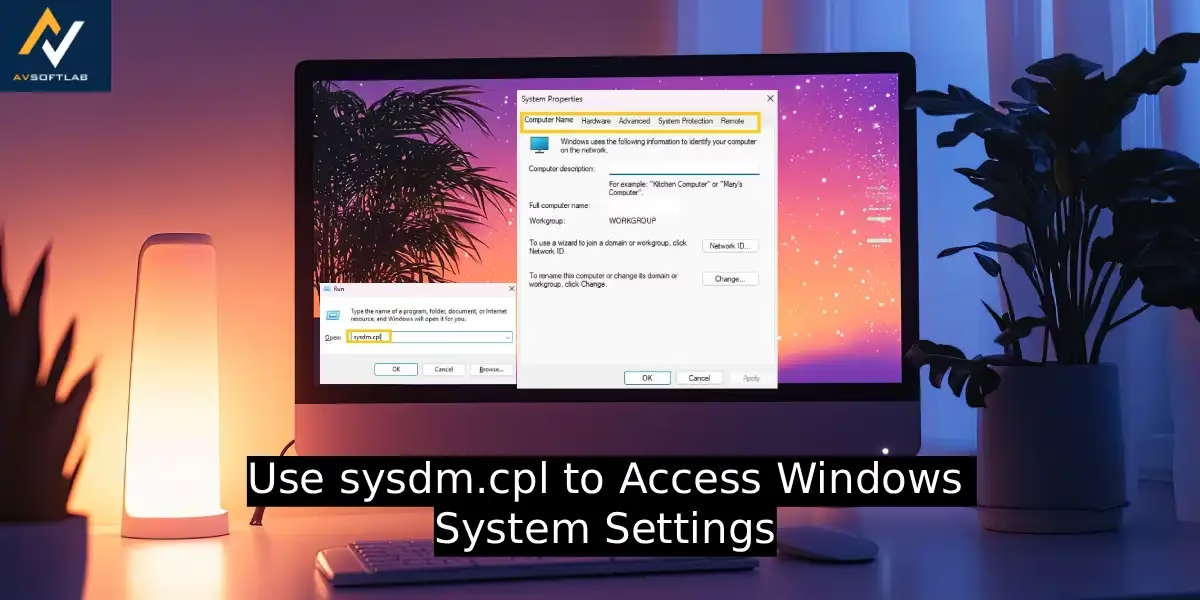
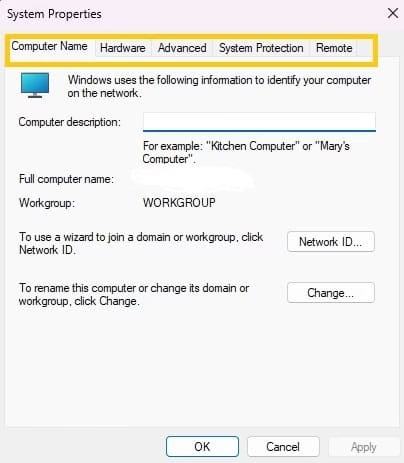
sysdm.cpl is the Windows command that opens System Properties. The letters stand for system device manager in the older naming style. The .cpl ending marks it as a Control Panel applet. When you run the command, a window appears with five tabs that cover the most important system details.
The Computer Name tab shows your full computer name and workgroup or domain. The Hardware tab links to Device Manager and lets you set how Windows installs drivers. The Advanced tab holds performance options, user profiles, startup and recovery settings, and environment variables. System Protection lets you turn System Restore on or off and manage restore points. The Remote tab controls Remote Desktop and Remote Assistance.
Think of it as the old-school control room for your PC’s identity and core behavior. Newer Settings screens offer pieces of the same information, yet this single window still gathers them without extra clicks. You can rename the computer, tweak how much memory Windows uses for paging, or enable remote access from one clean interface. No jargon. Just the settings that decide how your machine identifies itself and recovers from trouble.
How to Open sysdm.cpl
Opening System Properties takes only a moment once you know the routes. Each method lands on the same window. Pick the one that matches how you normally work.
Method 1: Use the Run dialog
This remains the quickest path for most people.
- Press the Windows key and the letter R together. The Run box pops up.
- Type sysdm.cpl with no spaces or extra characters.
- Press Enter or click OK.
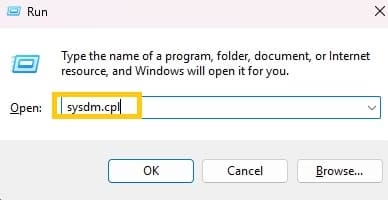
- The System Properties window opens on the Computer Name tab.
You can also type the same command into the Start menu search and press Enter. Both ways work on current Windows versions.
Method 2: Through Control Panel
Some users prefer the classic Control Panel route.
- Open the Start menu and type Control Panel. Select it.
- Switch the view to Large icons or Small icons if it shows Category view.
- Find and click the System icon.
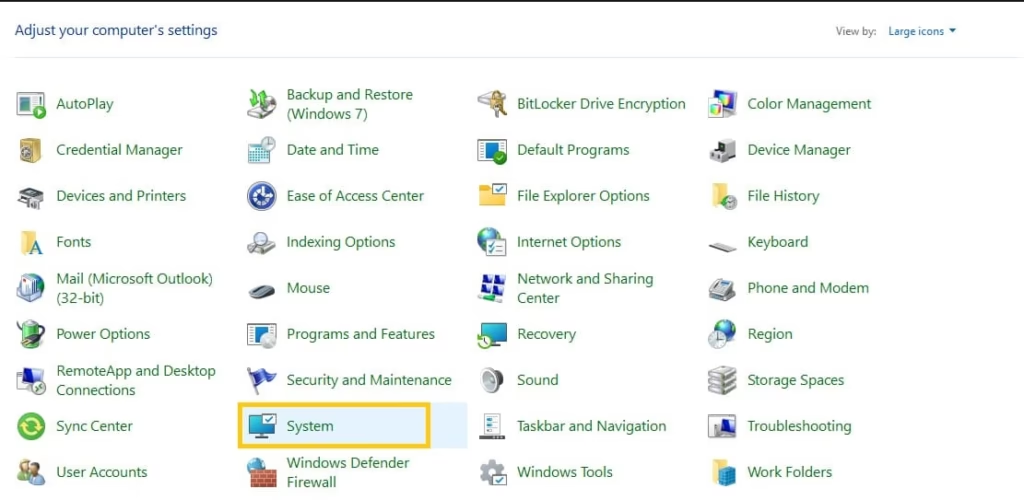
- Inside the System page look for “Advanced system settings” or the older System Properties link. The sysdm.cpl window appears.
This path helps when you already have Control Panel open for other tasks.
Method 3: From modern Settings
Windows 10 and Windows 11 still connect the new interface to the classic panel.
- Press Windows key + I to open Settings.
- Go to System, then About.
- Scroll to Related settings and click “Advanced system settings.”

- The System Properties window opens.
This method suits people who start in the modern Settings app and need the deeper options.
Method 4: Create a desktop shortcut
If you open System Properties often, a shortcut removes the typing step.
- Right-click an empty area on the desktop.
- Choose New, then Shortcut.
- In the location box type sysdm.cpl and click Next.
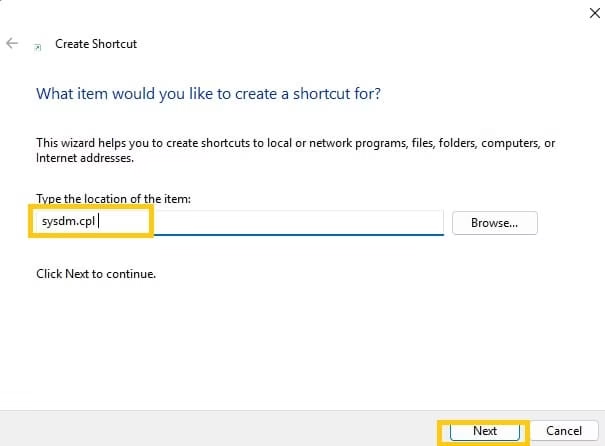
- Give the shortcut a clear name such as System Properties and finish.
- Double-click the icon whenever you need the window.
Any of these methods reaches the same place. The Run command stays the favorite among technicians because it works the same way every time.
Also know: Best Internet Speed Test for Windows System
What errors sysdm.cpl can fix in Windows
System Properties solves several stubborn problems that surface after updates, hardware changes, or network setups. Here are the most frequent ones and how the panel helps.
1. Computer name conflicts on the network
Two devices with the same name can block file sharing or printer access. Open sysdm.cpl and go to the Computer Name tab. Click Change. Type a unique name, apply the change, and restart when prompted. The new name takes effect after the reboot and clears the conflict.
2. Slow performance after adding RAM or large programs
Windows may still use outdated virtual memory settings. On the Advanced tab click the Settings button under Performance. Switch to the Advanced tab inside that smaller window and click Change under Virtual memory. Let Windows manage the size or set a custom range based on your RAM. Apply the change and restart. Many users notice smoother multitasking after this adjustment.
3. Missing or disabled System Restore points
After some updates System Protection turns off without warning. Open the System Protection tab. Select your system drive and click Configure. Turn on system protection and set a reasonable disk space usage. Click Create to make a fresh restore point right away. This gives you a safety net before the next big change.
4. Remote Desktop fails to connect
The Remote tab controls whether other computers can reach yours. Check the box that allows remote connections. If you use a specific version of Remote Desktop, choose the matching option. Apply the setting. You may also need to adjust firewall rules, but the first step always starts here.
5. Environment variables broken after software installs
Programs sometimes leave incorrect paths in the system variables. On the Advanced tab click Environment Variables. Review the Path entries under System variables. Edit or remove broken ones carefully. Confirm the change. This often restores commands that stopped working in Command Prompt or PowerShell.
6. Startup and recovery options after crashes
If Windows keeps restarting without showing error details, the Advanced tab helps. Click Settings under Startup and Recovery. Uncheck the automatic restart option so you can read stop codes. You can also change the time the recovery options stay on screen. These small tweaks make troubleshooting clearer after a blue screen.
7. Device installation settings causing driver problems
Some hardware installs the wrong driver automatically. On the Hardware tab click Device Installation Settings. Choose the option that stops Windows from downloading drivers automatically if you prefer manual control. Apply and test the device again. This reduces conflicts with specialized hardware.
These fixes cover the bulk of system-level headaches that send people searching online. The panel puts the controls in one place so you can act without guessing which modern menu hides the right switch.
Also know: Download Iolo System Mechanic Ultimate Defense with Review
Conclusion
sysdm.cpl remains one of the steadiest tools for reaching Windows system settings. It gathers computer identity, performance options, restore points, and remote access into a single window that has stayed consistent for years. Once you know the Run command or keep a desktop shortcut, most everyday system problems become straightforward to handle. The next time a network name clashes, performance dips, or restore points vanish, open System Properties, make the change, and move on. You gain direct control without waiting for the next Settings redesign. Master this one applet and the deeper parts of Windows stop feeling hidden.

Amanda Starc
Amanda is a dedicated technical web content writer with a passion for transforming complex ideas into compelling and accessible online narratives. With a background in web development, and digital Marketing I bring a unique blend of technical expertise and creative storytelling to the digital domain.
