
In our hyper-connected lives, nothing frustrates more than a sluggish internet connection that turns smooth 4K streaming into endless buffering or makes video calls choppy. If you’re using a Windows PC and suspect your actual speeds don’t match what your ISP promised, a quick and accurate internet speed test is your best starting point.
This comprehensive guide covers the best internet speed test for Windows in 2026. We’ve tested and compared reliable tools that deliver trustworthy results without compromising your security. You’ll learn why regular testing matters, discover top recommended options with their standout features, get simple step-by-step instructions, and explore built-in Windows alternatives. By the end, you’ll have everything you need to diagnose connection issues confidently, optimize your setup, and ensure you’re getting the performance you pay for. Whether you’re a gamer, remote worker, or casual streamer, these tools will help you stay in control of your internet experience.
Why We Need an Internet Speed Tester
Internet plans advertise impressive download and upload numbers, but real-world performance often falls short. Factors like network congestion, Wi-Fi interference, outdated routers, background downloads, or even ISP throttling can quietly degrade your speeds.
A dependable internet speed test for Windows helps you:
- Confirm you’re actually receiving the speeds promised in your plan.
- Pinpoint whether problems stem from your local network (Wi-Fi vs. wired) or the provider.
- Measure essential metrics: download speed (for loading content), upload speed (for sending files and backups), ping/latency (for gaming and calls), and jitter (connection stability).
- Track performance trends over time to identify patterns, such as slower evenings during peak hours.
- Gather solid data before contacting support — this often speeds up resolutions and prevents unnecessary service calls.
Regular testing removes the guesswork and empowers you to make informed decisions about your home network.
Best Reliable Internet Speed Tester for Windows
When selecting a tool, prioritize accuracy, security, minimal ads, and Windows-friendly design. Here are the most trustworthy options available today.
1. Speedtest by Ookla (Desktop App) – Best Overall Choice
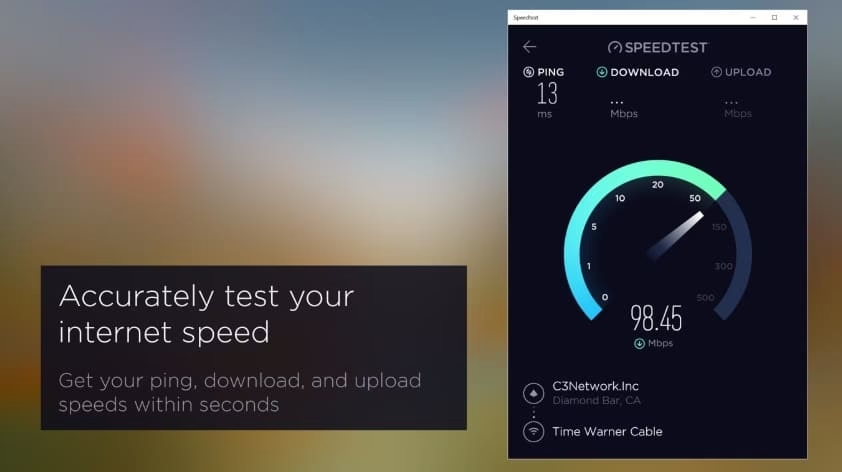
Ookla’s Speedtest remains the gold standard for most Windows users thanks to its dedicated desktop application that bypasses browser limitations for cleaner, more consistent results.
Unique Features:
- Native Windows app — Install once for one-click testing without browser extensions or cache interference.
- Huge global server network — Automatically selects the best server but allows manual choice for precise testing.
- Detailed metrics — Download, upload, ping, jitter, and even video/gaming performance insights.
- History and trends — Saves all past tests so you can monitor improvements or spot recurring issues over days or weeks.
- Low ads and secure — Reputable platform with minimal distractions in the app version.
- Extra tools — Real-world tests for streaming quality and exportable reports for sharing with your ISP.
How to Use It:
- Go to speedtest.net/apps/windows and download the free app.
- Install and launch it.
- Click the large “GO” button — the test completes in under a minute.
- Review results and check the history tab for past performance.
This is perfect if you test your connection often.
Also know: How to Reset Your PC for a Fresh Start on Windows
2. Fast.com – Best for Quick Streaming Checks
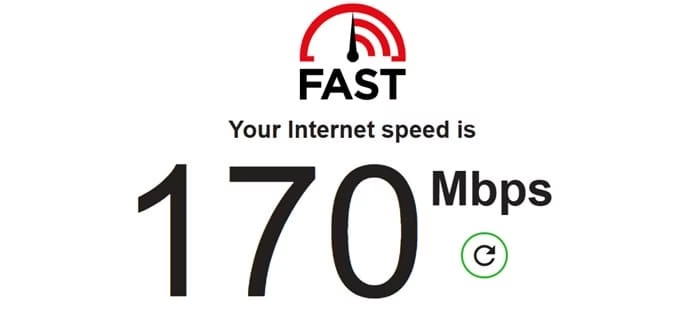
Created by Netflix, Fast.com delivers straightforward, no-nonsense results focused on real-world download performance.
Unique Features:
- Extremely simple — Open the site and testing starts automatically.
- Clean, ad-free interface.
- Optimized for streaming speeds (ideal before Netflix, YouTube, or Disney+ sessions).
- Shows latency and upload speeds when you expand details.
- Highly reliable and privacy-friendly.
How to Use: Just visit fast.com in any browser (Edge or Chrome recommended). It’s great for super-fast daily checks.
3. M-Lab Internet Speed Test – Best for Transparency and Simplicity
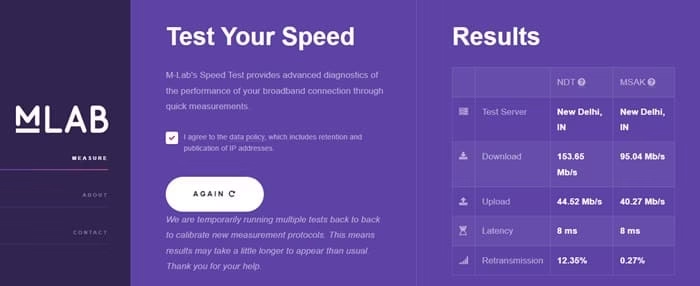
Backed by researchers and Google, M-Lab offers an open, trustworthy platform ideal for users who value neutrality.
Unique Features:
- Minimalist design with zero ads or clutter.
- Open-source and used for academic research — excellent data integrity.
- Accurate download, upload, and latency measurements.
- Strong focus on user privacy and unbiased results.
How to Use: Visit speed.measurementlab.net and start the test.
4. Convenient Windows 11 Built-in Option
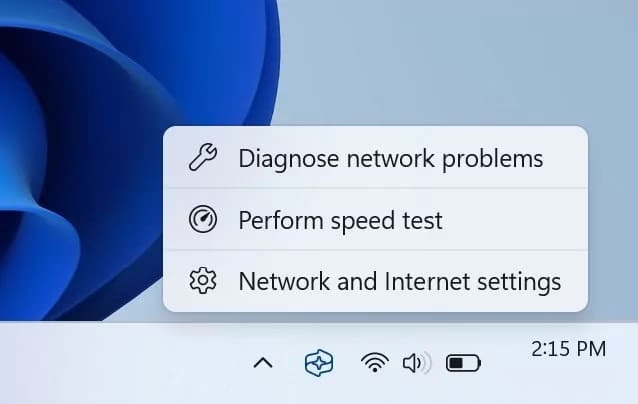
Windows 11 now includes a handy “Perform speed test” feature accessible directly from the taskbar. It uses Ookla’s technology for reliable results.
How to Use:
- Right-click the network/Wi-Fi icon in the system tray.
- Select “Perform speed test.”
- Results appear in your browser.
Other solid mentions include Cloudflare Speed Test (great privacy) and TestMy.net (good for detailed browser testing).
Other Ways to Test Internet Speed on Windows
You don’t always need extra software. Windows offers several built-in methods:
Command Prompt Ping Test (for Latency):
- Press Windows key + S, search for “cmd”, and open Command Prompt.
- Type ping google.com -n 10 and hit Enter.
- Look at the “Average” time in milliseconds. Under 50ms is generally good for most activities.
Task Manager Real-Time Monitoring:
- Press Ctrl + Shift + Esc to open Task Manager.
- Go to the Performance tab.
- Click on your Wi-Fi or Ethernet adapter to see current send/receive speeds in real time.
These quick checks are perfect when you want instant insights without installing anything.
Also know: SafePal Download: Safe and Easy Way to Get the Official Wallet in 2026
Conclusion
Choosing the right internet speed test for Windows can save you hours of frustration and help you get the most from your connection. For most people, the Speedtest by Ookla desktop app offers the best balance of accuracy, features, and ease of use. Pair it with Fast.com for quick streaming checks and Windows built-in tools for everyday convenience.
Make testing a habit — run a check during different times of day and note the results. If speeds are consistently lower than promised, try a router reboot, switch to a wired connection, update your network drivers, or reach out to your ISP with concrete data.
A stable, fast internet connection transforms your Windows experience. Test today, stay informed, and enjoy smoother online life!

