
You click an icon, and nothing happens for several seconds — then the spinning wheel appears, tabs freeze, and apps take forever to open. Sound familiar? A slow computer turns simple tasks into a daily frustration, piling up work and interrupting entertainment until even basic browsing becomes a chore.
This happens to almost everyone at some point, as software builds up, hardware ages, and background processes multiply without notice. The good news is that most causes have clear, practical solutions, and you do not need advanced technical skills or expensive tools for many of them.
In this guide I will walk you through the most common reasons a computer runs slow. Then I will share trusted, working fixes that I have tested on some laptops. Many people regain noticeable speed in under an hour. By the end you should understand what is dragging your system down and how to speed up your computer for smoother daily use.
Top Reasons for Why is Your Computer so Slow
Understanding the root causes makes fixing the problem much easier. I am mentioning here issues appear repeatedly across globe on pc. Let’s break them down one by one.
1. Too Many Startup Programs
Programs love to launch themselves the moment your computer turns on. Messaging apps, game launchers, cloud sync tools, and update helpers often add themselves to the startup list without clear permission. Each one claims a slice of memory and processing power right away. Your system spends extra time loading everything before you even open a single window. Boot times stretch out. The desktop feels laggy from the start.
2. Background Programs Eating Resources
Even after startup, many apps keep running quietly. They update in the background, sync files, or sit ready in the system tray. Browsers with multiple tabs open, music players, and antivirus scans all compete for the same limited resources. These background processes quietly drive up CPU usage and shrink your available RAM, slowing everything else down in response. You might not even notice them until you open Task Manager and see the full list.
3. Low or Insufficient RAM
Random Access Memory acts as short-term storage for active programs. When you open more apps or tabs than your RAM can handle, the system starts swapping data to the much slower storage drive. This creates lag, freezes, and long waits. Older machines with 4GB or 8GB often struggle with modern browsers and office tools. Newer software simply demands more pc specs and hardware.
4. Nearly Full Storage Drive
Hard drives and SSDs need free space to operate efficiently. Temporary files, system caches, and virtual memory all require room. When storage fills past 80 or 90 percent, performance drops sharply. File access slows, updates stall, and apps take longer to launch. Mechanical hard drives suffer the most, but even SSDs feel the pinch when space runs low.
5. Malware or Unwanted Software
Malicious programs or aggressive adware consume processing power and bandwidth in the background. Some mine cryptocurrency. Others display constant ads or redirect browsers. Sudden slowdowns often point here. Even “free” optimizers or toolbars can act like resource hogs while claiming to help.
Also know: Fixed: Out of Range Input Signal Error in Windows Monitor
6. Overheating and Thermal Throttling
Dust builds up inside laptops and desktops over time. Fans struggle. Heat rises. To protect itself, the processor deliberately reduces its speed. This thermal throttling feels exactly like a slow computer. Fans may run loudly and the case feels hot to the touch, with performance dropping even during everyday tasks not just demanding ones.
7. Outdated Drivers or Operating System
Drivers act as translators between hardware and software. Old versions create communication delays. Missing Windows updates leave performance improvements and bug fixes behind. New apps sometimes demand newer system components that an outdated machine cannot deliver smoothly.
8. Failing or Aging Hardware
Mechanical hard drives wear out. They develop bad sectors and take longer to read data. Aging processors and insufficient cooling compound the issue. If your machine is several years old and still uses a traditional hard drive, hardware limits become the main bottleneck.
9. Browser Overload
Modern browsers treat each tab as a separate process. Heavy extensions, multiple windows, and media-rich sites multiply the load. Chrome and similar browsers are frequent culprits for high memory and CPU use. Closing a few tabs can produce an immediate difference on lower-RAM systems.
10. Power Settings Limiting Performance
Laptops often default to balanced or power-saving modes. These settings restrict processor speed to save battery. On desktops the wrong power plan can have a similar effect. The machine never reaches its full potential even when plugged in.
Also know: DPC Watchdog Violation (0x00000133): Meaning and Fixes
Fixes for Slow Computer
Now that the common causes are clear, here are practical steps that actually work. Start with the simple ones. Many people see improvement after the first few. Always back up important files before major changes.
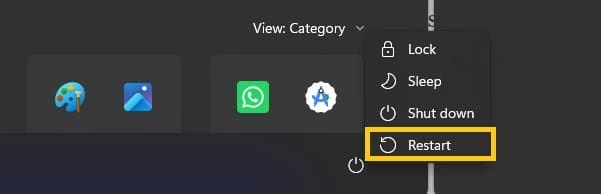
1. Restart Your Computer Properly
A full restart clears temporary memory and stops stuck processes. Many background tasks reset and the system starts fresh.
- Close every open program and browser window first.
- Click the Start button on Windows.
- Select the Power icon.
- Choose Restart (avoid Sleep or Shut down for this step).
- Wait until the computer fully reboots and shows the desktop again.
- Open a few regular apps and check if they respond faster.
2. Disable Unnecessary Startup Programs
This change often cuts boot time significantly and frees memory from the moment the system starts.
- Press Ctrl + Shift + Esc to open Task Manager on Windows.
- Click the Startup apps tab (or Startup on older versions).
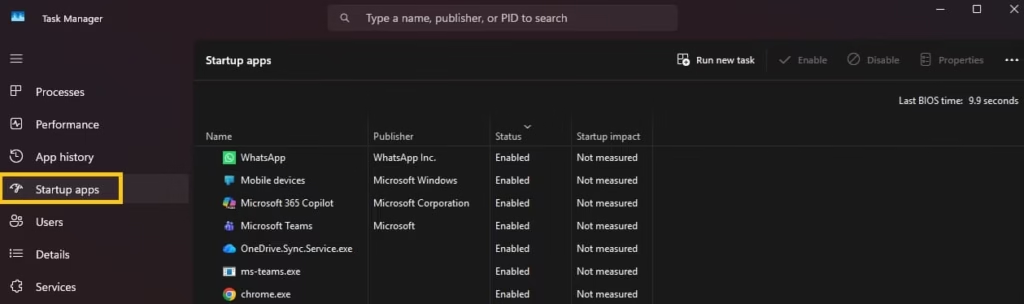
- Look at the list and check the Startup impact column if it appears.
- Right-click any program you do not need right at boot.
- Select Disable.
- Keep security software and important drivers enabled.
- Close Task Manager.
- Restart the computer and notice the quicker start.
Also know: SFC Scannow (System File Checker) to Repair Missing and Corrupted Files in Windows
3. Free Up Storage Space
Free space on the drive is essential for smooth performance. Aim to keep at least 15 to 20 percent empty.
- Open Settings on Windows.
- Go to System, then Storage.
- Turn on Storage Sense if it is off.
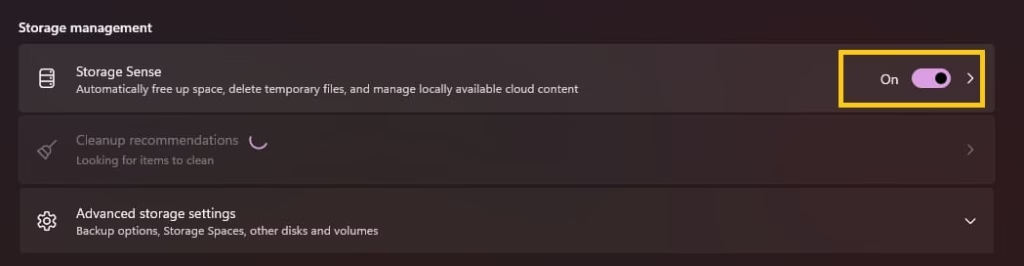
- Click Run Storage Sense now.
- Review Temporary files and select the ones safe to delete.
- Go to Apps > Installed apps and uninstall programs you no longer use.
- Move large folders of photos, videos, or documents to an external drive or cloud storage.
- Empty the Recycle Bin.
4. Close Background Programs and Browser Tabs
This quickly frees resources for the programs you actually need right now.
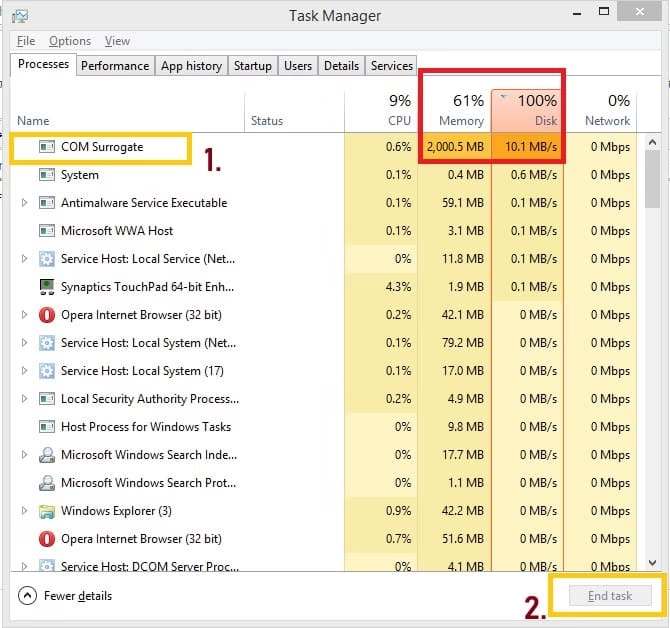
- Press Ctrl + Shift + Esc to open Task Manager.
- Click the Processes tab.
- Sort by CPU or Memory to see the biggest users.
- Right-click any app you recognize and no longer need.
- Select End task.
- Close extra browser tabs and windows one by one.
- Check the system tray near the clock and quit apps running there.
- Temporarily pause cloud sync tools if they show high activity.
5. Run a Full Malware Scan
Unwanted software can quietly drain speed and resources.
- Open Windows Security from the Start menu.
- Go to Virus & threat protection.
- Click Scan options.
- Select Full scan and start it.
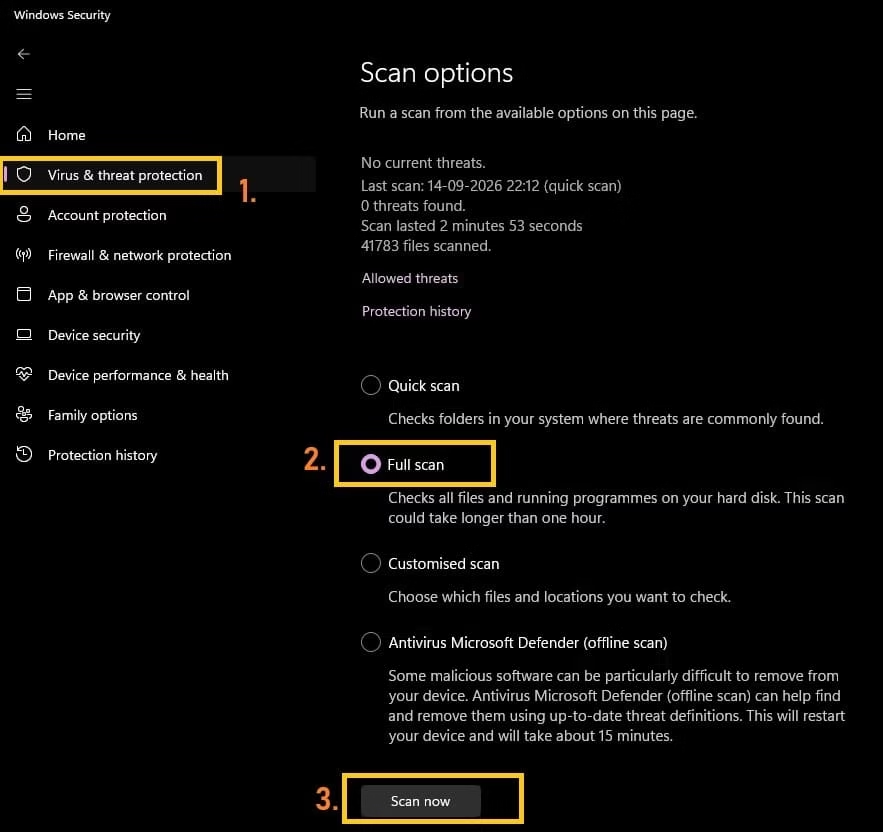
- Let the scan finish completely even if it takes time.
- Follow any prompts to remove detected threats.
- Restart the computer after the cleanup finishes.
6. Update Windows, Drivers, and Apps
Fresh updates frequently include performance improvements and stability fixes.
- Open Settings on Windows.
- Go to Windows Update.
- Click Check for updates.
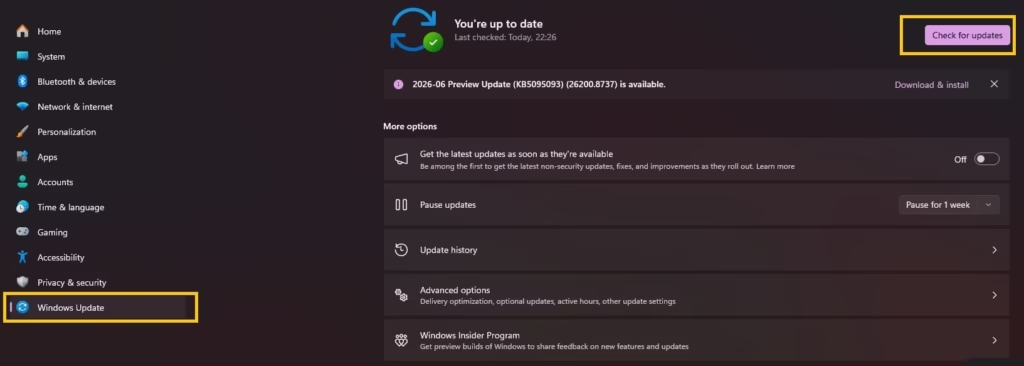
- Install all available updates, including optional driver updates.
- Restart when the system asks.
- Open the Microsoft Store, go to Library, and update all apps.
- For programs installed outside the Store, open each one and look for an update option in the Help or About menu.
Also know: How to Adjust Power and Sleep Settings in Windows 11
7. Adjust Visual Effects and Power Plan
These settings free resources without costing anything and often feel more responsive right away.
- Search for “Adjust the appearance and performance of Windows” in the Start menu.
- Open the result.
- Select Adjust for best performance, or uncheck individual animations and visual effects.
- Click Apply, then OK.
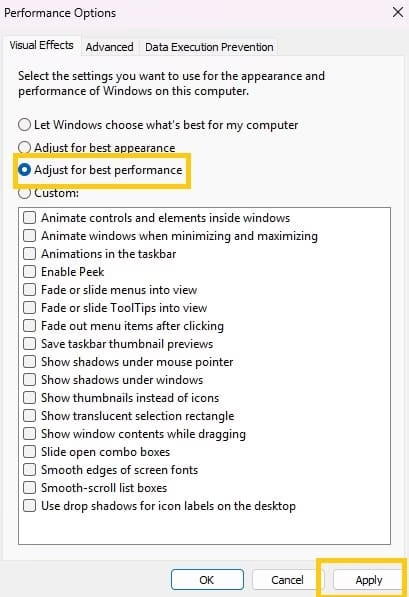
- Open Settings > System > Power & battery (or Power Options on older Windows).
- Choose High performance or Best performance when the computer is plugged in.
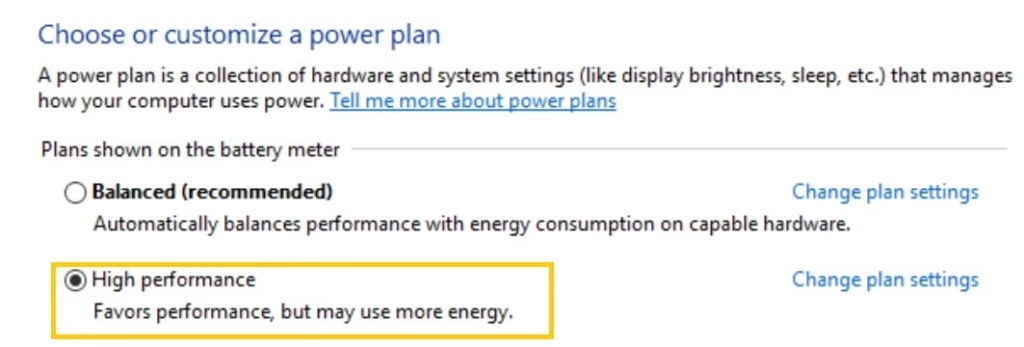
- On a laptop switch back to Balanced only when running on battery if needed.
- Restart once and test everyday tasks.
8. Check for Overheating
Heat forces the processor to slow down on purpose to protect itself.
- Feel the vents and the underside of a laptop or the computer case.
- If they feel warm or hot, shut the computer down completely.
- Use a can of compressed air to gently blow dust from the vents and fans.
- Keep the machine on a hard, flat surface so air can flow freely.
- Elevate a laptop slightly for better airflow under the base.
- Consider a simple cooling pad for regular heavy use.
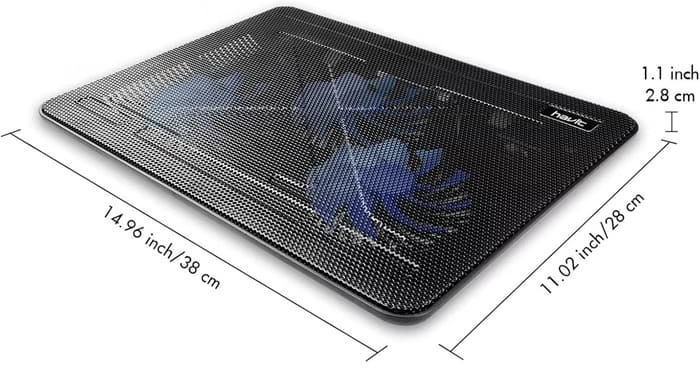
- Restart and watch whether the fans stay quieter during normal work.
9. Upgrade Hardware When Software Fixes Fall Short
Some limits need a physical change for lasting improvement.
- Open Task Manager and check the Performance tab.
- If Memory stays near 100 percent most of the time, consider adding more RAM. Check your computer model for compatible modules first.
- If Disk usage stays high and the drive is a traditional hard drive, replace it with an SSD.
- Back up all important files before any hardware work.
- Follow the manufacturer’s instructions or take the machine to a trusted technician.
- After the upgrade, boot times and app opening speed usually improve dramatically.
Also know: dllhost.exe COM Surrogate Explained
10. Use Built-in Cleanup Tools Regularly
A few minutes of maintenance each month keeps performance steady.
- Open Settings > System > Storage on Windows.
- Run Storage Sense or the older Disk Cleanup tool.
- Empty the Recycle Bin.
Also if you think these methods are not working on your pc then you can try third-party pc optimizer tools that promise quick miracles. But i would recommend you to stick to the official built-in options for safer results.
Conclusion
A slow computer rarely stays that way forever. Most of the time the causes sit right in front of you: too many programs launching at once, limited free space, background resource use, or simple heat buildup. The fixes above come from official guidance and real-world experience. They work for the majority of users without complicated tools.
Start with a restart and startup cleanup. Free space and scan for malware next. Update everything. Clean the hardware if it feels warm. If the machine is older, an SSD or extra RAM can feel like a new computer. Consistency matters. A few minutes of maintenance each month keeps performance steady.
Have you tried any of these steps yet? Which one made the biggest difference for you? Drop your experience or remaining questions in the comments. I read every one and am happy to help point you toward the next useful step.

Amanda Starc
Amanda is a dedicated technical web content writer with a passion for transforming complex ideas into compelling and accessible online narratives. With a background in web development, and digital Marketing I bring a unique blend of technical expertise and creative storytelling to the digital domain.
