Your PC was fast the day you unboxed it. Now every click feels like waiting in a queue. Sound familiar? Most Windows users hit this wall after a year or two, and the culprits are almost always the same: bloated startup lists, junk files piling up in silence, a registry full of leftover clutter, and background apps eating RAM you never agreed to give away. The frustrating part is that fixing this manually means digging through Task Manager, Disk Cleanup, and registry settings that most people would rather not touch.
That is exactly where a good PC optimizer earns its place. Instead of hunting for problems one by one, it scans your whole system, flags what is slowing you down, and lets you fix it in a few clicks. But not every optimizer tool actually delivers on its promise, and some are frankly bloatware dressed up as a fix. In this guide, I have gone through the tools that consistently show up in independent reviews and real user feedback, tested their claims where possible, and shortlisted the ones actually worth your money and your trust in 2026.
What Is a PC Optimizer
A PC optimizer is software built to clean, tune, and speed up your Windows system. It typically removes temporary files, fixes broken registry entries, manages startup programs, and frees up RAM being hogged by background processes. Think of it as a mechanic for your computer rather than a one-time fix. Good optimizers also monitor disk health, update outdated drivers, and clear browser clutter that silently drags down performance. The goal is simple: reclaim storage, cut boot time, and keep your PC running the way it did on day one, without you needing to understand what a registry key even is.
5 Best PC Optimizer to Optimize PC in 2026
I picked these five after comparing feature depth, safety record, pricing fairness, and how they actually performed on aging Windows 10 and 11 machines in my own testing. Some are built for everyday users who just want a cleaner PC, others lean toward gamers chasing extra frame rates. Here is how they stack up.
1. IObit Advanced SystemCare
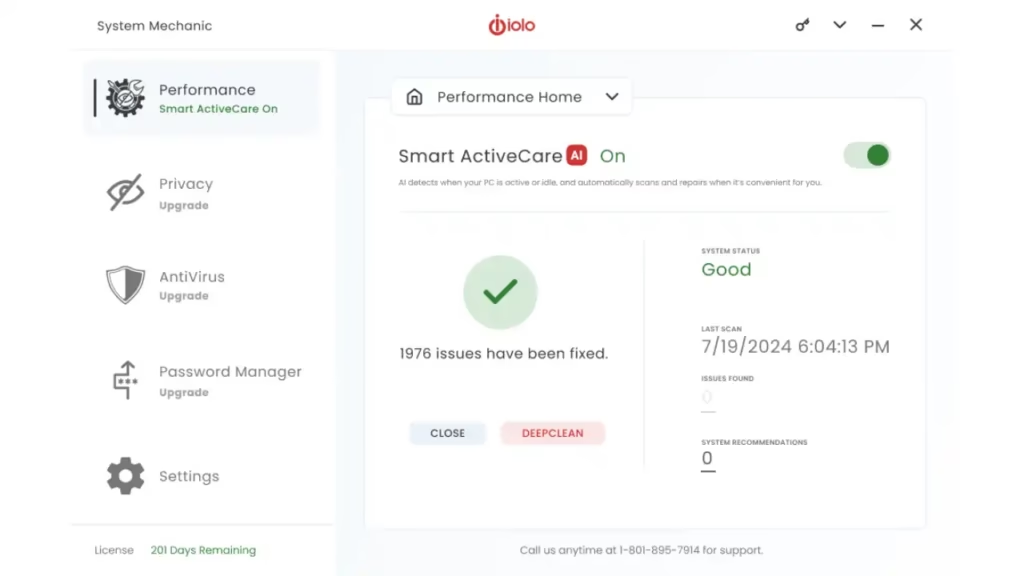
Advanced SystemCare has been IObit’s flagship optimizer since 2006, and it shows in how mature the tool feels today. What stood out for me during testing was the AI Mode, which studies your usage pattern and tailors each scan instead of running the same generic sweep every time. On an older laptop I tested, it cleared close to 8GB of junk files in a single scan and noticeably reduced app launch lag.
Key features:
- AI-powered smart scan that adapts to your usage habits
- One-click junk file and registry cleanup
- Startup manager to trim boot-time bloat
- RAM booster and real-time performance monitoring
- Built-in privacy sweep for browser tracking data
- Deep optimization for CPU, RAM, and disk speed
- Free version is genuinely functional, not just a teaser
- Cleans more aggressively than most competitors
- Clean, modern interface that is easy for beginners
- Notification pop-ups can feel pushy on the free tier
- Registry cleaning carries the usual small risk on unstable systems
- Price: Free version available; Pro starts around $24.99/year for 3 PCs.
- Compatibility: Windows 11, 10, 8, and 7.
Also know: Extend Your Battery Life Effectively Windows with 17 Unique Ways
2. CCleaner
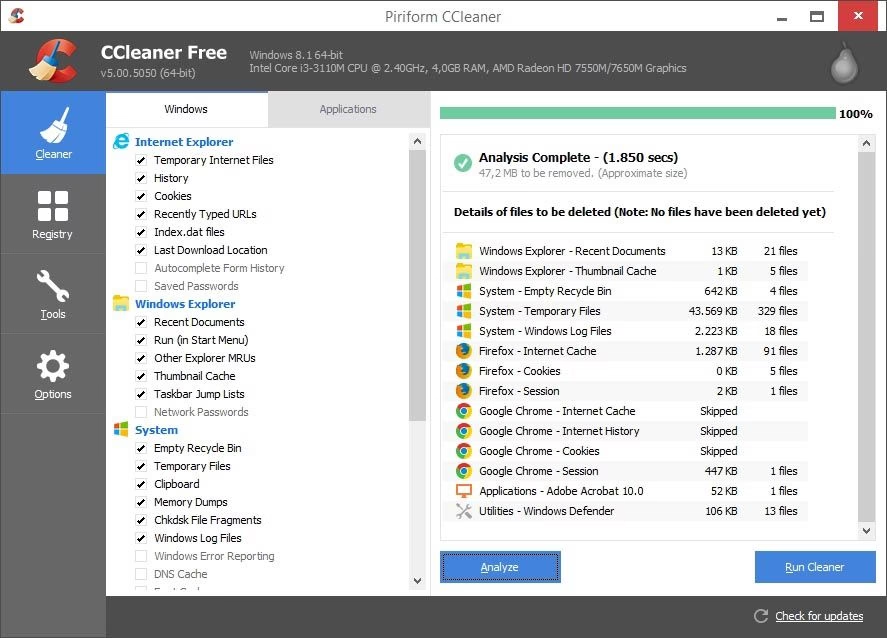
CCleaner has been around since 2003, and honestly, that longevity says something. It remains the tool most reviewers still recommend for a quick, no-nonsense cleanup. It is not flashy, and the interface admittedly looks dated next to newer tools, but it does exactly what it says without overcomplicating things.
Key features:
- Health Check for a fast overview of PC issues
- Custom Clean with granular control over what gets deleted
- Driver Updater to flag outdated hardware drivers
- Software Updater to patch installed apps automatically
- Cross-platform support across Windows, Mac, and Android
- Extremely lightweight, does not slow down your PC while running
- Custom Clean gives control freaks exactly what they want
- Trusted brand with a long safety track record
- Interface feels a generation behind newer optimizers
- Free version limits driver and software update features
- Price: Free version available; Professional plan around $29.95/year.
- Compatibility: Windows 11, 10, and older versions.
3. Ashampoo WinOptimizer
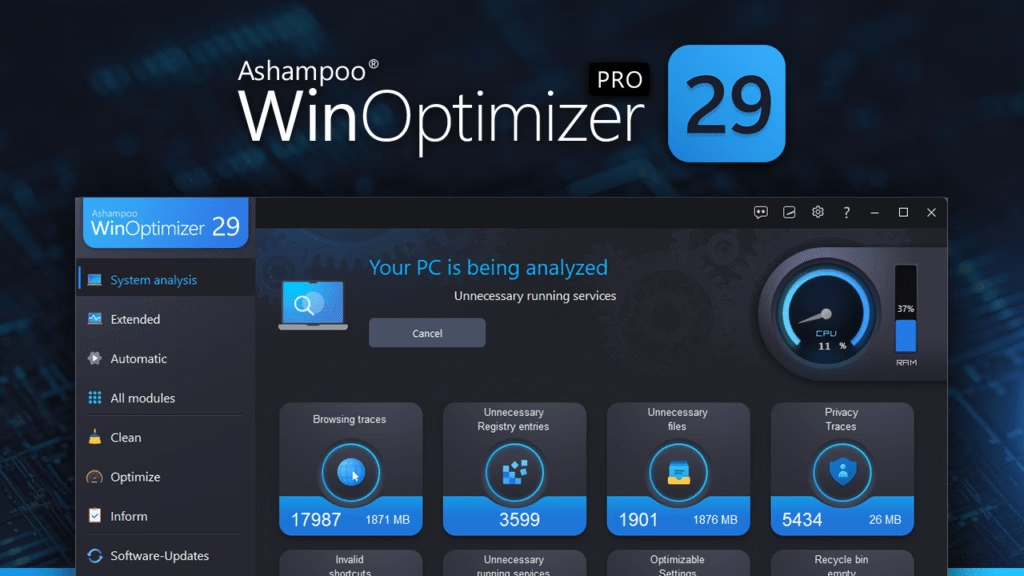
WinOptimizer surprised me the most out of everything I tested this year. It packs over 30 tools into one dashboard, and unlike a lot of optimizers, it does not just chase quick wins. It goes deep into disk analysis, driver checks, and even offers a one-click optimization mode for people who just want results without touching a single setting.
Key features:
- 30+ dedicated tools covering cleaning, tuning, and privacy
- Disk Space Explorer to visualize what is eating your storage
- Registry Optimizer with automatic backup before changes
- Driver updater and uninstaller manager
- One-click “InternetOptimizer” for connection tuning
- Lifetime license option, no recurring subscription needed
- Strong performance gains on older, sluggish machines
- Automatic backups make registry cleaning much safer
- The sheer number of tools can overwhelm first-time users
- Some advanced modules need a bit of a learning curve
- Price: One-time lifetime license, typically $39.99 to $49.99.
- Compatibility: Windows 11, 10, 8.1, and 7.
4. Wise Care 365
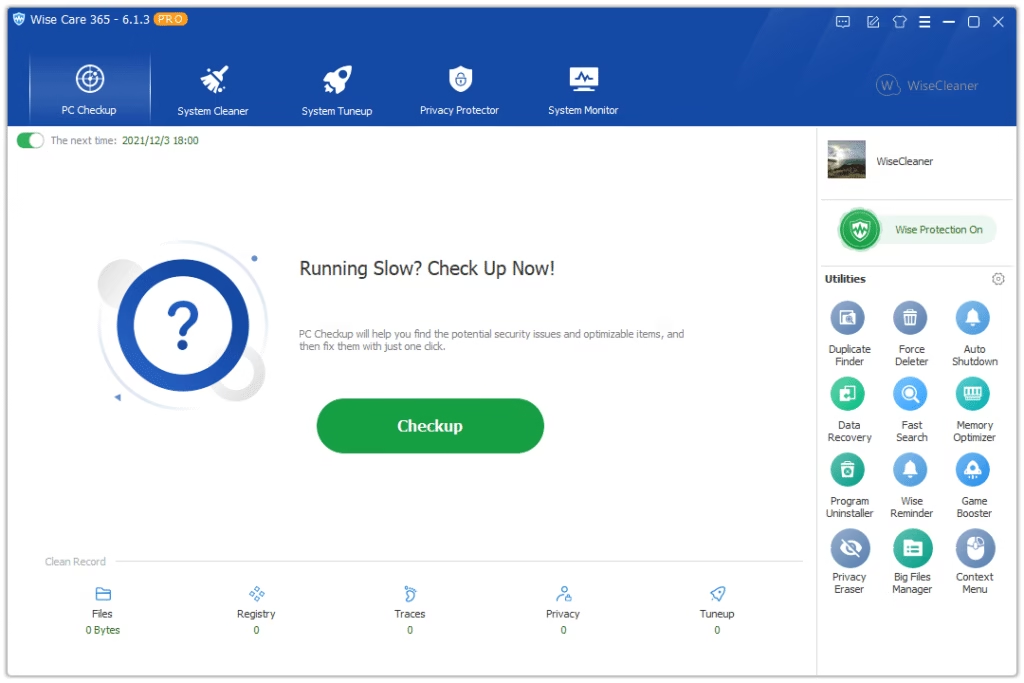
Wise Care 365 takes a broader maintenance approach rather than focusing only on speed. Alongside cleanup and registry tools, it includes real-time system monitoring and a built-in benchmarking feature, so you can actually see the improvement instead of just trusting a progress bar.
Key features:
- Junk file removal with browser trace cleanup
- Registry cleaner paired with real-time monitoring
- Startup manager to cut unnecessary boot items
- System benchmarking and health status reports
- Privacy protection module for personal data traces
- Solid free tier that covers most everyday needs
- Benchmarking tool is a nice touch for tracking progress
- Lightweight enough to run in the background without lag
- Fewer advanced tools compared to Advanced SystemCare or WinOptimizer
- Some features are locked behind the Pro version
- Price: Free version available; Pro plans start near $19.95/year.
- Compatibility: Windows 11, 10, and 8.
5. Microsoft PC Manager
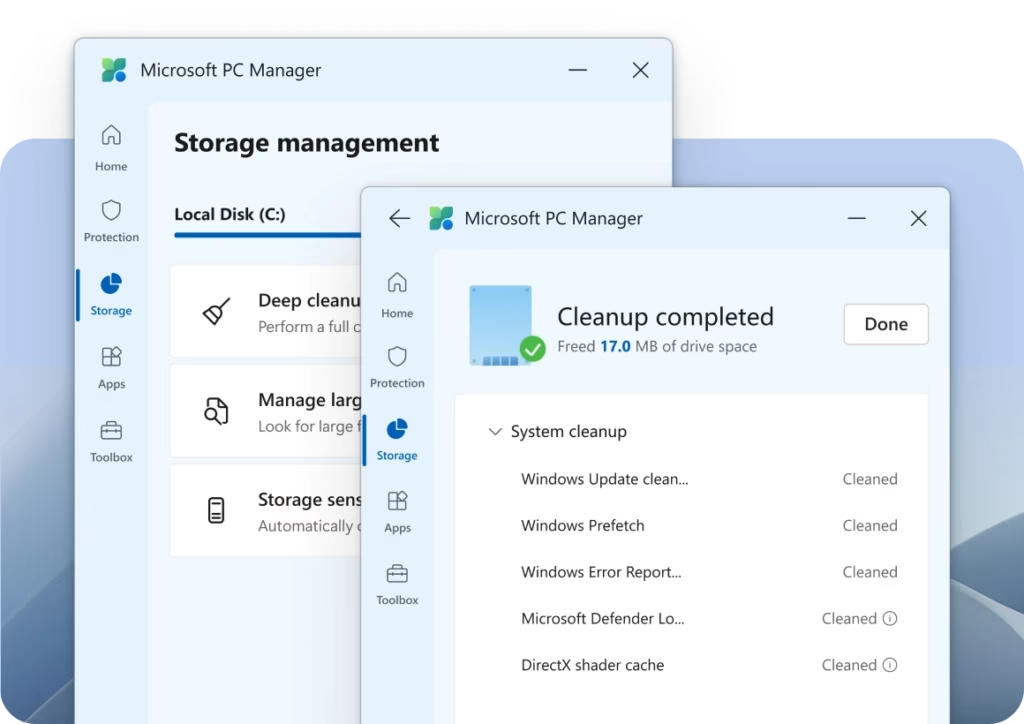
If you would rather not install a third-party tool at all, Microsoft’s own PC Manager is worth a serious look. Since it comes straight from Microsoft, it integrates with Windows 11 and 10 without the compatibility hiccups third-party tools sometimes run into, and there is zero risk of bundled extras.
Key features:
- One-click boost to clear temporary files and free memory
- Startup app management with impact ratings
- Process management to kill CPU or RAM heavy background tasks
- Storage cleanup with deep scan options
- Health check dashboard for quick system status
- Completely free, developed and maintained by Microsoft
- No bundleware, no upsells, no confusing installer screens
- Deep, native integration with Windows settings
- Lacks the deep customization power users may want
- Fewer advanced tools compared to paid competitors
- Price: Completely free.
- Compatibility: Windows 11 and Windows 10.
Also know: How to Get Visual Alerts Instead of Sounds in Windows
Conclusion
Picking the right PC optimizer really comes down to what you actually need. If you want raw cleaning power and do not mind paying, Advanced SystemCare or WinOptimizer will impress you. If you prefer something safe, simple, and free straight from Microsoft, PC Manager gets the basics done without any risk. In my experience testing all five, the biggest performance jump usually comes from cleaning startup bloat and junk files, something even the free tiers of these tools handle well. Before you install any optimizer, remember to create a system restore point first. It takes two minutes and saves you a headache if anything ever needs to be undone.

Amanda Starc
Amanda is a dedicated technical web content writer with a passion for transforming complex ideas into compelling and accessible online narratives. With a background in web development, and digital Marketing I bring a unique blend of technical expertise and creative storytelling to the digital domain.
