
What is SFC Scannow
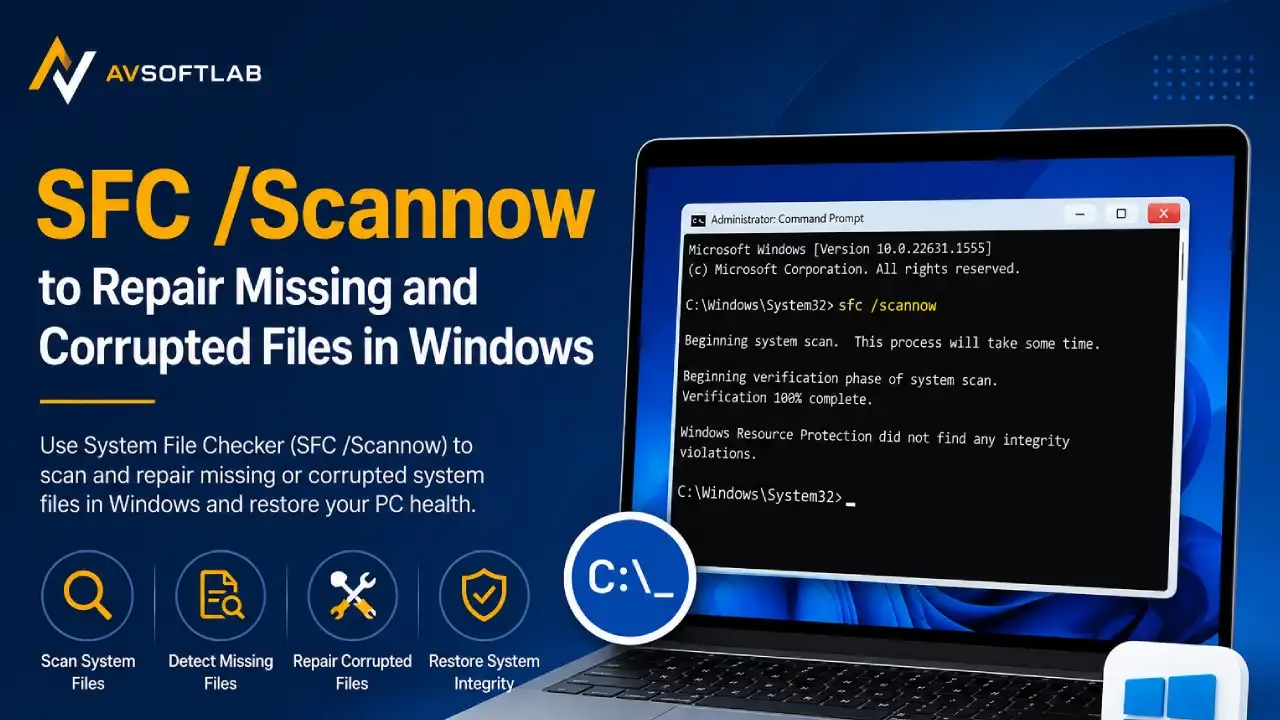
SFC stands for System File Checker. It is a command-line utility that Microsoft built into Windows to protect critical system files. When you run the specific command sfc /scannow, the tool examines every protected file on your system. It compares each one against a known good copy stored in a special cache folder.
If the tool finds a file that is missing, changed, or damaged, it replaces that file with a clean version from the cache. The process stays automatic. You simply start the scan and wait for it to finish. The tool works on Windows 10 and Windows 11 without any extra downloads.
Think of it as a careful inspection of the core pieces that keep Windows stable. Everyday programs and personal documents stay untouched. Only the protected system files receive attention. This focused approach makes SFC one of the safest first steps when your PC starts acting strangely after an update, a power cut, or a malware scare.
What Kind of Problems SFC Scannow can Solve
SFC scannow (System File Checker) is a built-in Windows tool that scans for and repairs corrupted or missing protected system files. These files are essential for Windows to run smoothly. When they become damaged (from incomplete updates, sudden shutdowns, malware, disk errors, or normal wear), a range of everyday problems can appear. Running sfc/ scannow often resolves several of them at once by restoring clean versions from a local cache or Windows installation sources.
Problems SFC Commonly Fixes
1. Noticeably slower performance
Damaged DLLs or core system libraries force Windows to spend extra time loading incorrect versions, recovering from errors, or retrying failed operations. This can make the computer feel sluggish even when hardware is fine. After a successful SFC repair, the system usually becomes more responsive because the correct files load cleanly and without delays.
2. Random crashes, freezes, and Blue Screens of Death (BSOD)
Many blue-screen errors that mention missing drivers, system exceptions, or critical process failures trace back to a single corrupted system file rather than actual hardware failure. SFC can replace that damaged file and stop the recurring crash loop. Freezes or sudden restarts during normal use often improve as well once the underlying system components are restored.
3. Broken or unreliable Windows features
Corrupted system files frequently cause specific Windows components to stop working correctly:
- The Start menu may refuse to open or respond slowly.
- File Explorer can hang, crash, or fail to load folders.
- Windows Update may fail to download or install patches.
- Search can return incomplete or no results.
- Settings pages, Taskbar, or notification center may become unresponsive.
In many of these cases the root cause is a damaged protected system file that SFC can replace, restoring normal behavior without a full reinstall.
4. Applications that fail to launch
Some programs depend on shared system libraries (DLLs) that Windows provides. When those libraries are missing, corrupted, or the wrong version, the apps simply refuse to start or crash immediately. Restoring the clean system files with SFC often brings the affected programs back to life.
5. Leftover damage from incomplete Windows updates
A power loss, forced shutdown, or interrupted update can leave partial or mismatched system files behind. The next time Windows boots, these incomplete files can cause instability or update failures. Running SFC after a successful boot helps clean up the leftovers and restores a consistent set of system files.
What SFC Cannot Fix
SFC is powerful for “soft” system-file damage, but it has clear limits:
- It cannot repair hardware problems (failing hard drive, bad RAM, overheating, etc.).
- It does not fix third-party driver issues or problems caused by non-Microsoft software.
- It cannot repair corrupted user documents, personal files, or application data.
- It will not revive a completely broken Windows installation that refuses to boot at all. In those deeper cases you usually need recovery media, Startup Repair, DISM commands, or a clean install.
Also know: Best PC Optimizer to optimize Windows PC
Best Ways to open SFC Scannow in Windows
You can reach the System File Checker from several places inside Windows. The only strict requirement is administrator rights. Without those rights the command cannot change protected files. Here are the practical methods that work reliably on both Windows 10 and Windows 11.
Method 1: Using Command Prompt as Administrator
This remains the classic and most widely used route.
- Click the Start button or press the Windows key.
- Type cmd in the search box.
- Right-click the Command Prompt result that appears.
- Choose Run as administrator from the menu.
- Confirm the User Account Control prompt by selecting Yes.
- In the black window that opens, carefully type sfc /scannow and press Enter.
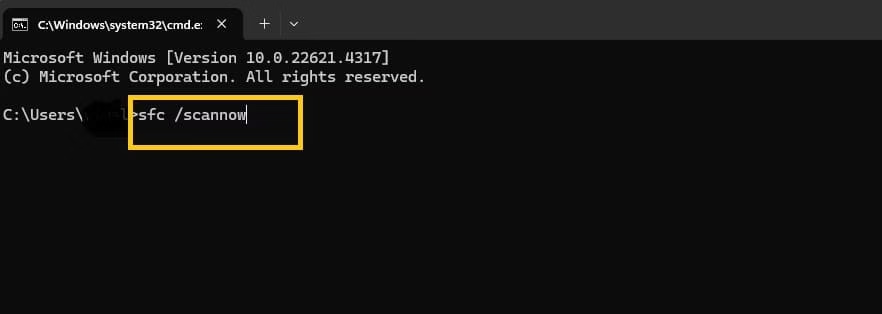
- Keep the window open while the scan runs. The process usually takes ten to twenty minutes depending on your drive speed and the number of files that need checking.
- When the scan finishes, read the final message. Restart your computer if the tool reports that it repaired any files.
Method 2: Using Windows Terminal as Administrator
Windows 11 and recent Windows 10 builds include Terminal as the modern replacement for the older Command Prompt window.
- Press the Windows key and the X key at the same time.
- From the quick menu choose Terminal (Admin) or Windows Terminal (Admin).
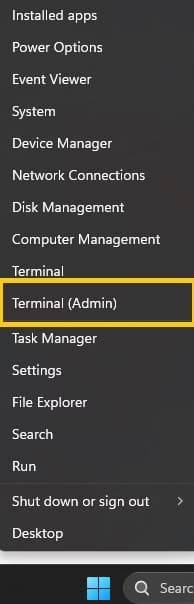
- Approve the User Account Control prompt.
- At the prompt type sfc /scannow and press Enter.
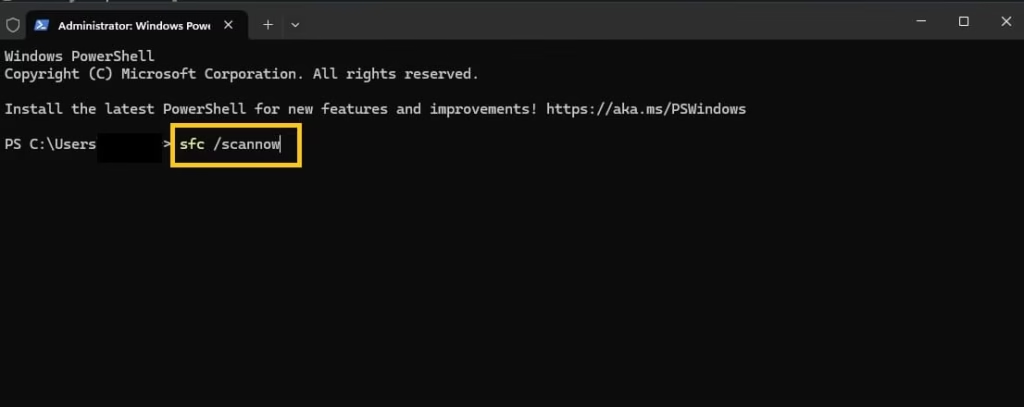
- Wait for the verification percentage to reach 100 percent.
- Close the window only after the final result appears. Restart the PC if repairs took place.
Also know: DPC Watchdog Violation (0x00000133): Meaning and Fixes
Method 3: Using PowerShell as Administrator
PowerShell works the same way and offers a familiar environment for many users.
- Open the Start menu and type PowerShell.
- Right-click Windows PowerShell or PowerShell and select Run as administrator.
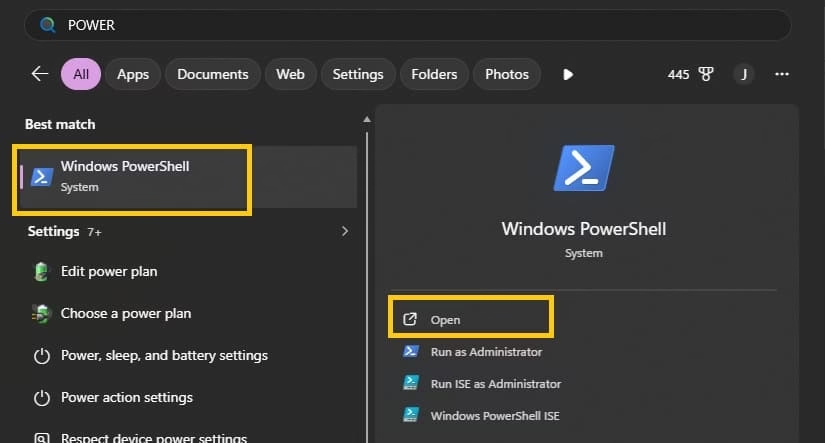
- Confirm the security prompt.
- Type the exact command sfc /scannow and press Enter.
- Allow the scan to complete without interruption.
- Review the outcome message and restart if needed.
Method 4: Running SFC from Windows Recovery Environment
If Windows won’t boot normally — stuck on a black screen, crashing before login, or stuck in a boot loop — you can still run the System File Checker from the Windows Recovery Environment (WinRE).
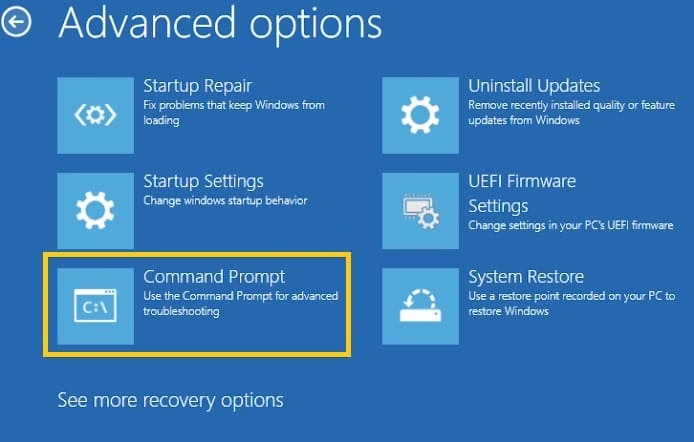
- Reach the Advanced Options screen and force three interrupted boots. (Restart the PC as soon as the Windows logo appears, three times in a row) to trigger Automatic Repair, or boot from a Windows installation/recovery USB drive instead.
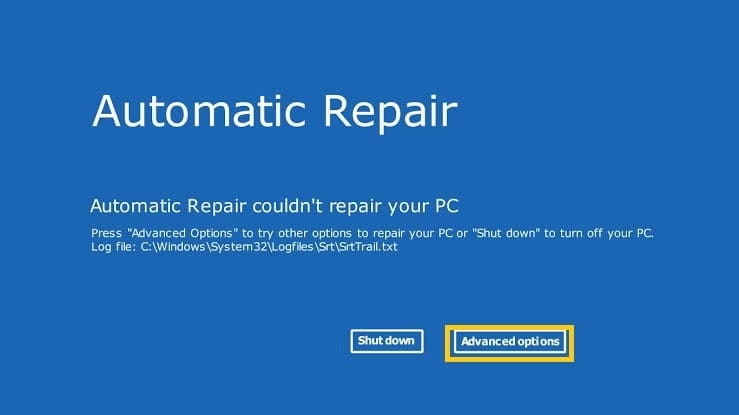
- Select Troubleshoot, then Advanced options, then Command Prompt.
- At the recovery prompt type “sfc /scannow /offbootdir=C:\ /offwindir=C:\Windows” and press Enter. Adjust the drive letter if Windows lives on a different volume.
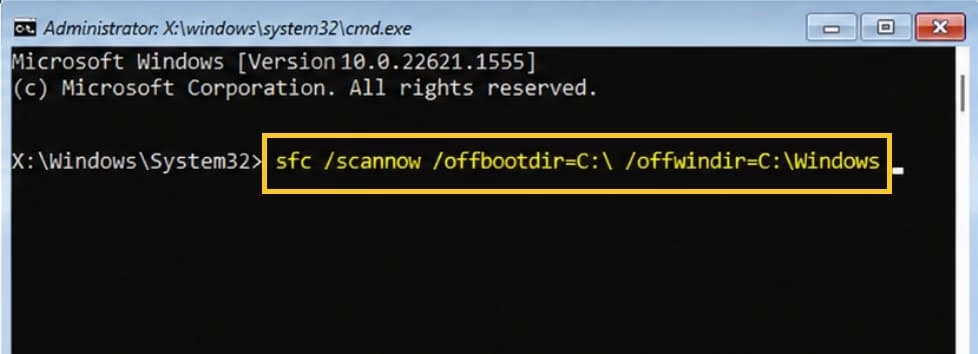
- Let the offline scan finish. The tool will report its findings once complete.
Any of these routes works. The first three cover normal daily use. The recovery method helps when the system will not reach the desktop.
Also know: How to Adjust Power and Sleep Settings in Windows 11
How SFC Scannow works in Windows
The System File Checker follows a clear sequence once you start the command. First it builds a complete list of every protected system file. These files include critical DLLs, executable components, and configuration pieces that Windows relies on for basic operation.
Next the tool calculates a digital signature or hash for each file currently on the disk. It compares that value against the known good signature stored in the component store. The component store lives inside the WinSxS folder and holds clean copies of system files along with their version history.
When a mismatch appears, SFC attempts to copy the correct version from the store into the active system location. If the store itself holds a clean copy, the replacement happens quietly. The tool logs every change so you can later review the CBS.log file if you want the exact details.
At the end of the scan Windows Resource Protection reports one of several standard messages. One message confirms that no integrity violations exist. Another states that corrupt files were found and successfully repaired. A third message notes that some files could not be fixed. In that last case the component store itself may need repair first, which is why many technicians run the DISM RestoreHealth command before or after SFC.
The entire process stays non-destructive to your personal data. Documents, photos, and installed programs remain outside the scope of the scan. Only the protected system files receive attention. Because the tool works from inside Windows or from recovery, it can reach files that ordinary programs cannot touch.
After a successful repair the new files load on the next restart. That is why a reboot after the scan often completes the fix. The system then runs with the restored clean versions and many of the earlier symptoms disappear.
What to Do If SFC Cannot Fix Every File
Sometimes the System File Checker finishes its scan and reports that it found corrupted files but was unable to fix all of them. This is more common than many people realize, and it does not mean the tool itself failed. It usually means the component store — the local cache of clean system files that SFC relies on — has some damage of its own. When the source copies are incomplete or unreliable, SFC simply has nothing good to restore from, so a few files are left unrepaired.
This is the point where DISM (Deployment Image Servicing and Management) becomes essential. Unlike SFC, DISM can reach beyond the local cache and repair the component store by downloading healthy files directly from Windows Update.
How to run the repair sequence
1. Open an elevated Command Prompt or PowerShell window the same way you did for SFC (right-click → Run as administrator).
2. Type (or paste) the following command and press Enter: “DISM /Online /Cleanup-Image /RestoreHealth”
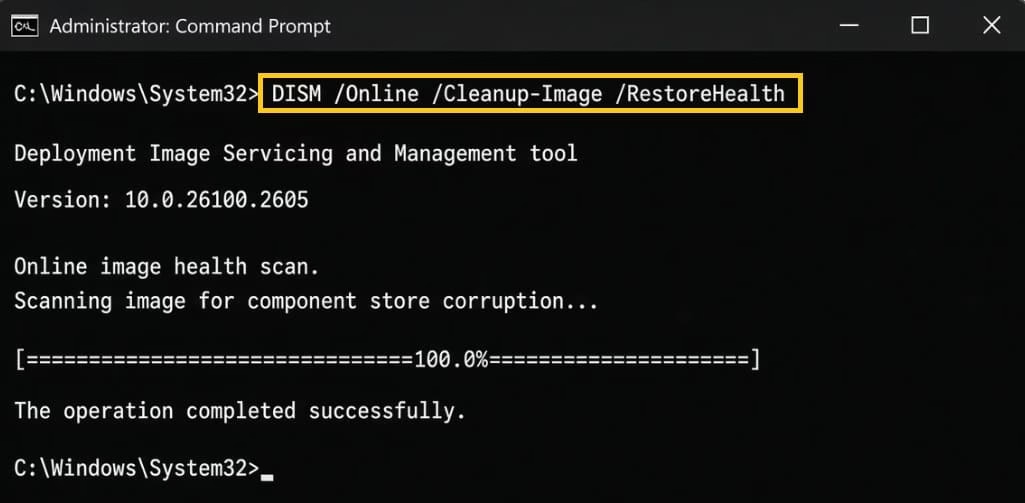
3. Be patient. This process can take anywhere from 10 minutes to more than 30 minutes, depending on your internet speed and how much repair work is needed. The progress percentage may appear to freeze for long stretches — this is normal. Do not close the window or interrupt the command.
4. Once DISM reports that the operation completed successfully, run System File Checker one more time:”sfc /scannow”
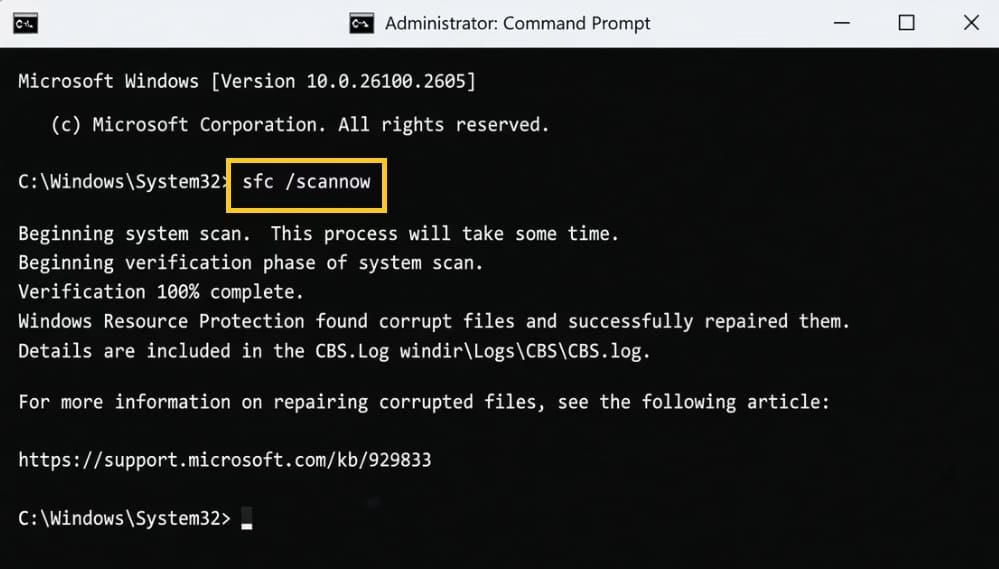
With a healthy component store now in place, SFC is usually able to finish repairing the files it could not fix earlier.
5. Restart your computer afterward so the restored files load properly.