Learn easy methods to change language in Windows 11 and Windows 10. Follow clear step by step instructions to switch display language, keyboard layout, and system settings without hassle.
You open your computer and everything looks familiar yet somehow off. Menus sit in a language you do not fully understand. Settings feel harder to navigate. The Start menu and File Explorer speak a different tongue than the one you prefer. This happens often after buying a laptop abroad, sharing a device with family, or simply wanting a more comfortable daily experience.
The process is straightforward once you know where to look. Microsoft designed the system so users can download language packs and apply them through Settings without reinstalling the entire operating system. This article walks you through the exact steps for both Windows 11 and Windows 10. You will learn how to add a new display language, set it as default, adjust the keyboard, and handle related options. By the end you can make your PC feel like home again.
Change Language in Windows 11/10
Windows makes language switching available to almost every user. The process centers on downloading a language pack and setting it as the display language. A stable internet connection is required for the download. After installation you sign out and sign back in so the change takes full effect. Some older single language editions of Windows have limits, but most Home and Pro versions allow full switches. The steps differ slightly between Windows 11 and Windows 10, so the sections below cover each one clearly.
Change Display Language in Windows 11
Windows 11 places language options under a clean Time and language section. The process is quick and visual.
- Press the Windows key plus the letter I on your keyboard to open Settings.
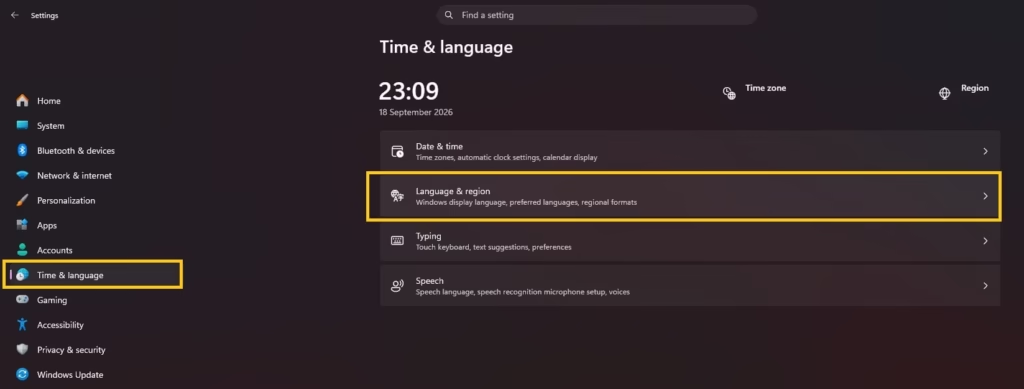
- Click Time and language on the left side of the window.
- Select Language and region on the right.
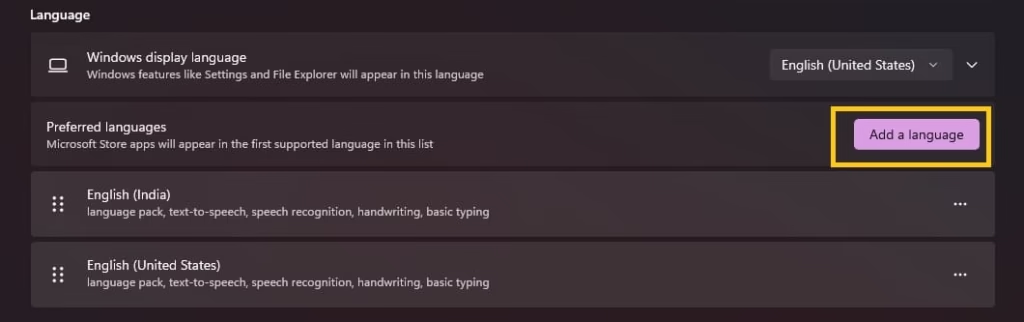
- Look under the Preferred languages heading and click the Add a language button.
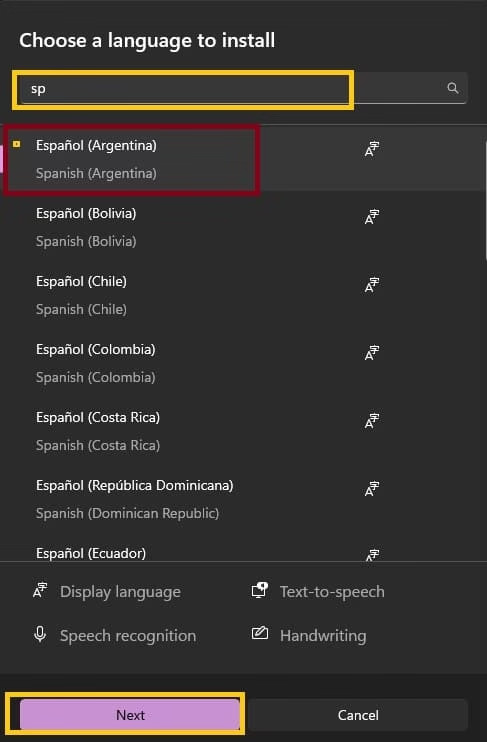
- In the search box type the name of the language you want or the country name.
- Select the language from the list and click Next.
- On the next screen check the box next to Set as my Windows display language.
- Also keep the Language pack box checked so the full interface translates.
- Optionally check Text to speech, Speech recognition, or Handwriting if you need those features.
- Click Install and wait for the download to finish. The time depends on your internet speed.
- When installation completes a prompt appears asking you to sign out.
- Save any open work, then click Sign out.
- Sign back into your account. The menus, Settings app, File Explorer, and most system screens now appear in the new language.
If the language is already installed, skip the Add a language step. Simply open the Windows display language drop down menu on the Language and region page, select the language you want, and sign out to apply it.
Also know: dllhost.exe COM Surrogate Explained
Change Display Language in Windows 10
Windows 10 uses a similar path with slightly different labels. The result is the same full interface change.
- Press the Windows key plus the letter I to open Settings.
- Click Time and Language.
- Select Language from the left menu.
- Under Preferred languages click Add a language.
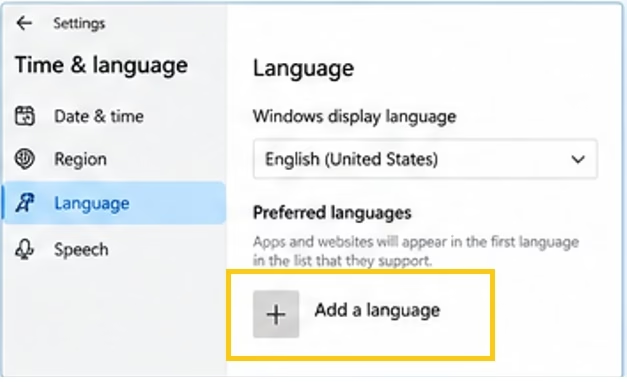
- Search for the language or country you need.
- Select the language and click Next.
- Check the box for Install language pack and the box for Set as my Windows display language.
- Click Install and allow the download to complete.
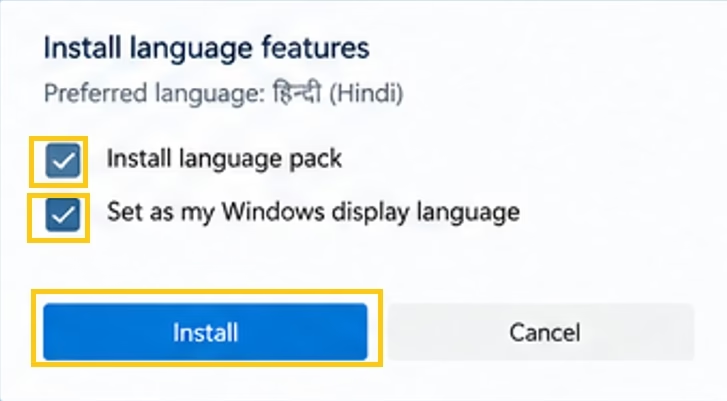
- After the pack installs click the language in the Preferred languages list and choose Set as default if it is not already at the top.
- Sign out of your account and sign back in.
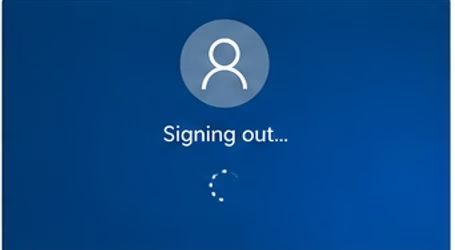
- The system interface updates to the new language.
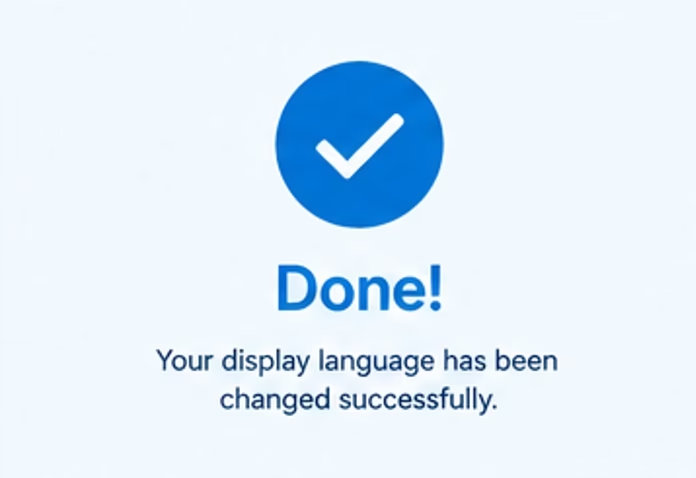
You can also drag the preferred language to the top of the list to make it default. A restart is rarely needed beyond the sign out.
Change Keyboard Layout and Input Language
Display language and keyboard layout are separate. You may want the menus in one language while typing in another.
- Open Settings and go to Time and language then Language and region (Windows 11) or Language (Windows 10).
- Find the language already installed in the Preferred languages list.
- Click the three dots next to it or the Options button.
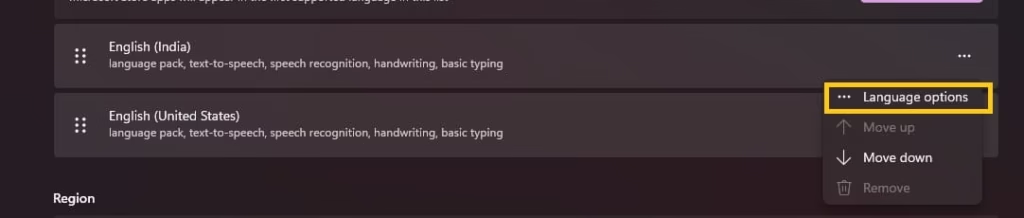
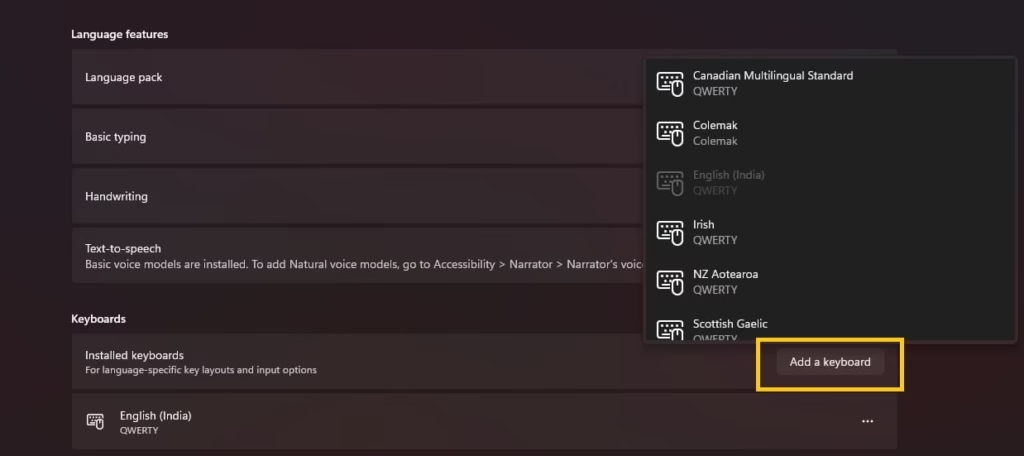
- Under Keyboards click Add a keyboard.
- Select the keyboard layout you need.
- To switch between layouts quickly press the Windows key plus the Space bar.
- You can also click the language abbreviation on the taskbar and choose the layout you want.
This change takes effect immediately. No sign out is required for keyboard only adjustments.
Apply Language to Welcome Screen and New User Accounts
The display language change normally affects only the current user account. To apply the same language to the sign-in screen and future accounts, use the options available under Additional settings.
- Open Settings and go to Time & language then Language & region.
- Scroll down to the Additional settings section.
- Click the Copy button next to Copy current user settings to welcome screen and system accounts.
- Click the Copy button next to Copy current user settings to new user accounts.

- Restart the computer when prompted.
- After the restart the welcome screen and new user accounts will use the same language settings.
This step is useful on shared family computers or when setting up multiple profiles.
Remove an Unused Language Pack
Once you settle on a language you may want to free space by removing packs you no longer need.
- Return to Settings then Time and language then Language and region.
- In the Preferred languages list click the three dots next to the language you want to remove.
- Select Remove.
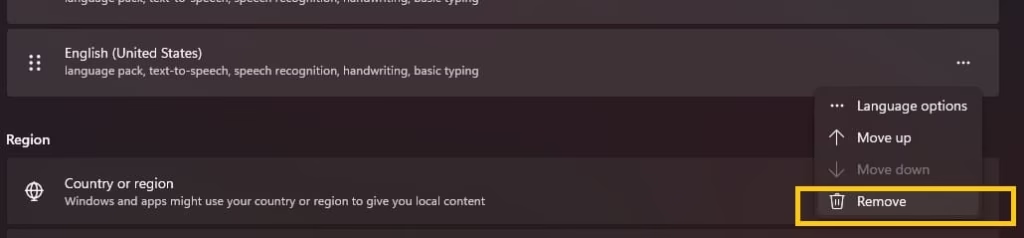
- Confirm the removal. The language pack deletes from the system.
You cannot remove the current display language. Switch to another language first if needed.
Common issues sometimes appear during the process. A slow or interrupted download usually needs a stable connection and a second try. If the Install button stays grayed out check that you are signed in with an administrator account. In rare cases language packs fail on certain Windows builds. Users on forums such as Microsoft Answers and Reddit often resolve this by running Windows Update first or restarting before trying again. Single language editions of Windows may block full changes. In those cases only keyboard layouts remain available.
Also know: Why is My Computer so Slow
Conclusion
Changing the language on a Windows computer removes friction from everyday use. Menus become readable. Settings feel natural. Typing matches the language you think in. The steps remain consistent across recent Windows versions. You open Settings, add the language pack, set it as the display language, and sign out once. Keyboard layouts adjust even faster with a simple shortcut. Administrative options extend the change to the welcome screen when needed.
Take a few minutes to follow the detailed bullets above and your PC will speak the language that suits you best. Keep a second language installed if you switch between them regularly. The process is reversible at any time. With these methods your Windows experience stays flexible and personal.

Amanda Starc
Amanda is a dedicated technical web content writer with a passion for transforming complex ideas into compelling and accessible online narratives. With a background in web development, and digital Marketing I bring a unique blend of technical expertise and creative storytelling to the digital domain.
