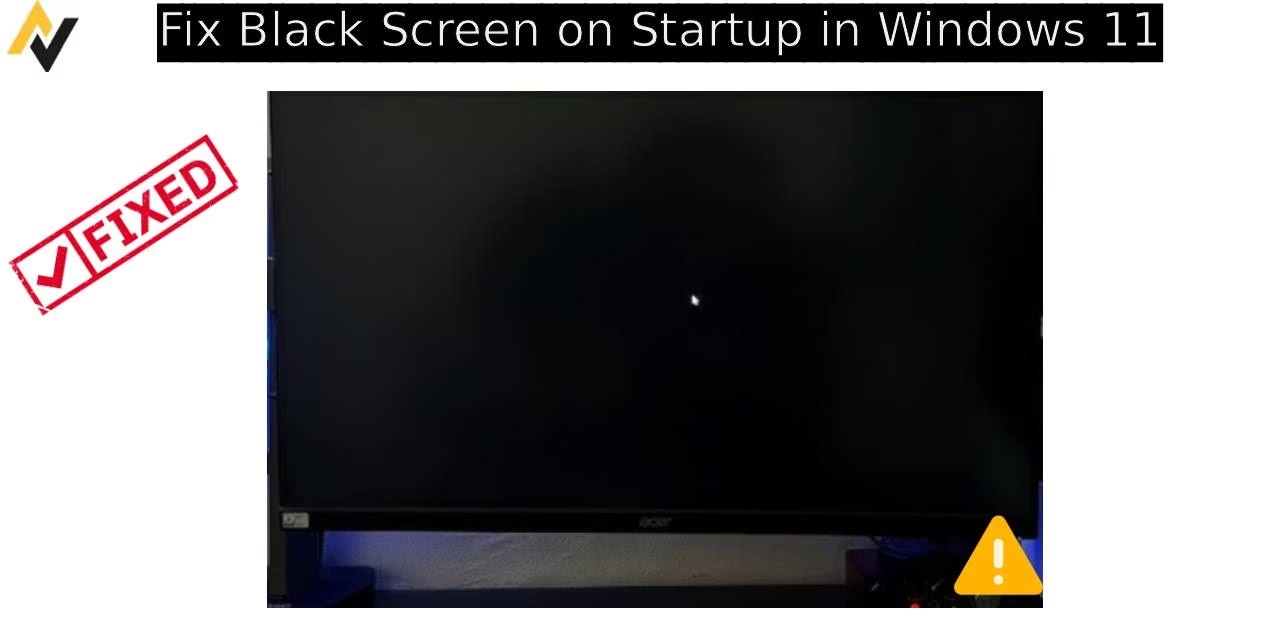
Nothing feels more frustrating than powering on your PC only to stare at a pitch-black screen. You hear the fans spinning, lights blinking, yet nothing appears. This common Windows 11 issue can stem from driver conflicts, faulty updates, hardware glitches, or corrupted system files.
If you landed here searching for fix black screen on startup, you probably want clear answers and solutions that get your computer running again without losing data. In this guide, we walk you through reliable methods that have helped thousands of users. Whether the problem started after an update or appeared out of nowhere, these practical steps will guide you safely. Let’s get your display back.
Ways to Fix Black Screen on Startup
Several approaches can resolve a black screen during boot. Start with the simplest ones and move to more advanced fixes if needed. Each method includes detailed explanations so you understand why it works and how to apply it carefully.
1. Restart Your Computer and Perform a Hard Reset
Many black screen issues resolve with a proper restart. Temporary glitches in memory or background processes often cause this. A full power cycle clears them out.
Before jumping into complex steps, give your system a fresh start. This takes only a couple of minutes and works surprisingly often.
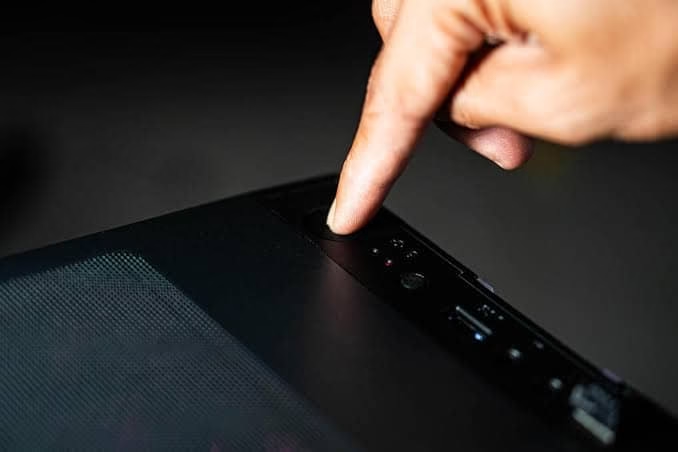
- Press and hold the power button on your PC for about 10 seconds until it completely shuts down.
- Unplug the power cable from the wall outlet or your laptop’s charger.
- If you use a desktop, also remove the CMOS battery for 5 minutes (optional but effective for deeper resets).
- Press the power button a few times without power to discharge residual electricity.
- Plug everything back in and turn on your PC.
- Wait patiently for Windows 11 to load completely.
If the screen remains black, try connecting your display to a different port or using another monitor or TV. This rules out simple connection problems. Many users report success after switching HDMI ports or cables.
Also know: Fixing Ethernet Connection Issues in Windows 11 and 10
2. Boot into Safe Mode to Diagnose the Issue
Safe Mode loads Windows with only essential drivers and services. It helps identify whether third-party software or drivers cause the black screen.
This environment proves especially useful when normal startup fails. Once inside Safe Mode, you can uninstall recent programs or roll back drivers.
Follow these steps carefully:
- Force shutdown your PC three times in a row during boot to trigger Automatic Repair.
- When the blue recovery screen appears, select Troubleshoot.
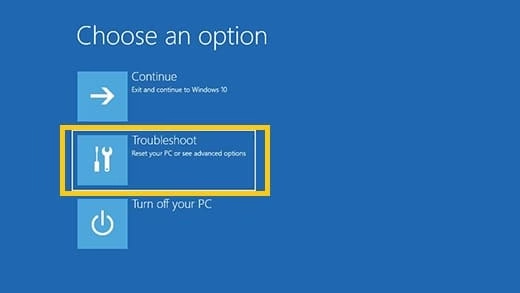
- Go to Advanced options > Startup Settings > Restart.
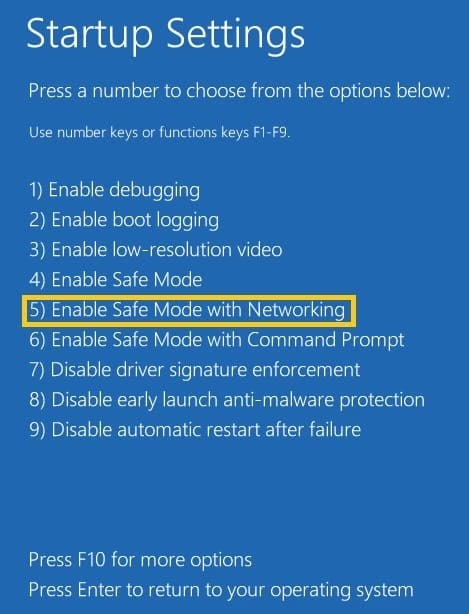
- After restart, press 4 or 5 on your keyboard to enter Safe Mode (5 enables networking if needed).
- Once in Safe Mode, open Device Manager by right-clicking the Start button.
- Expand Display adapters, right-click your graphics card, and choose Update driver or Uninstall device.
- Restart normally after making changes.
If your screen works normally in Safe Mode, the problem likely lies with a driver or recent software installation. This narrows down the culprit quickly.
3. Update Graphics Drivers
Outdated or corrupted graphics drivers rank among the top reasons for black screens in Windows 11. Modern systems rely heavily on proper GPU communication.
Fresh drivers often fix compatibility issues introduced by Windows updates. Both NVIDIA, AMD, and Intel release frequent patches.
Here is how to update them:
- In Safe Mode or normal mode if accessible, visit the official website of your graphics card manufacturer (NVIDIA GeForce Experience, AMD Software, or Intel Driver & Support Assistant).
- Download the latest driver for your specific model and Windows 11.
- Run the installer and choose Custom installation to perform a clean install.
- Restart your computer afterward.
- Alternatively, use Windows built-in tool: right-click Start > Device Manager > Display adapters > right-click your GPU > Update driver > Search automatically.
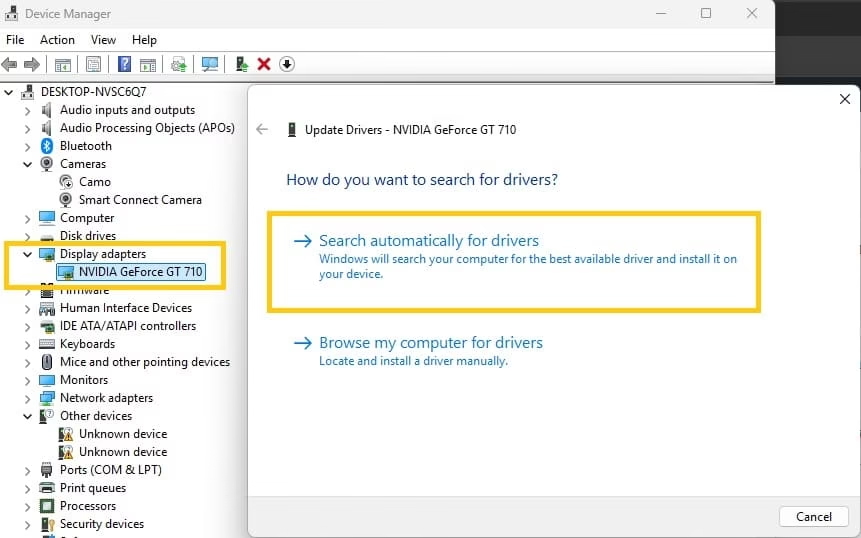
Keep drivers updated regularly. This simple habit prevents many display-related headaches.
4. Run System File Checker and DISM Commands
Corrupted system files can prevent proper loading of the Windows shell, resulting in a black screen. Windows includes built-in tools to repair these.
These commands scan and restore important files without reinstalling the entire OS.
- Open Command Prompt as administrator. You can do this from the recovery environment or Safe Mode.
- Type the following command and press Enter: sfc /scannow
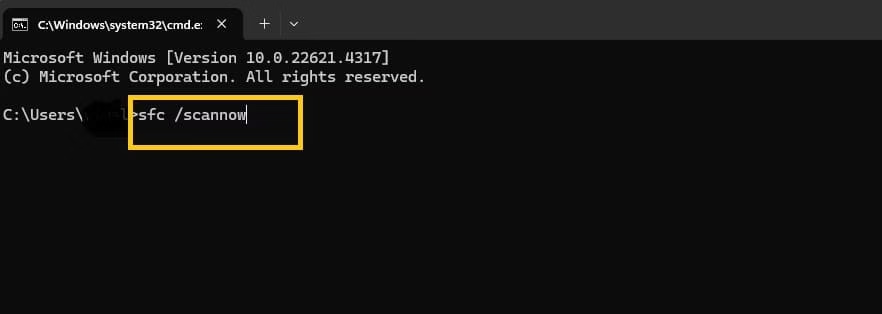
- Wait for the scan to complete. It may take 10-20 minutes.
- If SFC finds issues but cannot fix them, run these DISM commands one by one:
- DISM /Online /Cleanup-Image /CheckHealth
- DISM /Online /Cleanup-Image /ScanHealth
- DISM /Online /Cleanup-Image /RestoreHealth
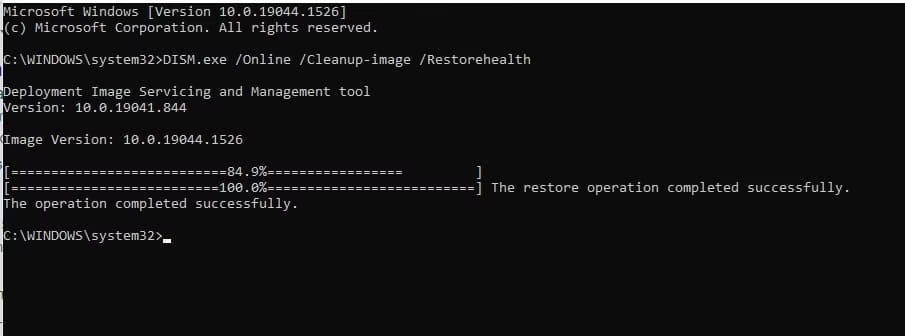
- Restart your PC and check if the black screen disappears.
These tools work effectively because they pull fresh files from Microsoft servers when needed.
5. Disable Fast Startup Feature
Fast Startup combines shutdown and hibernation, which sometimes conflicts with graphics initialization in Windows 11.
Turning it off forces a complete shutdown and can resolve boot display problems.
- Open Control Panel and search for Power Options.
- Click Choose what the power buttons do on the left side.
- Select Change settings that are currently unavailable.
- Uncheck the box for Turn on fast startup.
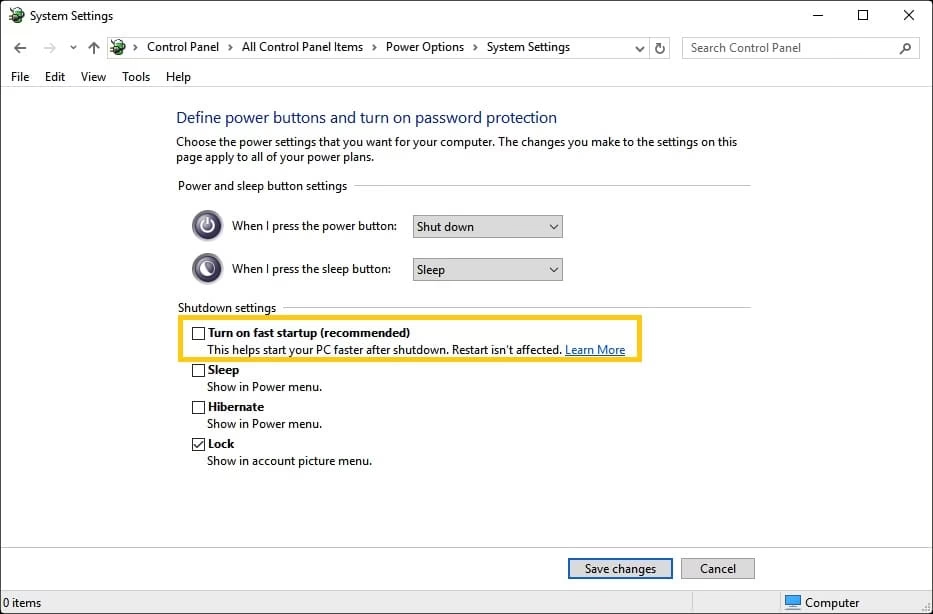
- Save changes and restart your computer normally.
Many users notice immediate improvement after disabling this feature, especially on systems with hybrid graphics.
Also know: Link Microsoft Account to Digital License Windows
6. Check for Windows Updates and Roll Back Problematic Ones
Microsoft releases regular updates for Windows 11. Some cause conflicts that lead to black screens.
Staying current usually helps, but occasionally you need to remove a bad update.
- Go to Settings > Windows Update > Check for updates.
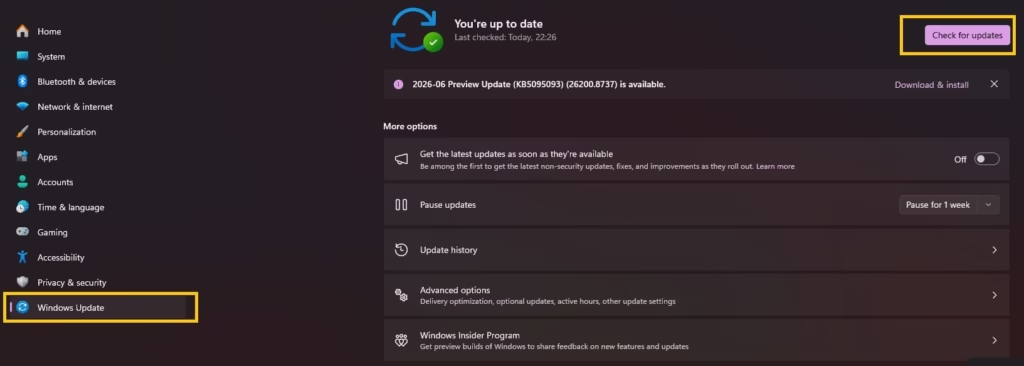
- Install any available updates and restart.
- If the problem started after a recent update, go to Settings > Windows Update > Update history > Uninstall updates.
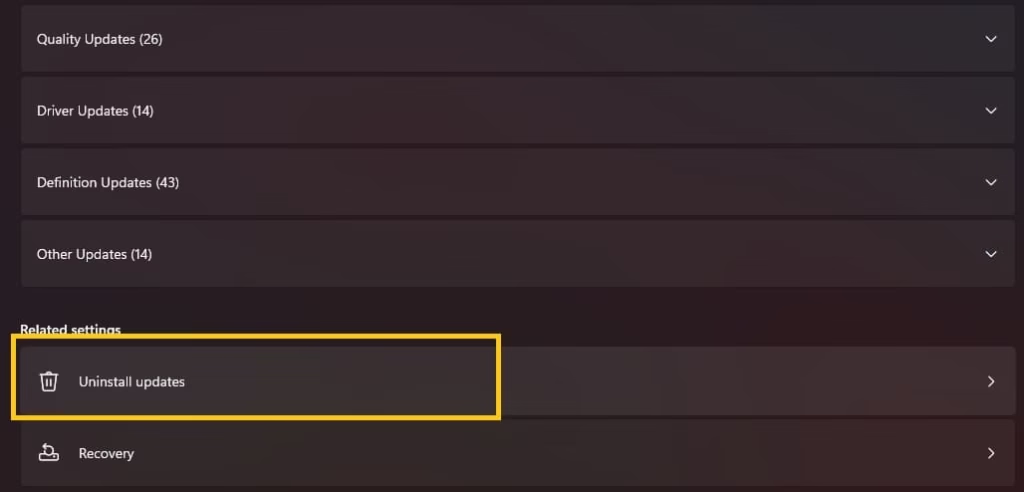
- Remove the most recent quality or feature update.
- Restart and test.
Windows Update also includes optional driver updates. Check under Advanced options for those too.
7. Use System Restore to Revert Changes
If the black screen appeared after installing new software or drivers, System Restore can take your PC back to a working state.
This feature creates restore points automatically before major changes.
- From the recovery environment (triggered by multiple forced shutdowns), choose Troubleshoot > Advanced options > System Restore.
- Select a restore point from before the issue started.
- Follow the on-screen instructions to complete the process.
- Your personal files remain untouched, but installed programs may need reinstallation.
System Restore provides a clean way to undo recent changes without data loss.
8. Inspect Hardware Connections and Components
Sometimes the issue is physical. Loose cables, faulty RAM, or overheating GPU can trigger black screens.
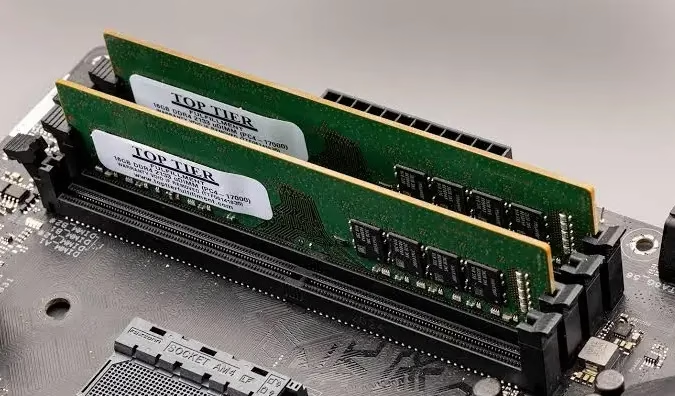
- For desktops: Open the case and ensure the graphics card is firmly seated in its slot. Check all power connections.
- Reseat RAM sticks by removing and reinserting them.
- Clean dust from fans and vents to prevent overheating.
- Test with one RAM stick at a time if you have multiple.
- Try booting with integrated graphics by removing the dedicated GPU (if possible).
Run hardware diagnostics through your PC manufacturer’s tool (Dell SupportAssist, HP PC Hardware Diagnostics, etc.) for deeper checks.
9. Additional Advanced Troubleshooting Steps
If earlier methods do not work, consider these targeted fixes.
- Reset Windows 11 while keeping files: Go to Settings > System > Recovery > Reset this PC > Keep my files.
- Check Event Viewer in Safe Mode for specific error codes related to display failures.
- Perform a clean boot to identify conflicting software: search for msconfig, go to Services tab, hide Microsoft services, and disable the rest.
- Update BIOS from your motherboard manufacturer’s website (use extreme caution and follow instructions precisely).
These steps help when standard solutions fall short.
Also know: Troubleshooting Microphone Privacy Settings in Windows 11
Conclusion
A black screen on startup in Windows 11 feels alarming, but it rarely signals permanent damage. Most cases resolve through driver updates, Safe Mode troubleshooting, or simple power resets. By following the structured approaches in this guide, you can systematically identify and fix the root cause.
Remember to back up important data when possible and proceed carefully with hardware-related steps. If none of these solutions work, professional repair or contacting Microsoft Support may be the next step.
Stay patient and methodical. Your Windows 11 PC should be up and running smoothly again soon. If you found this helpful, share your experience in the comments or explore more tech guides from Avsoftlab.
FAQs
Q1: Why does my Windows 11 PC show a black screen but the fans are running?
This usually indicates a display or graphics driver problem rather than a complete hardware failure. The system boots, but the screen fails to initialize properly.
Q2: Can a black screen on startup damage my computer?
No, the black screen itself does not cause damage. However, repeated forced shutdowns without proper troubleshooting might affect system stability over time.
Q3: Will I lose my data while fixing black screen issues?
Most methods described here preserve your files. Only a full reset or clean install carries a small risk, so always back up data first when possible.
Q4: How long should I wait on a black screen before taking action?
Wait at least 5-10 minutes during boot. Sometimes Windows performs background tasks that delay display output.
Q5: Is it better to update drivers manually or let Windows do it?
For best results, download the latest drivers directly from NVIDIA, AMD, or Intel websites rather than relying solely on Windows Update.
Q6: What if Safe Mode also shows a black screen?
This points to deeper hardware issues. Try hardware checks like reseating components or testing with minimal setup (one RAM stick, integrated graphics).
Q7: Does Windows 11 have more black screen problems than previous versions?
Some users report higher frequency due to aggressive driver and update policies, but proper maintenance keeps issues minimal.

Amanda Starc
Amanda is a dedicated technical web content writer with a passion for transforming complex ideas into compelling and accessible online narratives. With a background in web development, and digital Marketing I bring a unique blend of technical expertise and creative storytelling to the digital domain.
Recent Posts
What is BIOS Boot Order and How to Change It
Editorial Team, 01 Sep 2026
Most Used Tags

Get amazing web and
app development deals
for your business from us.
