Frustration hits hard when your microphone suddenly stops responding in calls, recordings, or voice chats on Windows 11. You open an app like Zoom or Discord, only to see error messages about privacy settings blocking access. Many users search for “Troubleshooting microphone privacy settings” because Windows 11 tightened controls to protect your data, yet these safeguards often interfere with everyday use.
You likely want clear, step-by-step solutions that restore functionality without complicated workarounds. This article guides you through reliable methods based on current Windows 11 behaviors. We’ll cover direct permission adjustments, sound device checks, and advanced recovery options. By the end, you’ll understand why these issues arise and how to prevent them moving forward. Let’s dive in and get your voice heard clearly.
Ways to Troubleshooting Microphone Privacy Settings in Windows
Microphone problems tied to privacy often stem from layered permissions in Windows 11. The operating system separates system-level access from app-specific controls. Sometimes toggles flip off after updates, or conflicts arise with desktop versus Store apps. Other times, hardware detection or driver glitches compound the issue.
Here are three effective approaches. Start with the first and progress if needed. Each builds on real user scenarios and official guidance to deliver lasting results.
Method 1: Verify and Adjust Core Privacy Permissions App-Wise
Privacy settings form the foundation for microphone functionality in Windows 11. When these are misconfigured, even perfectly working hardware stays silent across apps. This happens frequently after feature updates or when new apps request access. Taking time here resolves most cases quickly and gives you fine-grained control.
Many people overlook individual app toggles or the desktop apps option. Resetting these thoughtfully prevents future blocks while maintaining security. Follow these steps carefully for best outcomes.
- Press Windows key + I to open Settings quickly.
- Click Privacy & security in the left sidebar.
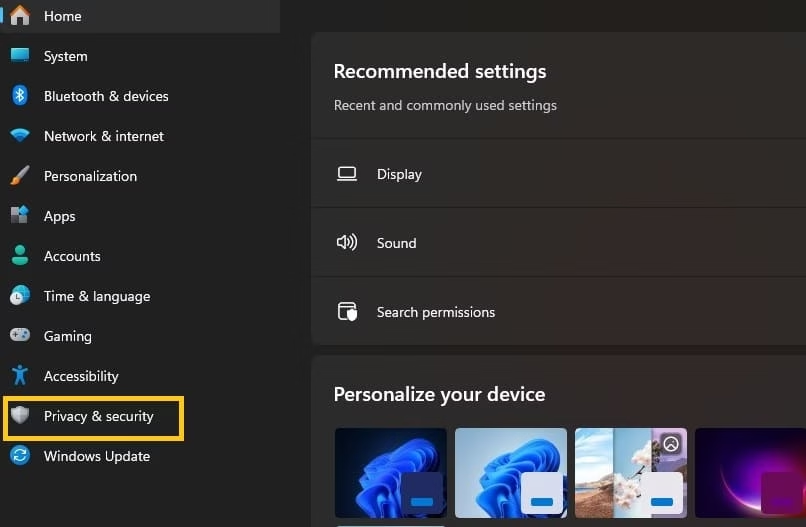
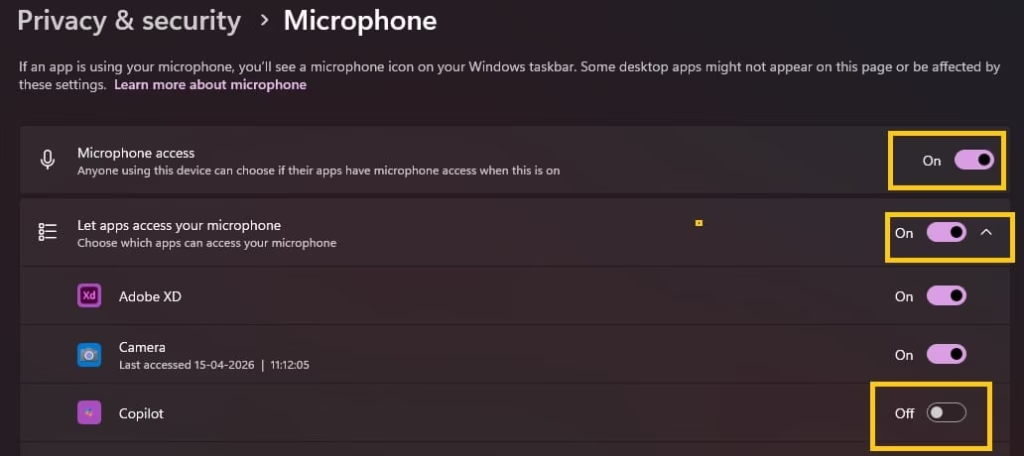
- Scroll down and select Microphone under App permissions.
- Ensure the main Microphone access toggle sits in the On position.
- Next, turn on Let apps access your microphone.
- Scroll through the list of apps and enable access for the ones you use, such as Zoom, Teams, or your browser.
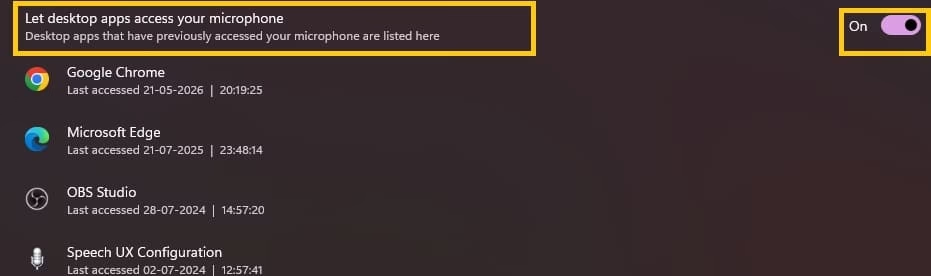
- For desktop applications not listed individually, locate and turn on Let desktop apps access your microphone at the bottom.
- Restart the problematic app and test your microphone by speaking into it while watching for audio levels.
If an app still lacks access after this, close it completely via Task Manager before retesting. This refreshes permissions effectively. Double-check browser sites too, since they may need separate site-level allowances in Chrome or Edge.
Also know: Finding Your App-Wise Data Usage in Windows 11 & 10
Method 2: Configure Sound Settings and Device Properties
Privacy settings often work alongside sound configurations. Even with permissions granted, Windows might select the wrong input device or apply restrictive properties. This method tackles hardware recognition and audio pipeline issues that privacy errors can mask.
Users frequently discover their built-in mic got disabled accidentally or that exclusive mode causes conflicts. Adjusting these brings immediate clarity and volume improvements.
- Open Settings with Windows key + I, then navigate to System > Sound.
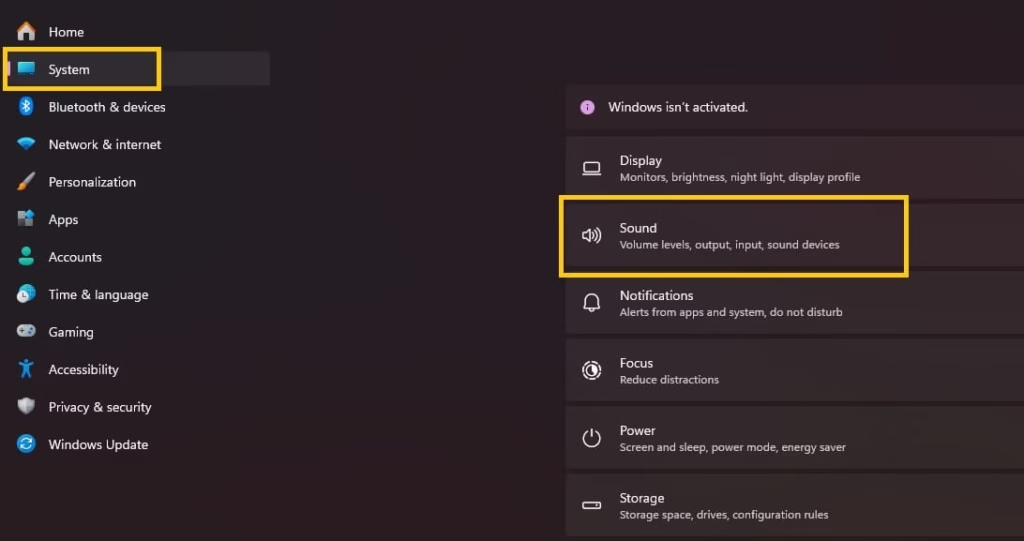
- Under Input, locate your microphone in the list and select it as the default device.
- Click on the chosen microphone to open its properties page.
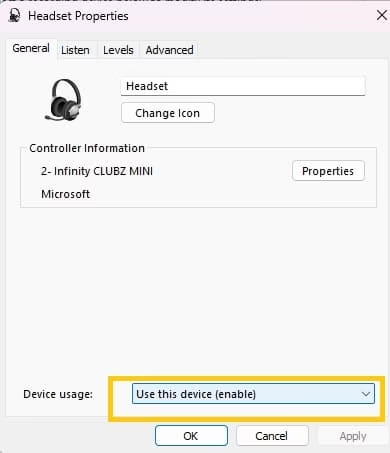
- In the General tab, confirm the device shows as enabled and not disabled.
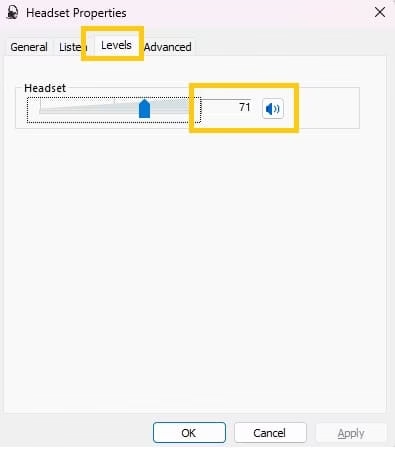
- Switch to the Levels tab and raise Microphone volume and Microphone Boost to suitable levels, usually around 50-70% to start.
- Go to the Advanced tab and uncheck both options under Exclusive Mode to stop apps from taking full control.
- Apply changes and test recording by clicking the Test button or using Voice Recorder.
- If multiple microphones appear, disconnect external ones temporarily to isolate the issue.
This process often reveals hidden problems like muted devices or low sensitivity. Speak naturally during tests and watch the green input bars move. Adjust positioning if using a headset for optimal pickup.
Method 3: Run Troubleshooters, Update Drivers, and Reset Deeper Settings
When basic tweaks fall short, underlying system glitches or outdated components may interfere. Windows 11 includes built-in tools that scan for privacy-related conflicts automatically. This deeper layer addresses stubborn cases after updates or driver mismatches.
Patience pays off here, as these steps refresh core audio services without full reinstalls. Many resolve intermittent blocks that privacy settings alone cannot fix.
- Search for “troubleshoot settings” in the Start menu and open the relevant page.
- Under Other troubleshooters, find Recording Audio and click Run.
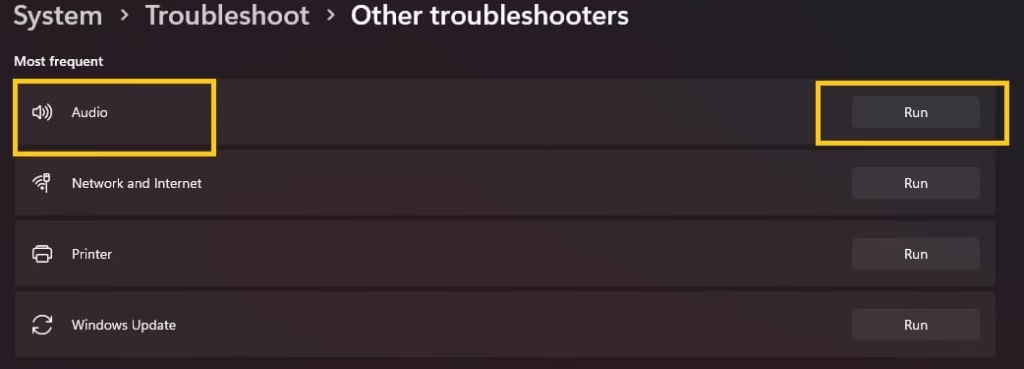
- Follow on-screen prompts, selecting your microphone when asked.
- Next, open Device Manager by right-clicking the Start button and choosing it from the menu.
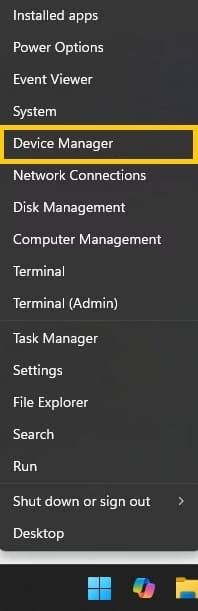
- Expand Audio inputs and outputs, right-click your microphone, and select Update driver > Search automatically.
- If no update appears, try Uninstall device, then restart your PC to let Windows reinstall it fresh.
- Return to Privacy & security > Microphone and toggle main settings off and back on to force a reset.
- Check for Windows Updates in Settings > Windows Update and install any available ones, as they often patch audio privacy bugs.

- As a final reset, restart Windows in Safe Mode briefly, then boot normally to clear temporary conflicts.
Test across different apps after each major step. This systematic approach isolates whether the root cause sits in software permissions, drivers, or system services.
Also know: Easy Ways to Sync Refresh Rates for Smooth Playback Windows
Conclusion
Dealing with microphone privacy hurdles in Windows 11 feels annoying, yet these structured fixes usually restore everything within minutes. By methodically checking permissions, sound devices, and running diagnostics, you regain control while keeping your system secure. Remember, Windows updates can occasionally reset toggles, so revisit Privacy & security settings periodically.
If problems linger despite these steps, consider hardware testing on another device or reaching out to Microsoft Support with details of your troubleshooting. Clear audio enhances communication and productivity. With these insights, you’re now equipped to handle similar issues confidently in the future. Your voice matters—make sure Windows hears it loud and clear.
FAQs
Q1. Why does my microphone work in some apps but not others even after turning on privacy settings?
This usually happens because Windows treats Microsoft Store apps and regular desktop programs differently. Turning on the main microphone access and “Let apps access your microphone” is not always enough. You also need to scroll down and enable the individual app toggles, plus the separate option that says “Let desktop apps access your microphone.” Once both are on, close the app completely from Task Manager and reopen it. That often clears the leftover block.
Q2. Do I need to change anything after a Windows update if my mic suddenly stops working?
Yes, Windows updates sometimes reset privacy toggles or change default devices. The first thing to check is Settings > Privacy & security > Microphone. Make sure the top switch is still On and that both app access options are enabled. Then go to System > Sound and confirm your microphone is still selected as the default input device. A quick toggle off and on of the privacy switches usually brings it back without any deeper fixes.
Q3. Is it safe to turn on microphone access for all apps?
It is safer to enable access only for the apps you actually use, such as your browser, Zoom, Teams, or Discord. Leaving the main microphone switch on is fine, but giving blanket permission to every listed app increases the chance of unwanted access. If you later install a new program that needs the mic, simply return to the same privacy page and turn its toggle on. This keeps control in your hands while still letting the programs you trust work properly.
Related:
Resolving Microphone Detection Problems on Windows
How Enabling Microphone for Specific Apps Works in Windows

Amanda Starc
Amanda is a dedicated technical web content writer with a passion for transforming complex ideas into compelling and accessible online narratives. With a background in web development, and digital Marketing I bring a unique blend of technical expertise and creative storytelling to the digital domain.
