
Hey friends, nothing feels more frustrating than plugging in an Ethernet cable and realizing your internet just won’t cooperate. You expect that fast, stable wired connection, but instead you get error messages, dropped links, or “No internet access.”
This detailed guide is all about fixing ethernet connection issues on Windows 11 and Windows 10. I’ve put together practical, step-by-step solutions based on trusted fixes from Microsoft and real-world troubleshooting that works for most users.
We’ll start by looking at the common problems, then walk through easy-to-follow methods — including the handy ncpa.cpl trick. Whether you’re connecting straight from your home router or dealing with driver glitches after an update, you’ll find clear help here. By the end, you’ll have multiple ways to restore your reliable wired connection. Let’s dive in and get you back online smoothly.
Common Ethernet Connection Issues in Windows 11 and 10
Ethernet problems can sneak up on anyone. One day everything works perfectly, and the next you’re staring at connection errors. Here are the most frequent issues people face on both Windows 11 and 10:
- Connected but no internet: Your PC shows the Ethernet as connected, yet web pages won’t load. This often points to IP configuration or DNS problems.
- Unidentified network or limited access: Windows can’t properly identify your network, leading to restricted connectivity.
- Ethernet adapter missing or disabled: The connection doesn’t even appear in your network list.
- Random disconnections or slow speeds: The link drops frequently or runs much slower than expected.
- Issues after Windows updates or sleep mode: Many users notice problems right after installing updates or waking their PC.
- Problems when connecting from home router: The cable works on other devices but fails on your Windows machine, or only certain router ports cause trouble.
These glitches usually stem from outdated drivers, corrupted network settings, power management features, faulty cables, or router-side hiccups. The good news? Most can be fixed without calling a technician.
Methods to Fix Ethernet Connection Issues in Windows
Let’s go through the solutions one by one. Start from the top and work your way down. Test your connection after each step.
1. Check Physical Connections (Especially from Home Router)
Always begin here — it’s quick and solves many issues.
- Unplug the Ethernet cable from your PC and home router.
- Look closely for any bent pins, cuts, or damage on the cable.
- Try a different Ethernet cable if you have one (Cat5e or Cat6 works best for modern speeds).
- On your home router, plug the cable into a different LAN port (avoid the WAN/Internet port).
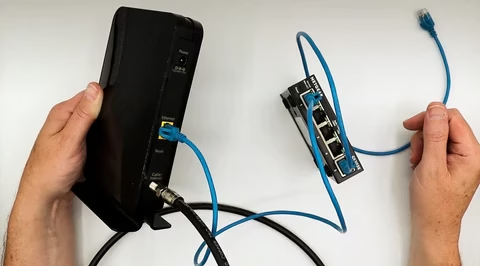
- Power cycle your modem and router: Unplug them for 30 seconds, then plug back in.
- Restart your Windows PC after reconnecting everything.
- Test with another device to confirm if the router is providing internet properly.
This step rules out simple hardware faults that software fixes can’t solve.
2. Disable and Re-enable the Ethernet Adapter (ncpa.cpl Method)
This quick reset often brings the adapter back to life.
- Press Windows key + R to open the Run dialog.
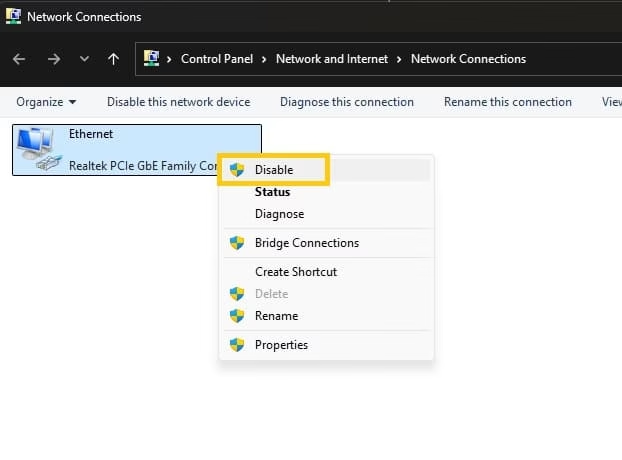
- Type ncpa.cpl and press Enter. This opens the classic Network Connections window.
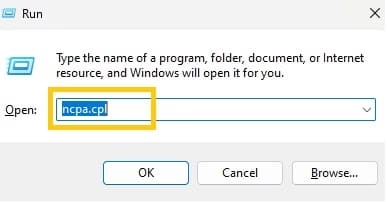
- Find your Ethernet connection in the list.
- Right-click it and select Disable.
- Wait 10-15 seconds.
- Right-click again and choose Enable.
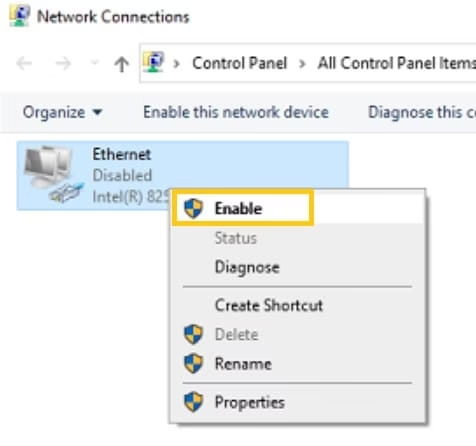
- Wait a moment for it to reconnect and test your internet.
Many users find this method instantly resolves “connected but no internet” problems.
Also know: Easy Ways to Run a Troubleshooter for PC Issues Windows 11
3. Update or Reinstall Your Ethernet Driver
Outdated or corrupted drivers cause tons of headaches.
- Right-click the Start button and open Device Manager.
- Expand the Network adapters section.
- Right-click your Ethernet adapter (it might say Realtek, Intel, etc.) and choose Update driver.
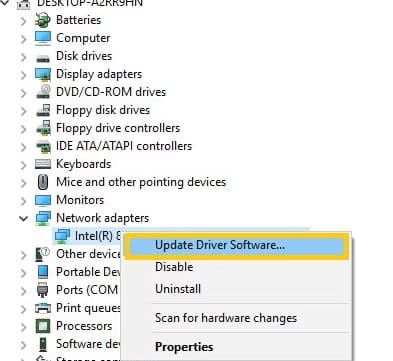
- Select Search automatically for drivers.
- If no update is found, right-click the adapter > Uninstall device (check the box to remove driver software if available).
- Restart your PC. Windows should reinstall the driver automatically.
- If it doesn’t, visit your PC or motherboard manufacturer’s website, download the latest Ethernet driver for your model, and install it.
4. Adjust Power Management Settings
Windows sometimes turns off the adapter to save power.
- In Device Manager, right-click your Ethernet adapter > Properties.
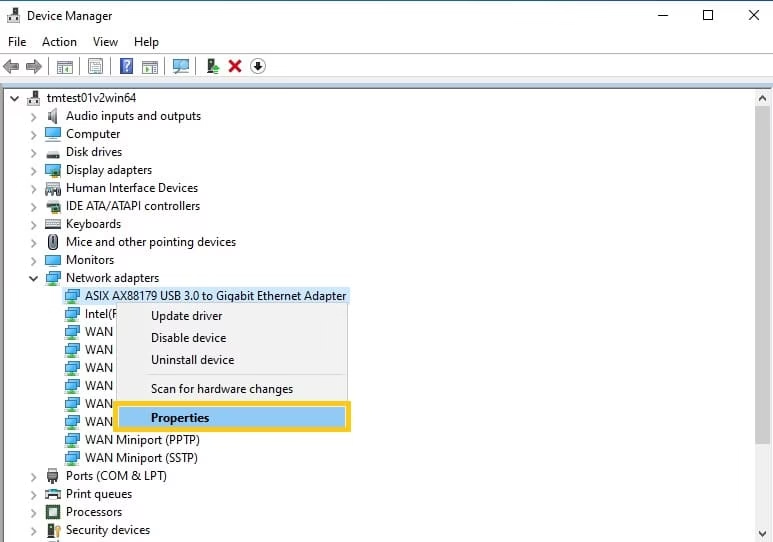
- Go to the Power Management tab.
- Uncheck the box that says “Allow the computer to turn off this device to save power”.
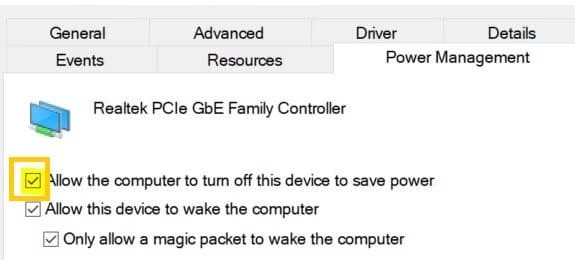
- Click OK and test the connection.
This prevents random drops, especially on laptops or after sleep.
5. Run Network Commands in Command Prompt
These commands reset important network components.
- Right-click Start and select Terminal (Admin) or Command Prompt (Admin).
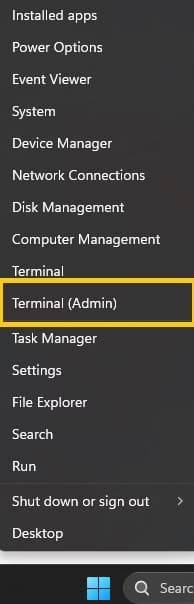
- Run these commands one by one, pressing Enter after each:
- netsh winsock reset
- netsh int ip reset
- ipconfig /release
- ipconfig /renew
- ipconfig /flushdns
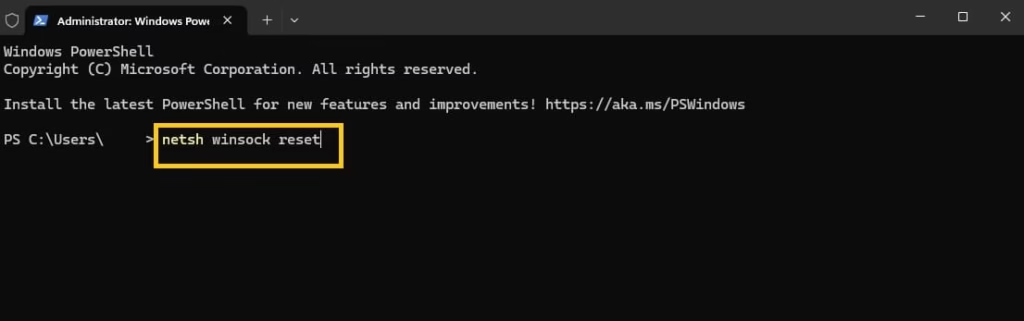
- Restart your computer afterward.
These fix corrupted TCP/IP stacks and DNS issues effectively.
6. Reset Network Settings Completely
Use this when other methods fail. It removes all network adapters and resets them to default.
- Go to Settings > Network & internet.
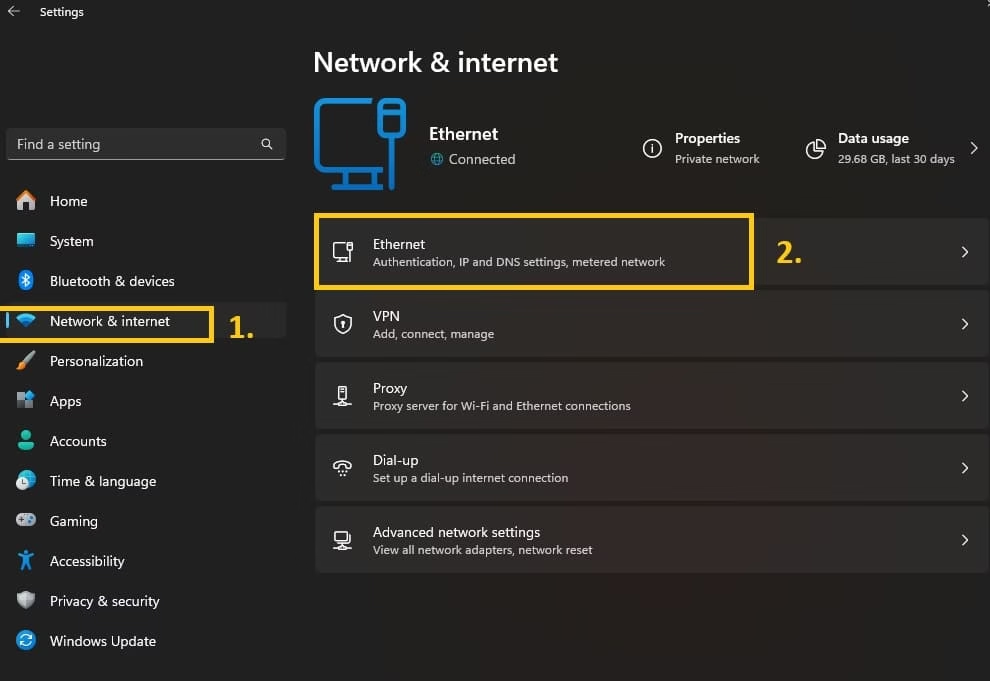
- On Windows 11, click Advanced network settings > Network reset.
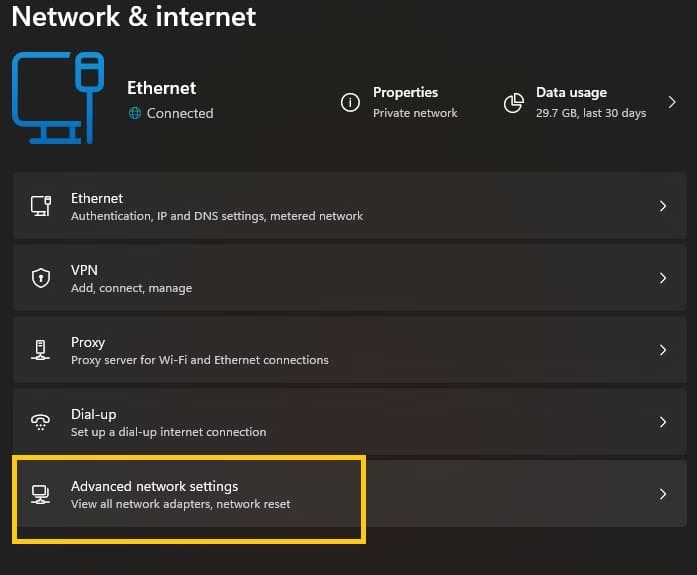
- On Windows 10, look for Network reset under Status.
- Click Reset now and confirm.
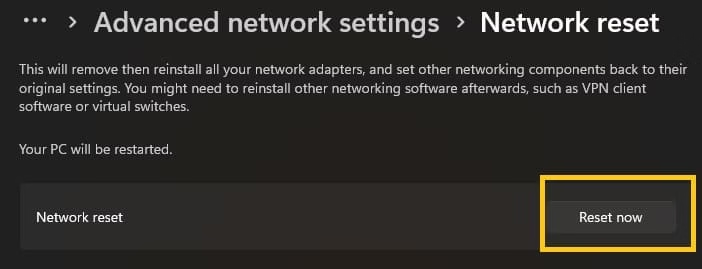
- Your PC will restart. You’ll need to set up Wi-Fi passwords again, but Ethernet should reconnect automatically.
Also know: Best Internet Speed Test for Windows System
7. Additional Troubleshooting Tips
- Check IP settings: In ncpa.cpl, right-click Ethernet > Properties > Internet Protocol Version 4 (TCP/IPv4) > Properties. Make sure “Obtain IP address automatically” and “Obtain DNS server address automatically” are selected.
- Disable IPv6 (if needed): In the same Properties window, uncheck Internet Protocol Version 6.
- Try a USB Ethernet adapter: This bypasses built-in port issues as a temporary fix.
- Update Windows: Go to Settings > Windows Update and install any available updates.
Most people solve their ethernet problems using the first few methods. If nothing works, the issue might be hardware-related — test with another PC or contact your router/ISP support.
Conclusion
Dealing with ethernet connection issues can be annoying, but you now have a complete toolkit of reliable fixes for Windows 11 and 10. Start simple with cable checks and the ncpa.cpl method, then move to drivers and resets as needed. Regular restarts, keeping drivers updated, and using quality cables will help prevent future headaches.
A stable wired connection is worth the effort — it’s faster and more reliable than Wi-Fi for gaming, streaming, and work. If you run into a unique situation, feel free to describe it in the comments. Here’s to smooth, uninterrupted internet! related troubles.
FAQs on Fixing Ethernet Issues
Q1: Why does my Ethernet suddenly stop working even when the cable looks plugged in properly?
It is incredibly frustrating when everything seems connected but nothing loads. Often this happens due to a temporary driver glitch, a loose connection, or router hiccups. Try restarting both your router and PC first. If that does not help, open Device Manager, look for your network adapter, and update or reinstall the driver. This simple step fixes the problem for many people.
Q2: How can I fix slow Ethernet speeds on my Windows PC?
Slow speeds can make even simple browsing feel painful. Begin by running the built-in Network Troubleshooter. Make sure you are using a decent Cat5e or Cat6 cable. Turn off any VPNs temporarily and update your network drivers through Device Manager or the manufacturer’s site. Sometimes just switching to another port on your router brings the speed back up.
Q3: What should I try when my Ethernet says “Unidentified network” or has limited access?
This one always feels mysterious. A quick fix is to forget the network in your settings and let Windows detect it again. You can also reset the TCP/IP stack by running a couple of commands in Command Prompt as administrator. Restart afterward and see if connectivity returns. It clears out corrupted settings without much hassle.
Q4: Could a bad Ethernet cable really be causing random dropouts?
Absolutely. Even if the cable looks fine, small damage or poor quality can create unstable connections. Swap it with another cable you know works well. Check for bent pins or loose jacks too. For longer cable runs, using the right category cable makes a big difference in keeping things stable.
Q5: How do I figure out whether the Ethernet issue is with my router or my computer?
Test by plugging another device into the same router port. If that device connects smoothly, the problem is likely on your PC side. Try a different port on the router or connect your computer to a different network. Updating your router’s firmware or doing a factory reset can also help identify and solve router-related troubles.