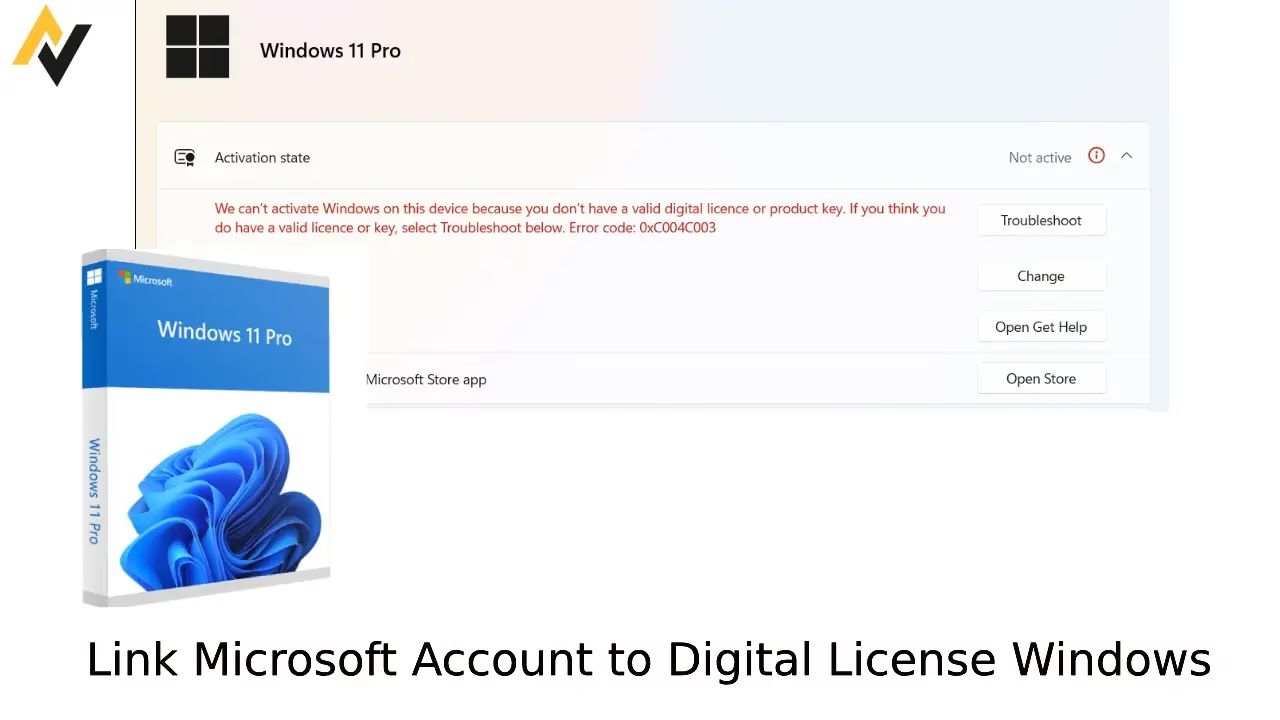
You’re looking this up because Windows is acting up after a hardware swap, a fresh install, or an account change. Activation messages keep popping up. Or you simply want an easier way to reactivate later without hunting for a product key. Linking your digital license to a Microsoft account solves most of that. Once connected, Windows can often reactivate itself automatically when you sign in online. It feels like insurance for your genuine copy.
This guide covers what a digital license actually is, several practical ways to create the link, how to confirm it worked, and answers to the questions people ask most. Everything here follows Microsoft’s current recommendations for Windows 10 and Windows 11.
What Is a Digital License in Windows
A digital license serves as Microsoft’s modern way to prove your Windows copy is genuine. Unlike older product keys, it doesn’t rely on typing a long code every time. Instead, it connects your hardware details to Microsoft’s servers.
When you activate Windows successfully—through a pre-installed OEM version, upgrade, or purchase—it creates this license. The system records a unique hardware fingerprint (like motherboard and other components) along with your edition (Home, Pro, etc.). This info lives on Microsoft’s activation servers.
Benefits shine through during clean installs or minor hardware changes. Sign in with the linked Microsoft account, connect to the internet, and Windows often activates automatically. No key needed. It reduces frustration from lost stickers or forgotten codes.
Note that major hardware swaps, especially the motherboard, can break the link. Retail licenses offer more flexibility than OEM ones tied closely to original hardware. Linking to your Microsoft account adds convenience for reactivation without transferring the license outright.
Digital licenses feel invisible yet powerful. They simplify life for everyday users while keeping things secure. Understanding this foundation helps you appreciate why linking matters.
Activation Status at a Glance
The message on the Activation page tells you exactly where things stand. Use this table to read it quickly.
| Status Message | What It Means | What You Should Do |
|---|---|---|
| Windows is activated | Activated, but no digital license details shown | Check again after a restart or run the troubleshooter |
| Windows is activated with a digital license | Activated with a digital license, but not linked to a Microsoft account | Add or switch to a Microsoft account using one of the methods below |
| Windows is activated with a digital license linked to your Microsoft account | Fully linked and ready | Nothing extra needed. You can use the troubleshooter after hardware changes |
Ways to Link Microsoft Account to Digital License Windows
Several straightforward approaches exist to connect your Microsoft account with the digital license. The exact steps can vary slightly between Windows 10 and 11, but the core idea stays consistent. These methods work best when Windows is already activated or shows as “activated with a digital license.”
Before diving into the details, here’s a quick overview. Linking simplifies reactivation after reinstalls or hardware tweaks. It stores activation details with your account, so you avoid manual key entry later. Always use an administrator account and ensure a stable internet connection. Back up important data first as a precaution. These steps draw from official Microsoft guidance and have helped many users resolve activation woes.
Method 1: Through Settings App (Recommended for Most Users)
This built-in approach is simple and direct.
- Open Settings by pressing Windows key + I.
- Navigate to System > Activation (in Windows 11) or Update & Security > Activation (in Windows 10).
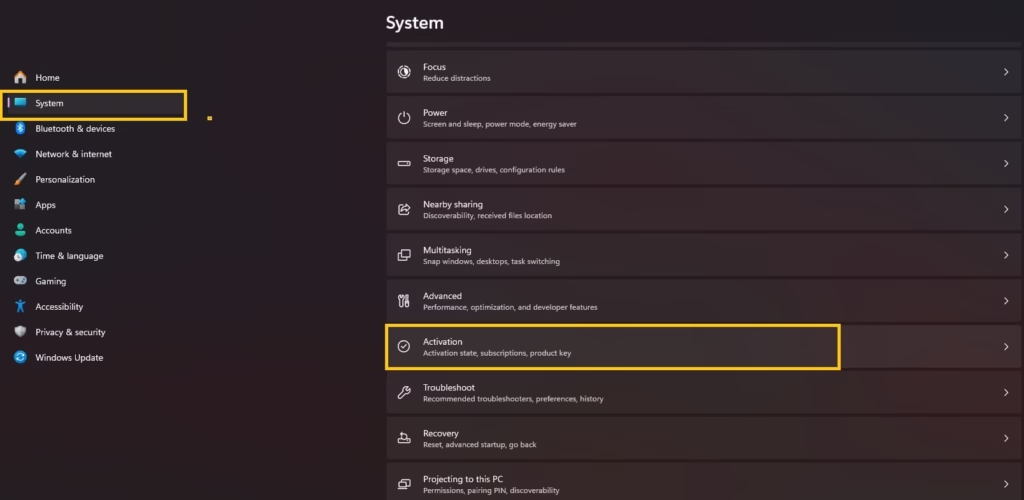
- Look under the activation status. If it says something like “Windows is activated with a digital license,” proceed.
- Click or tap “Add a Microsoft account” or similar link if available.
- Sign in with your Microsoft account credentials. Use the one you want to link.
- Confirm the sign-in. Windows should update the status to “Windows is activated with a digital license linked to your Microsoft account.”
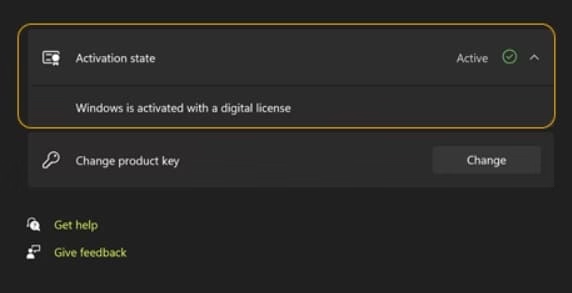
If the option doesn’t appear, ensure you’re signed in as administrator and Windows shows as activated first.
Also know: Troubleshooting Microphone Privacy Settings in Windows 11
Method 2: Switching to Microsoft Account from Local Account
A lot of people still use a local account for everyday login. Switching to a Microsoft account often creates the license link as a side effect. The process feels natural because you are simply changing how you sign in.
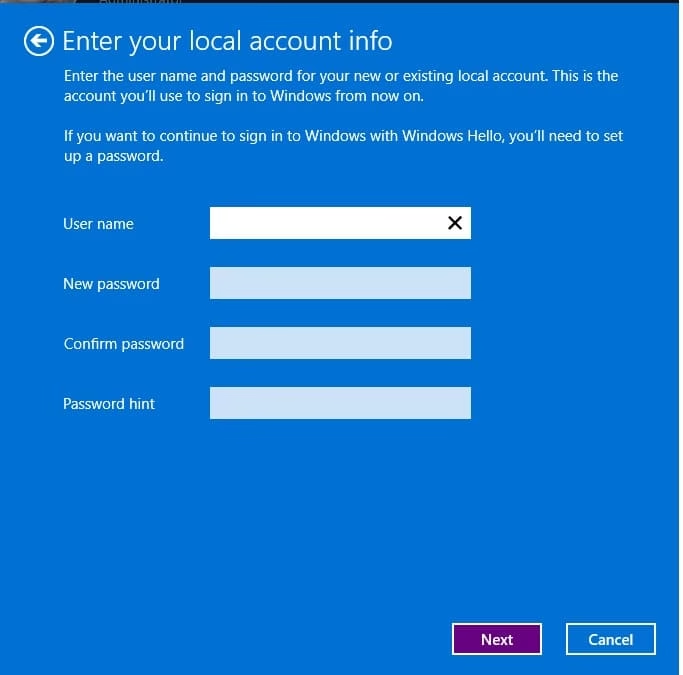
- Go to Settings > Accounts > Your info.
- Select “Sign in with a Microsoft account instead.”

- Follow the prompts to enter your Microsoft account details and verify.
- Complete any additional security steps, like two-factor authentication.
- Restart your PC and check the Activation page in Settings. The digital license should now link to the account.
This method works well because activation often ties in during the account switch process.
Method 3: During or After a Clean Install or Reset
Reinstalling Windows offers another opportunity.
- Install Windows using the same edition as before.
- During setup or after, sign in with your Microsoft account when prompted.
- Connect to the internet. Windows will check Microsoft’s servers and activate using the existing digital license.
- Go to Settings > System > Activation to confirm the linked status.
For hardware changes, you might need to use the “Reactivate” option or troubleshoot via Microsoft’s activation troubleshooter.
Method 4: Using Microsoft Store or Upgrade Path
Upgrading from Home to Pro or buying a digital license through the Microsoft Store usually creates the link automatically. The Store purchase process ties the new entitlement to the Microsoft account you use for the transaction.
- Open Microsoft Store.
- Search for the Windows upgrade and purchase if needed.
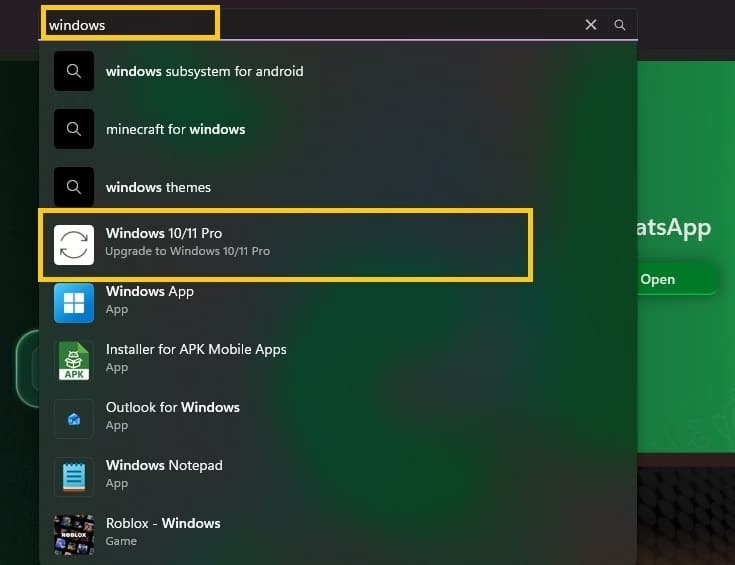
- The process often links the new digital license automatically upon completion.
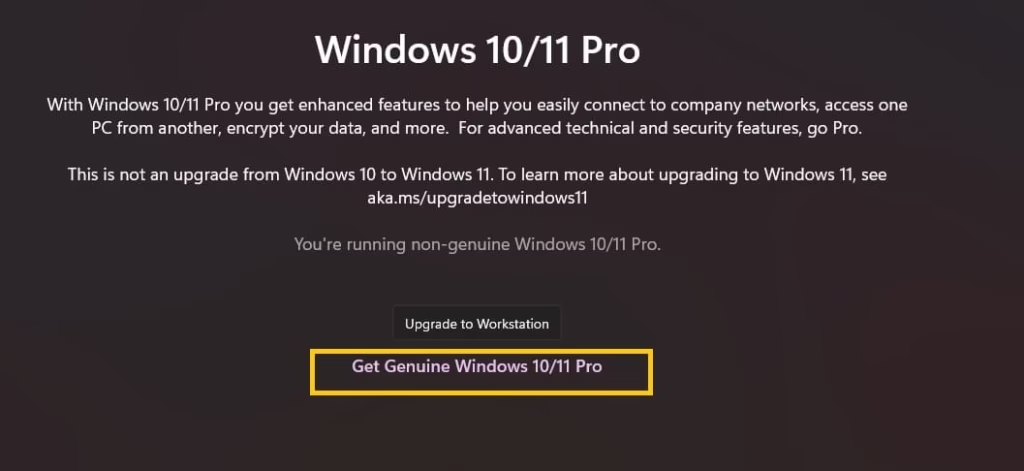
- Verify in Activation settings afterward.
If the link does not appear right away, sign out of Windows and sign back in with the same Microsoft account. Give the system a few minutes to sync with the servers.
Any of these methods can work. If one does not produce the linked message, try the next. Server updates sometimes take a short while to show up.
Also know: How to Get Help with File Explorer in Windows 11
How to Check If Microsoft Account Is Linked with Digital License in Windows
Verification is quick and reassuring.
- Press Windows key + I to open Settings.
- Go to System > Activation (Windows 11) or Update & Security > Activation (Windows 10).
- Look at the activation status message.
- If it reads “Windows is activated with a digital license linked to your Microsoft account,” you’re good.
- For extra confirmation, visit account.microsoft.com/devices in a browser while signed in. Your PC should appear with licensing details.
The phrase you want is “Windows is activated with a digital license linked to your Microsoft account.” If it only says “Windows is activated with a digital license,” the account link is still missing. Run through one of the methods above again.
For an extra check, open a browser, go to account.microsoft.com/devices while signed in, and look for your PC. The presence of the device there is another sign that the license connection exists.
If anything looks wrong, the Activation troubleshooter on the same Settings page can help. It appears when Windows detects an activation problem.
Troubleshooting Common Problems
Things do not always go smoothly. Here are the issues people run into most often and the practical fixes that usually work.
1. The “Add an account” button is missing
This usually means you are already signed in with a Microsoft account or Windows is not yet activated with a digital license. First confirm you are using an administrator account under Settings > Accounts > Your info. Then check the Activation page. If the status only says “Windows is activated,” try restarting and checking again. If you are on a local account, switch to a Microsoft account using Method 2.
2. Status does not update after signing in
Give the system a few minutes and restart the PC. Make sure the internet connection is stable. Sign out of Windows completely and sign back in with the same Microsoft account. If the message still refuses to change, open the Activation page and look for the Troubleshoot option. Run it and follow the prompts.
3. Windows will not activate after a hardware change
Major changes, especially a new motherboard, often break the automatic link. First make sure your Microsoft account is already linked using one of the methods above. Then go to Settings > System > Activation and select Troubleshoot. Choose the option that says you changed hardware on this device recently. Sign in with the linked Microsoft account and select the license for this PC.
4. You see an activation error after switching accounts
Confirm the Microsoft account you just switched to is the same one you want linked. Go back to the Activation page and check the exact status message. If needed, sign out, restart, and sign in again. Running the Activation troubleshooter often clears leftover errors from the previous account.
5. The link appears on one PC but not after a reinstall
During the reinstall, make sure you sign in with the same Microsoft account that holds the license. Keep the internet connected so Windows can reach the activation servers. If activation still fails, use the troubleshooter and select the hardware-change option even if you only reinstalled.
If none of these steps resolve the problem, Microsoft Support remains the best next stop. The built-in troubleshooter and the official activation pages usually cover the remaining edge cases.
Conclusion
Linking the Microsoft account to your digital license is one of those small steps that pays off later. Reactivation after a reinstall or a hardware tweak becomes far less stressful. You spend less time searching for product keys and more time actually using the PC.
Take a moment to verify the status after you finish. A correctly linked license quietly protects the genuine copy you already own. If you still run into trouble, Microsoft’s support pages and the built-in troubleshooter remain the most reliable next places to look.
FAQs
Q1. What is the difference between product key and digital license?
A product key is a 25-character code you enter manually to activate Windows. A digital license is an automatic entitlement stored on Microsoft’s servers, tied to your hardware and (when linked) Microsoft account. It enables keyless activation on matching setups.
Q2. Is product key necessary to have a digital license?
No. Digital licenses often form automatically from valid activations, upgrades, or pre-installed copies. A product key can help create one initially, but once established, you rarely need it again if linked properly.
Q3. Can I run two computers with the same digital license?
Generally no. Licenses tie to specific hardware. Retail licenses allow limited transfers, but running the same license simultaneously on two machines violates terms and can lead to deactivation. Each PC needs its own valid license.
Q4. How to get a digital license?
Purchase Windows from Microsoft or authorized sellers, upgrade from a previous genuine version, or use a pre-installed OEM copy that activates successfully. Linking to your Microsoft account makes it persistent.
This comprehensive guide should cover your needs thoroughly. Feel free to bookmark it for future reference.

Amanda Starc
Amanda is a dedicated technical web content writer with a passion for transforming complex ideas into compelling and accessible online narratives. With a background in web development, and digital Marketing I bring a unique blend of technical expertise and creative storytelling to the digital domain.
