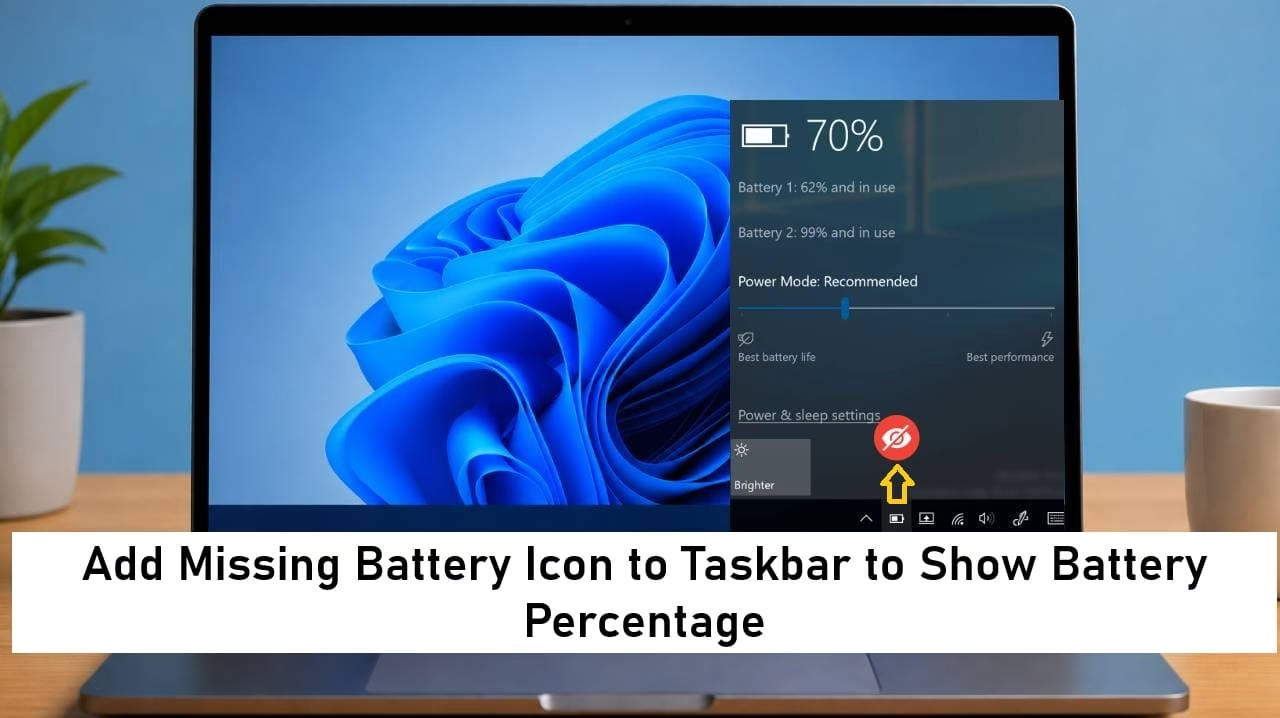
The battery icon vanishes from the taskbar and you lose that quick glance at remaining charge. Without the percentage you keep opening Quick Settings just to check power levels. Windows 11 makes both the icon and the percentage easy to restore once you know the right places.
This guide walks through every reliable way to bring the battery icon back and display the exact percentage next to it. All steps follow current Microsoft practices so the results stay accurate on laptops and tablets.
How to Add Battery Icon to Taskbar in Windows 11
Windows 11 keeps the battery icon in the system tray area on the right side of the taskbar. Sometimes the icon hides in the overflow menu or gets turned off in settings. Recent builds also let you show the numeric percentage right beside the icon.
The methods below cover restoring the icon itself and then enabling the percentage display. Each one uses only built-in tools so you avoid third-party apps.
1. Restore the Battery Icon Through Taskbar Settings
This is the most direct path Microsoft provides. The Power toggle controls whether the battery icon appears on the main taskbar or stays hidden. Flipping the switch usually brings the icon back within seconds. It works on any device that has a battery. Desktop PCs without a battery will not show the option.
- Right-click an empty space on the taskbar.
- Select Taskbar settings.
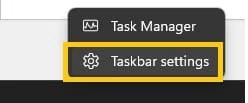
- Scroll to the Taskbar corner overflow section.
- Find the Power toggle and turn it On.
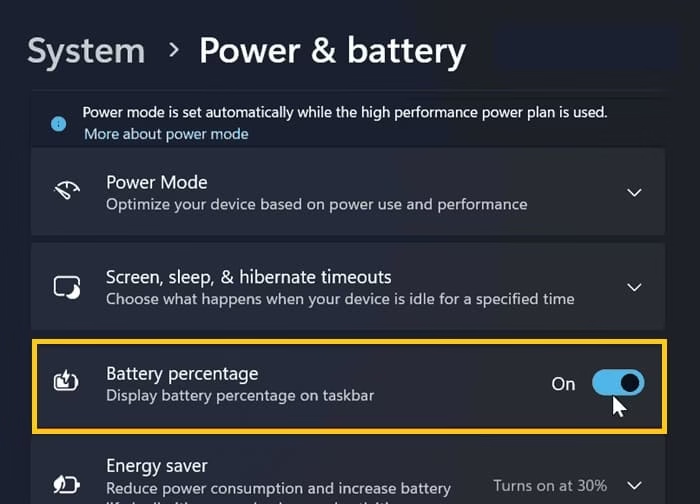
- Look at the taskbar. The battery icon should now sit near the clock and network icons.
- If it still does not appear, click the small up arrow next to the system tray and drag the battery icon onto the main taskbar area.
This method solves the problem for most users in under a minute. Keep the toggle On so the icon stays visible after restarts.
Also know: Free Up Storage Space Effectively in Windows
2. Show Battery Percentage Next to the Icon
Microsoft added a clean Battery percentage toggle in recent Windows 11 builds. Once enabled the number appears right beside the battery icon in the system tray. You also see the same percentage inside Quick Settings. The option only shows on devices that actually have a battery. After you turn it on the display updates live as the charge changes.
- Press Windows key + I to open Settings.
- Select System from the left side.
- Click Power & battery on the right.
- Look for the Battery percentage toggle.
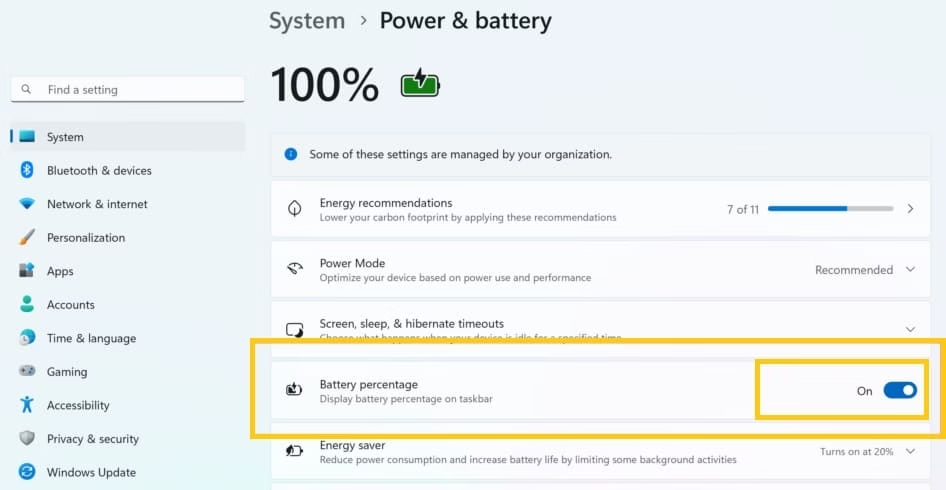
- Switch it to On.
- Check the taskbar. The percentage should now display next to the battery icon.
- Open Quick Settings with Windows key + A to confirm the percentage appears there too.
This single switch removes the need to click the icon every time you want an exact number. Leave it on for constant visibility.
3. Bring Back a Hidden Battery Icon from the Overflow Area
Sometimes the icon exists but sits inside the hidden icons menu. Microsoft lets you pull any system tray icon onto the main taskbar with a simple drag. This approach works even when the Power toggle already sits in the On position. It takes only a few seconds and needs no restart.
- Look at the right side of the taskbar near the clock.
- Click the small up arrow that opens the overflow menu.
- Find the battery or power icon in the list.
- Click and drag the icon out of the menu and drop it onto the main taskbar area next to the other system icons.
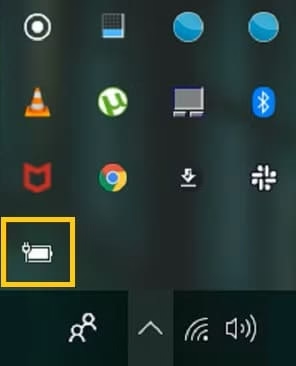
- Release the mouse. The icon now stays visible on the taskbar.
- You can reverse the process later by dragging it back into the overflow menu if you prefer a cleaner look.
This method keeps the icon exactly where you want it without changing any deeper settings.
4. Restart Windows Explorer to Refresh the Taskbar
When the usual toggles fail a quick restart of Windows Explorer often restores missing system icons including the battery. Microsoft’s Task Manager makes this safe and fast. The taskbar disappears for a moment and then returns with the icons refreshed. Getting help with file explorer step clears temporary glitches that settings alone cannot fix.
- Press Ctrl + Shift + Esc to open Task Manager.
- Find Windows Explorer in the Processes list.
- Right-click Windows Explorer.
- Select Restart.
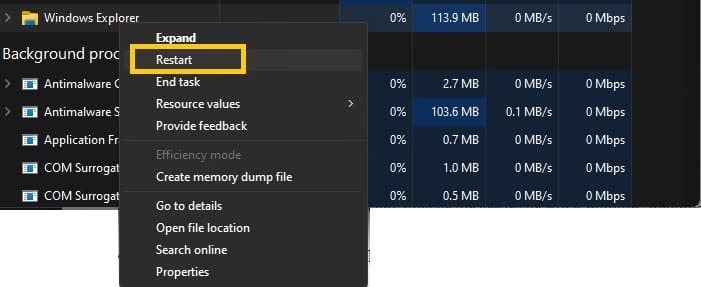
- Wait a few seconds while the taskbar reloads.
- Check the system tray for the battery icon.
- If the icon is still missing, open Settings > Personalization > Taskbar and toggle the Power switch off and back on again.
This refresh solves stubborn cases where the icon refuses to appear after normal setting changes. It is especially useful after major Windows updates.
Also know: How to Get Visual Alerts Instead of Sounds in Windows
Conclusion
Adding the battery icon to the taskbar and showing the percentage in Windows 11 takes only a few clicks once you know where to look. Taskbar settings restore the icon itself. The Power & battery page adds the live percentage number. Pulling the icon from the overflow area and restarting Explorer handle the remaining cases. Turn on the features that match your needs and enjoy a clear view of remaining charge every time you glance at the taskbar.
Related:
Extend Your Battery Life Effectively Windows with Easy Hacks

Amanda Starc
Amanda is a dedicated technical web content writer with a passion for transforming complex ideas into compelling and accessible online narratives. With a background in web development, and digital Marketing I bring a unique blend of technical expertise and creative storytelling to the digital domain.
