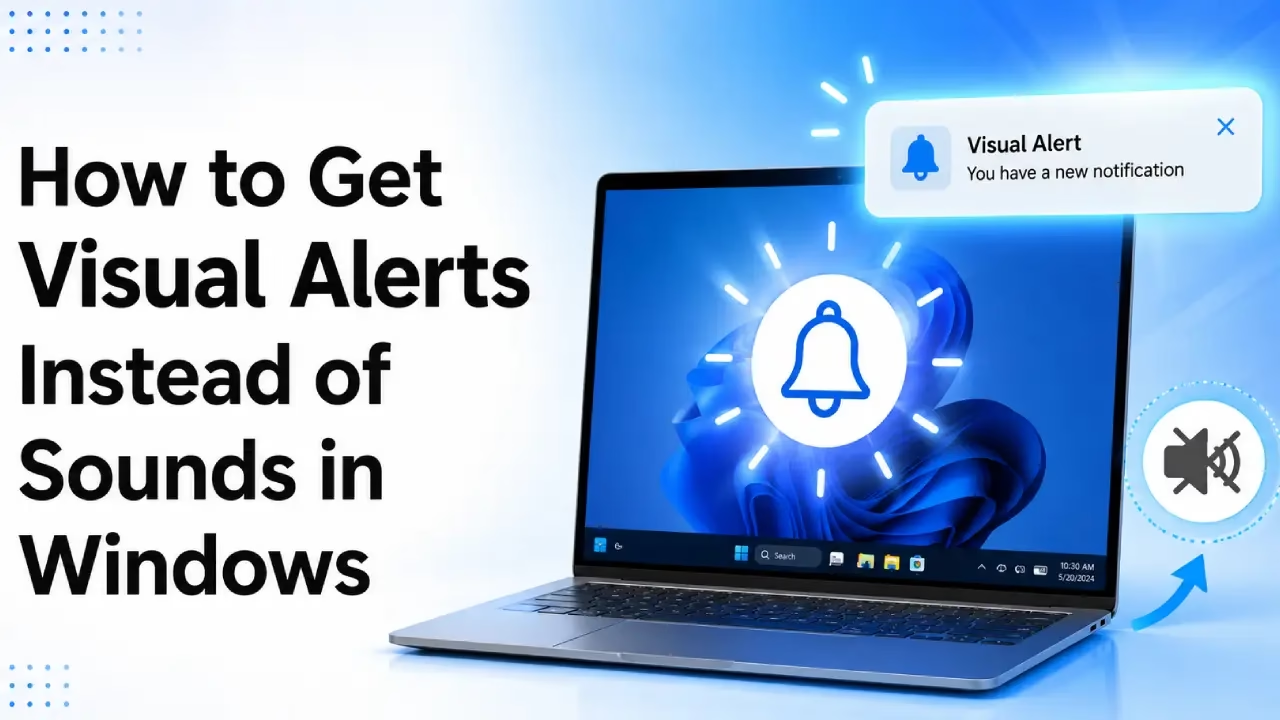

Knowing how to get visual alerts instead of sounds in Windows 11 comes in handy when you are working in a quiet environment, attending meetings, or don’t want to disturb others around you with constant notification beeps and chimes. Visual alerts let you stay informed through clear on-screen flashes while keeping your PC completely silent. You can also easily customize notification settings to create the perfect balance between visuals and silence.
On the other hand, sound alerts are the default way Windows notifies you, but they can be distracting or ineffective in noisy places or for users with hearing impairments. Turning sounds completely off without visual replacements means you might miss important notifications, system events, or app messages.
If you don’t set up visual alerts and mute sounds, you risk missing critical updates, messages, or system warnings. Windows 11 makes it easy to replace audio cues with clear visual indicators through built-in accessibility features.
While you can always manually mute sounds, enabling visual alerts ensures you stay informed without noise. This article guides you through how to get visual alerts instead of sounds in Windows 11 using simple and effective methods. Let’s get started.
How to Get Visual Alerts Instead of Sounds in Windows
You can enable visual alerts in Windows 11 primarily through Accessibility settings (the easiest method). Additional options include customizing taskbar flashing, notification settings, and advanced tweaks. The built-in Flash my screen during audio notifications feature (also known as Sound Sentry) is the most straightforward for most users. Taskbar behaviors and notification tweaks provide extra control.
For most users, Accessibility settings are recommended as they are user-friendly and directly replace sounds with visuals. Advanced users can combine multiple methods for better results. Below are all these methods explained in detail.
Method 1: Use Settings to get visual alerts instead of sounds
Windows 11 lets you replace system sounds with visual notifications directly through Settings — no third-party software, no Registry digging. This is worth setting up even if your sound is working fine, simply because it’s a five-minute job that pays off the one time your speakers, driver, or volume settings fail you unexpectedly.
- Press Windows + I to open Settings.
- Click “Accessibility” in the left sidebar.
- Scroll down and select “Audio” under the Hearing section.
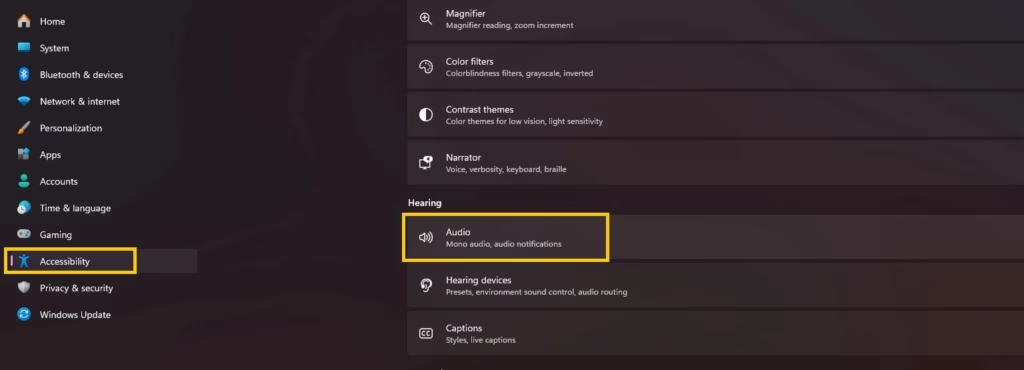
- Click the drop-down menu for “Flash my screen during audio notifications.”
- Pick your style: Never, Flash the title bar of the active window, Flash the active window, or Flash the entire screen.
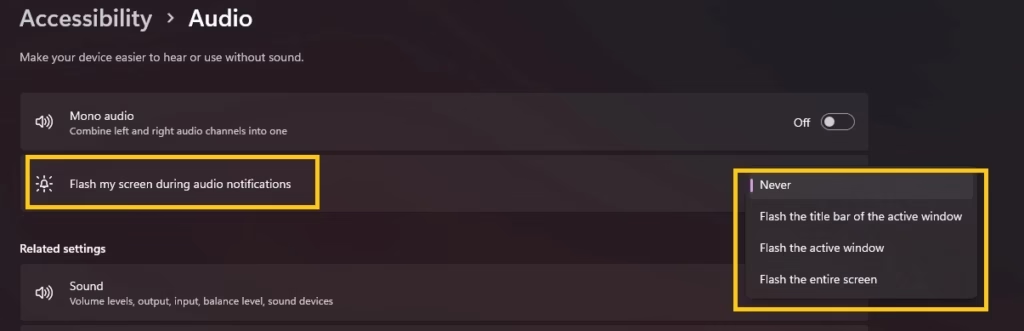
- It applies instantly — no restart needed.
On Windows 10, the same setting sits under Settings > Ease of Access > Audio, labeled “Show audio alerts visually.”
Also know: How Enabling Microphone for Specific Apps Works in Windows
Method 2: Use Control Panel’s Ease of Access Center for visual alerts
If Settings ever fails to save your choice — which does happen occasionally, especially after a Windows update — Control Panel gets you to the same underlying setting through a different door. Worth keeping in your back pocket for exactly that scenario.
- Search for Control Panel and open it.
- Click Ease of Access Center.
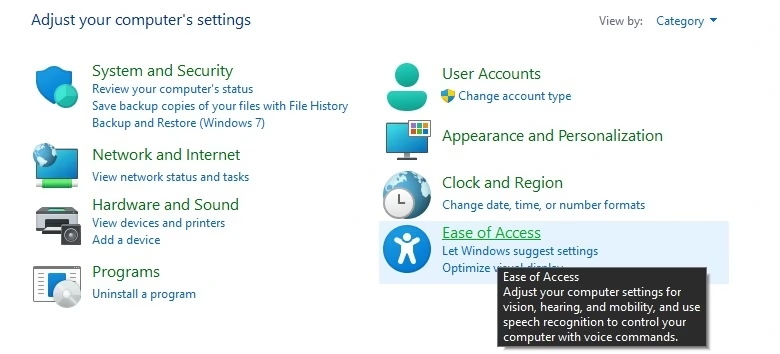
- Under Explore all settings, click “Use text or visual alternatives for sounds.”
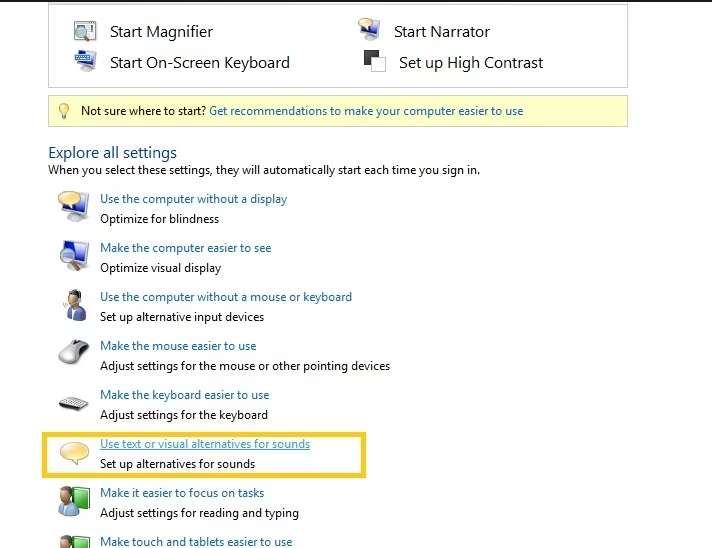
- In Windows 11, click “Replace sounds with visual cues.”
- Choose from: None, Flash active caption bar, Flash active window, or Flash desktop.
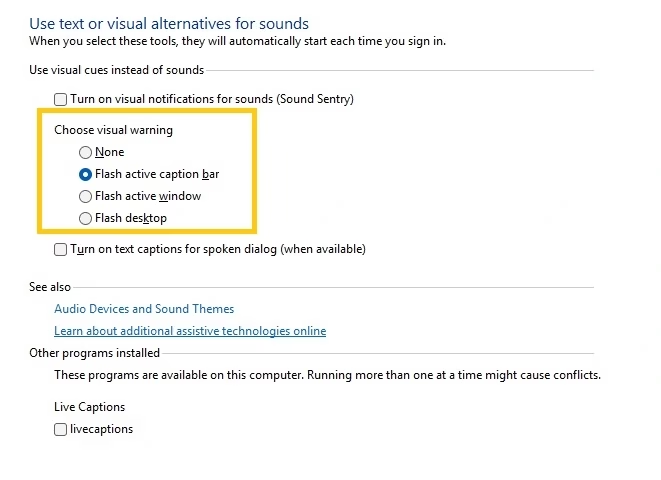
- Click Apply, then OK.
Also know: Best Free Driver Update Tools for Windows PC
Method 3: Adjust notification duration so visual alerts stay visible longer
A flash setting is only useful if you actually catch it. This step doesn’t get much coverage elsewhere, but it matters — especially on multi-monitor setups where your eyes aren’t always on the screen that flashes.
- Press Windows + I to open Settings.
- Go to Accessibility > Visual effects.
- Change the dropdown next to “Dismiss notifications after this amount of time.”
- Set it to something longer, like 7 seconds.
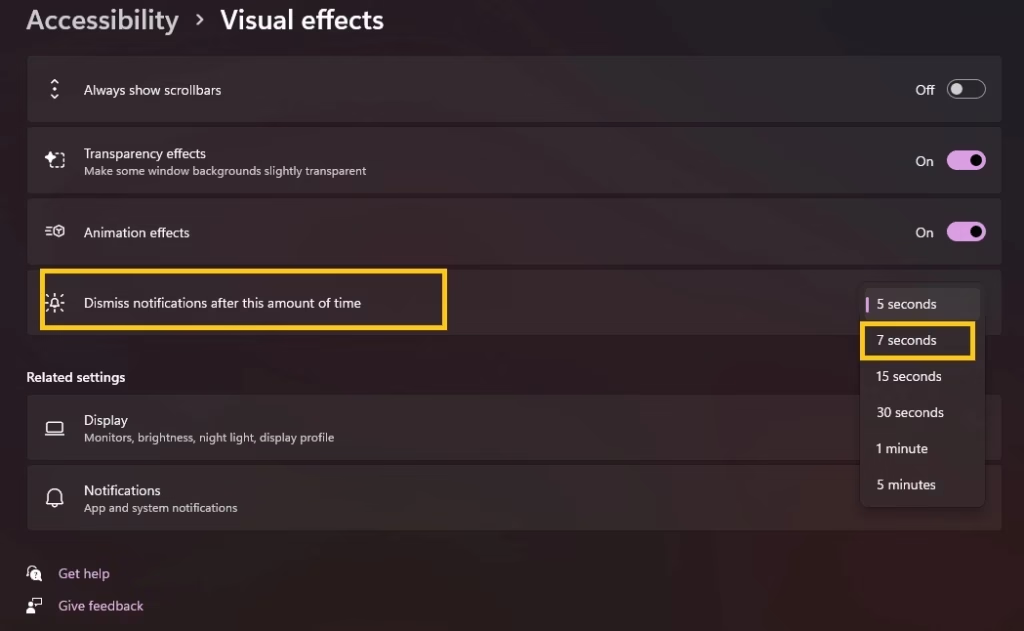
- To go fully silent, go to System > Notifications and uncheck “Allow notifications to play sounds.”
Also know: How to Reset Your PC for a Fresh Start on Windows
Method 4: Enhancing with Custom PowerShell Toast Notifications
For situations where built-in flashes are not enough, such as specific app events or scheduled reminders, I developed and tested a lightweight PowerShell approach. It creates prominent on-screen toast notifications that appear alongside or instead of sounds. This works great for custom alerts.
Here is a simple, working script you can save and run:
First, open Notepad and paste this:
function Show-VisualAlert {
    param([string]$Title = "Windows Alert", [string]$Message = "Something needs your attention.")
    [Windows.UI.Notifications.ToastNotificationManager, Windows.UI.Notifications, ContentType = WindowsRuntime] | Out-Null
    $Template = [Windows.UI.Notifications.ToastNotificationManager]::GetTemplateContent([Windows.UI.Notifications.ToastTemplateType]::ToastText02)
    $Template.GetElementsByTagName("text")[0].InnerText = $Title
    $Template.GetElementsByTagName("text")[1].InnerText = $Message
    $Toast = [Windows.UI.Notifications.ToastNotification]::new($Template)
    [Windows.UI.Notifications.ToastNotificationManager]::CreateToastNotifier("VisualAlerts").Show($Toast)
}

# Example usage
Show-VisualAlert -Title "Battery Low" -Message "Plug in your device soon."- Save the file as VisualAlert.ps1.
- Right-click PowerShell and run as administrator.
- Navigate to the script location using cd and run it with .\VisualAlert.ps1.
You can schedule this script with Task Scheduler for specific events or integrate it into other automation. In my experience, these toasts feel modern and informative. They complement Sound Sentry perfectly for apps that do not trigger system sounds reliably. The pop-up stays visible longer than a quick flash, giving you time to react.
For even more automation, explore triggering the script based on system events, but start simple to avoid complexity.
Frequently Asked Questions
Q1. What does the visual alert setting actually do?
It flashes your screen for certain Windows system alert sounds, instead of or alongside the sound. It doesn’t automatically convert every app notification into a flash — apps like Outlook or Teams need their own settings configured.
Q2. Do I need to mute my PC to use visual alerts?
No. Sound and visual alerts can run together, or you can mute completely and rely only on flashes.
Q3. Which flash style should I pick?
Flash the title bar is subtle, Flash the active window is more noticeable, and Flash the entire screen is hardest to miss. Multi-monitor users generally do better with the full-screen option.
That covers setup and the troubleshooting steps most guides skip. If your notifications still aren’t flashing the way they should, drop a comment with what you’re seeing and I’ll help you narrow it down.