Learn what a CRC error means, why the data error cyclic redundancy check appears on Windows drives or networks, and proven fixes that restore access without risking your files.
Have you ever tried opening a drive or file only to see the message “Data error (cyclic redundancy check)”? That single line can stop you cold. Files refuse to open. External drives become inaccessible. Downloads fail verification. The frustration is real because the error rarely explains itself. It simply tells you the data no longer matches the mathematical fingerprint that was stored with it.
A CRC error is the system’s way of saying something changed the bits between the moment they were written and the moment they were read. It can stem from a loose cable, a worn sector, or a brief interruption during transfer. The good news is that most of these issues respond to clear, careful steps. This guide walks you through exactly what a CRC error is, the most common reasons it appears, and the trusted fixes that actually work.
What is a CRC Error
A cyclic redundancy check, or CRC, is an error-detecting method built into nearly every modern storage device and data link. When data is written or transmitted, the system runs a mathematical calculation based on polynomial division over the bits. The result is a short fixed-length value called the check value or checksum. That value travels with the data or is stored alongside it.
Later, when the same data is read or received, the system repeats the identical calculation. If the new result matches the original check value, the data is accepted as intact. If the two values differ, even by a single bit, the system reports a CRC error and refuses to treat the data as reliable.
This technique was introduced by W. Wesley Peterson in 1961 and remains widely used because it is efficient to implement in hardware and detects a broad range of accidental bit changes. Wikipedia and technical literature describe CRC as especially effective against the kinds of noise and physical faults that commonly appear in storage and network channels.
In everyday Windows use the error often surfaces as “Data error (cyclic redundancy check)” when you try to open a drive, copy a file, extract an archive, or install software. The same underlying mismatch can appear during network transfers or when SMART tools report rising UDMA CRC error counts on a hard drive or SSD.
The Causes
1. Cable or connection problems
- A loose or damaged SATA cable
- A worn-out USB cable
- A faulty USB port or connector
- Any of these can flip bits while data travels from the drive to the controller, so the check fails.
2. Problems with the drive itself
- A hard drive with bad sectors (damaged areas on the disk)
- An SSD with worn or weak cells
- In both cases the stored data has actually changed, so it no longer matches.
3. File system corruption
- Sudden power loss or an unexpected shutdown
- A write operation that was interrupted halfway
4. Other common causes
- An interrupted or incomplete download
- Electromagnetic interference near the cables (for example, close to power cables or magnets)
- Unstable RAM
- Occasionally, a faulty controller.
In short, a CRC error is the system detecting that the data no longer matches its expected mathematical signature. The cause is almost always either a transmission problem or actual alteration of the stored bits.
Solutions to fix CRC (cyclic redundancy check) Error
Most CRC errors respond to methodical troubleshooting that starts with the simplest physical checks and moves toward software repair only when needed. The goal is always to protect remaining data first. Work through the steps below in order. Stop when the error disappears. If the drive makes unusual sounds or becomes completely unresponsive, power it down and consider professional recovery rather than forcing further access.
Solution 1. Check and Replace Physical Connections
Many CRC errors never reach the drive itself. They occur on the short path between the storage device and the motherboard or USB controller. Begin here because the fix is quick and risk-free.
- Shut down the computer completely and unplug the power cord.
- If the drive is internal, open the case carefully.
- Locate the SATA data cable and power cable connected to the drive.
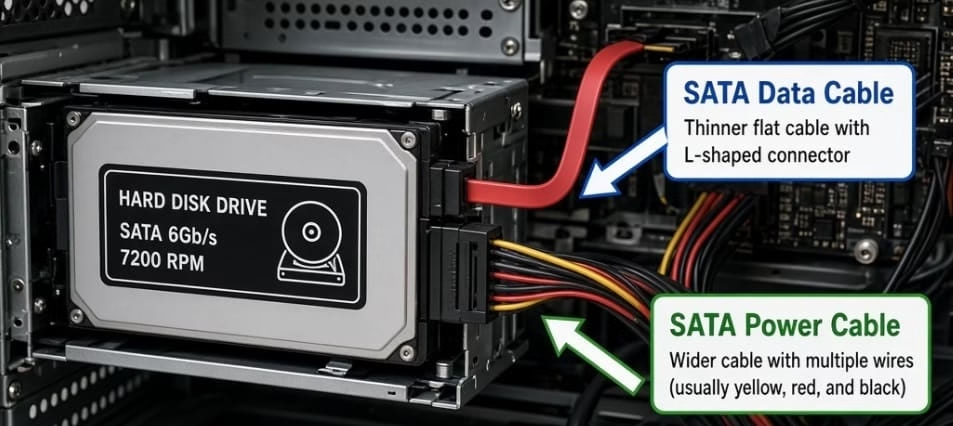
- Gently unplug both ends of the SATA data cable from the drive and from the motherboard.
- Inspect the connectors for bent pins, dust, or signs of damage.
- Plug the cable back in firmly until it clicks into place on both ends.
- Do the same with the power connector.
- If you have a spare SATA cable, replace the original one with the new cable.
- Move the drive to a different SATA port on the motherboard if available.
- For an external drive, unplug the USB cable completely.
- Try a different USB cable that you know works with other devices.
- Connect the drive to a different USB port, preferably one on the back of the computer rather than a front panel or hub.
- Power the computer back on and try accessing the drive again.
A large share of CRC errors clear up after this simple reseating or cable swap because the original connection was introducing bit flips during data transfer.
Solution 2. Test the Drive on another Computer
This step quickly shows whether the problem lives with the drive or with the original computer.
- Safely disconnect the drive from the first computer.
- Connect it to a second working computer using a different cable if possible.
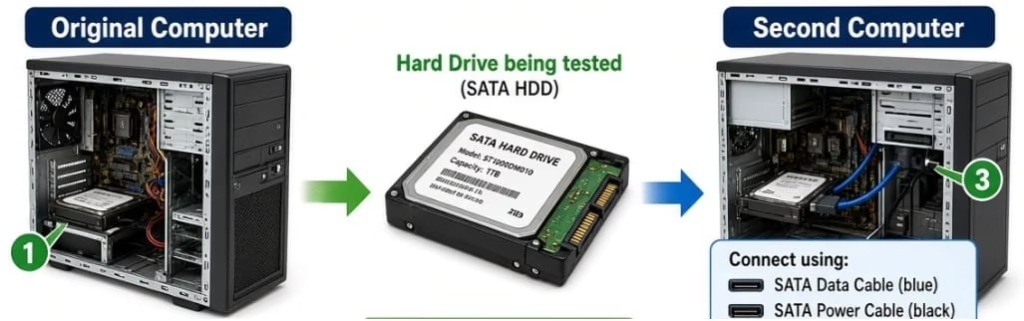
- Power on the second computer and wait for it to recognize the drive.
- Try opening the drive or copying a few files.
- If the drive works normally on the second computer, the issue is likely with the original computer’s ports, cables, or controllers.
- If the same CRC error appears on the second computer, the drive itself needs further attention.
- While the drive is connected to the second computer, copy any important files you can still access to a safe location.
This isolation test saves time and prevents unnecessary repairs on the wrong machine.
Also know: Fixed: Out of Range Input Signal Error in Windows Monitor
Solution 3. Run the Windows error-checking Tool or CHKDSK
Once physical connections are ruled out, address logical errors and bad sectors with Windows built-in tools.
Using the graphical interface:
- Open File Explorer.
- Right-click the drive that shows the CRC error.
- Select Properties.
- Click the Tools tab.
- Under Error checking, click Check.
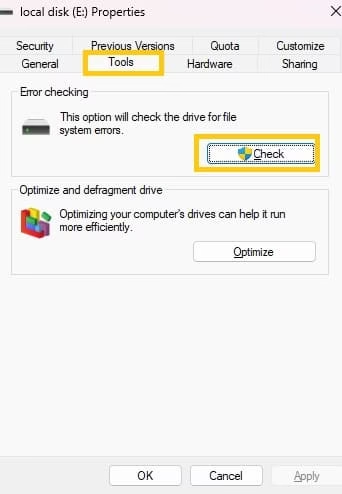
- Choose Scan drive or Repair drive if the option appears.
- Allow the scan to finish completely and follow any prompts to fix errors.
Using Command Prompt for a deeper scan:
- Press the Windows key, type cmd, then right-click Command Prompt and choose Run as administrator.
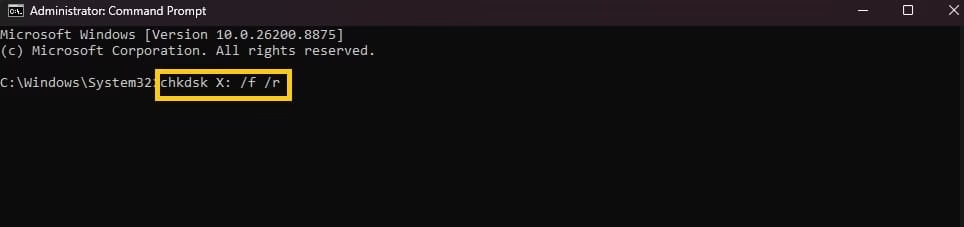
- Type the following command and press Enter (replace X with the actual drive letter):
chkdsk X: /f /r
- If the drive is the system drive (usually C:), Windows will tell you it cannot run immediately and will schedule the scan for the next restart. Type Y and press Enter, then restart the computer.
- Let the scan run fully. It may take a long time depending on the size of the drive and the number of errors found.
- After the scan finishes and Windows restarts, try accessing the drive again.
The /f switch repairs file-system errors. The /r switch locates bad sectors and attempts to recover readable data from them. Stop the process and power down the drive if it begins making unusual noises during the scan.
Also know: How to Restart Bluetooth Service Windows
Solution 4. Repair system files with DISM and SFC
When the CRC error involves Windows system files or appears during normal system operation, these two tools can restore corrupted components.
- Open Command Prompt as administrator (search for cmd, right-click, Run as administrator).
- Type the following command and press Enter:
DISM /Online /Cleanup-Image /RestoreHealth
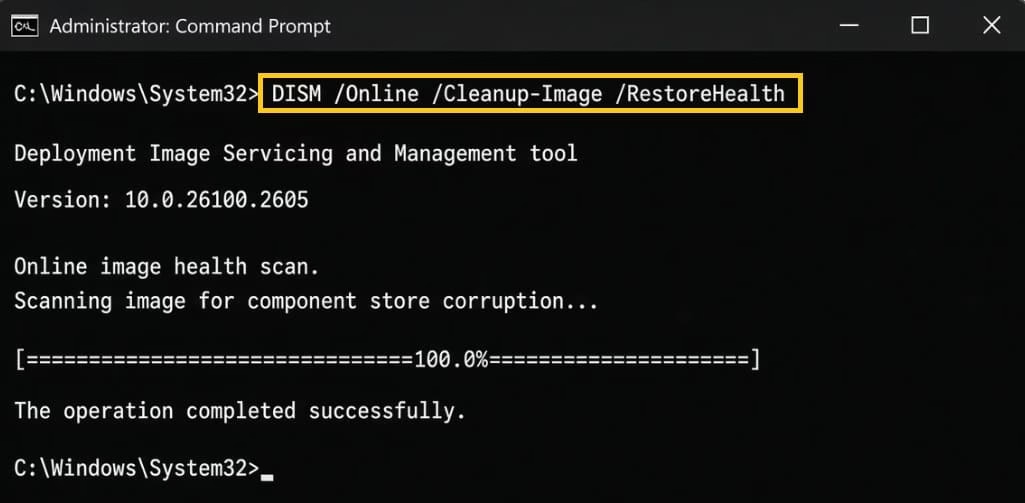
- Wait until the process reaches 100 percent and reports that the operation completed successfully. This can take several minutes.
- Next type this command and press Enter:
sfc /scannow
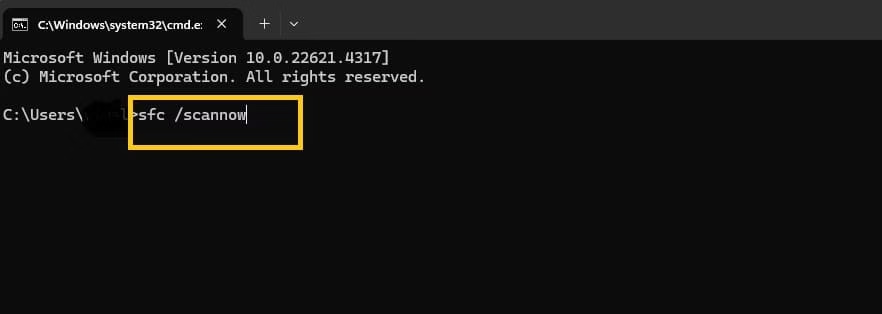
- Allow the System File Checker to scan all protected system files. It will replace any corrupted files it finds with healthy copies.
- When the verification reaches 100 percent, type exit and press Enter.
- Restart the computer and test whether the CRC error is gone.
Running DISM first ensures SFC has a clean source of files to draw from.
Solution 5. Update Storage and Chipset Drivers
Outdated or damaged drivers can interrupt clean data transfer and trigger CRC mismatches.
- Right-click the Start button and select Device Manager.
- Expand the Disk drives section.
- Right-click the drive that shows problems and choose Update driver.
- Select Search automatically for drivers and follow the prompts.
- Expand IDE ATA/ATAPI controllers or Storage controllers.
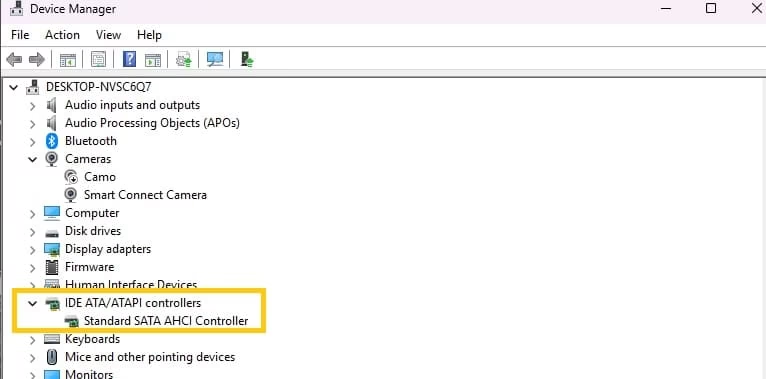
- Right-click each relevant controller entry and choose Update driver the same way.
- Prefer drivers downloaded directly from the motherboard or laptop manufacturer’s website when possible.
- After the updates finish, restart the computer and check the drive again.
Fresh drivers often resolve transfer errors that software scans alone cannot fix.
Solution 6. Recover Data and Reformat only as a Last Step
If the drive still shows the CRC error after the previous steps and the files matter to you, focus on recovery before any format.
- Use a trusted data recovery program or professional service to copy important files to a different healthy drive.
- Once the data is safely elsewhere, open Disk Management (right-click Start and choose Disk Management).
- Locate the problematic drive, right-click its volume, and choose Format.
- Select the desired file system (usually NTFS) and perform a full format rather than a quick format if time allows.
- After formatting completes, the drive should become accessible again, though all previous data on it will be gone.
Treat formatting as the final option only after recovery succeeds. If the drive continues to produce new CRC errors after a clean format, it is likely failing and should be replaced.
Throughout the entire process, watch for physical warning signs such as clicking, grinding, or extreme heat. Those symptoms mean the drive needs professional attention rather than further DIY attempts.
Also know: Why is My Computer so Slow
Conclusion
A CRC error is the computer’s polite but firm way of saying the data it just read no longer matches the checksum that was calculated when the data was written. The mismatch can come from a simple loose cable, a worn sector, a corrupted file system, or interference during transfer. Because the check itself is reliable, the error almost always points to a real problem rather than a false alarm.
The practical path forward is methodical. Start with the physical layer. Confirm cables and ports. Test the drive on another system. Only then move to CHKDSK, system-file repair, and driver updates. In most everyday cases one of these steps restores normal access. When the drive shows clear signs of physical failure, protect the remaining data first and consider professional recovery rather than repeated aggressive scans.
Regular cable checks, quality connectors, and timely backups remain the best long-term protection. CRC errors will still appear from time to time, but they no longer need to feel mysterious or final. With the detailed steps above you can diagnose the source and apply the right fix with confidence.

Amanda Starc
Amanda is a dedicated technical web content writer with a passion for transforming complex ideas into compelling and accessible online narratives. With a background in web development, and digital Marketing I bring a unique blend of technical expertise and creative storytelling to the digital domain.
