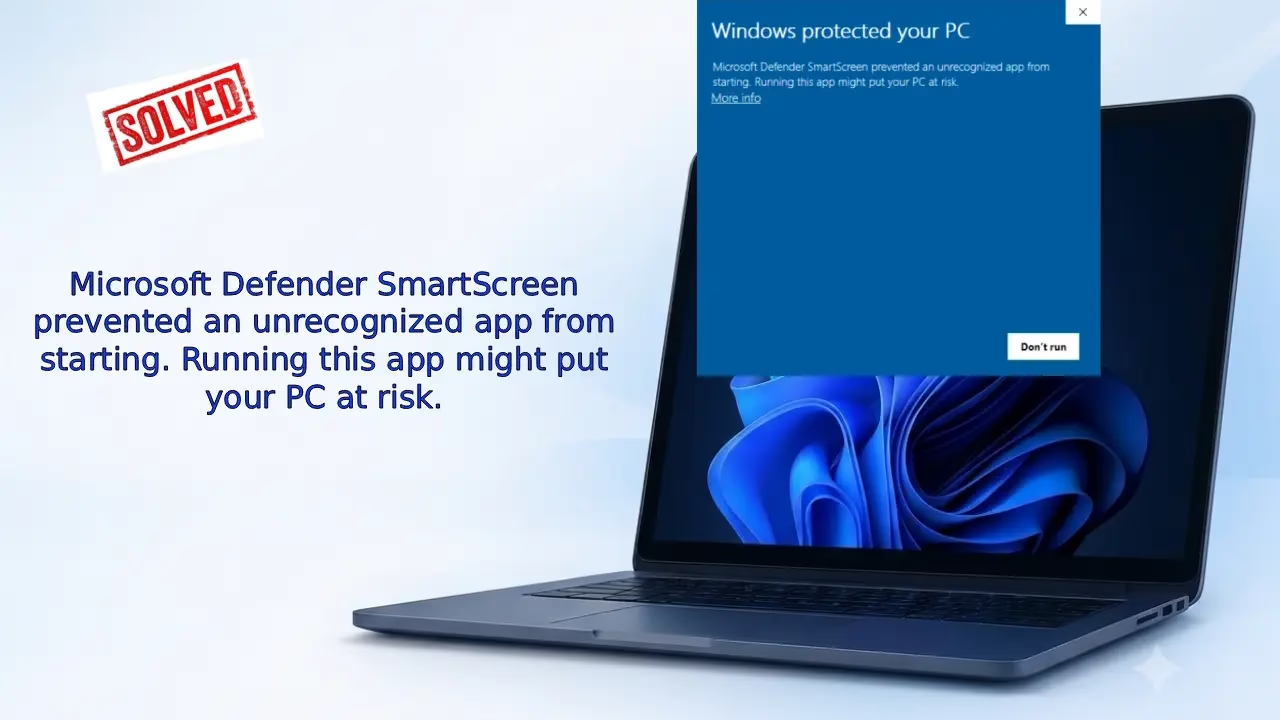

That frustrating pop-up hits just as you double-click a fresh download. “Microsoft Defender SmartScreen prevented an unrecognized app from starting. Running this app might put your PC at risk.” Your heart skips. You know the app comes from a trusted site, yet Windows throws up a roadblock. This common warning protects millions daily, but it often flags safe files too, especially new releases or tools from smaller developers.
In this guide, we break down exactly why SmartScreen acts this way and walk you through practical fixes. You will learn safe ways to run legitimate apps without compromising security. Whether you need a quick bypass or lasting tweaks, these steps keep your workflow smooth while staying protected. Let’s get that app running.
What is Microsoft Defender SmartScreen prevented an unrecognized app from starting. Running this app might put your PC at risk.
SmartScreen forms part of Microsoft Defender’s reputation-based protection. It checks downloaded files against known safe lists. New or rarely downloaded apps lack reputation, so Windows shows the warning to make you pause.
This safeguard catches real threats like malware hidden in sketchy downloads. Yet legitimate software from fresh certificates or low-volume publishers triggers it often. Microsoft builds reputation over time through clean user reports and downloads. Until then, you see the block.
Quick and Safe Bypass Methods
Windows SmartScreen is a useful security feature that blocks unrecognized apps and files to protect you from malware. However, it often flags legitimate programs (especially newly downloaded or unsigned ones). Below are 6 practical methods to safely handle this warning. Each method now has a clear introduction, detailed step-by-step instructions, and important notes/tips.
Method 1: Run Anyway Option (Simplest & Quickest Fix)
This is the easiest and most recommended first step for most users. When SmartScreen shows a warning, Windows still gives you the option to proceed after reviewing basic information. This method is safe for trusted files and doesn’t change any system settings.
Steps:
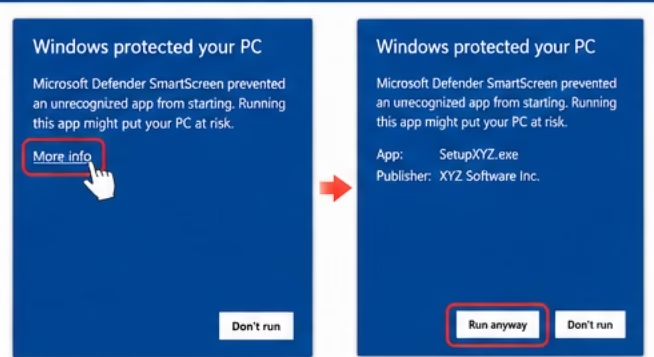
- Double-click the installer (.exe) or application file you downloaded. The SmartScreen warning window will appear.
- Click on “More info” (usually located at the bottom of the warning window). → This expands the window and shows details like the file name, publisher (if available), and origin.
- Carefully check the Publisher name. It should match the legitimate developer or company from where you downloaded the file (e.g., “XYZ Software Inc.”). If it looks suspicious, do not proceed.
- Once you’re sure it’s safe, click “Run anyway”.
- The app should now launch normally.
Notes:
- This is a one-time choice per file. As more people use and mark the file as safe, Microsoft’s reputation system improves and future warnings may stop.
- Always download from official websites.
Method 2: Unblock the File via Properties (Removes Mark of the Web)
Files downloaded from the internet carry a hidden “Mark of the Web” flag. This method removes that flag directly from the file’s properties, which often eliminates the SmartScreen warning without changing any global settings.
Steps:
- Open File Explorer and navigate to the downloaded file.
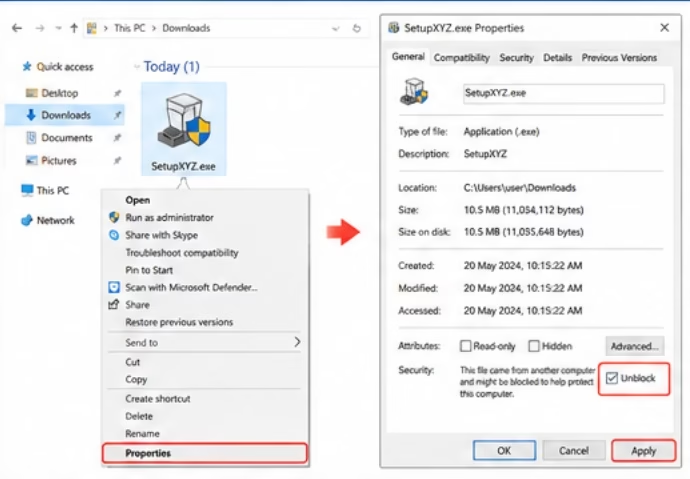
- Right-click on the file → Select Properties.
- Switch to the General tab.
- At the bottom of the window, look for the Security section. If the file is blocked, you will see an Unblock checkbox.
- Check the Unblock box.
- Click Apply → Click OK.
- Close the Properties window and try running the file again.
Notes:
- This works for .exe files, installers, ZIP archives, and many other downloaded files.
- If you don’t see the Unblock checkbox, the file may not have the mark or you need to try Method 1 first.
Also know: Extend Your Battery Life Effectively Windows with 17 Unique Ways
Method 3: Adjust Reputation-Based Protection Settings
Instead of completely disabling SmartScreen, you can lower its strictness level. This is useful if you frequently download new software but still want protection.
Steps:
- Open Windows Security (search for it in the Start menu).
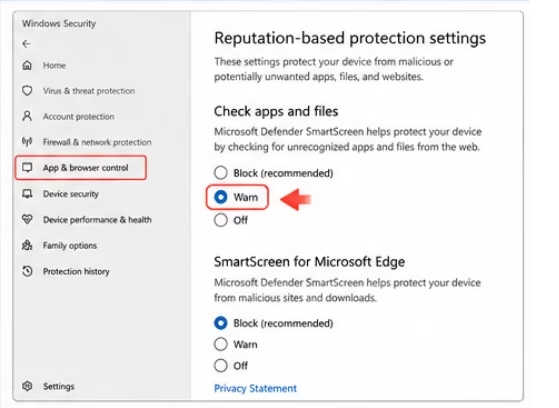
- Click on App & browser control from the left sidebar.
- Click Reputation-based protection settings.
- Under “Check apps and files”, you will see options like:
- Block (default – most secure)
- Warn
- Off
- Choose Warn (recommended) or Off (use only temporarily).
- You can also adjust settings for Microsoft Edge and “Potentially unwanted apps” here.
- Test your file. After testing, consider restoring stricter settings.
Method 4: Use Group Policy for Finer Control (Windows Pro, Enterprise, Education)
This advanced method lets you configure SmartScreen behavior centrally through Group Policy. It is more permanent and system-wide.
Steps:
- Press Windows key + R, type gpedit.msc, and press Enter.
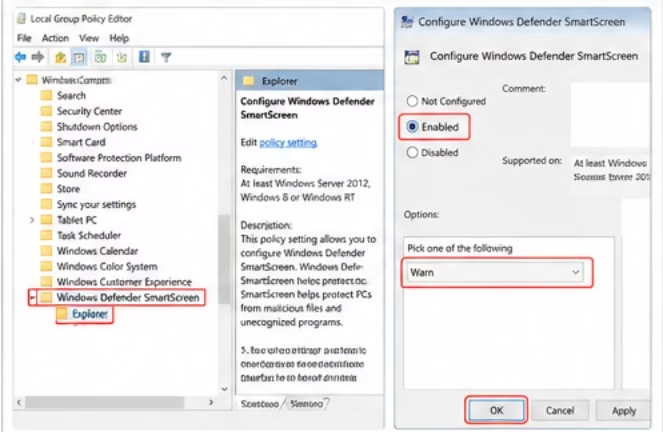
- Navigate to this path: Computer Configuration → Administrative Templates → Windows Components → Windows Defender SmartScreen → Explorer
- Double-click “Configure Windows Defender SmartScreen”.
- Select Enabled.
- In the dropdown, choose your preferred option:
- Warn (recommended)
- Warn and prevent bypass
- Click Apply → Click OK.
- Restart your computer or restart File Explorer for changes to take effect.
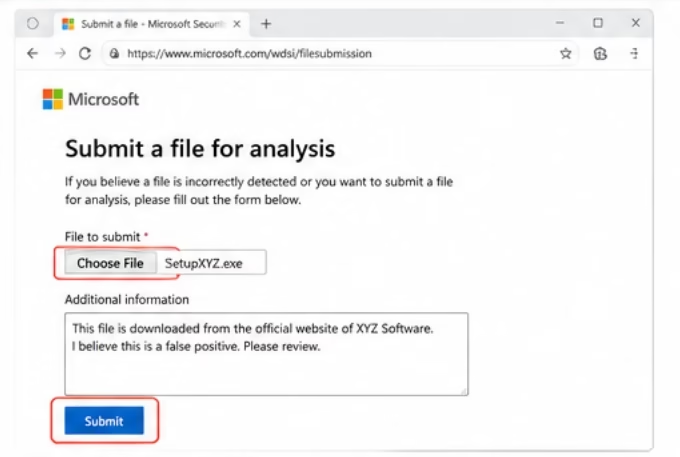
Method 5: Submit the File for Microsoft Review
If a legitimate app you trust keeps getting blocked, you can help Microsoft improve its reputation database by submitting the file.
Steps:
- Go to the Microsoft Security Intelligence portal (or search “Microsoft Security Intelligence Submit”).
- Follow the instructions to submit the file (usually by uploading or providing the file hash).
- Provide context — mention the official download source and that you trust the software.
- Submit the form.
Notes:
- This helps other users too.
- The best long-term solution for developers is to use proper code signing certificates.
Also know: 192.168.1.1 Admin: Log in & Troubleshooting Guide
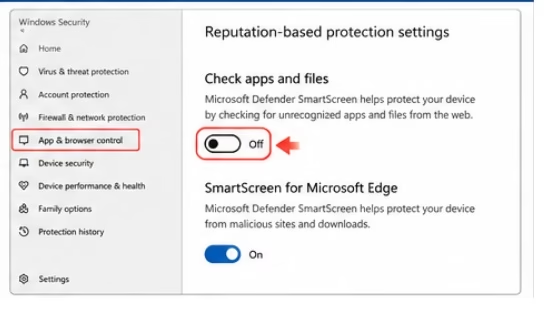
Method 6: Temporary Disable SmartScreen (Last Resort Only)
Use this only when you fully trust the application and need to install it immediately. Always re-enable protection right after.
Steps:
- Open Windows Security.
- Go to App & browser control.
- Click Reputation-based protection settings.
- Under “Check apps and files”, toggle it to Off.
- Install/run your application.
- Immediately go back and turn Check apps and files back On.
Warning: Leaving SmartScreen off reduces your protection against real malware. Use this method sparingly.
Disabling reduces protection against real threats, so limit this to short sessions on known-good downloads. Combine with regular scans.
Conclusion
The “Microsoft Defender SmartScreen prevented an unrecognized app from starting” message serves as a helpful guardian most of the time. With the steps above, you handle it confidently without unnecessary frustration. Prioritize trusted sources, verify publishers, and maintain updates. This keeps your PC secure while letting you install the tools you need.
SmartScreen evolves constantly. Stay informed through official Microsoft resources. If issues persist with a specific app, reach out to its support team. They often provide tailored guidance. Your system stays protected, and your productivity flows uninterrupted. Enjoy exploring new software safely.