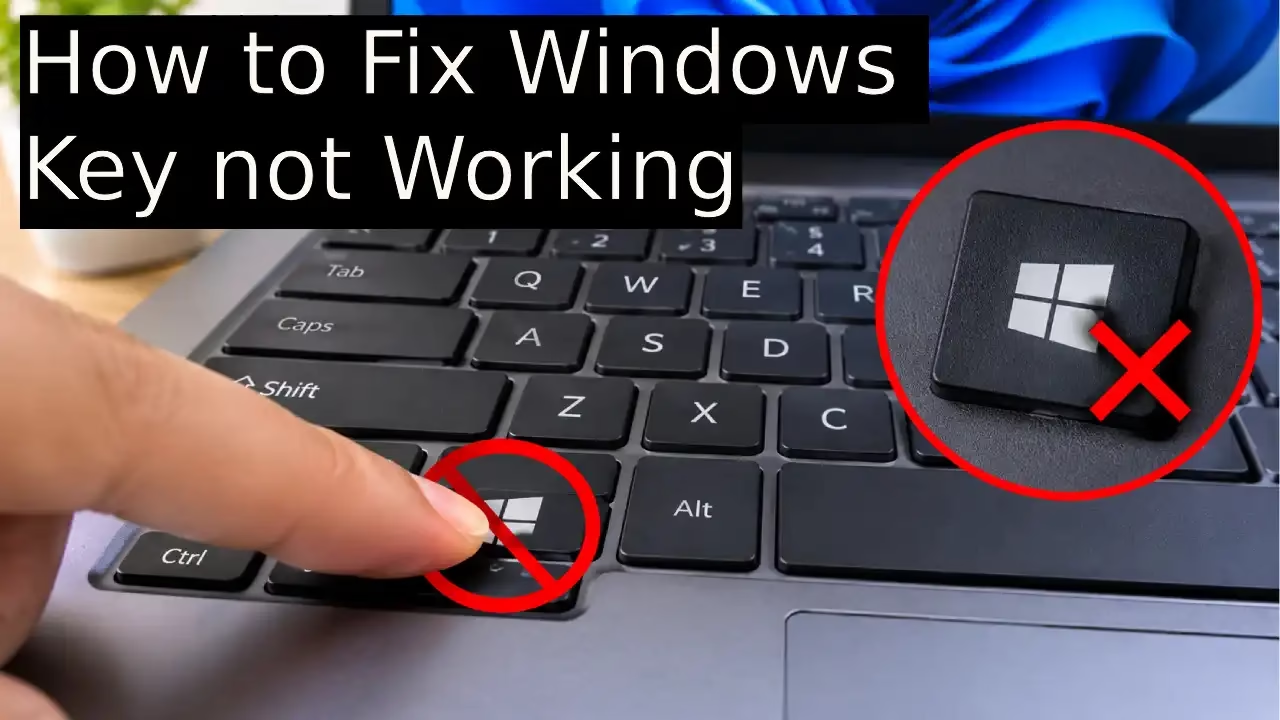

The Windows key is one of the most useful keys on any keyboard. It opens the Start menu, launches shortcuts like Windows + E for File Explorer, and helps you navigate your system quickly. When the Windows key stops responding, everyday tasks become slower and more frustrating. Many people search for “windows button not working” or “why is my windows key not working” after the key suddenly fails during normal use or after gaming.
This problem is common on both Windows 10 and Windows 11. It can happen for several reasons: a gaming keyboard’s Win Lock feature, accessibility settings such as Filter Keys or Sticky Keys, temporary glitches in Windows Explorer, outdated drivers, or even a simple software conflict. Official Microsoft support documentation and widely referenced troubleshooting guides confirm that most cases are software-related rather than permanent hardware failure.
In this guide you will find clear, practical methods to restore the Windows key. Each solution is explained in plain language with step-by-step instructions so you can try them one by one until the key works again. No advanced technical knowledge is required. By the end of this article, you should have a working Windows key and a better understanding of what caused the issue in the first place.
Best Fixes Windows Key Not Working
Before diving into advanced repairs, start with the simplest checks. Many users solve the problem in under a minute by turning off a keyboard lock or restarting a single process. Below are the most effective methods, arranged from easiest to more involved. Follow them in order for the best chance of a quick fix.
1. Check Win Lock or Game Mode on Your Keyboard (Most Common Fix)
Many gaming keyboards have a special button that turns off the Windows key on purpose. This is done so that you don’t accidentally open the Start menu while playing games. This is the number one reason why the Windows key stops working.
How to fix it:
- Look carefully at your keyboard. Find any key that has “Win Lock”, “Game Mode”, or a small lock symbol.
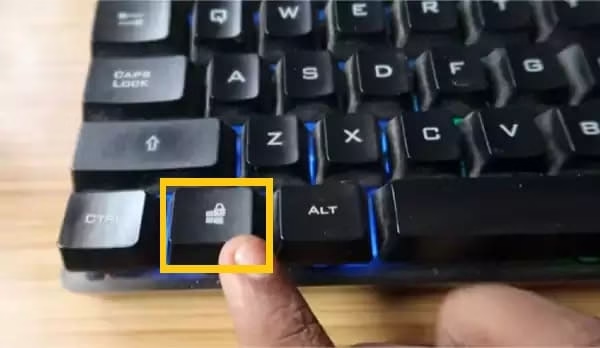
- On many keyboards (especially Logitech, Razer, Corsair), you need to press Fn + Windows key together, or Fn + F6, or Fn + F12.
- Press that combination once.
- Now press the Windows key alone and check if the Start menu opens.
- If your keyboard has its own software (like Logitech G HUB or Razer Synapse), open that software and make sure Game Mode is turned OFF.
- After doing this, restart your computer once and test the Windows key again.
Tip: This fix solves the problem for a large number of people in less than 30 seconds.
2. Restart Windows Explorer
Windows Explorer is the part of Windows that controls the taskbar, desktop icons, and Start menu. Sometimes this process gets stuck, and the Windows key stops working even though the rest of the keyboard is fine.
How to fix it step by step:
- Press these three keys together at the same time: Ctrl + Shift + Esc. This will open Task Manager.
- In the list, look for Windows Explorer (sometimes it is written as “explorer.exe”).
- Right-click on Windows Explorer.
- Click on Restart.
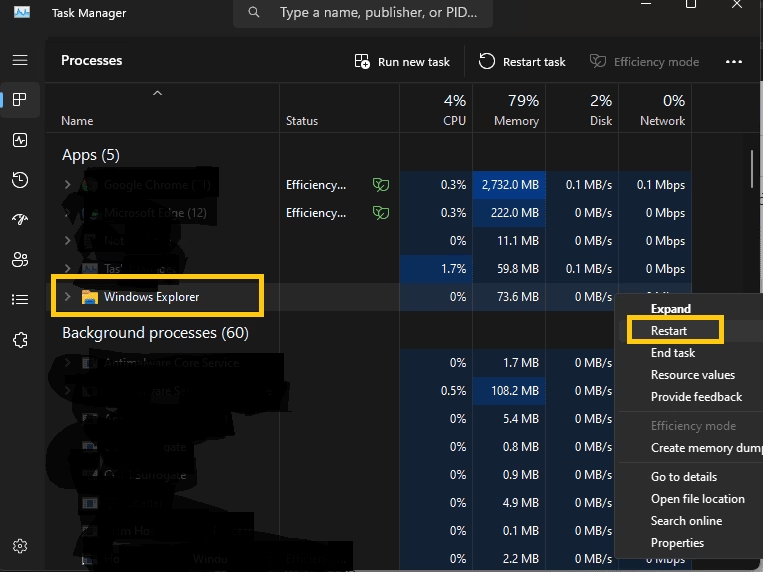
- You will see the taskbar disappear for 2–3 seconds and then come back.
- Now press the Windows key and check if it works.
If it still doesn’t work, restart your whole computer and try again.
Also know: dllhost.exe COM Surrogate Explained with Errors, Solutions & More
3. Turn Off Filter Keys and Sticky Keys
Windows has some accessibility features that help people with their needs. Two of them — Filter Keys and Sticky Keys — can sometimes stop the Windows key from working properly.
How to turn them off (Windows 11):
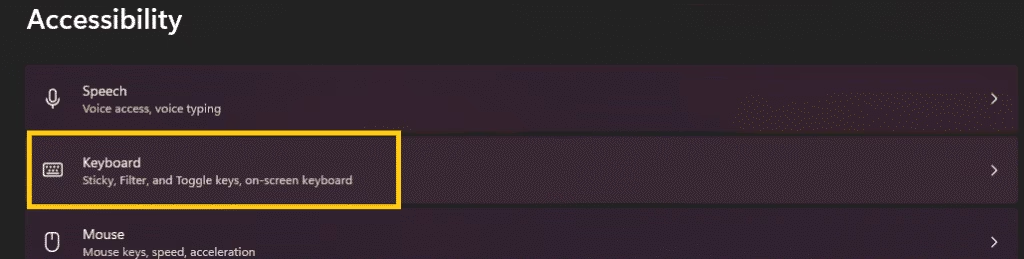
- Click on the Start button with your mouse.
- Find Settings and click on it.

- Now click on Accessibility. and select Keyboard.
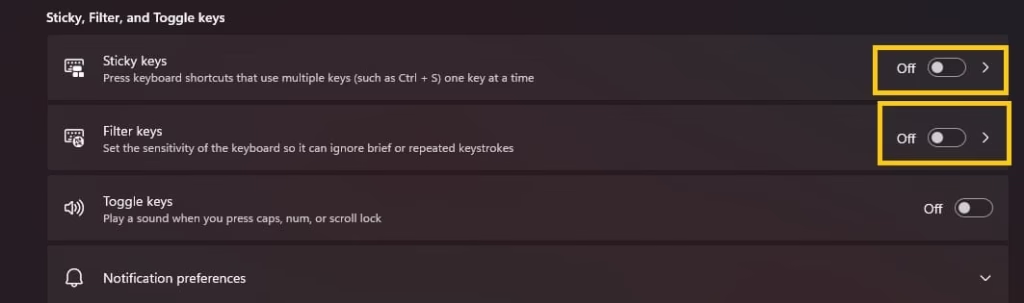
- Turn OFF the switch for Filter keys.
- Turn OFF the switch for Sticky keys.
- Also turn off the options that say “Allow the shortcut key to start Filter keys” and “Allow the shortcut key to start Sticky keys”.
For Windows 10 users:
Go to Settings → Ease of Access → Keyboard and turn off the same options.
After turning them off, test the Windows key.
4. Turn Off Game Mode in Windows Settings
Windows has its own Game Mode. Sometimes this mode interferes with the keyboard and makes the Windows key stop working.
How to turn it off:
- Open Settings.
- Click on Gaming.
- Click on Game Mode on the left side.
- Turn the switch OFF.

- Close the Settings window.
- Press the Windows key and check if it works.
- If it still doesn’t work, restart your computer once.
5. Update or Reinstall Keyboard Driver
Sometimes the driver becomes outdated or gets corrupted. Updating or reinstalling it can fix the Windows key.
How to do it:
- Right-click on the Start button.
- Click on Device Manager.
- Click on the small arrow next to Keyboards to expand it.
- Right-click on your keyboard name.
- Click on Update driver.
- Choose Search automatically for drivers.
- Wait for Windows to check and install any available update.
- After it finishes, restart your computer.
If updating doesn’t help:
- Again go to Device Manager → Keyboards.
- Right-click on your keyboard.
- Click Uninstall device.
- Restart your computer. Windows will automatically install a fresh driver.
Also know: How to Restart Windows Easily
6. Run SFC Scan (System File Checker)
Sometimes important Windows files get damaged. The SFC tool checks and repairs those files. This can bring the Windows key back.
How to run it:
- Press Ctrl + Shift + Esc to open Task Manager.
- Click on File at the top.
- Click on Run new task.
- Type cmd in the box.
- Put a tick on the option that says “Create this task with administrative privileges”.
- Click OK. A black Command Prompt window will open.
- Type this command exactly and press Enter:
sfc /scannow - Wait patiently. The scan can take 10–20 minutes.
- When it says the process is complete, restart your computer.
- Check the Windows key.
7. Re-register Windows Apps Using PowerShell
Sometimes the Start menu and related apps get unregistered. This PowerShell command registers them again and often fixes the Windows key.
How to do it carefully:
- Open Task Manager using Ctrl + Shift + Esc.
- Click File → Run new task.
- Type powershell.
- Tick the box for administrative privileges and click OK.
- Copy and paste this full command carefully:
Get-AppXPackage -AllUsers | Foreach {Add-AppxPackage -DisableDevelopmentMode -Register “$($_.InstallLocation)\AppXManifest.xml”} - Press Enter.
- You may see some red error messages. Don’t worry — this is normal. Just ignore them.
- When the process finishes, restart your computer.
- Test the Windows key.
8. Check Registry for Scancode Map (Advanced Method)
In rare cases, a setting in the Registry disables the Windows key. You can remove that setting.
Warning: Be careful while doing this. Follow the steps exactly.
- Open Task Manager (Ctrl + Shift + Esc).
- Go to File → Run new task.
- Type regedit and tick the administrative box. Click OK.
- In the left panel, go to this exact path:
HKEY_LOCAL_MACHINE\SYSTEM\CurrentControlSet\Control\Keyboard Layout - On the right side, look for something named Scancode Map.
- If you see it, right-click on it and choose Delete.
- Close the Registry Editor.
- Restart your computer.
- Check if the Windows key is working now.
9. Check if the Problem is with the Keyboard Hardware
If none of the above methods work, the problem may be with the keyboard itself.
What you should do:
- Connect the same keyboard to another computer and check if the Windows key works there.
- If it doesn’t work on another computer, then the keyboard is damaged.
- Clean the area around the Windows key using a soft brush or compressed air.
- If it is a wireless keyboard, change the batteries or charge it fully.
- Try plugging the keyboard into a different USB port.
- As a temporary solution, you can turn on the On-Screen Keyboard:
Go to Settings → Accessibility → Keyboard → turn on On-Screen Keyboard.
Also know: sysdm.cpl run to Access Windows System Settings
Conclusion
A Windows key that stops working is usually caused by something simple—Game Mode on the keyboard, an accessibility setting, or a temporary glitch in Windows Explorer. Most people restore the key by following the first few methods in this guide. Start with the easiest checks and move down the list only if needed.
If the key still refuses to work after trying every software solution, the keyboard hardware may be the culprit. In that case, testing on another computer or replacing the keyboard is the practical next step. Keep this guide handy; the same issue can return after installing new gaming software or accessibility tools.
You now have a complete set of proven fixes for the Windows key not working problem. Try them in order and you should be back to using your favorite shortcuts in no time.