You are working on your Windows computer and suddenly you need to change some important settings deep inside the system. And now you are trying to open the Windows Registry Editor, but you have no idea how to run regedit.exe. And now you have no clue what to do now and how to open Windows Registry Editor again. There could be many reasons behind why you cannot run regedit.exe at all.
Your inability to open Windows Registry Editor could be a result of anything, including not knowing the correct method, a restricted user account, Group Policy restrictions, antivirus blocking, and outdated system software as well. And there are ways that you can sue to fix these issues on your own.
If you cannot run regedit.exe when you need the Windows Registry Editor, then with this guide you will understand all the reasons why regedit.exe is not opening or even why Windows Registry Editor is not launching at all. You will also learn some extra useful tips like how to create a shortcut, how to backup the registry first, and what to do if regedit.exe is completely blocked.
Why Is My Regedit.exe Not Opening?
There are different reasons behind the error for regedit.exe not opening Windows Registry Editor.
- Software Issues: Sometimes if the Windows Registry Editor is not opening, then there could be some issues with the system software or missing system files. Corrupted system files can stop regedit.exe from launching properly.
- Permission Issues: A lot of times, the main reason for regedit.exe not running is that your user account does not have administrator rights. A restricted account can lead to an issue of error in opening Registry Editor properly.
- Group Policy or Antivirus Blocking: If your company or school computer has restrictions, or if your antivirus thinks regedit.exe is dangerous, then Windows Registry Editor will not open at all.
- Hardware or System Issues: If your regedit.exe is not working, then there could be some issues with the Windows installation itself or problems after a major Windows update.
How to Run Regedit.exe to Open Windows Registry Editor
There are some very basic and simple methods that you can use to avoid the regedit.exe not opening and the Windows Registry Editor error in your system. Some of those easy methods are mentioned in this guide with complete steps.
Method 1: Use the Run Dialog Box
To avoid errors like regedit.exe not opening on Windows, you simply need to make sure about one thing properly. The following are the steps that you need to follow to open Windows Registry Editor:
Step 1: Press the Windows key + R keys together on your keyboard to open the Run dialog box.
Step 2: Type regedit.exe or just regedit in the box and press Enter or click OK.
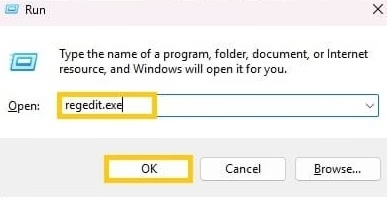
Step 3: If User Account Control appears, click Yes to allow it. This will open the Windows Registry Editor successfully.
If you are still facing the regedit.exe not opening issue, then try this other method.
Also know:ntoskrnl.exe system meaning, Working, & Errors
Method 2: Search from Start Menu
If your regedit.exe is not running properly, then there are some chances that you are not using the search method correctly. Make sure you carefully search for Registry Editor from the Start menu.
To open Windows Registry Editor using search, you need to just follow the given steps carefully:
Step 1: Click on the Start button or press the Windows key.
Step 2: Type Registry Editor or regedit in the search box.
Step 3: Click on the Registry Editor app that appears in the results.
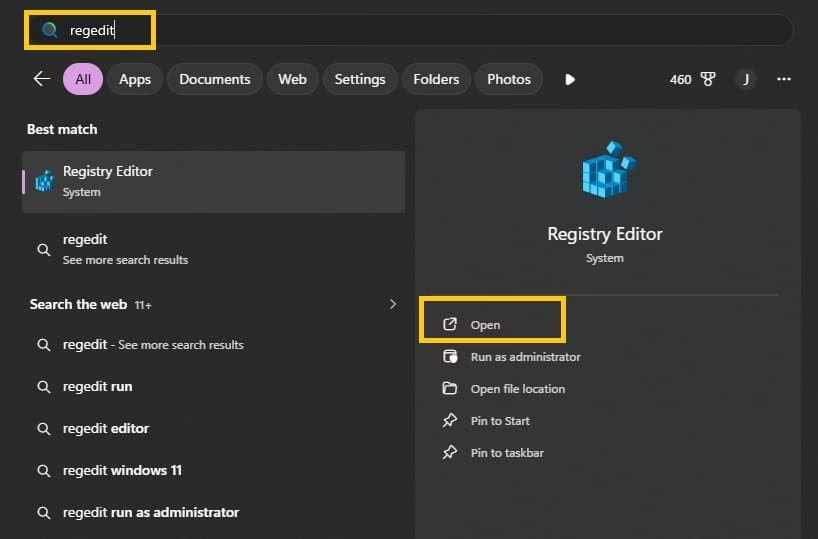
Step 4: Allow the User Account Control prompt by clicking Yes.
If you are still facing the Windows Registry Editor not opening issue, then you must try to use Command Prompt once to fix the error.
Method 3: Open Through Command Prompt
Opening regedit.exe through Command Prompt can easily take away your issue of Windows Registry Editor not launching. Another method you can try to get rid of the issue of regedit.exe not running is to simply use Command Prompt and then open it.
To open Registry Editor using Command Prompt, you need to just follow the given steps carefully:
Step 1: Press Windows key + S and type cmd.
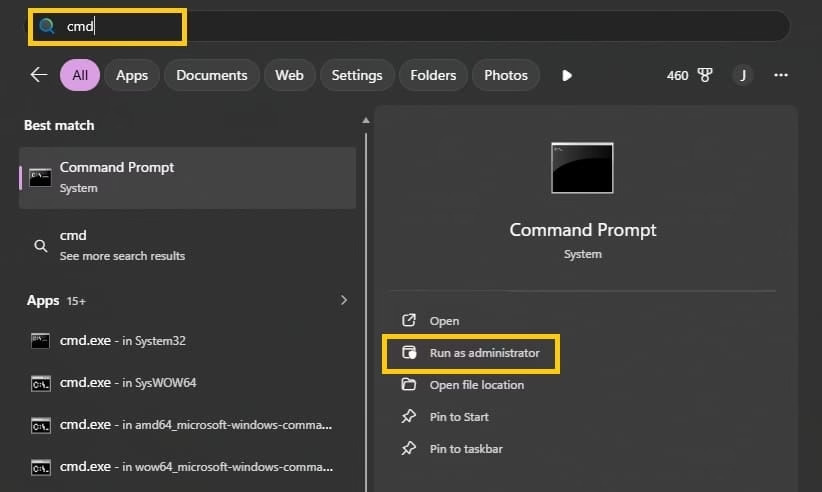
Step 2: Right-click on Command Prompt and select Run as administrator.
Step 3: Type regedit and press Enter.
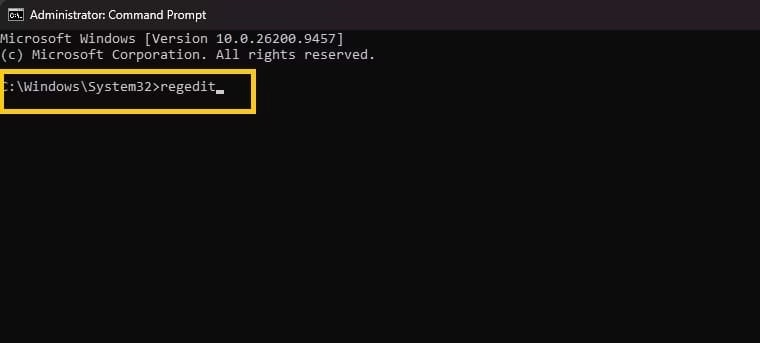
Step 4: Click Yes on the User Account Control window if it appears.
If your regedit.exe is not opening, then you must try File Explorer method once to fix the error.
Method 4: Use File Explorer
Your regedit.exe is not opening on Windows, and the most basic thing to think of is going directly to the system folder. Use File Explorer to locate and run regedit.exe after some time to make sure that Windows Registry Editor works properly.
Or your Windows Registry Editor is not launching then it could be due to using the wrong path. You must need to go to the correct system folder. And make sure that you are opening the right regedit.exe file.
Step 1: Open File Explorer by pressing Windows key + E.
Step 2: Go to This PC > Local Disk (C:) > Windows > System32.
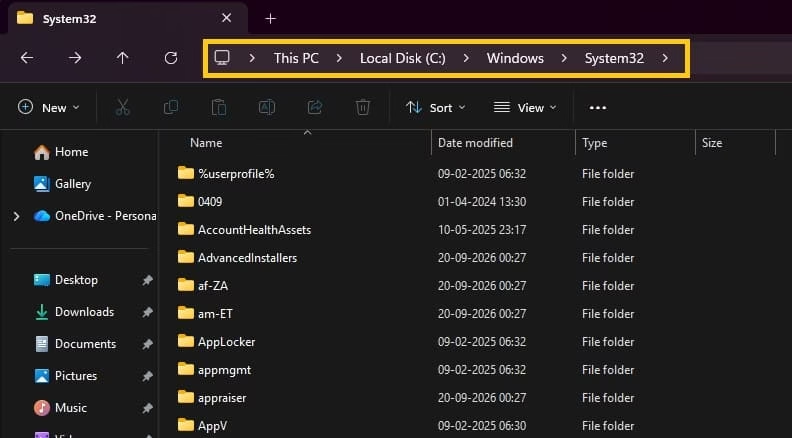
Step 3: Scroll or search to find regedt in the list.
Step 4: Double-click on regedt32.exe to open Windows Registry Editor Utility.
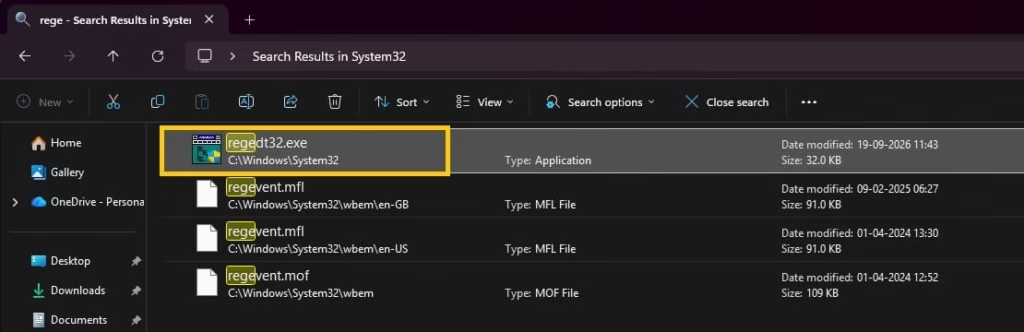
Step 5: If it asks for permission, click Yes.
Method 5: Open Using PowerShell
If the normal methods are not working for opening regedit.exe, then you can also use Windows PowerShell. This method is very useful when Command Prompt is also restricted.
Step 1: Press Windows key + X and select Windows PowerShell (Admin) or Terminal (Admin).
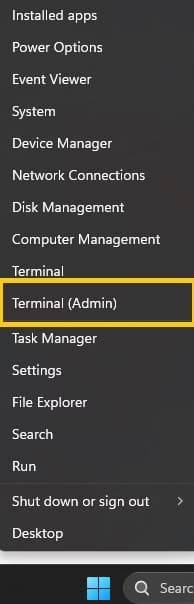
Step 2: Type the command start regedit and press Enter.
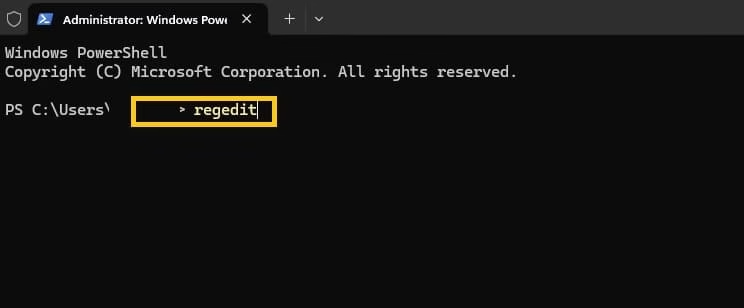
Step 3: Allow the User Account Control prompt.
Step 4: Windows Registry Editor will open successfully.
If you are still facing the regedit.exe not opening issue even after trying PowerShell, then creating a shortcut can help you a lot.
Method 6: Create a Desktop Shortcut for Regedit.exe
Sometimes opening regedit.exe every time by searching is annoying. You can create a desktop shortcut so that you can open Windows Registry Editor with just one double-click.
Step 1: Right-click on empty space on your desktop.
Step 2: Select New and then click on Shortcut.
Step 3: In the location box type C:\Windows\regedit.exe and click Next.
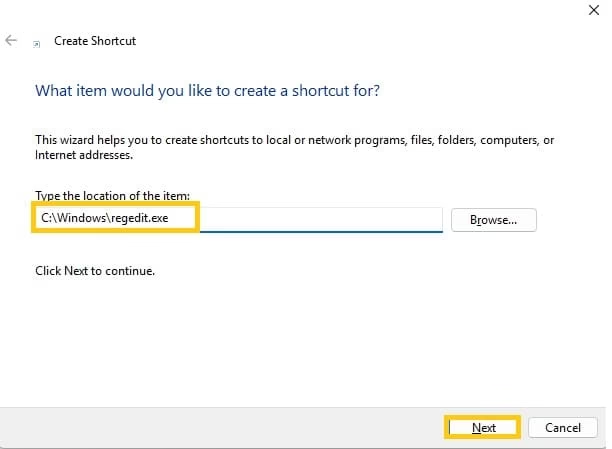
Step 4: Give the name Registry Editor or regedit and click Finish.
Step 5: Now you can double-click this shortcut anytime to open Windows Registry Editor quickly.
Also know: dllhost.exe COM Surrogate Explained
Important Tips Before You Open Windows Registry Editor
Before you run regedit.exe and start making changes, you must remember some very important things. Windows Registry Editor is a powerful tool and wrong changes can cause serious problems in your computer.
- Always create a backup of the registry first. In Windows Registry Editor go to File and click Export.
- Save the backup file in a safe location. If something goes wrong you can restore it later.
- Do not delete or change unknown keys. Only edit the registry if you know exactly what you are doing.
- Run regedit.exe as administrator whenever possible for full access.
- If regedit.exe is blocked by Group Policy, you may need to contact your system administrator or use a different user account.
Frequently Asked Questions (FAQs)
Q1. Why is my regedit.exe not opening?
Ans. The regedit.exe is not opening because it might have permission issues, or it is facing some kind of software issue, or the user account is not administrator, or antivirus or Group Policy is blocking it.
Q2. Can I open Windows Registry Editor without admin rights?
Ans. Yes, you can try to open Windows Registry Editor but most of the time it will ask for administrator permission. You can simply run it as administrator for full access.
Q3. Is it safe to use regedit.exe?
Ans. Yes it is safe if you are careful. But you should always take backup before making any changes because wrong editing can damage your Windows system.
Q4. What should I do if regedit.exe is completely blocked?
Ans. If regedit.exe is blocked then try opening it from Safe Mode, or check your antivirus settings, or ask your system administrator to remove the restriction.
Q5. Can I open Windows Registry Editor on Windows 11 and Windows 10 the same way?
Ans. Yes, all the methods mentioned above work the same on both Windows 10 and Windows 11. You can run regedit.exe easily on both versions.
If you are facing the error with regedit.exe not opening and Windows Registry Editor not launching, there are various reasons for that as well. Your regedit.exe is not running when needed, so there might be some issues with the permissions or the system. You need to check for the admin rights first, then the method you are using after the system files. Try all the methods given in this guide one by one and your Windows Registry Editor will surely open.

Amanda Starc
Amanda is a dedicated technical web content writer with a passion for transforming complex ideas into compelling and accessible online narratives. With a background in web development, and digital Marketing I bring a unique blend of technical expertise and creative storytelling to the digital domain.
