Have you ever opened Task Manager and noticed something called ntoskrnl.exe running quietly in the background, or seen its name pop up during a sudden blue screen? Many Windows users feel confused or worried when this happens. Some even think it is a virus or a problem file. In reality, the ntoskrnl.exe system is one of the most important parts of your computer. Without it, Windows simply cannot run.
ntoskrnl.exe (short for Windows NT operating system kernel executable) is the core kernel image that handles the deepest functions of the operating system. It manages memory, processes, hardware communication, and system security. When this critical component faces issues—such as high disk usage, registry-related problems, or blue screen errors—your whole PC can slow down, freeze, or crash. These problems often leave users stuck without clear answers.
This article is written to remove that confusion. I will explain the meaning of the ntoskrnl.exe system in the simplest words, show you exactly how it works inside Windows, and walk you through the common errors linked to it. You will also learn where the file lives on your computer and what role it plays in keeping your system stable. By the end, you will understand this powerful system file better and feel more confident handling any related issues that appear on your screen.
What is the Meaning of ntoskrnl.exe system
The ntoskrnl.exe system is the heart of Windows. Think of it as the main control room of your computer. The full name stands for “Windows NT operating system kernel executable.” It is not a regular program you open or close. Instead, it is a special system file that starts working the moment Windows boots up and stays active until you shut down the PC.
In the simplest language, ntoskrnl.exe is the brain that decides how memory is used, how programs share the processor, how hardware talks to the operating system, and how security rules are followed. Wikipedia describes it as containing the kernel and executive layers of Windows NT. These layers take care of memory management, process handling, hardware abstraction, the cache manager, the security reference monitor, and the scheduler.
You will normally find this file at C:\Windows\System32\ntoskrnl.exe. Because it works in kernel mode (a highly protected part of the system), ordinary apps cannot touch it directly. That is why the ntoskrnl.exe system is also called a secure system component. It keeps the most sensitive operations safe and separate from everyday programs.
How ntoskrnl.exe system Work in Windows
The ntoskrnl.exe system works behind the scenes from the moment your computer starts. It is loaded early in the boot process and becomes the foundation for almost everything else Windows does. Once it is running, it coordinates memory, processes, drivers, and security so that your programs and hardware can function smoothly together.
1. Memory Management
- Allocates RAM to running programs so each one gets the space it needs.
- Moves data between RAM and the hard drive (paging) when physical memory is full.
- Keeps track of which memory pages are free, in use, or waiting.
- Protects memory so one program cannot overwrite another program’s data.
2. Process and Thread Handling
- Creates and manages processes (the running instances of programs).
- Schedules threads so multiple tasks can share the CPU fairly.
- Decides which task gets processor time next.
- Cleans up processes when you close an application.
3. Hardware Abstraction and Driver Communication
- Acts as a bridge between Windows and your hardware (CPU, storage, graphics, etc.).
- Lets device drivers talk to the rest of the system in a safe, standard way.
- Handles interrupts and exceptions that come from hardware.
- Works with the Hardware Abstraction Layer so Windows can run on different types of computers.
4. Security and Object Management
- Enforces security rules through the Security Reference Monitor.
- Controls who can access system objects such as files, registry keys, and devices.
- Manages the Windows Registry at the kernel level (this is why people sometimes search for ntoskrnl.exe registry).
- Keeps the overall system secure by running in protected kernel mode.
These functions run continuously. When everything is healthy, the ntoskrnl.exe system stays quiet and efficient. When something goes wrong—faulty drivers, low memory, or corrupted files—you may notice high disk usage or other symptoms.
Also know: dllhost.exe COM Surrogate Explained with Errors, Solutions & More
What errors ntoskrnl.exe system can fix in windows
A healthy and properly working ntoskrnl.exe system helps prevent or reduce many common Windows problems. There may be different issues linked to this component. Below are the main problems and how the ntoskrnl.exe system, or proper care of it, can help resolve them.
1. ntoskrnl.exe Blue Screen Errors
Blue screen errors that mention ntoskrnl.exe often appear when the kernel detects a serious problem it cannot recover from. This may happen due to bad memory, a faulty driver, or corrupted system files. When the ntoskrnl.exe system is stable and its supporting files are intact, it can continue managing memory and hardware correctly. This reduces the chance of these crashes.
Method 1: Run Windows Memory Diagnostic Tool
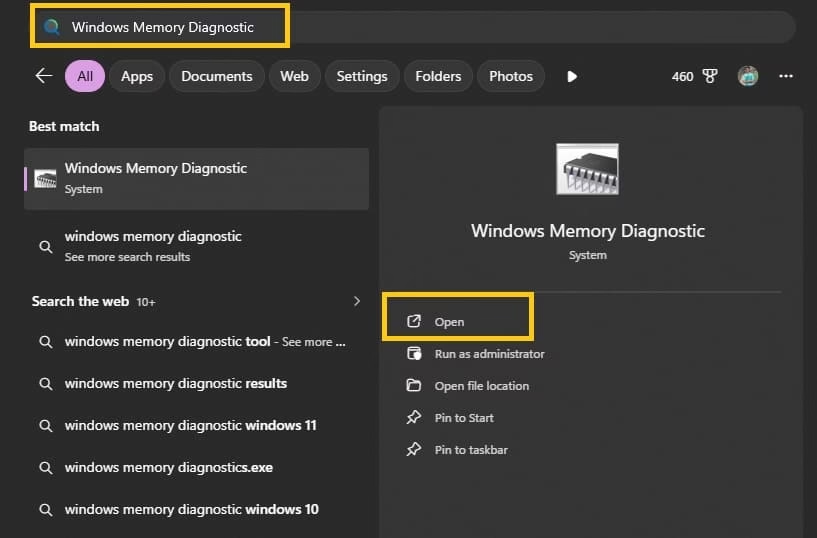
- Type “Windows Memory Diagnostic” in the Start menu search bar and open it.
- Click on “Restart now and check for problems (recommended)”.
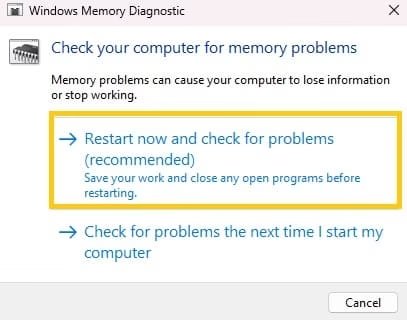
- Your computer will restart and the memory test will begin automatically.
- After the test finishes, Windows will reboot and show the results once you log in.
- If the results show any memory problems, you may need to replace the faulty RAM.
Method 2: Run System File Checker (SFC)
- Type “cmd” in the Start menu.
- Right-click on Command Prompt and select “Run as administrator”.
- In the Command Prompt window, type the following command and press Enter:
sfc /scannow
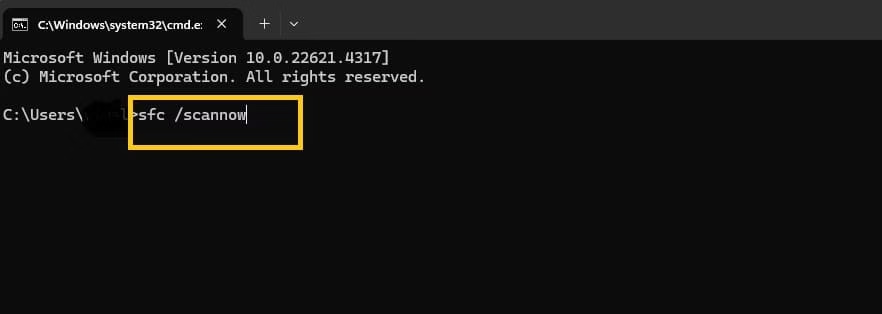
- Wait for the scan to complete. Do not close the window.
- Once the process is finished, close Command Prompt and restart your computer.
Method 3: Update Device Drivers
- Press Windows + X on your keyboard and select Device Manager.
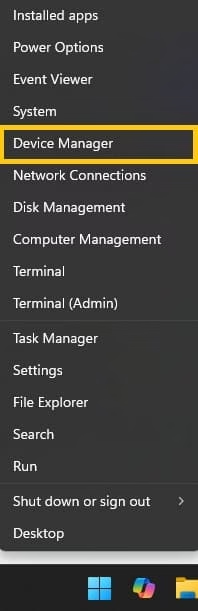
- Expand the categories one by one (Display adapters, Disk drives, Network adapters, etc.).
- Right-click on each device and choose “Update driver”.
- Select “Search automatically for drivers”.
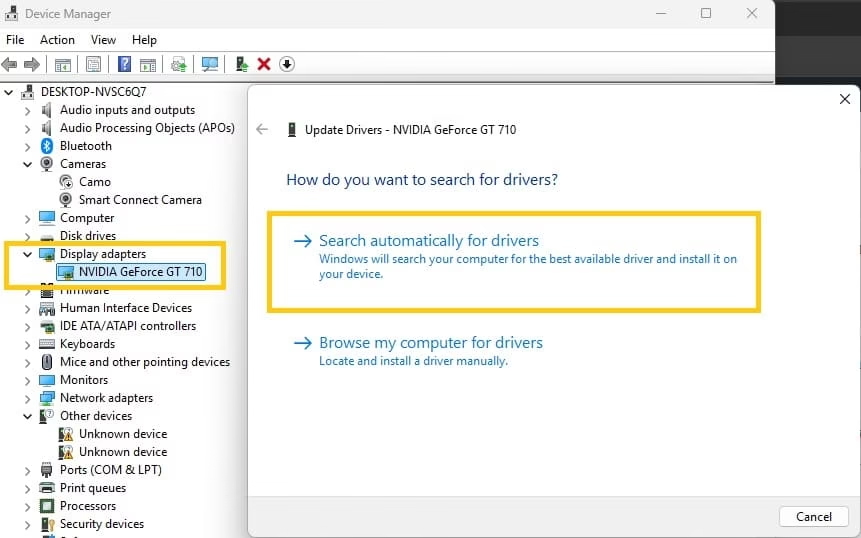
- Allow Windows to find and install the latest driver.
- After updating all drivers, restart your computer and check if the blue screen error is fixed.
2. ntoskrnl.exe System High Disk Usage
Sometimes Task Manager shows the ntoskrnl.exe system using a large amount of disk activity. This usually happens because of memory pressure, outdated storage drivers, or background tasks that force the kernel to page data heavily. When the ntoskrnl.exe system manages memory efficiently and drivers are up to date, disk usage drops back to normal levels.
You may try the given troubleshooting methods to fix this issue:
Method 1: Update Storage and Disk Drivers
- Press Windows + X on your keyboard and select Device Manager.
- Expand “Disk drives” and “IDE ATA/ATAPI controllers”.
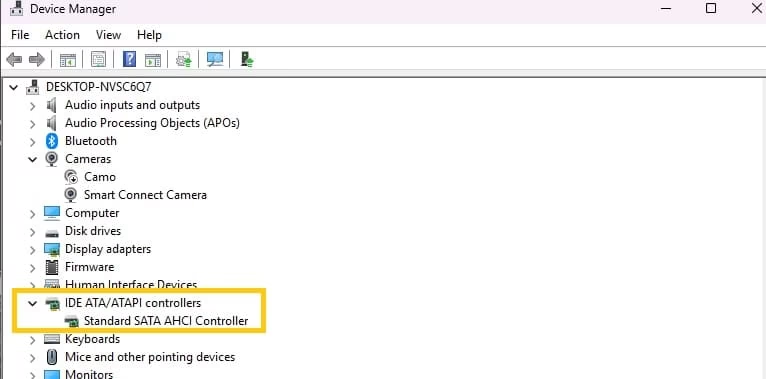
- Right-click on each device one by one and select “Update driver”.
- Choose “Search automatically for drivers”.
- Allow Windows to find and install the latest drivers.
- After updating, restart your computer and check the disk usage.
Method 2: Adjust Virtual Memory Settings
- Press Windows + R on your keyboard.
- Type sysdm.cpl and hit Enter.
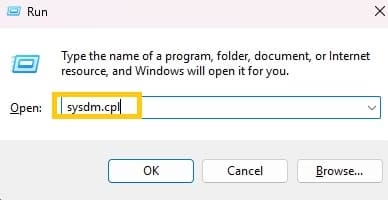
- Go to the “Advanced” tab.
- Under Performance, click on “Settings”.
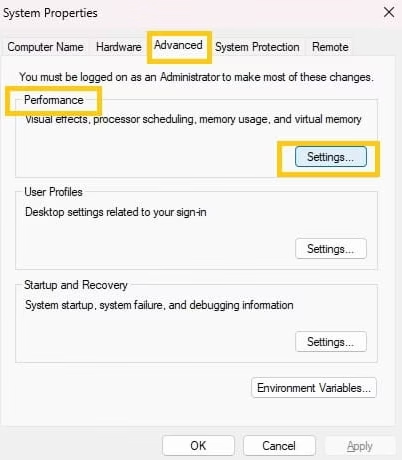
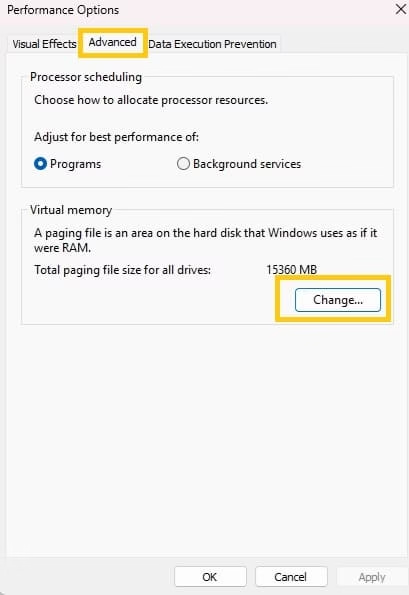
- Again go to the “Advanced” tab and click “Change” under Virtual memory.
- Uncheck “Automatically manage paging file size for all drives” if needed and set a suitable size.
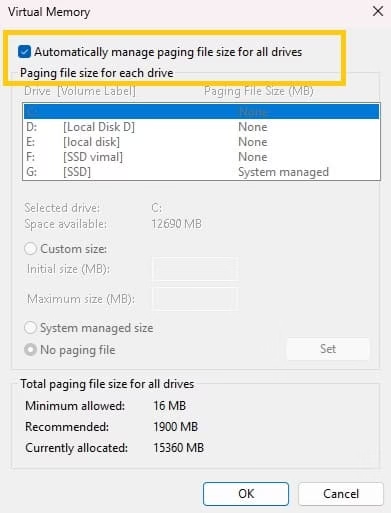
- Click OK, apply the changes, and restart your computer.
Method 3: Run CHKDSK Command
- Type “cmd” in the Start menu.
- Right-click on Command Prompt and select “Run as administrator”.
- Type the following command and press Enter:
chkdsk C: /f /r
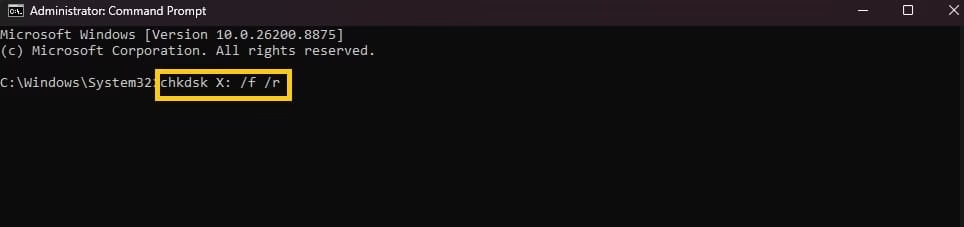
- If asked to schedule the scan, type Y and press Enter.
- Restart your computer. The scan will run automatically before Windows starts.
Method 4: Disable Superfetch (SysMain) Service
- Press Windows + R, type services.msc and hit Enter.
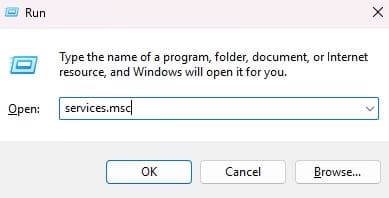
- Scroll down and find “SysMain” (or Superfetch on older Windows).
- Right-click on it and select “Properties”.
- Change the Startup type to “Disabled”.
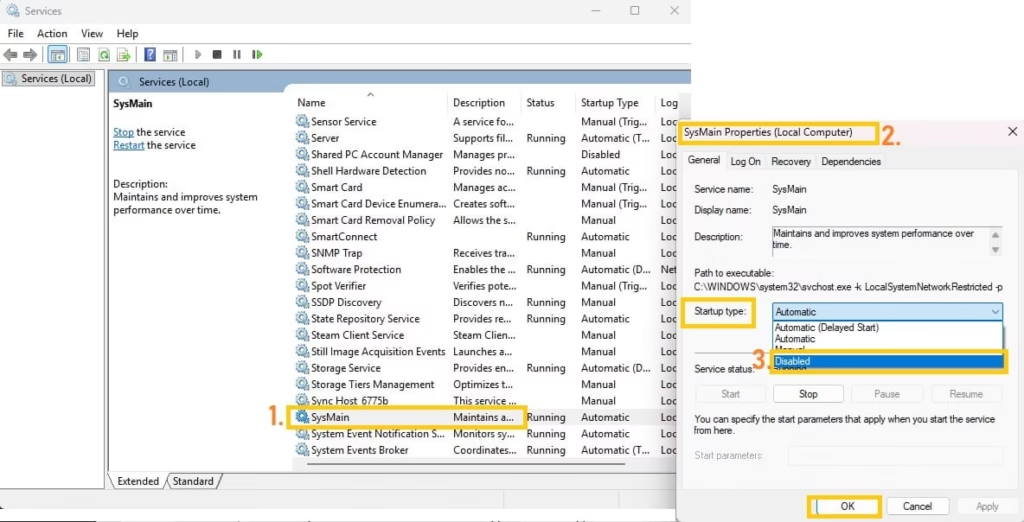
- Click “Stop” if the service is running, then click Apply and OK.
- Restart your computer and check if the high disk usage is reduced.
3. Registry and Secure System Related Issues
Because the ntoskrnl.exe system includes the configuration manager that handles parts of the Windows Registry, problems in registry entries or security settings can affect it. A clean and correctly functioning ntoskrnl.exe system keeps registry-related operations stable and maintains the secure system environment.
You may fix these issues by following the methods below:
Method 1: Run System File Checker (SFC)
- Type “cmd” in the Start menu.
- Right-click on Command Prompt and select “Run as administrator”.
- Type the following command and press Enter:
sfc /scannow - Wait for the scan to finish completely. Do not close the window.
- Once the process is done, close Command Prompt.
Method 2: Run DISM Command
- Open Command Prompt again as administrator.
- Type the following command and press Enter:
DISM /Online /Cleanup-Image /RestoreHealth
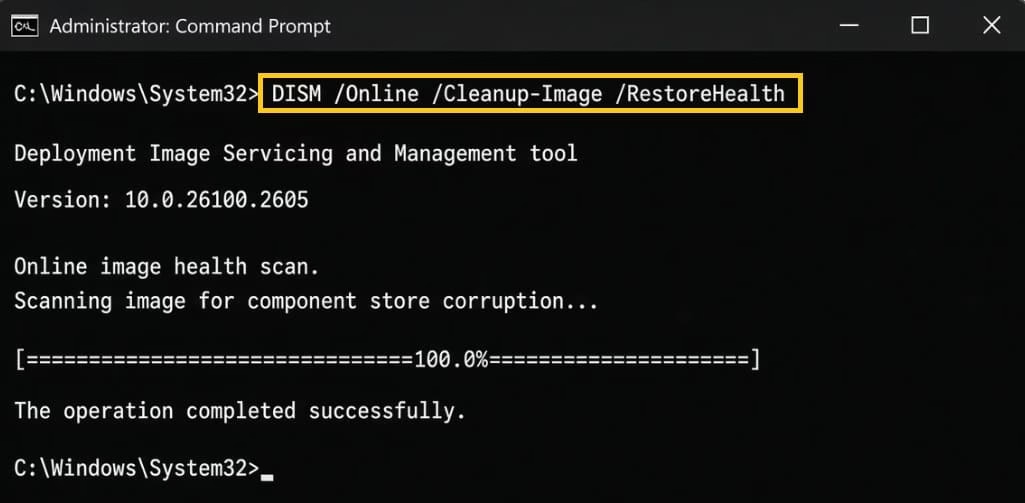
- Wait for the process to complete. This may take some time.
- After it finishes, close the Command Prompt window.
- Restart your computer and check if the registry or security related problems are resolved.
Method 3: Keep System Healthy
- Avoid making manual changes in the Registry unless it is absolutely necessary, as incorrect edits may cause further issues.
- Go to Settings > Windows Update and install all available updates regularly.
- Keeping Windows updated helps the ntoskrnl.exe system and related secure components stay healthy and stable.
In each case, the ntoskrnl.exe system itself is not a tool you run directly. Rather, when this core component is working as designed, it keeps memory, processes, and hardware communication stable. This helps prevent or resolve many of the symptoms users notice on their Windows PC.
Also know: How to Download Missing VCRUNTIME140.dll File in Windows 11
Conclusion
The ntoskrnl.exe system is the quiet foundation of Windows. It manages memory, runs processes, talks to hardware, and protects the system—all without you ever having to open it. Understanding its meaning, how it works, and the common errors linked to it helps you stay calm when you see its name in Task Manager or on a blue screen.
Most of the time the real ntoskrnl.exe file is completely safe and necessary. Problems usually come from drivers, memory issues, or system file corruption rather than the kernel itself. By keeping your system updated and running basic checks when needed, you allow this important component to do its job smoothly. A healthy ntoskrnl.exe system means a more stable and reliable Windows experience every day.

Amanda Starc
Amanda is a dedicated technical web content writer with a passion for transforming complex ideas into compelling and accessible online narratives. With a background in web development, and digital Marketing I bring a unique blend of technical expertise and creative storytelling to the digital domain.
