Have you ever sat at your computer, ready to join a video call or play music, only to hear nothing? Or maybe the sound comes out of the wrong speakers. The volume slider moves, yet silence remains. These moments frustrate almost every Windows user at some point. Audio settings hide behind layers of menus, and most people never learn the direct path that controls everything.
That path is mmsys.cpl sound. It is the classic Windows Sound panel. One short command opens every playback device, recording device, and advanced option in a single window. You can set defaults, test hardware, adjust levels, and fix common glitches without hunting through modern Settings apps that change with every update.
This guide walks you through what the panel actually is, the fastest ways to open it, and the exact problems it solves. By the end you will open it confidently and fix most sound issues yourself.
What is mmsys.cpl sound
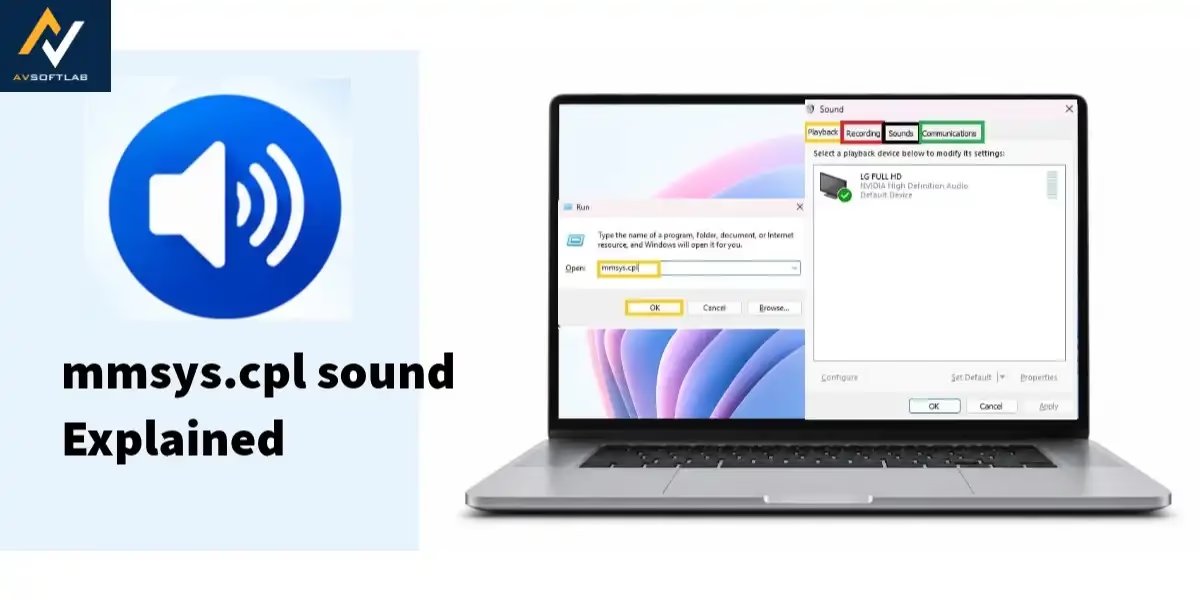
mmsys.cpl sound is simply the name Windows uses for its classic Sound control panel. The letters “mmsys” stand for multimedia system. The “.cpl” means it is a Control Panel applet. When you type mmsys.cpl into the Run box, Windows launches a small window titled “Sound.”
Inside that window you see three main tabs: Playback, Recording, and Sounds.
- Playback lists every speaker, headphone, and digital output your computer can use.
- Recording lists microphones and line-in devices.
- The Sounds tab lets you change system event noises or turn them off.
- A fourth tab called Communications appears on some systems and handles how Windows lowers volume during calls.
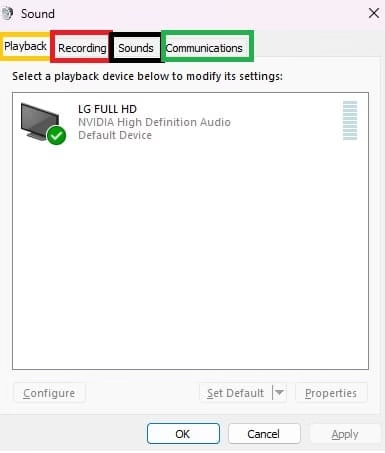
Think of it as the central switchboard for audio. Modern Windows Settings offers a simplified version of the same tools, yet the older panel still gives deeper control. You can set which device is the default, test each one with a quick sound, open properties for sample rate and bit depth, and disable hardware you no longer use. Nothing fancy. Just a clear list of everything connected and the buttons to manage it.
How to Open mmsys.cpl sound
Opening the panel takes only a few seconds once you know the methods. Each way reaches the same Sound window. Choose the one that feels most natural for how you work.
Method 1: Use the Run dialog
This is the fastest and most direct route.
- Press the Windows key and the letter R at the same time. The Run box appears in the lower left.
- Type mmsys.cpl exactly as written. Do not add spaces or extra characters.
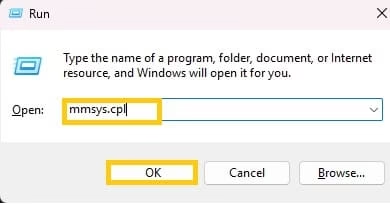
- Press Enter or click OK.
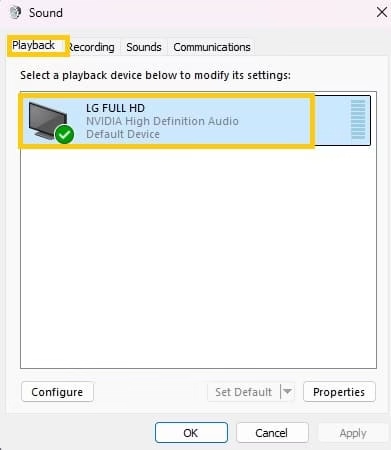
- The Sound window opens immediately with the Playback tab selected.
You can also type the same command into the Start menu search box and press Enter. Both routes work on Windows 10 and Windows 11.
Method 2: Through Control Panel
Some people prefer navigating the classic Control Panel.
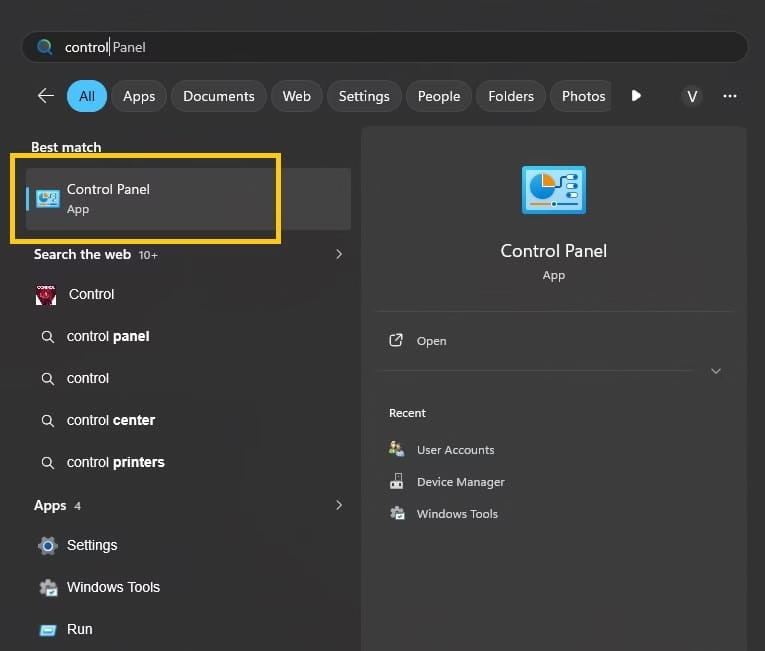
- Open the Start menu and type Control Panel. Click the result.
- In the upper right corner change the view to Large icons or Small icons if it is set to Category.

- Scroll until you see the Sound icon. Click it.
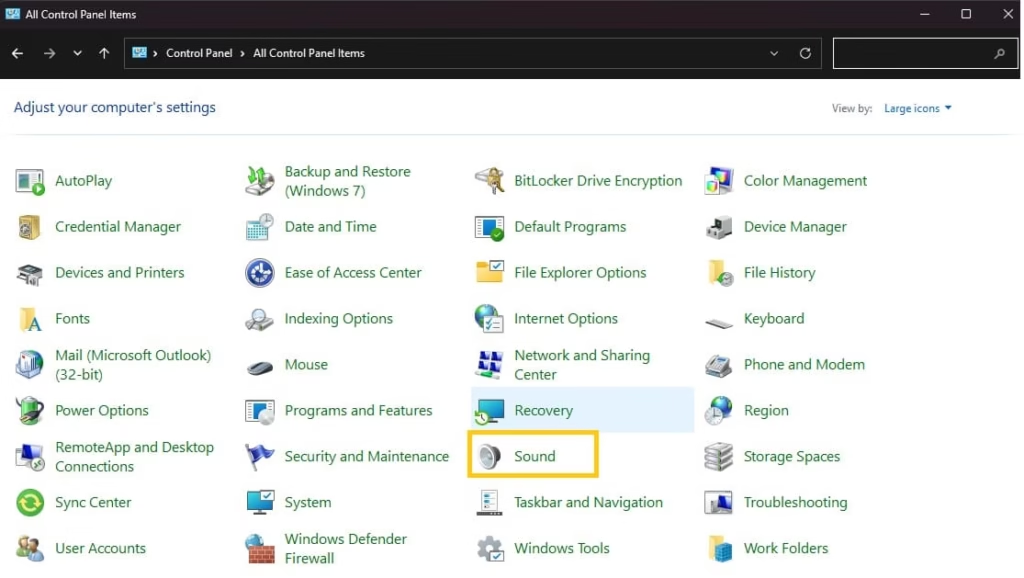
- The identical Sound window appears.
This path is useful when you already have Control Panel open for other tasks.
Also know: Best Sound Software for Better Gameplay in 2026
Method 3: From Modern Settings
Windows 11 and recent Windows 10 builds still link back to the classic panel.
- Press Windows key + I to open Settings.
- Go to System, then Sound.
- Scroll down and look for “More sound settings” or “Sound Control Panel.”
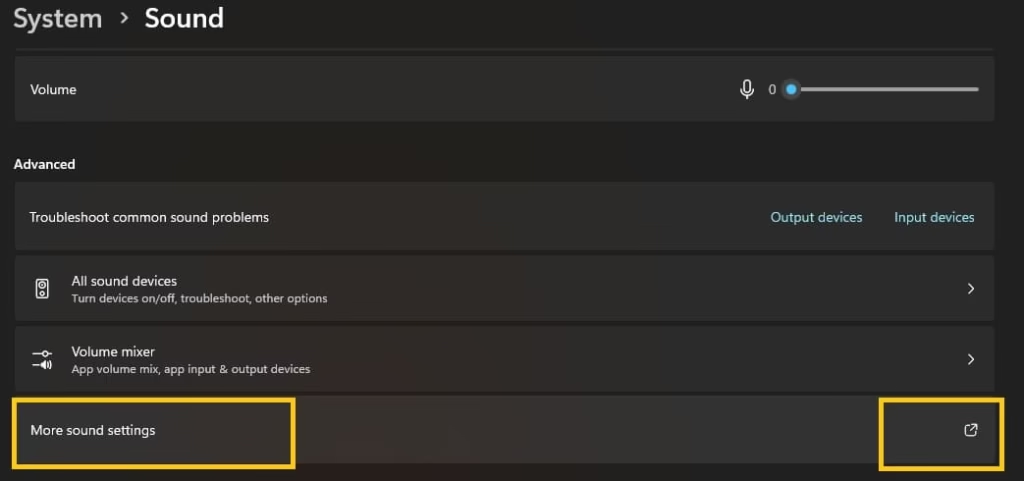
- Click the link. The mmsys.cpl window opens.
This method helps when you start in the newer interface and need the older tools.
Method 4: Create a Desktop Shortcut
If you open the panel often, a shortcut saves time.
- Right-click an empty spot on the desktop.
- Choose New, then Shortcut.
- In the location field type mmsys.cpl and click Next.
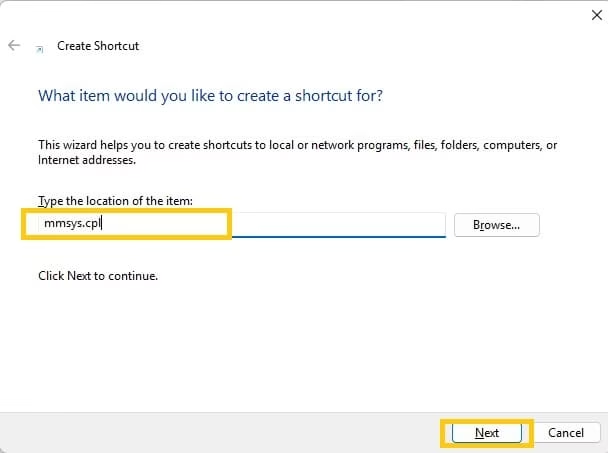
- Name the shortcut “Sound Panel” or anything clear, then finish.
- Double-click the new icon whenever you need the panel.
Any of these methods works. The Run dialog remains the one most technicians use because it is quick and consistent across Windows versions.
Also know: How to Get Visual Alerts Instead of Sounds in Windows
What Problems mmsys.cpl sound can fix in Windows
The Sound panel solves a surprising number of everyday audio headaches. Below are the most common ones and exactly how the panel helps.
1. No sound from speakers or headphones
Silence is the complaint I hear most often. Open mmsys.cpl and look at the Playback tab. The device you want to use should show a green check mark. If it does not, right-click the correct speakers or headphones and choose “Set as Default Device.” Click Apply, then OK. Play a short test by selecting the device and pressing the Test button. Sound should return within seconds. If the device is disabled, right-click and enable it first.
2. Microphone not working in calls or recordings
Switch to the Recording tab and find your microphone. If you’re having microphone detection issues, make sure it is set as the default device in the same way. Open its Properties, go to the Levels tab, and raise the volume slider if it’s set too low. Some microphones also have an “Enhancements” or “Listen” tab that can cause problems, so turn off any extra effects and test again. This simple change fixes many muted-mic and microphone detection issues during Zoom, Teams, or voice recording.
3. Sound coming from the wrong device
Laptops often list both internal speakers and an HDMI or DisplayPort output. When a monitor is connected, Windows sometimes routes audio to the monitor speakers by mistake. In the Playback tab simply set the built-in speakers or your preferred headphones as the default. The change takes effect at once.
4. Crackling, popping, or distorted audio
Right-click the active playback device, open Properties, and move to the Advanced tab. Lower the sample rate and bit depth to 16 bit, 44100 Hz or 24 bit, 48000 Hz. Apply the change and test. High rates sometimes conflict with older hardware or certain applications. Disabling exclusive mode in the same tab can also stop other programs from locking the device.
Also know: How to Turn Off teams Notifications
5. Device missing after a Windows update
Updates occasionally disable or hide hardware. Open the Sound panel, right-click in the empty space of the Playback or Recording list, and check “Show Disabled Devices” and “Show Disconnected Devices.” The missing item often reappears. Enable it and set it as default.
6. System sounds too loud or completely silent
Go to the Sounds tab. You can turn off the entire Windows sound scheme or lower individual events. If every system beep is missing, make sure the scheme is not set to “No Sounds.” Restoring a scheme brings the familiar clicks and notifications back.
7. Multiple audio devices fighting for control
Some USB headsets and Bluetooth devices create several entries. Disable the ones you never use. Right-click each unused item and choose Disable. A cleaner list makes the default choice more reliable and reduces confusion when plugging devices in and out.
These fixes cover the bulk of sound problems users report. The panel gives you direct access without digging through layers of modern menus that change layout with each feature update.
Also know: Why is My Computer so Slow: Fixed Slow Windows Computer
Conclusion
mmsys.cpl sound remains one of the most useful hidden tools in Windows. It is not new, yet it still delivers clear control over every speaker, microphone, and audio setting. Once you know how to open it in a few seconds, most everyday sound troubles become simple to solve. Keep the Run command in mind, or create a desktop shortcut if you adjust audio often. The next time silence greets you or the wrong device plays music, open the panel, set the correct default, and test. You will regain control faster than searching forums or restarting the computer. Master this one small applet and Windows audio stops feeling mysterious.

Amanda Starc
Amanda is a dedicated technical web content writer with a passion for transforming complex ideas into compelling and accessible online narratives. With a background in web development, and digital Marketing I bring a unique blend of technical expertise and creative storytelling to the digital domain.
