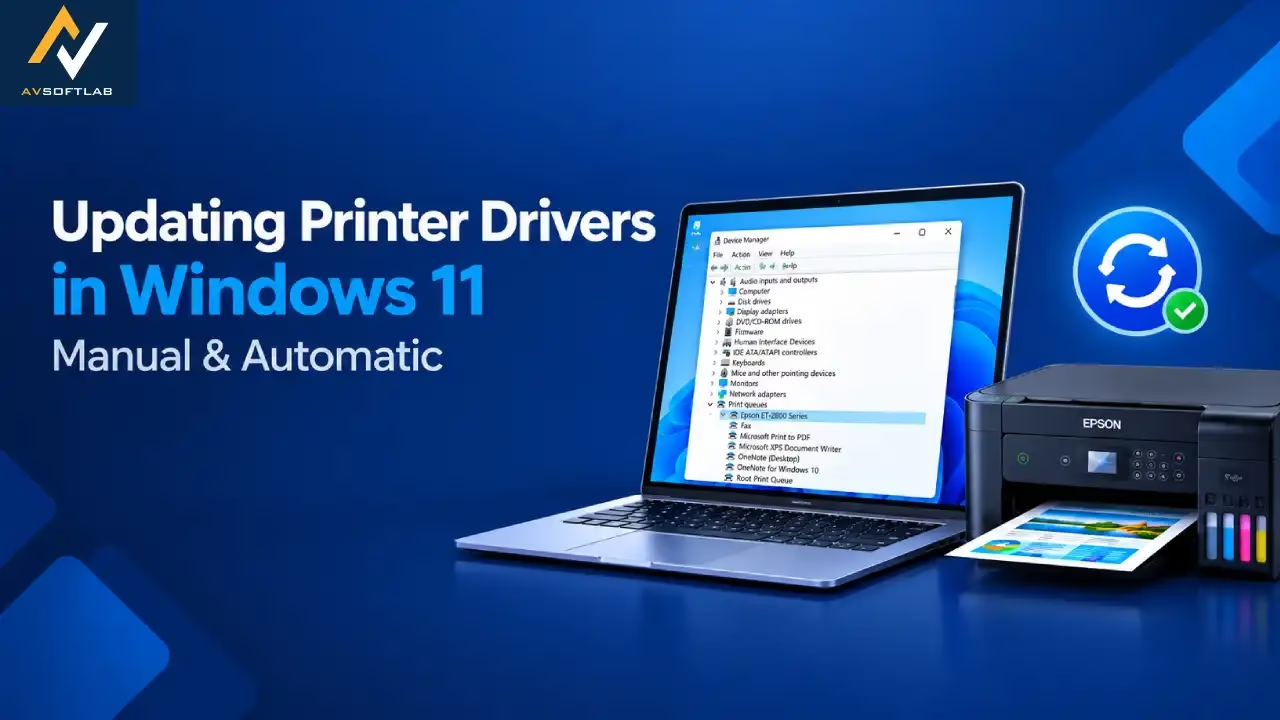
In our daily life printer is a kind of thing that makes our documentation easy. When it don’t work correctly our whole day can ruin. Many problems like connecting with pc, printer software not running, pages are not printed and more can be happen because of a faulty driver.
As we know printer driver is the key that connects printer and windows system to take commands, an updated printer driver is highly recommened. So in this article we will learn the best ways by which updating printer drivers will be an easy job.
Microsoft Update on Printer Driver
Windows 11 handles a lot of hardware communication automatically, but printer drivers have changed in ways that catch a lot of people off guard. Microsoft stopped distributing new third-party legacy printer drivers through Windows Update starting in January 2026. Since July 2026, it also defaults new IPP-capable printers to its own built-in Microsoft IPP Class Driver instead of a manufacturer’s driver.
Existing setups that already had a driver installed were left alone. But anyone adding a new printer, replacing a device, or reinstalling Windows may find that the driver they expect simply isn’t there anymore. It just means the “correct” way to update a driver in 2026 looks a little different than it did a year or two ago.
That’s why here I will share most possible ways by which updating printer driver will not take much time.
Updating Printer Drivers: Manually
Updating a printer driver manually puts you in full control. You decide the source and the timing, which matters more now that Windows Update doesn’t carry every driver it used to. This route works best when you want the manufacturer’s full software suite, not just a bare driver, or when Windows Update comes up empty.
Method 1: Update Through Windows Settings and Windows Update
Windows Update remains the recommended starting point for most users. Microsoft collects driver packages from manufacturers and surfaces them as optional updates. The process stays simple and keeps everything inside the operating system.
- Open the Start menu and select Settings.
- Choose Windows Update from the left side.
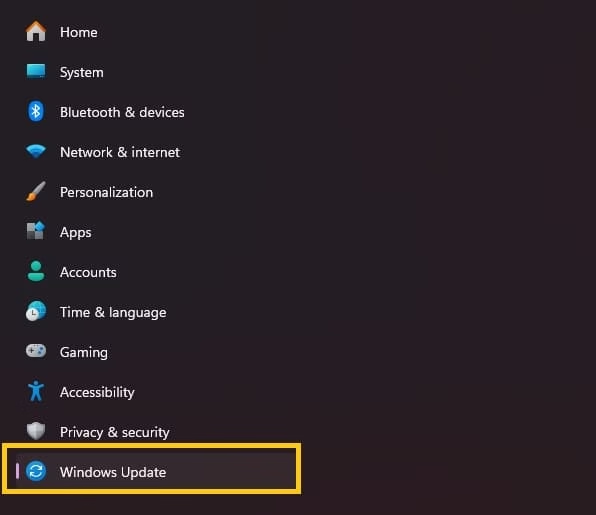
- Click Check for updates and wait for the scan to finish. Install any regular system updates first if they appear.
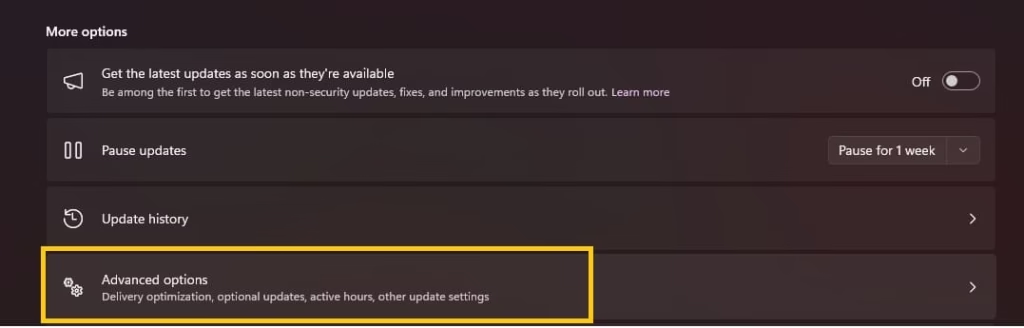
- After the main check completes, select Advanced options.
- Under Additional options, click Optional updates.
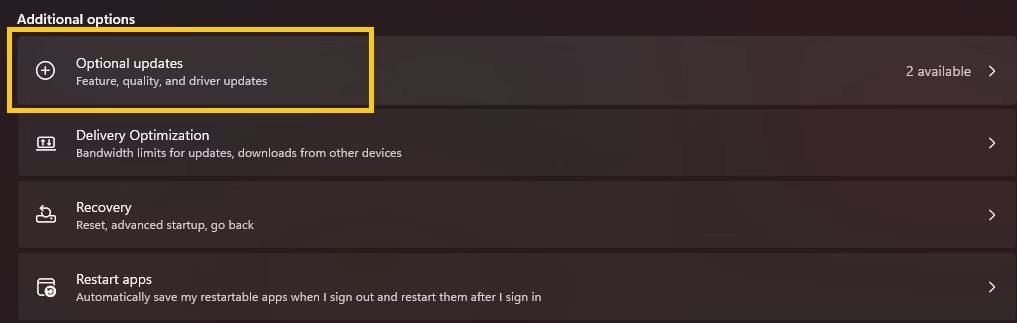
- Expand Driver updates if the section appears. Look for any entry that mentions your printer brand or model.
- Check the box next to the relevant driver and select Download and install.
- Restart the computer once the process finishes even if Windows does not force a reboot.
If Windows Update doesn’t show a driver for your printer at all, that’s expected for a growing number of models now that legacy drivers are no longer added to the catalog. Running the check again won’t change the result. Move to Device Manager or the manufacturer’s site instead.
Method 2: Update Through Device Manager
Device Manager gives you a more direct route, and it’s especially useful if you’ve already downloaded a driver package from the manufacturer and just need Windows to use it.
First, prepare if you plan to use manufacturer files.
- Note the exact model number printed on the printer or shown in Settings under Printers & scanners.
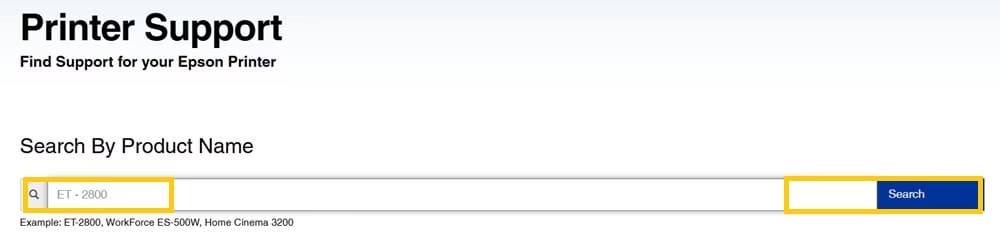
- Visit the official support site for your brand (HP, Epson, Canon, Brother, or others). Search for the model.
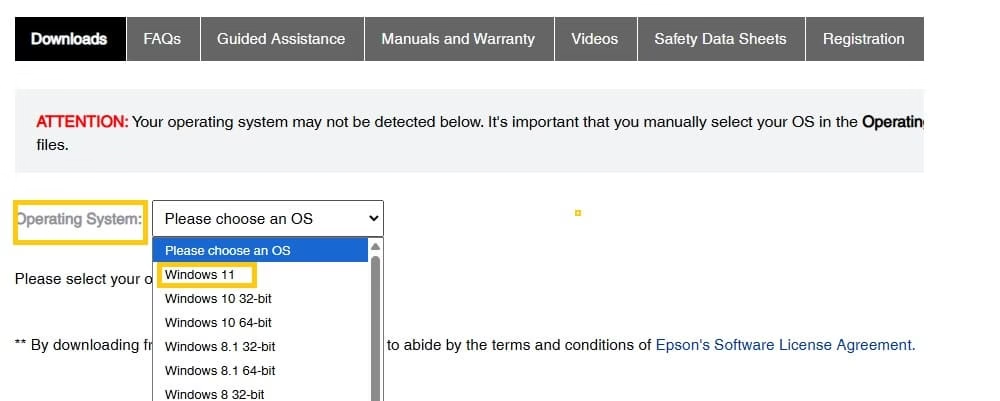
- Select Windows 11 and the correct system type (most modern machines are 64-bit).
- Download the full driver or software package. Save it somewhere easy to find, such as the Downloads folder. Extract the files if they arrive in a compressed folder.

Now open Device Manager and apply the update.
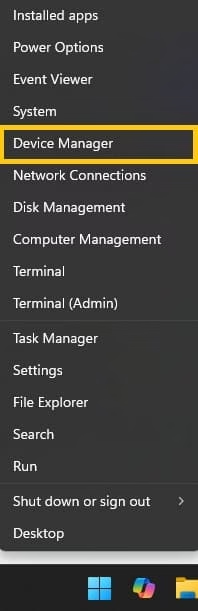
- Right-click the Start button and choose Device Manager.
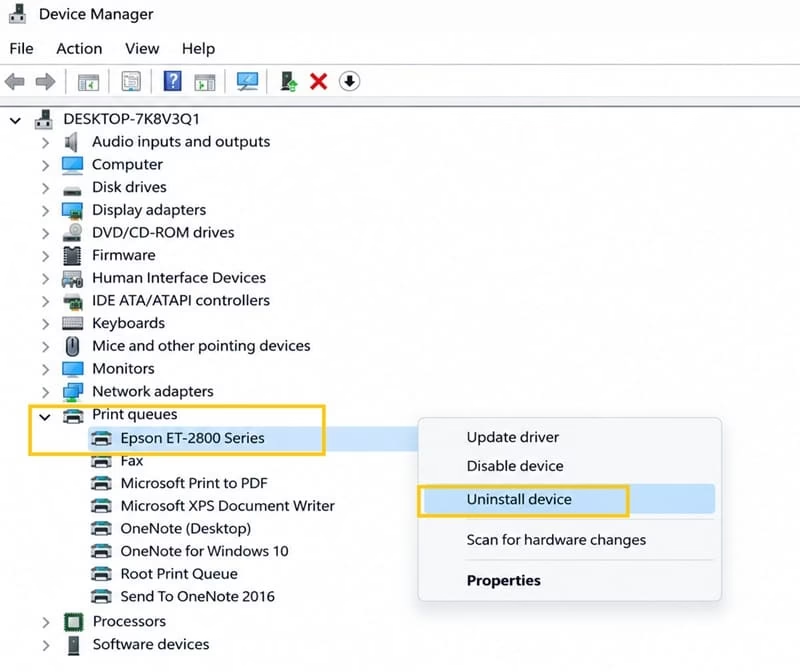
- Expand the Printers category or Print queues. Your device should appear in the list. If it sits under Other devices with a warning icon, expand that section instead.
- Right-click the printer name and select Update driver.
- Choose Search automatically for drivers. Windows checks its online sources and installs anything newer it finds.
- If the search reports that the best driver is already installed, select Browse my computer for drivers instead.
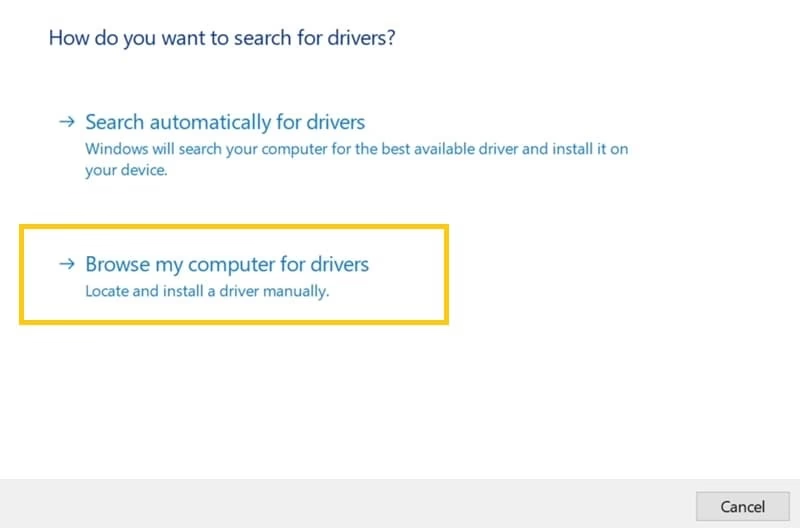
- Click Browse, navigate to the folder that holds the extracted manufacturer files, and check the box to include subfolders.
- Click Next and follow the remaining prompts. Restart when asked.
After the restart, open Printers & scanners and confirm the device status shows ready. Send a test page. This method gives precise control and often succeeds when the Settings route finds nothing new.
Both manual approaches stay free and use built-in tools. Keep the manufacturer site bookmarked. Brands release updates on their own schedule, so checking every few months prevents future headaches.
Also know: Epson L3210 Resetter Software Download for Windows
Updating Printer Drivers: Automatic
Manual steps work, yet they require time and attention. Many people prefer a tool that scans the entire system, spots outdated printer drivers among other hardware, and handles the rest with minimal clicks. iolo GetMyDrivers fills that role cleanly for Windows 11.
iolo GetMyDrivers scans for outdated, missing, or corrupted drivers of windows. Its database covers printers and scanners along with graphics cards, network adapters, sound devices, and more. Once installed, the program compares what sits on your PC against current versions. It then presents a clear list. You can update selected items or everything at once. The tool also creates backups before changes so you can restore an earlier driver if something unexpected occurs.
Here is how it typically works for printer drivers.
- Install the program from the official iolo GetMyDriver site and launch it.
- Run a scan.
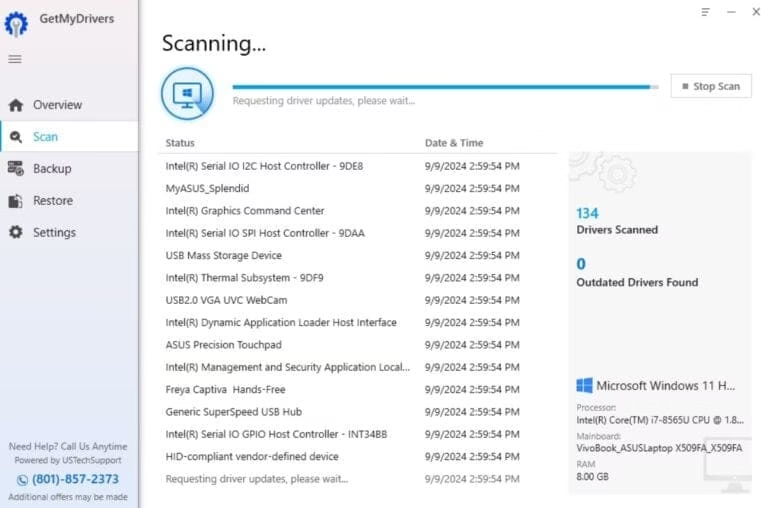
- The scan examines installed drivers, including any printer entries, and flags those that fall behind.
- Review the results. Printer-related items appear alongside other hardware.
- Select the printer driver or choose the update-all option if available in your version.
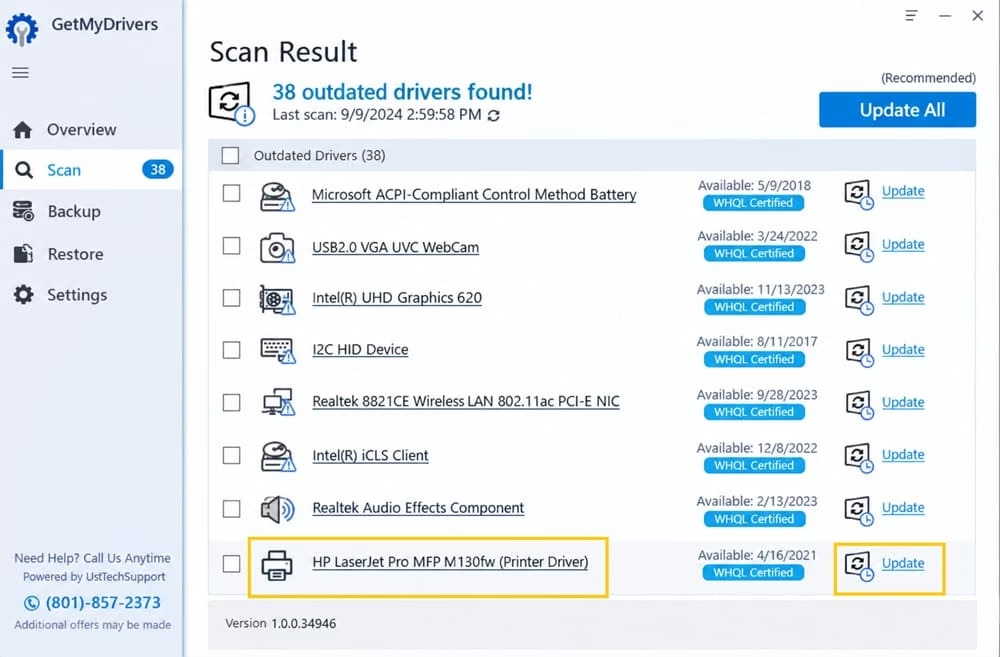
- The program downloads the matching package and installs it.
- A restart may be needed afterward.
Additional features add convenience. You can schedule regular scans so the check happens automatically during quiet hours. Backup protection stores previous driver versions, making rollback straightforward from the Restore tab. Manual options let you exclude specific drivers you prefer to leave alone or update only the ones you choose. Compatibility matching helps ensure the suggested package fits your Windows 11 setup and hardware.
This approach removes the need to hunt model numbers, visit multiple brand sites, or dig through Device Manager each time. It keeps the printer driver current alongside the rest of the system, which often improves overall stability. Users who manage several devices or simply want fewer interruptions find the one-click flow especially useful. Always download from the official iolo source and review the list before applying changes.
Also know: Iolo System Mechanic Ultimate Defense with Review
Conclusion
Updating printer drivers in Windows 11 restores smooth printing for most common issues. Start with the built-in Windows Update and Settings path when you want the simplest official route. Switch to Device Manager and manufacturer files when you need a more targeted or newer package. When time feels short or you prefer hands-off maintenance, iolo Updater scans and applies updates with backup safety nets in place.
Test a print after any change. Keep the printer powered on and connected during the process. Regular attention to drivers prevents the majority of sudden print failures. Choose the method that fits your routine and keep the printer ready for the next job.

Amanda Starc
Amanda is a dedicated technical web content writer with a passion for transforming complex ideas into compelling and accessible online narratives. With a background in web development, and digital Marketing I bring a unique blend of technical expertise and creative storytelling to the digital domain.
Recent Posts
How to Download Missing VCRUNTIME140.dll File in Windows 11
Editorial Team, 08 Sep 2026
Most Used Tags

Get amazing web and
app development deals
for your business from us.
