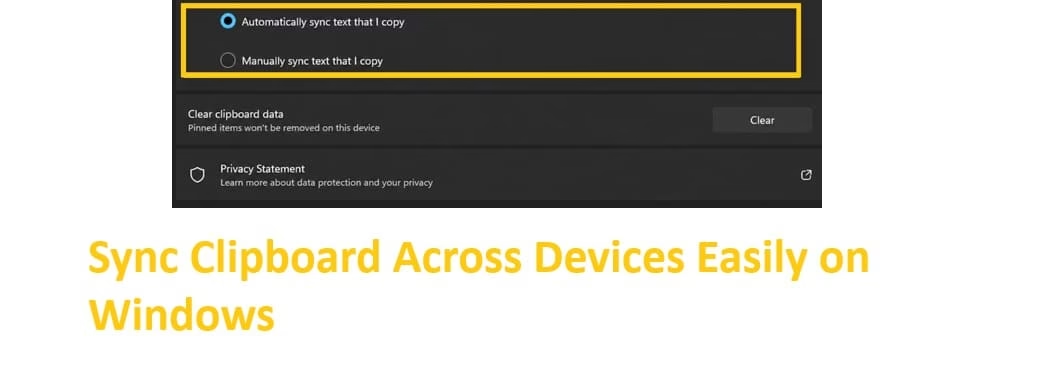
Ever found yourself copying a crucial link on your laptop only to realize you need it on your phone or another PC moments later? That frustrating back-and-forth wastes time and breaks your flow. Syncing your clipboard across devices solves this headache, letting you copy once and paste anywhere in your setup. Whether juggling work between a Windows desktop and tablet or sharing snippets with your Android phone, seamless clipboard sync boosts productivity like nothing else.
In this guide, I walk you through everything you need. We start with the basics of the Windows clipboard, then dive into the simplest native options for Windows 11 and 10. After that, I share the best easy methods, including Microsoft’s built-in tools and reliable third-party picks. You will get clear, step-by-step instructions that even beginners can follow. By the end, you will have multiple ways to keep your copied text, links, and more flowing effortlessly between devices.
What is Clipboard in Windows
Think of the clipboard as Windows’ short-term memory for copied stuff. When you hit Ctrl + C on a piece of text, image, or file, Windows temporarily holds it so you can paste it with Ctrl + V elsewhere. It has been around forever, but modern versions turned it into something far more powerful.
In Windows 10 and 11, the clipboard goes beyond one-time use. It now supports history, meaning it remembers multiple items you copied recently. Press Win + V, and a neat window pops up showing your last copies. You can pin favorites, search through entries, and even clear everything when needed. This local history already saves tons of time during busy days.
What makes it truly handy, though, is cloud integration. With a Microsoft account, you can sync that history across devices. It works for plain text mainly, though images sometimes behave differently depending on settings. The feature stays tied to your login, so privacy-conscious users can control exactly what travels through Microsoft’s servers. No more emailing links to yourself or typing long URLs manually. Once set up, it feels almost magical.
I remember switching between my main work PC and a secondary laptop during a big project. Without sync, I lost count of how many times I re-copied the same password or code snippet. Enabling it changed my routine completely. The clipboard becomes a bridge that connects your digital life.
How to Sync Clipboard Across Devices Easily on Windows
Microsoft built solid native support for this in recent Windows versions. It relies on your Microsoft account and works best when all devices stay signed in with the same credentials. The setup takes just a couple of minutes, and once running, it updates in the background.
Before jumping into methods, note a few practical tips. Sync works great for text and links. Images and files have limitations, so test your specific needs. Also, keep your devices updated for the smoothest experience. If you work with sensitive data like passwords, consider manual sync options or third-party tools with extra encryption.
Here are the best and easiest methods available right now.
Method 1: Native Cloud Clipboard Sync on Windows PCs
This remains the quickest way to sync between Windows 11 and Windows 10 machines. Microsoft’s cloud clipboard handles it without extra software.
Steps to enable:
- Open Settings by pressing Win + I.
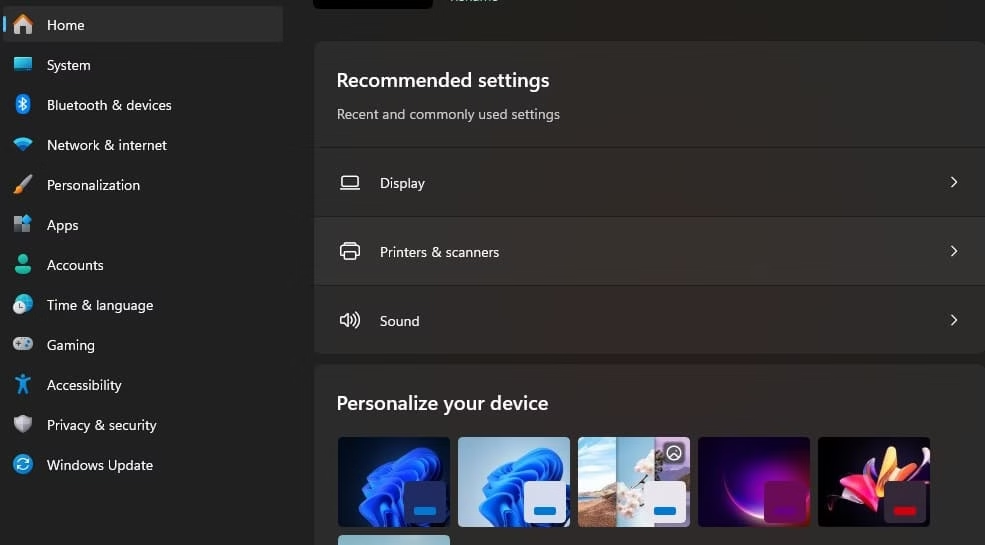
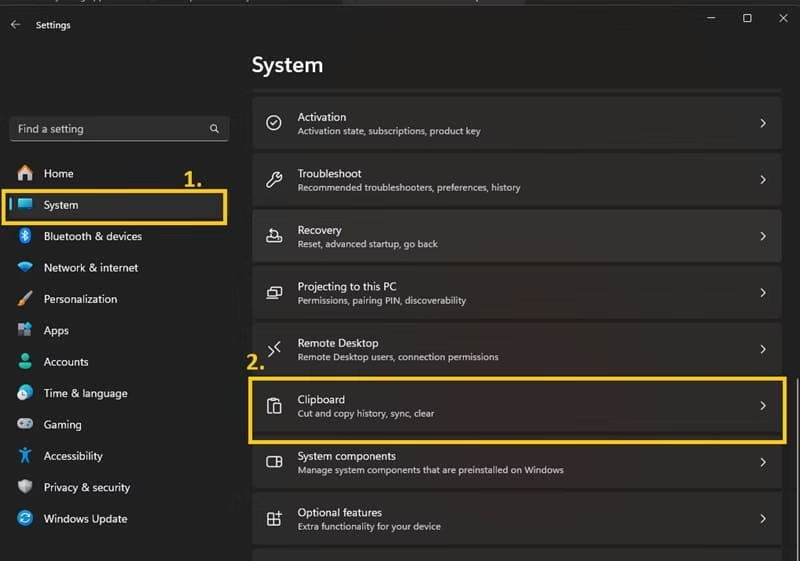
- Click System on the left, then select Clipboard.
- Turn on Clipboard history first if it is off.
- Under Sync across devices, flip the toggle to On.
- Choose Automatically sync text that I copy for hands-free operation, or Manually sync text that I copy if you prefer control.
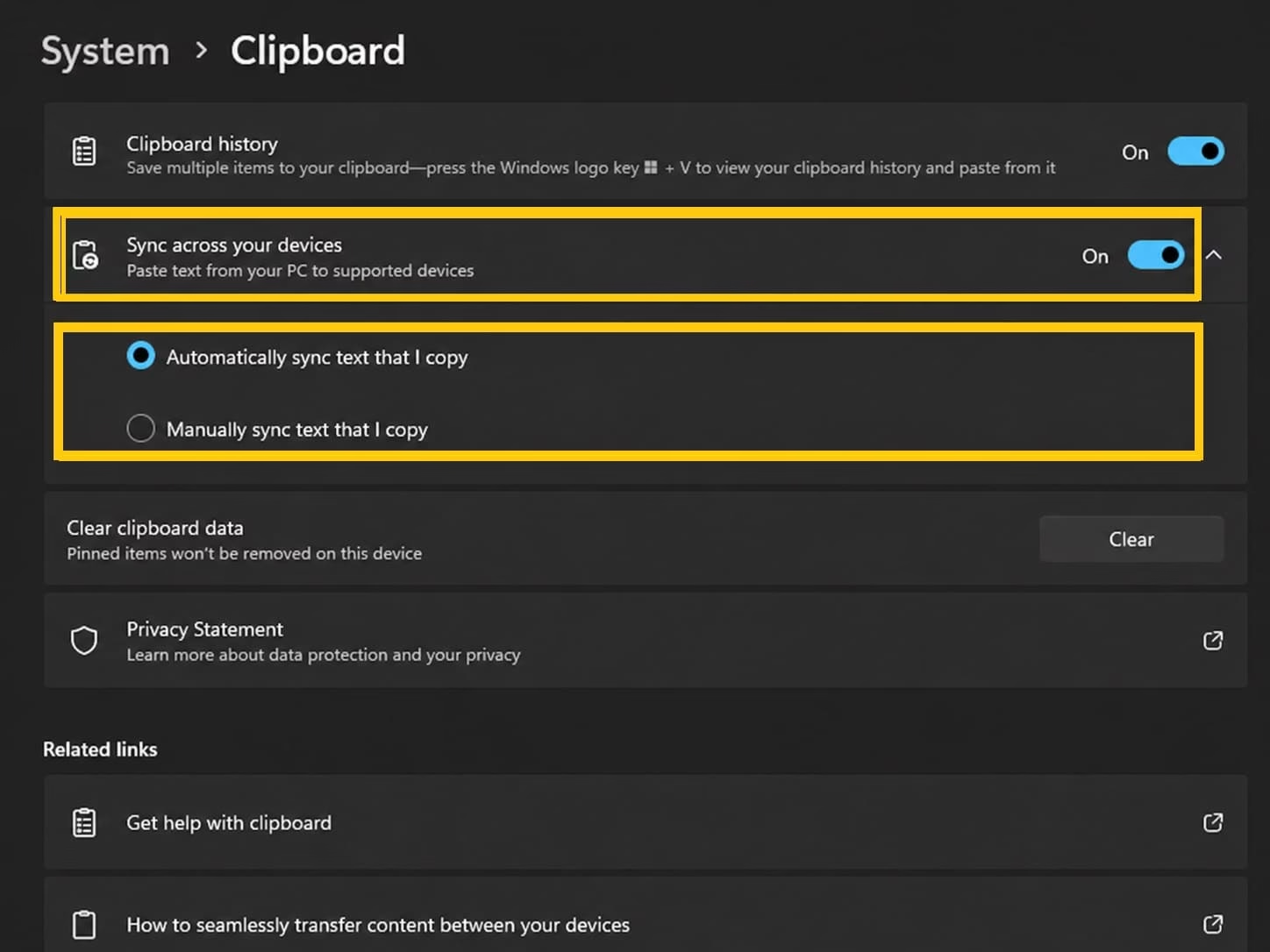
That is basically it. Now, copy something on one PC, wait a few seconds, and press Win + V on the other. Your item should appear.
Make sure both devices use the same Microsoft account. Head to Settings > Accounts to double-check. If sync does not kick in immediately, restart the devices or sign out and back in.
I love how lightweight this feels. No extra apps eating resources. During long writing sessions, I copy research snippets on my desktop and paste them directly on my laptop while relaxing on the couch. It just works.
For power users, combine this with clipboard history. Pin important items so they never disappear. The history holds up to 25 entries typically, giving you breathing room for daily tasks.
Also know: Extend Your Battery Life Effectively Windows Laptops
Method 2: Sync Clipboard with Android Devices Using Phone Link and SwiftKey
Many of us live in a mixed Windows-Android world. Microsoft made this surprisingly smooth with Phone Link (formerly Your Phone) and the SwiftKey keyboard.
Setup steps:
- On your Windows PC, open the Phone Link app. If missing, download it from the Microsoft Store.
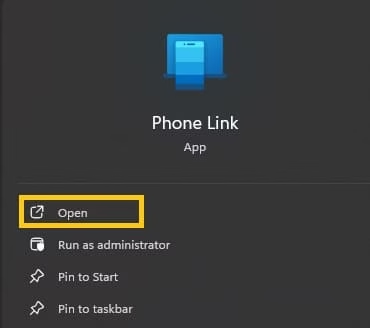
- On your Android phone, install the Link to Windows app from the Play Store.
- Follow the pairing instructions, usually via QR code or Bluetooth.
- On PC, go back to Settings > System > Clipboard and ensure sync is enabled.
- On your phone, install Microsoft SwiftKey as your keyboard.
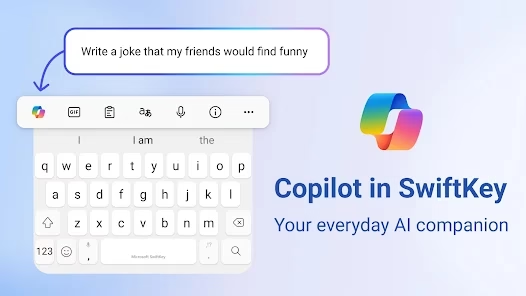
- Sign in with the same Microsoft account in SwiftKey.
- In SwiftKey settings, enable clipboard sync or cloud features.
Copy text on your PC, and it shows up in SwiftKey’s clipboard on Android. Tap to paste. The reverse works too — copy on phone, paste on PC.
Recent Windows 11 updates improved this further with better integration in some builds. Test the connection first with a simple “hello” message. Battery impact stays minimal since it uses cloud push notifications.
This method shines for quick tasks like grabbing a phone number from your PC and pasting it into a messaging app on your phone. I use it constantly when coordinating plans.
Method 3: Advanced Tips and Power User Tricks
- Once basic sync runs, level it up. Use keyboard shortcuts religiously — Win + V opens history everywhere. Pin items you reuse often, like email signatures or code templates.
- Troubleshoot common issues by checking your internet connection, since sync relies on cloud.
- Sign out and back into your Microsoft account if items stop appearing. Update Windows and apps regularly.
- For privacy, review what gets synced. Disable automatic sync when handling passwords and use manual mode instead. Some users clear history periodically for peace of mind.
- Paste synced clipboard items directly into OneNote or Word for seamless note-taking across devices. Combine with automation apps if you want to trigger actions based on certain copied text.
I once set up a workflow where copying a meeting link on my phone automatically appeared on my PC, ready for the calendar. Small tweaks like these compound into huge time savings.
Method 4: Comparing Options and Choosing What Fits You
Native Microsoft sync wins for simplicity and zero cost. It requires no extra installs and integrates deeply. Limitations include weaker image support and iOS gaps. Phone Link + SwiftKey bridges Android beautifully for mobile-heavy users. Third-party tools like Clipboard Remote or Pushbullet excel in true cross-platform scenarios, often with better file handling.
Consider your setup. A household with multiple Windows PCs benefits most from built-in features. Remote workers mixing phones and laptops might prefer hybrid approaches. Test a couple methods. Start with native, then layer on others if needed. Most people find one solid solution covers 90% of their needs.
Also know: Get Help with File Explorer in Windows 11/10
Conclusion
Syncing your clipboard across devices on Windows 11 and 10 transforms how you work. No more repeated copying or awkward workarounds. Whether you use Microsoft’s native cloud features, Phone Link for Android, or a trusted third-party app, the process stays straightforward and rewarding.
Take a few minutes today to set it up. Experiment with the steps that match your devices. Soon, you will wonder how you ever managed without it. The small convenience adds up, freeing mental energy for what truly matters in your day.
At Avsoftlab, we focus on practical tech solutions that make life easier. This guide aims to give you exactly that — clear paths to better productivity without the fluff.

