If you’ve ever felt frustrated by your Windows 11 PC suddenly acting up, whether it’s refusing to update, losing sound, or crawling at a snail’s pace you’re not alone. In this guide, we’ll explore the easiest ways to run a troubleshooter for PC issues on Windows 11. These built-in tools from Microsoft act like smart detectives that scan your system, identify problems, and often fix them automatically with minimal effort.
We’ll start by covering the most common PC headaches Windows users face daily. Then, we’ll explain how troubleshooters work their magic. Finally, I’ll walk you through the simplest methods to launch them, with clear, step-by-step instructions anyone can follow. By the end, you’ll have practical tools to keep your PC running smoothly without needing advanced tech skills or expensive software. Let’s dive in and get your Windows 11 experience back on track.
Common PC Issues in the Life of a Windows PC User
Windows 11 is a powerful operating system, but like any computer, it encounters hiccups over time. Here are some of the most frequent problems users in the USA report:
1. Windows Update Failures: Updates fail to install, get stuck, or cause new issues after applying. This leaves your system vulnerable and missing important security patches.
2. Internet and Network Connectivity Problems: Wi-Fi drops randomly, slow speeds, or inability to connect despite a strong signal. This disrupts work, streaming, and browsing.
3. Audio/Sound Issues: No sound from speakers or headphones, crackling audio, or apps not playing media properly.
4. Display and Graphics Glitches: Flickering screens, resolution problems, or apps not displaying correctly after driver updates.
5. Slow Performance and Freezing: The PC lags, apps freeze, or the system feels sluggish, often due to background processes, low resources, or corrupted files.
6. Printer and Hardware Detection Issues: Devices like printers or external drives don’t show up or function reliably.
7. App Installation/Removal Errors: Programs fail to install or uninstall cleanly.
8. Power and Battery Drain: Unexpected shutdowns, poor battery life on laptops, or sleep mode problems.
These issues can stem from driver conflicts, corrupted system files, software clashes, or even recent updates. The good news? Many resolve quickly with Windows 11’s built-in troubleshooters, saving you time and hassle.
How Running a Troubleshooter Can Solve PC Issues?
Windows troubleshooters are automated diagnostic tools developed by Microsoft to detect and repair common problems. They scan relevant system components; like network settings, update services, or audio drivers, identify mismatches or errors, and apply fixes such as resetting configurations, restarting services, or repairing files.
What makes them effective is their intelligence: they follow official Microsoft repair logic, so they’re safe and targeted. For example, the Windows Update troubleshooter can clear stuck update caches, while the Network troubleshooter resets adapters and fixes connectivity glitches. They often solve issues in minutes without manual registry edits or risky commands.
Not every problem gets fully fixed (complex hardware failures may need more help), but running the right troubleshooter is the recommended first step by Microsoft. It’s non-destructive, logs what it does, and gives clear next steps if it can’t resolve everything. This approach empowers everyday users to handle most software-related PC issues confidently.
Easiest Ways to Run a Troubleshooter for PC Issues on Windows 11
Windows 11 makes accessing troubleshooters straightforward through Settings or the Get Help app. Here are the most user-friendly methods.
1. Using Settings > Other Troubleshooters (Most Common Method)
This is the central hub for built-in troubleshooters and works great for most issues.
- Press Windows key + I to open Settings.
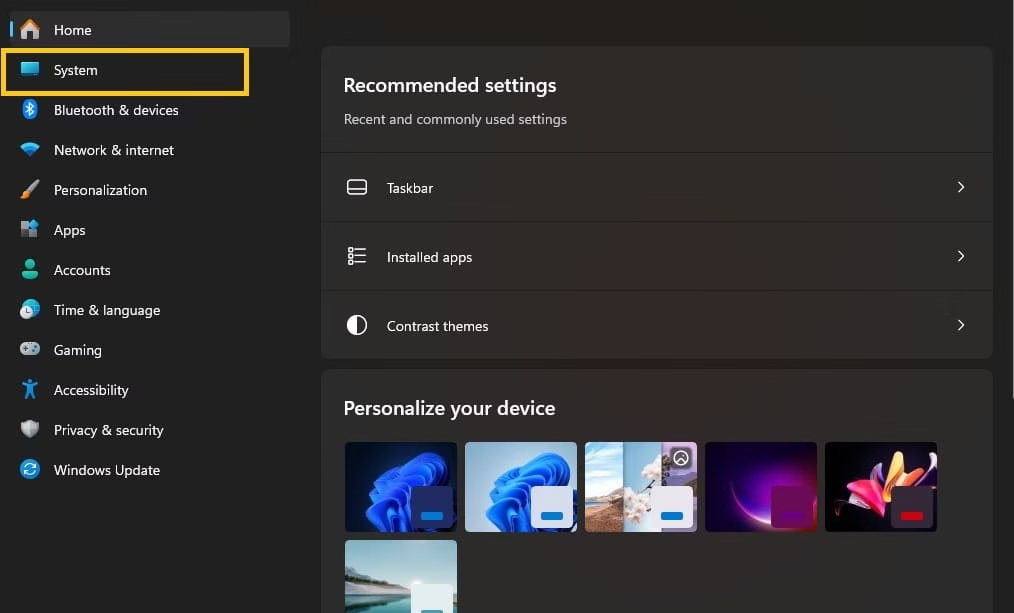
- Click System on the left sidebar.
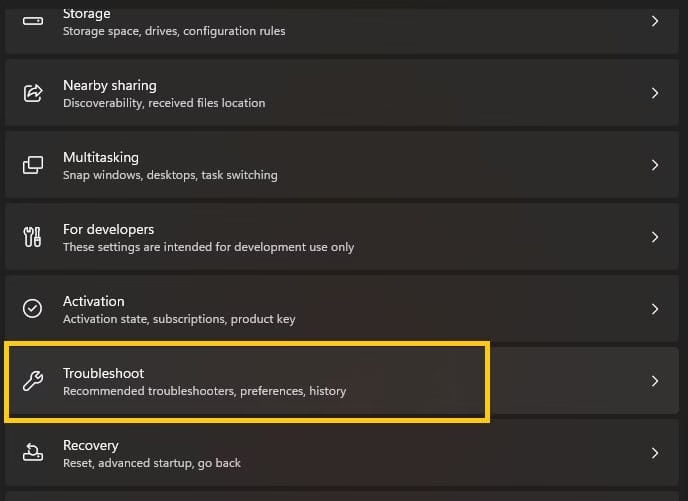
- Scroll down and select Troubleshoot.
- Click Other troubleshooters.
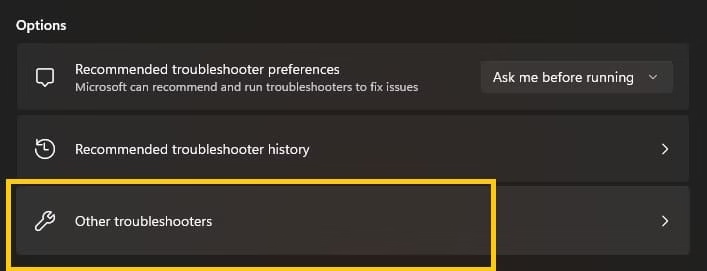
- Under the list (Most frequent or Others), find the relevant one (e.g., Windows Update, Network Adaptor, Playing Audio, Printer).
- Click Run next to it.
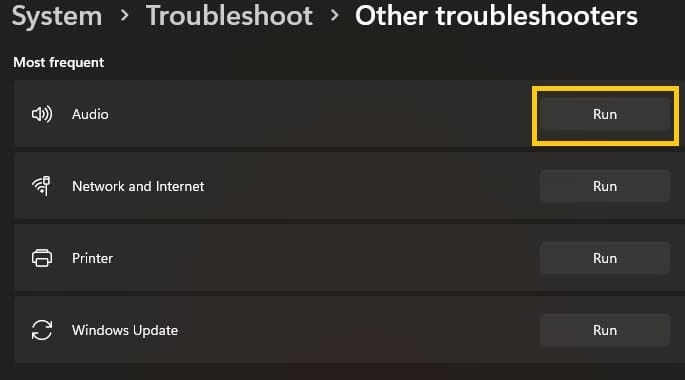
- Follow the on-screen prompts, answer any questions, and let it complete.
- Restart your PC if prompted and test the issue.
Also know:How to Reset Your PC for a Fresh Start on Windows
2. Using the Get Help App for Guided Troubleshooters
Get Help offers conversational, step-by-step support with integrated troubleshooters.
- Search for Get Help in the Start menu and open it.
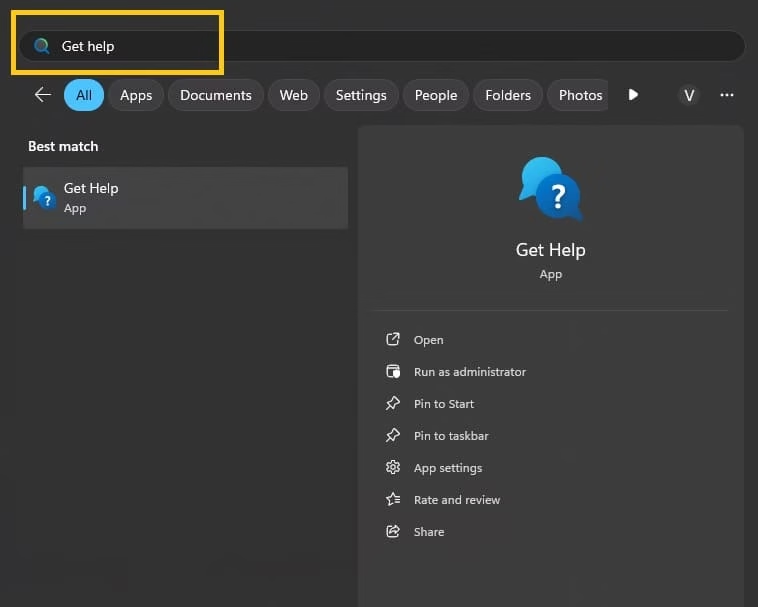
- In the search bar, type your issue (e.g., “audio troubleshooter,” “network troubleshooter,” or “Windows Update”).
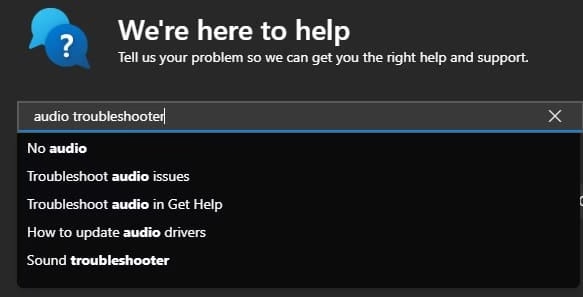
- Select the suggested troubleshooter and click Start or Run.
- Grant permission if asked and follow the instructions provided.
3. Quick Access via Search or Run Command (For Specific Issues)
For faster access:
- Type your issue in the Start search bar (e.g., “troubleshoot network problems”).
- Or press Windows + R, type a command like msdt.exe -id WindowsUpdateDiagnostic, and hit Enter (use official Microsoft IDs for specific tools).
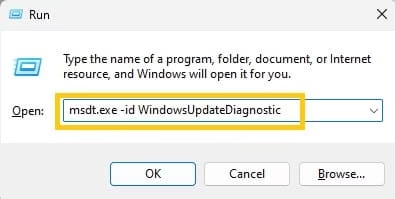
These methods are quick, safe, and directly from Microsoft’s recommended troubleshooting paths.
Also see: Easy Ways to Sync Refresh Rates for Smooth Playback Windows 11/10
Conclusion
Running a troubleshooter for PC issues on Windows 11 is one of the simplest and most effective ways to resolve everyday frustrations. By starting with these built-in tools, you can fix many problems automatically and keep your system stable. Remember to run the relevant troubleshooter first whenever something goes wrong—it’s often all you need. If issues persist, consider checking for driver updates or seeking further Microsoft Support. Your Windows 11 PC can run reliably with just a few clicks!

