
If you manage HP business laptops or desktops (like EliteBook, ProBook, or ZBook series), keeping drivers, BIOS, and firmware up to date can feel overwhelming. In this guide, I’ll explain exactly what HPIA is, its key benefits, and provide a clear, step-by-step walkthrough for HPIA download and installation on Windows in 2026.
We’ll focus on the safest and easiest official method so you can get it running quickly without any headaches. Whether you’re an IT admin or a home user with an HP PC, this will help you maintain your system efficiently.
What is HPIA?
HPIA stands for HP Image Assistant. It’s a free, powerful tool developed by HP specifically for their business and commercial PCs. HPIA scans your HP computer, compares it against HP’s official reference configurations, and recommends (or even installs) the latest BIOS updates, drivers, firmware, and HP software to keep your system optimized, secure, and stable.
It’s especially useful for creating and maintaining Windows images in enterprise environments, but it works great for individual users too. Instead of hunting through HP’s support site manually, HPIA does the heavy lifting by analyzing your specific model and OS version.
Benefits of HPIA
- Accurate Updates: Delivers HP-recommended drivers and BIOS tailored to your exact PC model.
- Time-Saving: Scans quickly and shows exactly what needs updating — no more guesswork.
- Improved Security & Stability: Helps install critical security patches and firmware updates.
- Image Management: Great for IT teams deploying consistent Windows images across multiple devices.
- Free to Use: No licensing fees, and it works on Windows 10 and Windows 11.
- Flexible: Can run in GUI mode or via command line/scripts for automation.
Many users find it more reliable than generic Windows Update for HP-specific components.
How to Download and Install HPIA in 2026
Here are the detailed steps to HPIA download and install on your Windows PC:
1. Prepare Your System:
- Ensure your HP PC is connected to the internet and running Windows 10 or 11.
- Close any unnecessary programs. It’s best to run as Administrator.
2. Go to the Official Download Page:
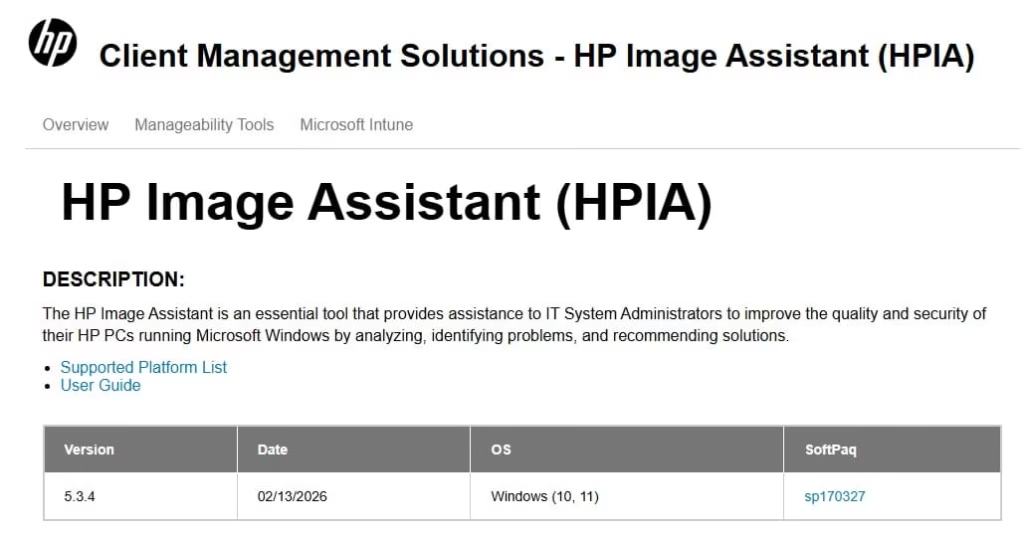
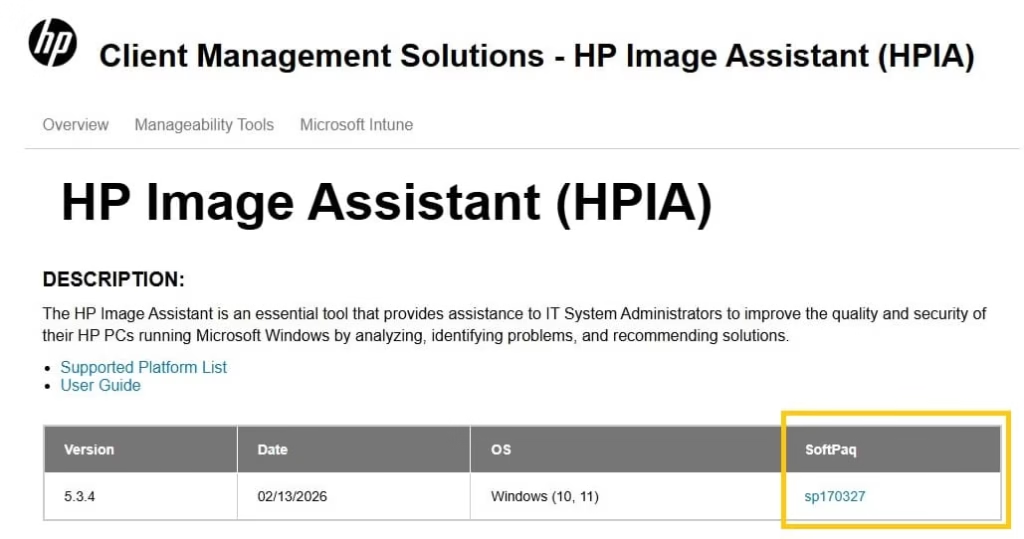
Open your browser and head to the official link: https://ftp.ext.hp.com/pub/caps-softpaq/cmit/HPIA.html. Look for the latest version in the list (e.g., 5.3.4).
3. Download the File:
- Click the download link for the .exe SoftPaq file (named something like hp-hpia-5.3.4.exe).
- Save it to an easy-to-find location, such as your Downloads folder or a new folder called “HPIA” on your desktop.
4. Run the Installer:
- Locate the downloaded .exe file and double-click it. If prompted by User Account Control (UAC), click Yes.
- The SoftPaq will extract its contents to a folder (it usually creates one with the version number).
5. Launch HP Image Assistant:
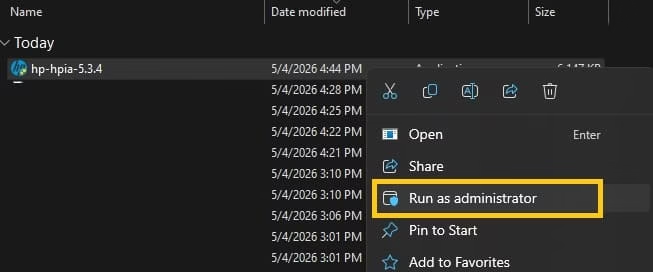
Open the extracted folder and double-click HPImageAssistant.exe. Right-click and select Run as administrator for best results. The tool will launch and automatically start analyzing your system.
6. Perform the Scan:
HPIA will download the latest reference file from HP and compare it with your PC. Review the recommendations for drivers, BIOS, and software. You can choose to install all recommended updates or select specific ones.
7. Install Updates:
Follow the on-screen prompts to download and apply updates. For BIOS updates, you may need to restart. Some updates require a reboot — save your work first!
Helpful Tips:
- The first scan may take a few minutes as it downloads the reference data.
- Disable antivirus temporarily if it flags the installer (rare, but possible false positive with HP tools).
- For command-line use or automation, check the official user guide on the same download page.
- Always back up important data before applying BIOS or major driver updates.
Also know: Fivem Download and Install on PC for GTA V Multiplayer Modification
Conclusion
HP Image Assistant (HPIA) is one of the smartest tools for keeping your HP business PC in top shape. As Amanda, I strongly recommend downloading it directly from HP’s official page . It’s the safest, most up-to-date method and avoids any risks from third-party sites. Just follow the steps above, and you’ll have a smoother, more secure system in no time.
If you run into any issues, HP’s support docs are excellent, or feel free to drop a comment — I’m here to help!
Frequently Asked Questions (FAQs)
Q1. Is HPIA free?
Ans. Yes, HPIA is completely free for all HP commercial PCs. You do not need to pay any money to download HPIA or use HP Image Assistant on your computer. Many people think tools like HPIA are paid but it is fully free and there is no subscription charge or hidden cost. You can simply download HPIA and start using it without any payment worry at all.
Q2. Can I use HPIA on consumer HP laptops (like Pavilion)?
Ans. HPIA works best on business models such as Elite, Pro and Z series. It may have limited functionality on consumer devices like Pavilion, Envy or Spectre. If you try to run HPIA on consumer HP laptop then some features of HPIA may not work properly and HPIA may not detect all updates. For best result you should always use HPIA on supported commercial HP computers. On consumer models the HPIA performance can be restricted and you may not get full benefit of HPIA.
Q3. Does HPIA require internet?
Ans. Yes, HPIA require internet for the initial reference file download and for fetching updates. Without internet connection HPIA cannot download the softpaq reference file or check for new drivers and BIOS updates. However you can use offline modes with pre-captured reference files in advanced setups. If you already have the reference file saved then you can run HPIA without internet in some cases. But for normal use stable internet is very important so that HPIA can work properly and download all required updates.
Q4. How often should I run HPIA?
Ans. You should run HPIA once a month or before major Windows updates. Running HPIA regularly help keep your HP commercial PC updated with latest drivers, BIOS and software. If you do not run HPIA for long time then your system may miss important updates and face performance or compatibility issue. Many users prefer to run HPIA every 30 days or just before installing big Windows feature update so that everything stay stable and up to date.
Q5. Is it safe?
Ans. Absolutely, HPIA is completely safe when downloaded from the official HP link. You should never download HPIA from third-party website because those file may contain malware or modified version. When you get HPIA directly from HP official website it is trusted and secure tool. Thousands of IT professional use HPIA every day on company computer without any security problem. Just make sure you always download HPIA from real HP source and your HPIA experience will remain safe and reliable.