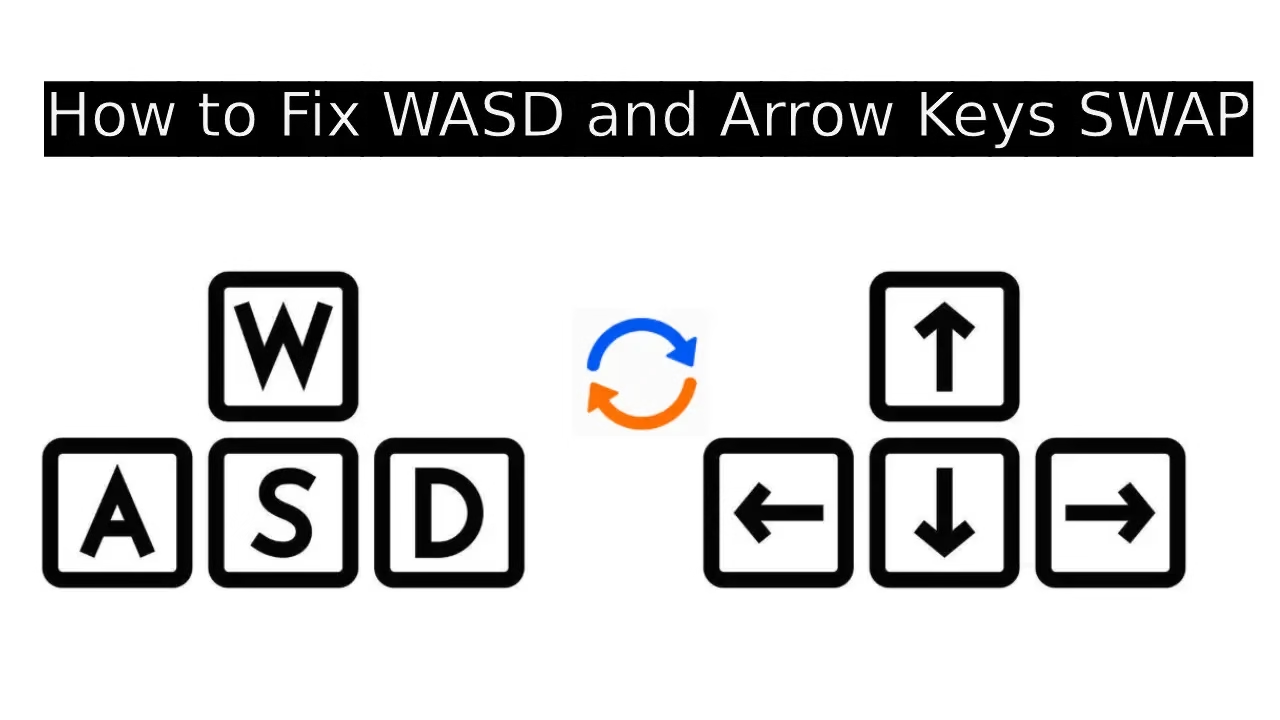
Few things disrupt your flow like reaching for the WASD keys during a game only to find them behaving like arrow keys. Or sitting down to type an email and watching the cursor dart around instead of letters appearing. This swap between WASD and arrow keys on Windows 11 happens more often than you might expect, especially on gaming laptops, compact keyboards, or after installing certain apps.
The good news? It is almost always fixable without deep technical knowledge. In this article, we walk through the most reliable solutions step by step. Whether the issue stems from a simple toggle on your keyboard hardware or a sneaky software remapping, you will find clear instructions to get everything back to normal. No complicated jargon, just straightforward help that works.
We start with the fastest tricks and move toward more thorough troubleshooting. By the end, your keyboard should feel like itself again, letting you focus on what matters.
Ways to Fix WASD and Arrow Keys Swap
This frustrating mix-up usually comes from a keyboard feature designed for gamers who prefer arrow keys in certain titles. Many modern keyboards include a quick toggle. Other times, third-party tools, outdated drivers, or accidental settings cause the switch.
Before diving in, try the simplest step first. Restart your computer and test the keys. Sometimes a fresh boot clears temporary glitches. If that does nothing, keep reading. These methods cover the common causes and give you options based on your setup.
1. Use Keyboard Shortcut to Toggle the Mode
Most cases resolve with a built-in hardware shortcut. Manufacturers add this feature for convenience, but it can activate by mistake.
Here is what to do:
- Locate the Fn key, usually in the bottom row near the Ctrl or Windows key. It might show a small blue or green icon.
- Press and hold Fn, then tap W. Release both keys.
- Test your WASD and arrow keys right away. They should return to standard behavior.
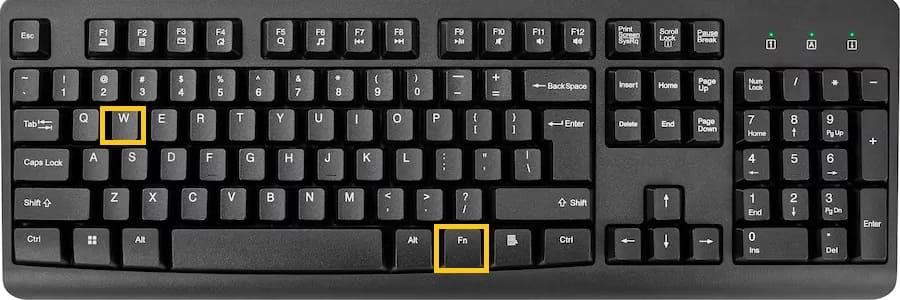
If Fn + W does not work, experiment with these alternatives one at a time:
- Fn + Windows key
- Fn + Esc
- Fn + Left Arrow
- Fn + Z or Fn + A
Different brands use slightly different combinations, so patience helps here. Try them in a text editor to see immediate results.
On some gaming keyboards, you might need to hold the combination longer or press it twice.
Check your keyboard manual or the manufacturer’s website for the exact model if none of these click. This step alone fixes the problem for the majority of users because it directly toggles the alternate function layer.
After applying the toggle, type a few sentences and move around in a simple game or app to confirm everything feels right.
Also know: How to Fix Lag on Pc While Working and Gaming
2. Check and Disable Keyboard Software or Profiles
Gaming brands like Razer, Corsair, Logitech, or SteelSeries often include companion software that manages lighting, macros, and key profiles. An accidental profile switch can remap WASD to arrows.
Follow these steps:
- Open the manufacturer’s software. Look for icons like Synapse, iCUE, G Hub, or similar in your system tray.

- Go to the profile or key assignment section.
- Switch to the default profile or reset key bindings to factory settings.
- Save changes and restart the software.
If you do not use the software regularly, consider uninstalling it temporarily to test. Right-click the program in Settings > Apps, choose Uninstall, then reboot.
Some keyboards store multiple onboard profiles. Press a dedicated profile button (often labeled M1, M2) to cycle through them until the standard layout returns.
This approach works well because the swap frequently lives in the keyboard’s memory rather than Windows itself. Clearing the software restores control quickly.
3. Update or Reinstall Keyboard Drivers
Outdated or corrupted drivers can create odd key behavior. Windows 11 handles most hardware automatically, but updates sometimes introduce quirks.
Here is a reliable process:
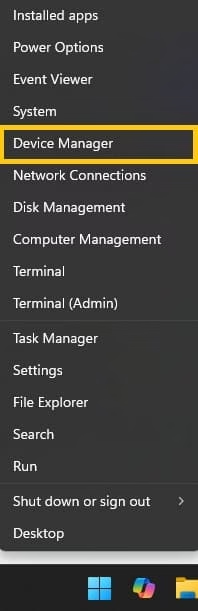
- Right-click the Start button and select Device Manager.
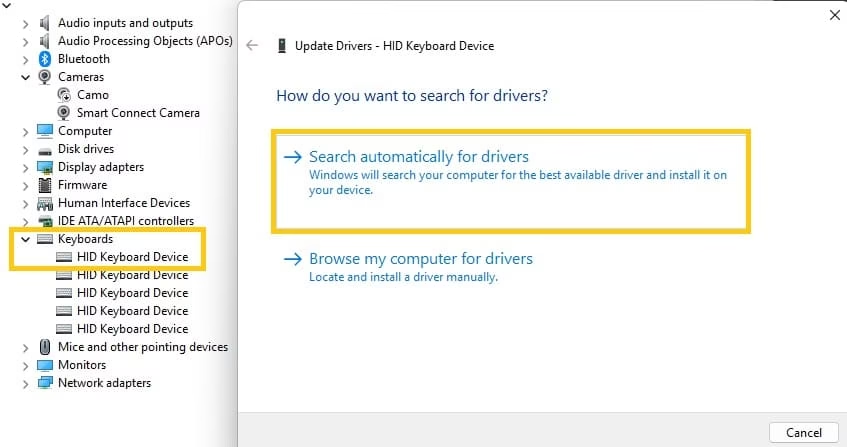
- Expand the Keyboards section.
- Right-click your keyboard device and choose Update driver.
- Select Search automatically for drivers and let Windows check.
- If no update appears, choose Uninstall device, then restart your computer. Windows will reinstall it fresh.
For laptops, also check under Human Interface Devices for additional entries related to your keyboard.
Visit the laptop or keyboard manufacturer’s support page, enter your model number, and download the latest drivers manually. Install them and restart.
This method addresses deeper system-level issues that shortcuts cannot touch. Fresh drivers often smooth out unexpected mappings that linger after Windows updates.
4. Use Microsoft PowerToys to Remap Keys
If the swap persists or you want permanent customization, PowerToys offers a clean solution from Microsoft.
Steps to set it up:
- Download PowerToys from the Microsoft Store or the official GitHub page.
- Install and open the app.
- Navigate to Keyboard Manager in the left sidebar and enable it.
- Click Remap a key.
- Select the key you want to change (for example, W) under the left column.
- Choose the correct function it should send in the right column.
- Add mappings for A, S, D, and arrows if needed.
- Apply the changes.
PowerToys runs quietly in the background and lets you create toggles or disable mappings entirely. It proves especially useful when hardware fixes fall short or you share the computer with others who prefer different layouts.
Take time to test combinations in a safe environment. You can always delete mappings if something feels off.
5. Restart Explorer and Check for Conflicting Software
Explorer.exe handles many interface elements and can sometimes hold onto old key states.
Quick fix:
- Press Ctrl + Shift + Esc to open Task Manager.
- Find Windows Explorer under Processes.
- Right-click it and select Restart.
Next, review startup programs. In Task Manager, switch to the Startup apps tab and disable anything unfamiliar, especially keyboard-related utilities or macro tools.
Scan for unwanted software using Windows Security or a trusted tool. Third-party remappers like AutoHotkey scripts or old utilities might run silently and cause conflicts.
This step clears temporary software interference that shortcuts or drivers might miss.
Also know: How to Get Help with File Explorer in Windows 11
Conclusion
Dealing with swapped WASD and arrow keys can feel incredibly annoying, especially mid-game or when you are in a hurry. The beauty of this issue is how solvable it tends to be. Most people regain normal function with the Fn + W shortcut or a quick driver check.
Take it one step at a time, test after each change, and you will likely fix it without extra tools. If the problem returns, note what you were doing beforehand. That clue often points to the exact trigger, whether software or a specific key press.
Keep your drivers current and use trusted apps like PowerToys for extra control. Your keyboard should feel intuitive again, letting you type, navigate, and play without second-guessing every move.
If none of these solutions work for your specific setup, consider reaching out to the keyboard manufacturer’s support with your model details. They often have tailored advice.

Amanda Starc
Amanda is a dedicated technical web content writer with a passion for transforming complex ideas into compelling and accessible online narratives. With a background in web development, and digital Marketing I bring a unique blend of technical expertise and creative storytelling to the digital domain.
