In today’s professional world, LinkedIn serves as a powerful platform for networking, job hunting, and building your personal brand. However, not every interaction feels positive. You might encounter persistent salespeople, unwanted messages, creepy comments, or even someone from your past you’d rather keep at a distance. That’s where knowing how to block someone with the LinkedIn private mode becomes incredibly useful.
This guide walks you through everything you need to know: why privacy matters on LinkedIn, how to enable private mode for anonymous browsing, and the exact steps to block someone discreetly without them knowing you visited their profile. Whether you’re protecting your peace or maintaining a professional boundary, these simple techniques help you take control of your LinkedIn experience.
We’ll cover trusted, up-to-date methods that work on both desktop and mobile. By the end, you’ll feel confident managing your connections and visibility like a pro. Let’s dive in and make your LinkedIn time more comfortable and secure.
Why Privacy Is Important on LinkedIn
LinkedIn is designed for professional openness, but that doesn’t mean you have to expose everything to everyone. Privacy on this platform protects your career, mental well-being, and personal boundaries in several key ways.
First, it prevents unwanted attention. Recruiters, competitors, or former colleagues might view your profile at sensitive times—like when you’re job hunting while employed. Without proper settings, they could draw conclusions or create awkward situations.
Second, it reduces harassment and spam. Unfortunately, some users send inappropriate messages or overly aggressive sales pitches. Blocking combined with private browsing gives you tools to shut down these interactions quietly.
Third, privacy supports thoughtful networking. You can research people or companies without alerting them, allowing more natural and low-pressure connections later. It also protects against profile scraping or unwanted data collection.
Finally, maintaining control over who sees your activity builds confidence. You focus on meaningful engagements instead of worrying about who’s watching. LinkedIn offers excellent visibility controls, including private mode, so you can enjoy the platform’s benefits while safeguarding your space.
Also know: Top Family Locator Apps for iOS in 2026
How to Block Someone with the LinkedIn Private Mode
Blocking someone on LinkedIn stops them from viewing your profile, sending messages, or interacting with your content. They won’t get a notification about the block—your profile simply disappears from their view. Combining this with private mode ensures they never know you visited their profile to take action.
Private mode changes how your profile appears in others’ “Who viewed your profile” section. Instead of your name and headline, they see “Anonymous LinkedIn Member” or similar. This is perfect for discreet blocking.
Here’s how to do it effectively.
Method 1: Enable Private Mode First (Recommended for Maximum Privacy)
- Click the Me icon (your profile picture) at the top of your LinkedIn homepage.
- Select Settings & Privacy from the drop-down menu.
- Click Visibility on the left sidebar.
- Under the “Visibility of your profile & network” section, click Change next to Profile viewing options.
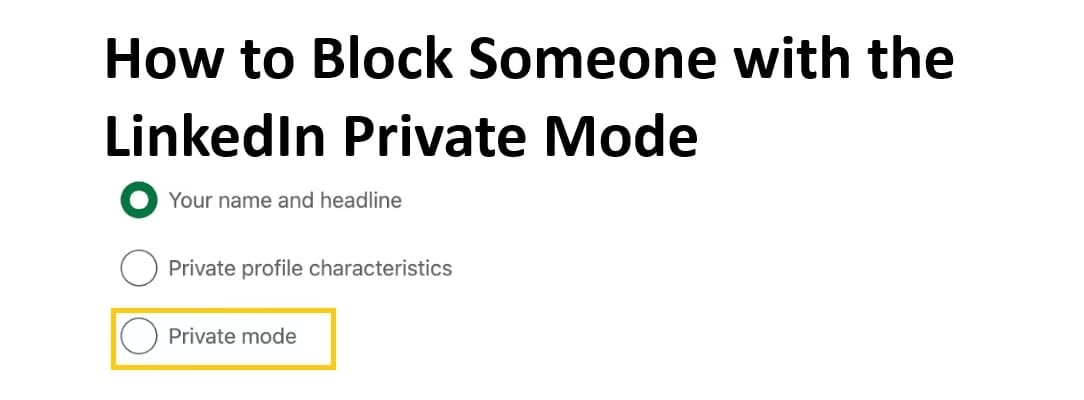
- Choose Private mode (fully anonymous). Your changes save automatically.
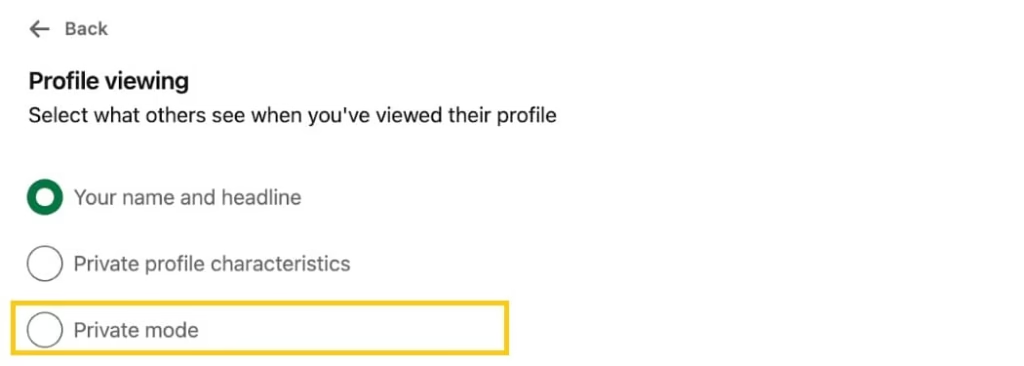
A quick note pops up reminding you that you also won’t see who viewed your profile while in this mode. You can switch back anytime.
Method 2: Block the Person (After Enabling Private Mode)
- With private mode active, go to the person’s profile (search for their name).
- Click the More button (three dots) below their profile picture.
- Select Report/Block from the menu.
- Choose Block [Their Name].
- Confirm by clicking Block.
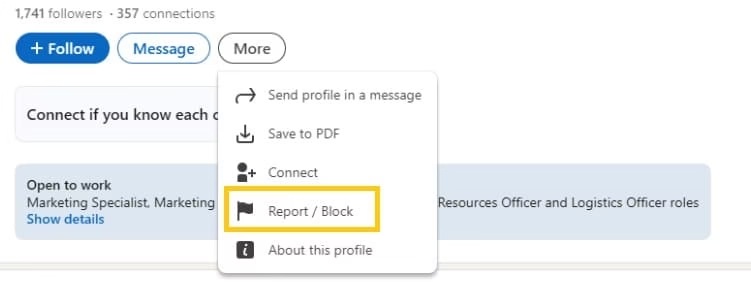
That’s it! The person won’t know you viewed their profile or blocked them.
Alternative: Block from Messages (If You’ve Already Connected or Messaged)
- Open the conversation.
- Click the three dots in the top right of the chat.
- Select Report/Block and proceed with blocking.
Mobile App Steps (Similar Process)
- Tap your profile picture → Settings → Visibility → Profile viewing options → Select Private mode.
- Visit the profile → Tap More → Report/Block → Block.
Also know: How Can Features of Blockchain Supports Sustainability Efforts
Pro Tips for Best Results:
- Enable private mode before searching or visiting the profile.
- You can block up to around 1,400 people (LinkedIn’s limit changes occasionally).
- To manage blocked users: Go to Settings & Privacy → Visibility → Blocking.
- After blocking, you can switch back to your normal viewing mode if desired.
These steps are straightforward and work reliably based on LinkedIn’s current interface.
Conclusion
Learning how to block someone with the LinkedIn private mode empowers you to maintain a positive, focused professional presence. By combining anonymous browsing with the block feature, you handle uncomfortable situations gracefully without drama or notifications. Remember, your LinkedIn experience should support your goals—not drain your energy. Use these privacy tools regularly to create a safer, more enjoyable space for networking and growth. Stay professional, stay protected, and keep building the career you deserve.

Amanda Starc
Amanda is a dedicated technical web content writer with a passion for transforming complex ideas into compelling and accessible online narratives. With a background in web development, and digital Marketing I bring a unique blend of technical expertise and creative storytelling to the digital domain.
