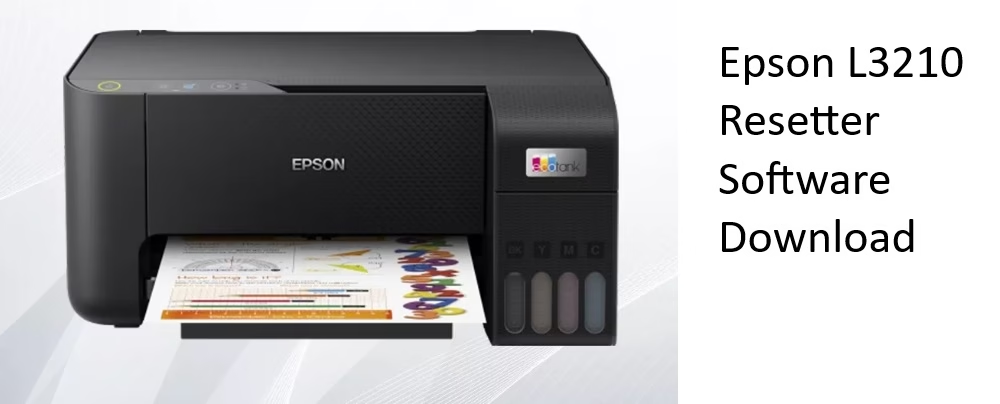
Your Epson L3210 suddenly stops printing. The red light starts blinking. A message appears about service required or the ink pad reaching the end of its life. This happens to nearly every EcoTank owner after a year or two of regular use. The printer itself is usually fine. The problem sits inside the waste ink system.
Every time the printer runs a cleaning cycle or prints, a small amount of excess ink gets pushed into special absorbent pads. These pads sit at the bottom of the machine and soak up the waste. A built-in counter tracks how much ink has gone into them. When the counter hits its limit, the printer locks itself to stop ink from overflowing and damaging internal parts. That is when the red light blinks and printing stops.
Resetting the counter with special software clears the error and lets the printer work again. But the physical pads still hold the ink. Ignoring them can lead to leaks later. You should either clean the existing pads thoroughly or install new ones. Resetting alone is only a temporary software fix.
This guide walks you through the full process. You will see why the error appears, how to handle the pads safely, and the most reliable ways to reset the waste ink counter on Windows in 2026.
Why the Red Light Blinks on Epson L3210
The waste ink pads collect leftover ink from head cleaning and normal operation. Over time they become saturated. The printer’s internal counter reaches 100 percent and triggers the protective lock. You see the blinking red light, sometimes paired with a “Service Required” or “Ink pad is at the end of its service life” message.
This is not a broken print head or empty tank. The mechanism still works. The software simply refuses to continue until the counter is reset. Many users face this after heavy cleaning cycles or after printing several thousand pages.
Handle the Physical Waste Ink Pads First
Resetting the counter does not remove the ink already sitting in the pads. If the pads stay full, ink can eventually seep out and reach the main board or other parts. That damage costs far more than a simple reset.
You have two practical choices.
1. Clean the existing pads.
Power off the printer and unplug it. Open the maintenance cover (usually on the side or bottom, held by one or two screws). Wear gloves because the ink stains permanently. Lift out the foam pads carefully. Rinse them under running water until most of the ink washes away. Squeeze gently and let them dry completely for several hours or overnight. Wipe the plastic housing clean with a paper towel. Put the dry pads back in the same order and close the cover.
2. Replace the pads instead.
Buy a compatible waste ink pad set or maintenance box made for the L3210 series. Remove the old saturated pads the same way, clean the housing, and install the new ones. New pads absorb better and last longer.
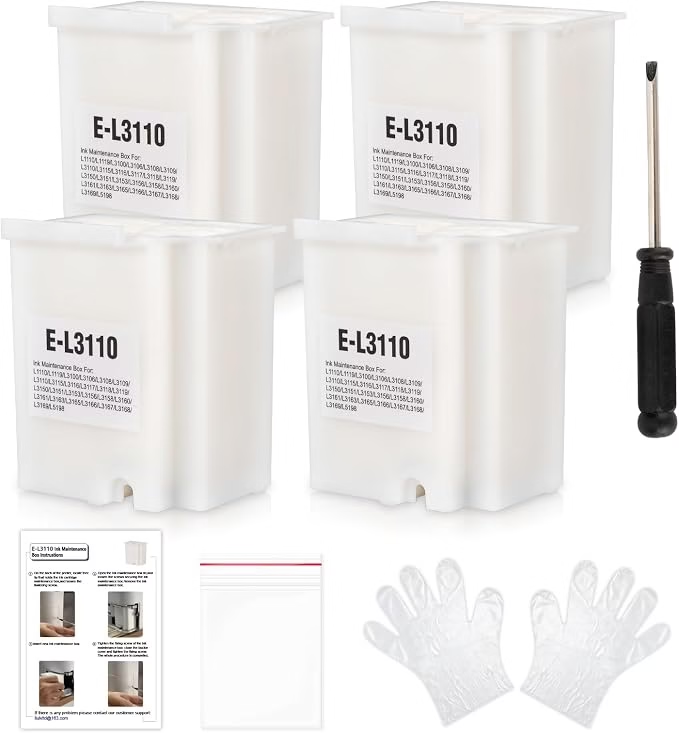
After either step, you still need to reset the software counter. Otherwise the error remains even with clean or new pads.
Quick Comparison of Reset Options
| Option | Success Rate in 2026 | Cost | Ease of Use | Best For | Main Drawback |
|---|---|---|---|---|---|
| WIC Reset Utility | High for most units | Paid key (trial often available) | Simple interface | Reliable long-term use | Requires purchase after trial |
| Free Adjustment Programs | Low to medium | Free | Basic but sometimes confusing | Older firmware printers | Often blocked by new firmware or flagged by antivirus |
| Service Center | Very high | Moderate service fee | No software needed | Warranty still active | Costs more and takes time |
Best Download Solutions for Epson L3210 Resetter Software
The reset requires a special utility. Epson does not offer an official public tool for home users. The most consistent option right now is WIC Reset Utility. Older free adjustment programs still circulate, but many no longer work after recent firmware updates.
WIC Reset Utility (Most Popular & Most Reliable Method)
WIC Reset Utility is currently the 1 recommended solution by most Epson users worldwide. WIC Reset Utility (Waste Ink Counters Reset Utility) is a popular software tool designed specifically to solve this problem. It lets you read the current waste ink counter values for free and reset them to zero with a purchased key. This brings your printer back to life in minutes without needing expensive service or new pads.
How to use WIC Reset Utility:
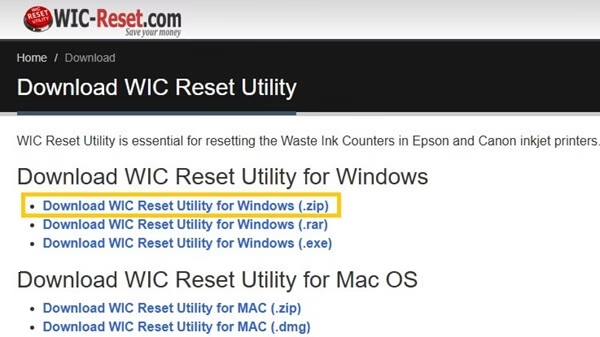
- Download it’s Windows Version in Zip file by visiting it’s official website.
- Connect your Epson L3210 to the computer using a USB cable.
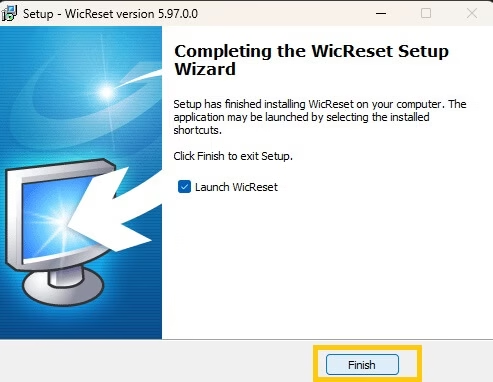
- Double-click the extracted WIC Utility file and launch it on your pc.
- Finish the installation process.
- Click the “Read Waste Ink Counters” button and see exact percentage of the waste ink pads.
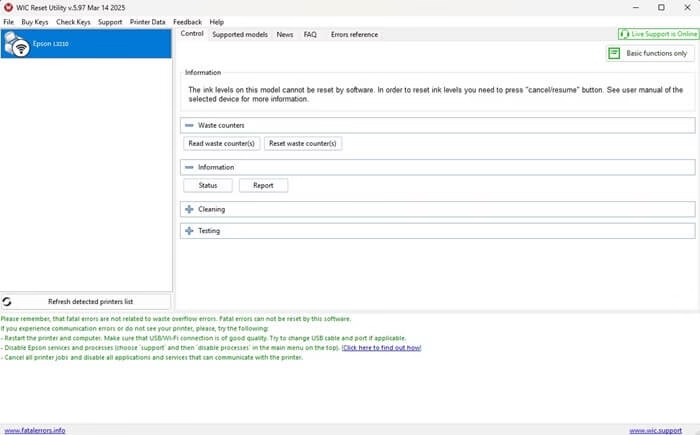
- Click “Reset Waste Ink Counters”
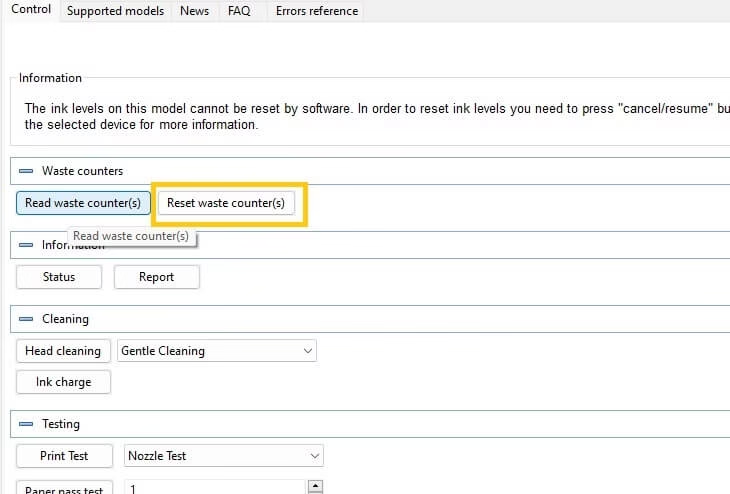
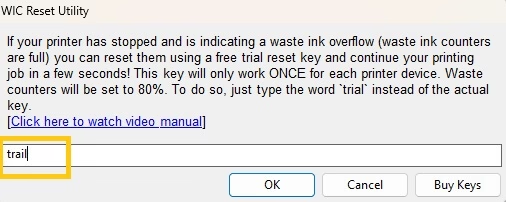
- Buy a key Or use the trial key “TRIAL”. Click OK and wait for the process to finish.
- Turn the printer off when the program tells you to.
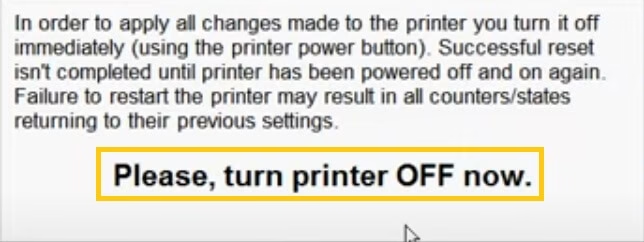
- Wait a few seconds, then turn it back on. Run “Read Waste Ink Counters” again to confirm it now shows 0%
Also know: Download Guide for Metamask
Other Free Resetter Tools for Epson L3210
Some users still try free or older resetter files labeled Adjprog, L3210 Resetter, or similar. These tools open a service menu, let you select the waste ink pad counter, check the values, and initialize them to zero.
Connect the printer by USB. Run the program as administrator. Choose your exact model. Enter the particular adjustment mode. Select the waste ink pad counter option. Check both main and platen counters, then initialize. Follow the on-screen prompts to power cycle the printer.
Here are Some Free Resetter Tools:
- Epson L3210 Resetter v4.40
- Adjprog L3210
- Epson Reset v5.0
- SSCL Reset Tool
- Epson L3210 Waste Ink Counter Reset
These free tools were quite popular a few years ago and some users still report success with older printer firmware versions. They usually come as small .exe files that you run on Windows, connect your printer via USB, and click a “Reset” button. Success rates with these free tools have dropped. Newer firmware often blocks them. Many downloads also trigger antivirus warnings. Scan every file carefully and prefer sources that other users still report as working in 2026.
Reality Check about free Resetters in 2025–2026:
Free resetter tools for the Epson L3210 used to be a go-to solution a few years back, but things have changed a lot in recent times. Epson has rolled out several firmware updates that make most older reset programs completely useless. Here’s the honest truth about trying free versions right now:
- Most free tools fail to communicate properly or just show an error message like “Printer not supported” or “Reset failed.
- Many are detected as viruses.
- If your Epson L3210 was manufactured or updated in 2024–2025, the chances of a free tool working drop dramatically.
- You might need to try 5–10 different downloads, test them one by one, and hope you get one that matches your printer’s exact firmware
Most experienced users now recommend WIC Reset over hunting random free resetters.
Safety Notes Before You Start
Always use a USB connection. Close any open print jobs. Temporarily disable real-time antivirus only if a legitimate tool gets blocked, then turn protection back on immediately. Work on a surface you can clean easily. Keep the printer unplugged when you open the case to clean or replace pads.
If the printer is still under warranty, consider an authorized service center. They replace the pads and reset the counter officially. Home resets can void remaining warranty coverage.
After the Reset
Print a few test pages. Watch for any ink leaking from the bottom or sides. If you cleaned the pads, they will saturate again faster than new ones. Reduce unnecessary head cleanings to stretch the time between resets. Keep an eye on the counter if your utility allows reading it later.
When the red light returns after several months, repeat the process. Clean or replace the pads again before the next software reset.
Also know: How to Download Epson Scan 2 Software for Windows
Conclusion
The blinking red light on an Epson L3210 is almost always the waste ink counter reaching its limit. The printer is protecting itself from overflow. Resetting the counter with reliable software like WIC Reset Utility brings it back to life quickly. Pair that reset with cleaned or new waste ink pads so the ink does not leak later.
Follow the steps carefully, handle the physical pads, and your L3210 should print normally again. A little attention now prevents bigger messes down the road.
Frequently Asked Questions
Q1. Why does the red light blink even after I refill the ink tanks?
The blinking red light is almost never about empty tanks. It signals that the waste ink counter has reached its limit. The pads that collect excess ink during cleaning cycles are full according to the internal software. Refilling the tanks does not affect this counter.
Q2. Does resetting the counter clean the physical pads?
No. The software only sets the counter back to zero. The foam pads still hold the old ink. You need to clean them thoroughly or install new ones. Skipping this step can lead to ink leaks inside the printer later.
Q3. Can I reset the Epson L3210 over Wi-Fi?
No. Every reliable reset tool requires a direct USB connection. Wireless links do not give the utility the low-level access it needs to change the counter values.
Q4. How often will I need to reset the counter?
It depends on how much you print and how often you run cleaning cycles. Many users see the error again after 12 to 24 months of normal home use. Heavy printing or frequent cleanings shorten that time.
Q5. Is it safe to keep resetting without replacing the pads?
It works for a while, but it is not ideal long term. Saturated pads can eventually overflow and damage the main board or other parts. Cleaning or replacing the pads each time you reset keeps the printer safer.
Q6. Will using a resetter void my warranty?
Yes, in most cases. Epson considers these tools unofficial. If your printer is still under warranty, an authorized service center can replace the pads and reset the counter properly while keeping the warranty intact.
Q7. What if the red light keeps blinking after a successful reset?
First confirm the counters really dropped to zero by reading them again. Check for paper jams, closed covers, or other simple errors. Power the printer off completely, unplug it for a full minute, then turn it back on. If the light continues, the pads may still be too full or another hardware issue may be present.
Q8. Where can I buy replacement waste ink pads for the L3210?
Look for maintenance boxes or foam pad sets listed as compatible with the L3210, L3250, or similar EcoTank models. Many online sellers offer them. Make sure the size and shape match the original pads inside your printer.

Amanda Starc
Amanda is a dedicated technical web content writer with a passion for transforming complex ideas into compelling and accessible online narratives. With a background in web development, and digital Marketing I bring a unique blend of technical expertise and creative storytelling to the digital domain.
