If you are searching for Epson Scan 2 Software, chances are your scanner is not cooperating. Maybe it worked fine before a Windows update, or you just got a new Epson device and realized the software is missing. Whatever brought you here, you want something straightforward that actually works.
In this article, I will walk you through the process in plain English. We will cover why this software matters, the two safest ways to get it, and detailed steps that even beginners can follow. By the end, you will have a working scanner ready for documents, photos, or whatever you need to digitize. No complicated jargon, just practical advice from someone who has helped many people solve the same headache.
Epson Scan 2 is the official driver and scanning tool designed for a wide range of Epson scanners. It delivers better image quality, easier controls, and reliable performance compared to older versions. Once installed properly, it makes scanning feel effortless again. Let us get you there step by step.
Ways to Download Epson Scan 2 Software for Windows
You basically have two solid options. The first is downloading straight from Epson, which gives you the most compatible version for your exact model. The second uses a trusted third-party tool like Ashampoo Driver Updater for a more automated experience. Both work well, and I will break them down so you can pick what feels right for you.
1. Direct Download from Epson Official Website
Downloading directly from Epson is my top recommendation for most people. It feels reassuring because you get the genuine software tailored to your scanner. I have seen many users avoid compatibility issues this way, especially after major Windows updates.
The whole process usually takes less than ten minutes once you have your model number ready. Epson keeps their site well organized, and the installer guides you along. After setup, you will notice improved scan quality and handy features like automatic document feeding or quick PDF creation.
Here is exactly how to do it:
- Open your web browser and go to epson.com/support.
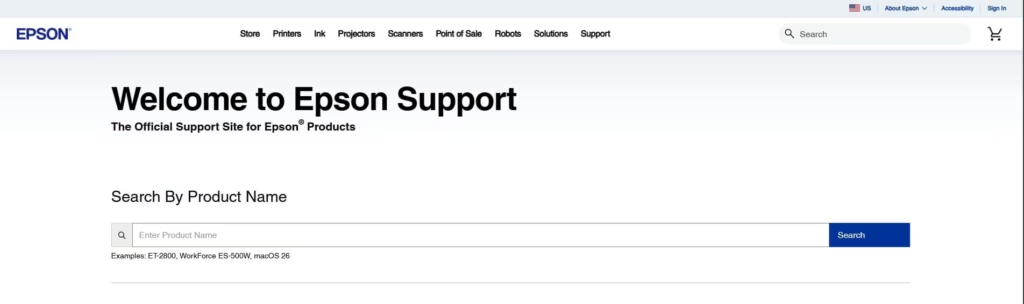
- Type your scanner’s exact model name or number into the search bar.
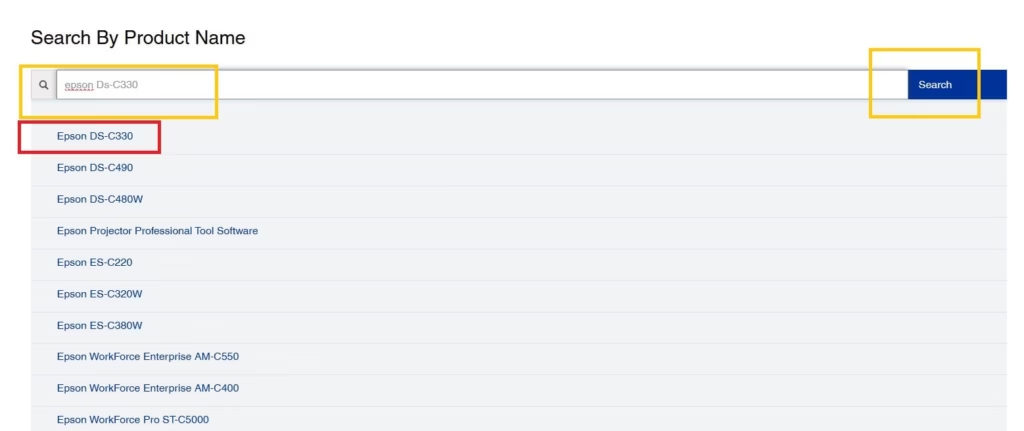
- Select your specific model from the results.
- Choose your Windows version from the dropdown menu.
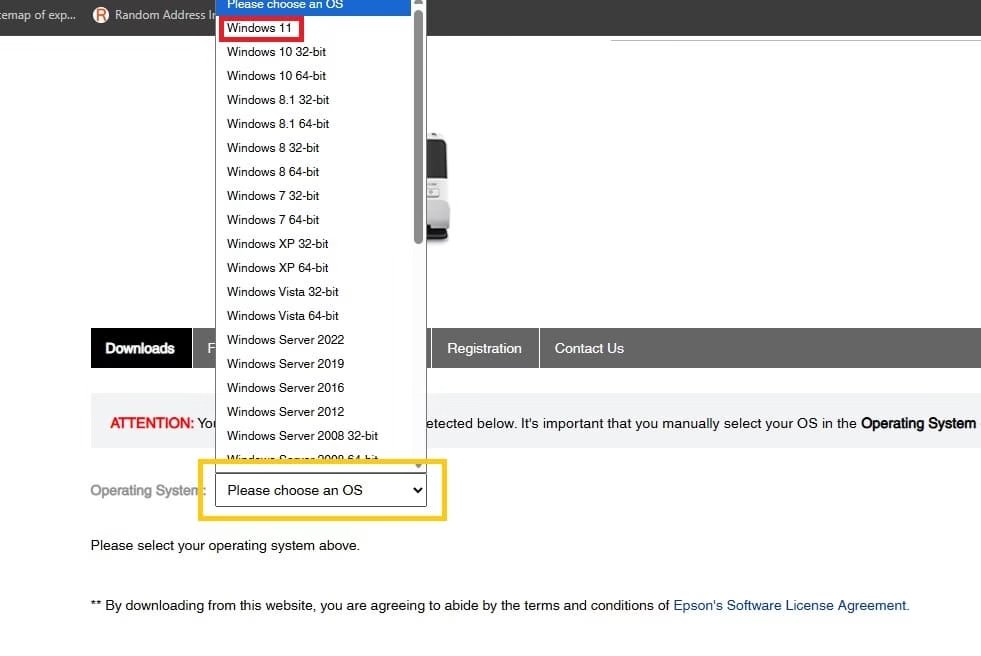
- Scroll to the Drivers section and look for Scanner Driver and Epson Scan 2 Utility.
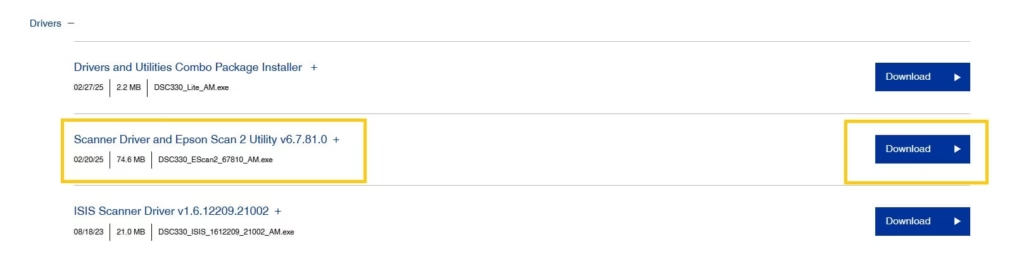
- Click the Download button.
- The file will save to your usual downloads folder.
- Once the download finishes, double-click the installer file.
- Follow the prompts, accept the terms, and choose a standard installation.
- Connect your scanner with a USB cable or make sure it is on the same network.
- Restart your computer when asked.
- Open Epson Scan 2 from the Start menu and run a test scan to make sure everything works.
If you run into any hiccups, try disabling your antivirus temporarily during installation. Windows sometimes flags new drivers, but it is usually safe to allow them. After everything is set up, play around with the settings. You can save custom profiles for different tasks, like high-quality photo scans or quick black-and-white documents.
This official route keeps you in control. You can always return to the Epson site later for updates. Many people appreciate knowing they are using the manufacturer’s own files.
Also know: Epson L3210 Resetter Software Download for Windows
2. Using Third-Party Software like Iolo GetMyDrivers
Sometimes you just want things done without hunting around websites. That is where tools like Iolo’s GetMyDrivers come in handy. It scans your system, finds the right Epson files, and handles the heavy lifting for you. I recommend it for folks who prefer simplicity or manage multiple devices.
Iolo has built a good reputation for safe driver management. It even creates backups before making changes, which gives extra peace of mind.
Follow these steps to get started:
- Download GetMyDrivers by clicking the link below.

- Run the installer and open the program.
- Click the Scan button and wait while it checks your hardware.
- Look for any Epson scanner entries that need updating.
- Select the relevant driver and hit the Update button.
- Let the tool download and install everything automatically.
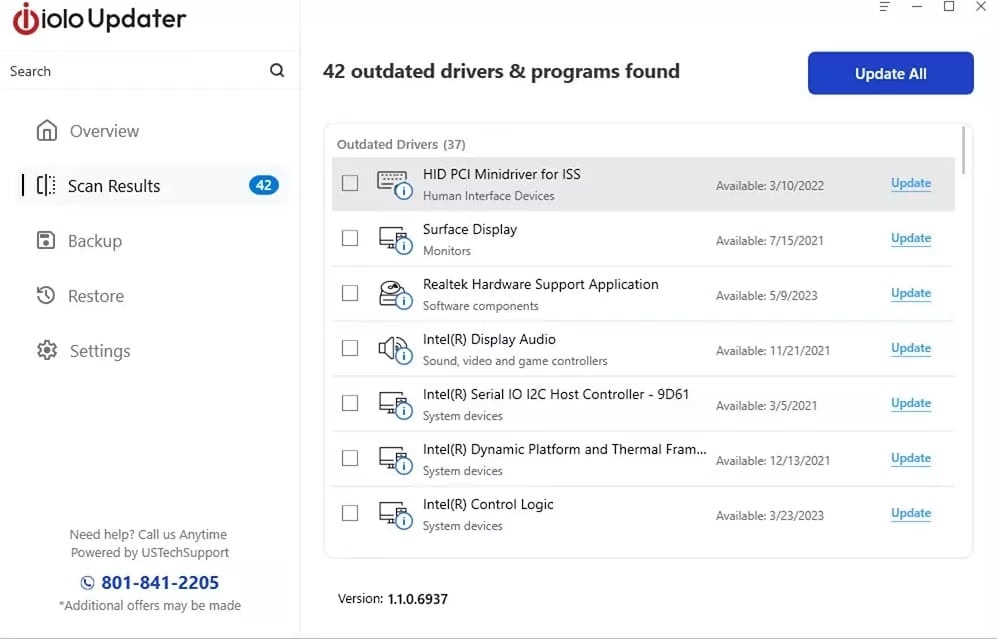
- Restart if prompted, then test your scanner.
This approach saves time, especially if you are not sure about your exact model details. The program presents everything in a clean dashboard. Just remember to download it only from the official source.
After installation, take a quick scan to check quality. You might notice faster previews and fewer connection issues. GetMyDrivers works alongside Epson software without conflicts in most cases.
Additional Tips for Smooth Operation
Once Epson Scan 2 is running, a few small habits make a big difference. Keep Windows fully updated to prevent surprises. Check for scanner firmware updates through Epson tools when available.
Think about your scanning workflow too. Set resolution based on what you need. 300 dpi handles most everyday documents beautifully, while photos often benefit from higher settings. Use PDF for multi-page files and JPEG for quick sharing.
For network scanners, double-check your Wi-Fi connection. USB models work best plugged directly into the computer. Create a dedicated folder for scans so you stay organized from day one.
Stay safe by sticking to trusted download sources and running a quick virus scan on any new files. A quick system restore point before big changes never hurts either.
Conclusion
Getting Epson Scan 2 Software installed does not have to be stressful. Whether you go the official Epson route or use a helper like GetMyDrivers, you now have clear steps to follow. Your scanner should be back in action, turning paper into useful digital files.
Take a moment to scan something meaningful today. Watch how much easier your workflow feels. If any questions come up later, the Epson support site remains a great resource.

Amanda Starc
Amanda is a dedicated technical web content writer with a passion for transforming complex ideas into compelling and accessible online narratives. With a background in web development, and digital Marketing I bring a unique blend of technical expertise and creative storytelling to the digital domain.
