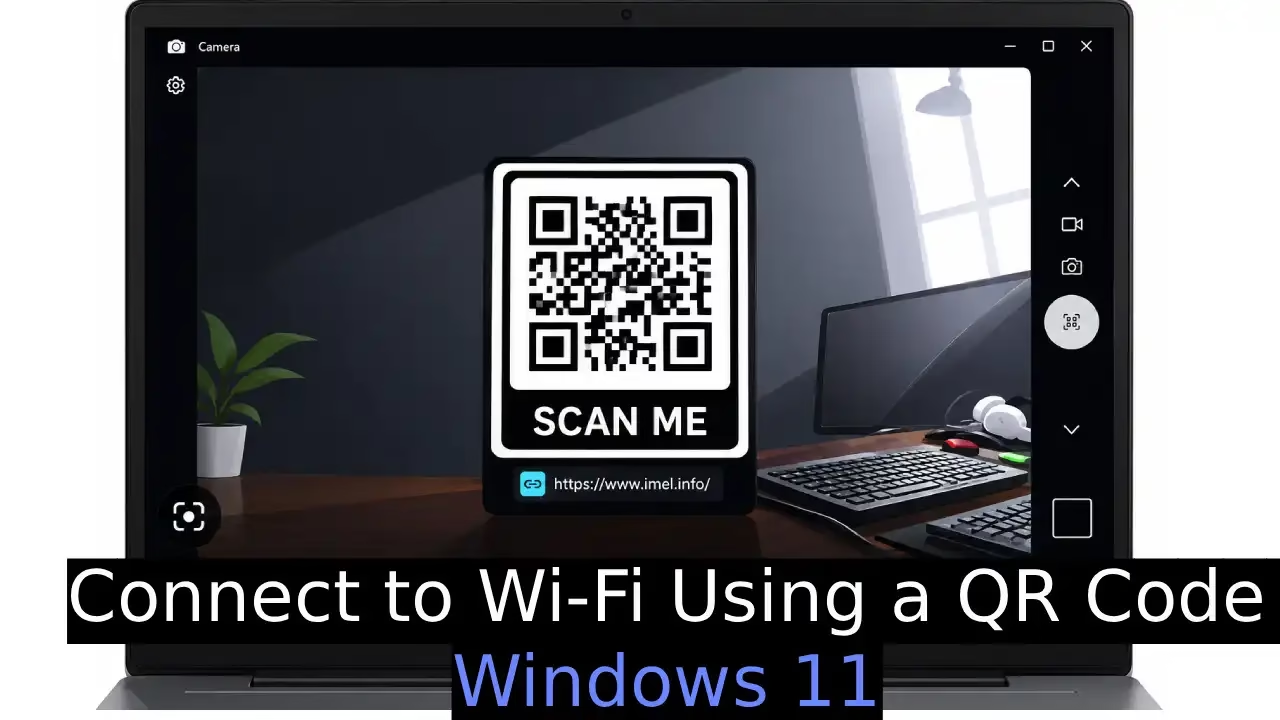
Typing a long Wi-Fi password while juggling your laptop feels like a small daily friction that adds up fast. Guests ask for the network name and key, you recite a string of mixed characters, someone mistypes it, and the whole process starts over. Public places sometimes post a QR code on a counter or screen, yet many Windows users still default to manual entry because they assume their PC cannot handle the scan. Even if your laptop has no built-in Wi-Fi or the adapter has stopped working, a simple USB Wi-Fi dongle can take care of the connection part once the code is scanned.
This guide shows the exact path Microsoft built into Windows 11 so you can join a network by pointing a camera at a QR code. You will see the official Camera app method, how to generate a shareable code from a PC that already knows the password, and practical tips that keep the steps reliable.
Connect to Wi-Fi Using a QR Code in Windows 11
Windows 11 treats a properly formatted Wi-Fi QR code as a quick way to hand over the network name, security type, and password without typing. The standard string inside the code follows the widely adopted format that begins with WIFI: followed by fields for type, SSID, and password. When the Camera app reads that string, it can open Settings and offer to add the network.
You need a working webcam (built-in or external) and the Camera app. Most modern Windows 11 laptops already have both. The feature works whether the QR code comes from a coffee shop sign, a router sticker, another Windows PC, or a phone that generated the code.
Method 1: Scan a Wi-Fi QR Code with the Built-in Camera App
This is the path Microsoft documents for devices that have a camera. It avoids third-party tools and keeps the process inside the operating system. The Camera app switches into barcode mode, reads the code, surfaces a link, and hands the details to Settings so you can confirm the connection.
Here is how to do it step by step:
- Open the Start menu and type Camera. Select the Camera app from the results.
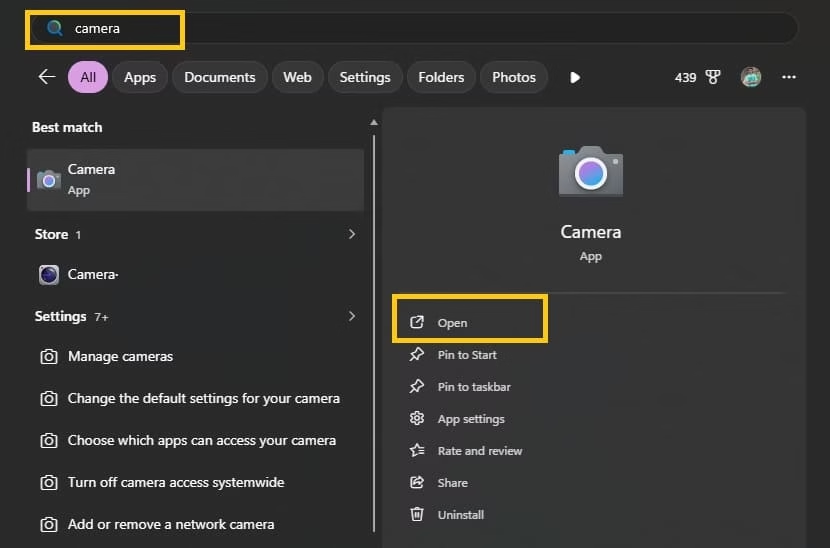
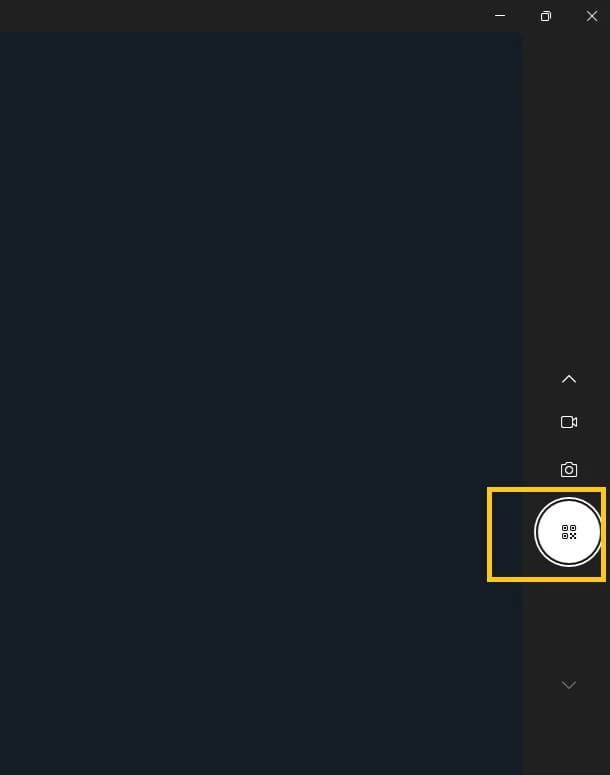
- Look for the barcode mode icon (it usually sits near the photo or video controls). Select it so the app leaves regular photo mode and prepares to read codes.
- Hold or place the QR code so it sits clearly inside the camera view. Steady lighting helps. If the code is on a phone screen, lower the brightness a little to reduce glare.
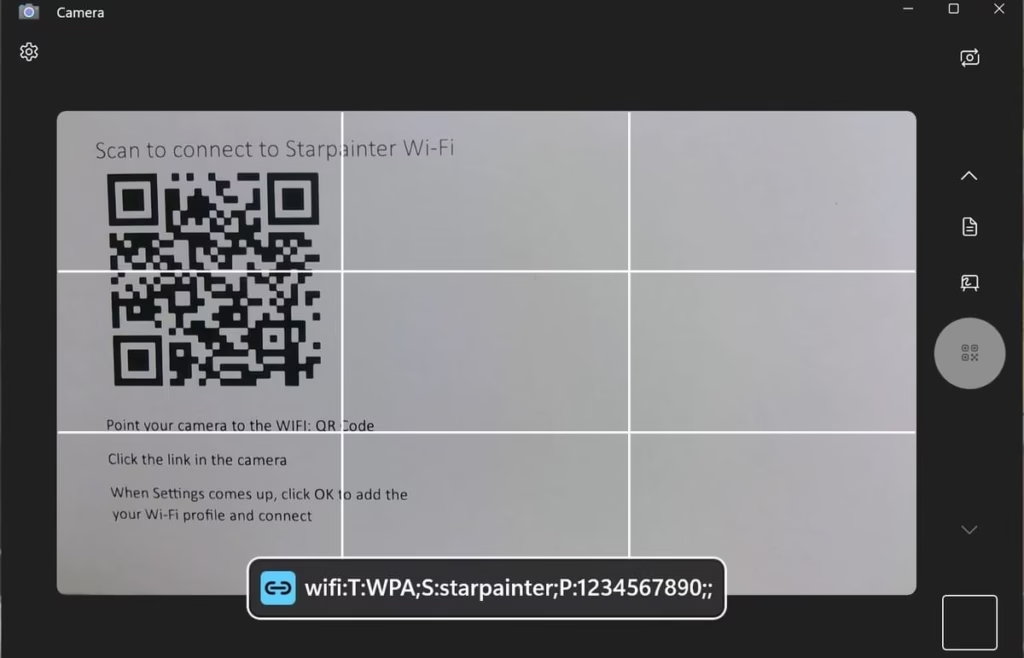
- Wait for the app to recognize the code. A link or prompt appears on screen.
- Select that link. Settings opens with the network details already filled.
- Confirm that you want to add and connect to the network. You can also choose whether the PC should join automatically whenever the network is in range.
- Once you accept, Windows completes the connection. The network appears among your known networks for future use.
If the camera struggles to lock onto the code, try moving closer or farther, cleaning the lens, or switching to an external webcam if one is available. Some users find that displaying the QR code on a second device held steady works better than a printed version under dim light.
Also know: Fixing Ethernet Connection Issues in Windows 11 and 10
Method 2: Generate a Wi-Fi QR Code on One Windows 11 PC and Scan It on Another
Sometimes you already sit on a trusted network and want to bring another Windows device online without speaking the password aloud. Windows 11 version 24H2 and later can display a QR code that contains the current or saved network credentials. You generate the code on the first PC, then scan it with the second PC’s Camera app using the steps above.
The generation process lives inside Settings:
- Press Windows key + I to open Settings.
- Select Network & internet, then choose Wi-Fi.
- Click the name of the network you are currently using, or go to Manage known networks and pick a saved profile.
- Find the section labeled Wi-Fi network password and select Show.
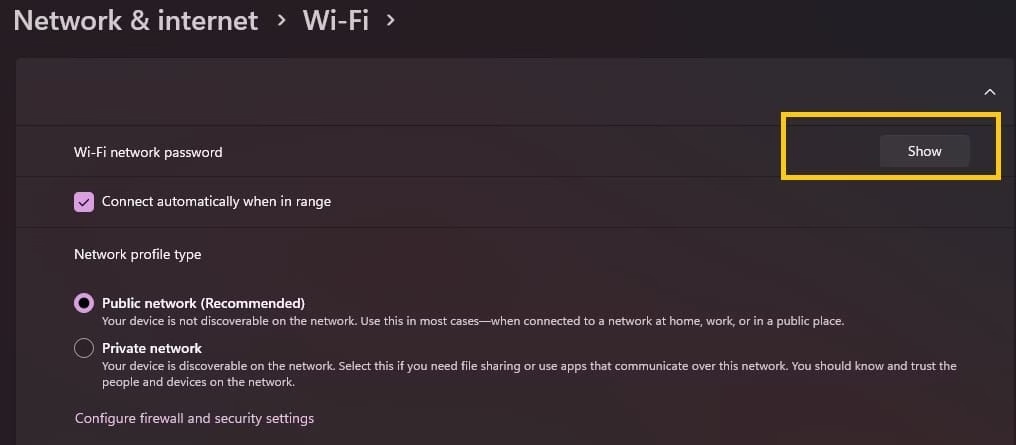
- The password appears along with a QR code that encodes the network name, security type, and key.
On the second Windows 11 device, open Camera, switch to barcode mode, and point at the code displayed on the first screen. Follow the same confirmation steps in Settings. Guests with phones can scan the same code with their native camera apps; most modern iOS and Android devices recognize the standard WIFI: format and offer a one-tap join.
You can take a screenshot of the QR code, print it, or leave it open on a spare monitor so visitors can scan it themselves. Because the code is generated from the credentials Windows already stores, it stays accurate even if you later change nothing on the router.
Method 3: Extract Details Manually When Automatic Connection Does Not Trigger
On some hardware the Camera app reads the code and simply shows the raw text string instead of launching the Settings link. That string still contains everything you need. The format looks roughly like WIFI:T:WPA;S:NetworkName;P:ThePassword;;. You can copy the SSID (the S value) and the password (the P value) and join the network the ordinary way.
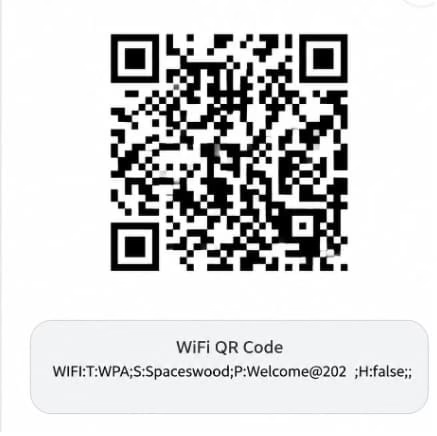
Steps for the manual route:
- After the Camera app displays the decoded text, note or copy the network name and password.
- Click the network icon on the taskbar to open Quick Settings.
- Select the arrow next to Wi-Fi, then choose the matching network name from the list.
- Enter the password you extracted and connect.
- Optionally check the box to connect automatically in the future.
This fallback keeps you from getting stuck when the automatic hand-off does not appear. It also works if you scan the code with a phone first, read the details there, and type them into the Windows PC.
Method 4: Scan Qr Using Snipping Tool for Without Webcam Meth
Sometimes the QR code is already on your screen as an image, a screenshot, or a photo you took earlier. You do not always need the live Camera app. Windows 11’s Snipping Tool can read the code directly from that picture and show you the network details.
This method works well when the code is on another device’s screen, inside a PDF, or saved as a photo on your PC. It is especially handy if your webcam is busy, missing, or struggling with lighting.
Here is how to do it:
- Open the image or screenshot that contains the Wi-Fi QR code. Make sure the full code is visible and clear.
- Press Windows key + Shift + S to open Snipping Tool, or search for Snipping Tool in the Start menu and launch it.
- Select the Rectangular Snip option and carefully draw a box around the entire QR code.
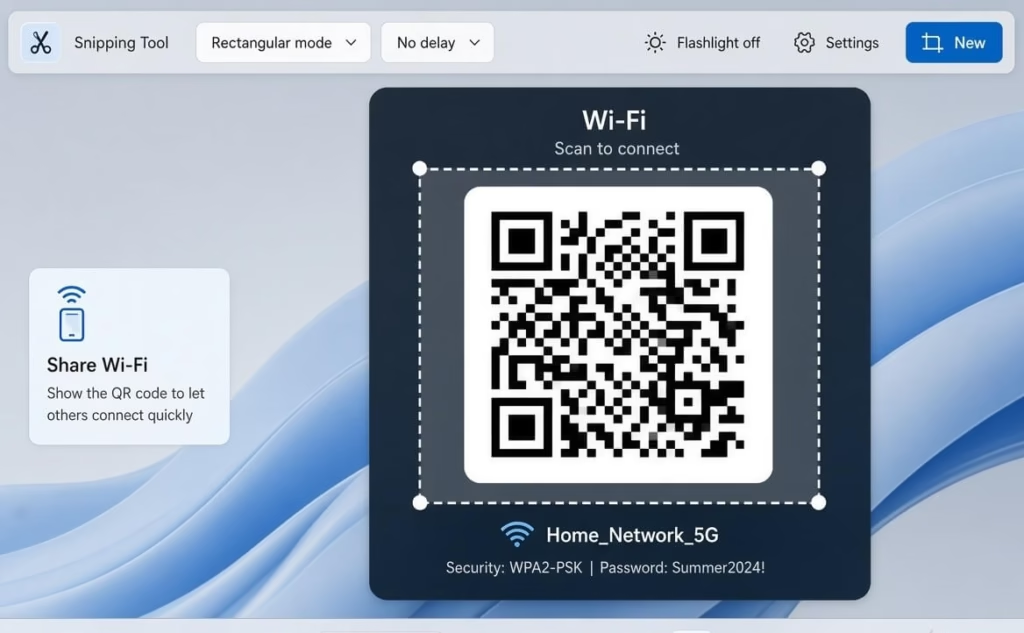
- After the snip is captured, look at the notification or the Snipping Tool window. On recent Windows 11 versions the tool often detects the QR code automatically and shows the decoded text.
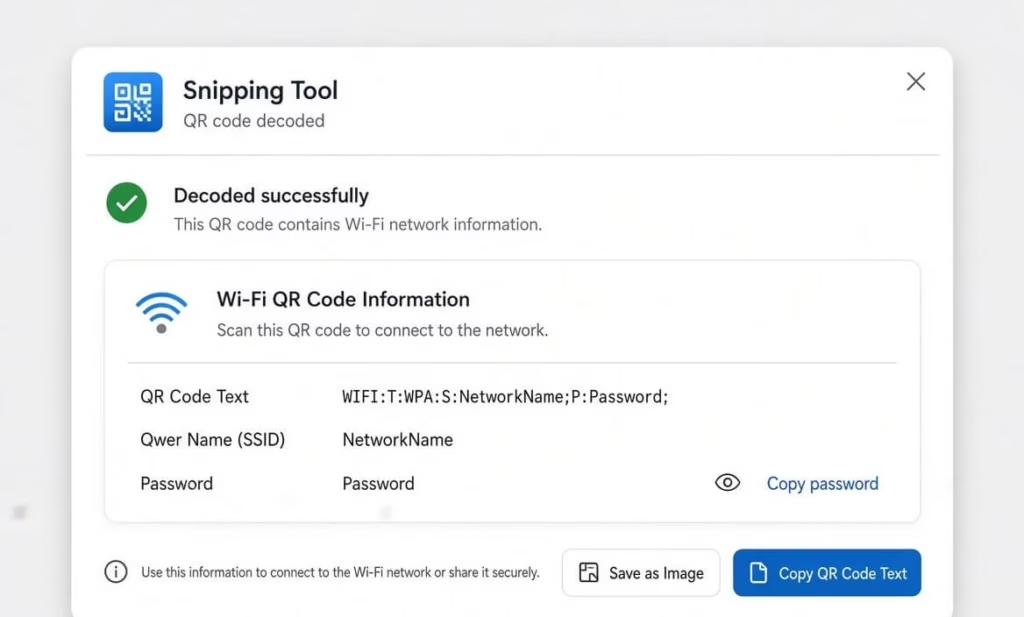
- The text will look something like WIFI:T:WPA;S:NetworkName;P:Password;;. Copy the network name (after S:) and the password (after P:).
- Click the network icon on your taskbar, choose the matching network, and paste the password to connect.
Í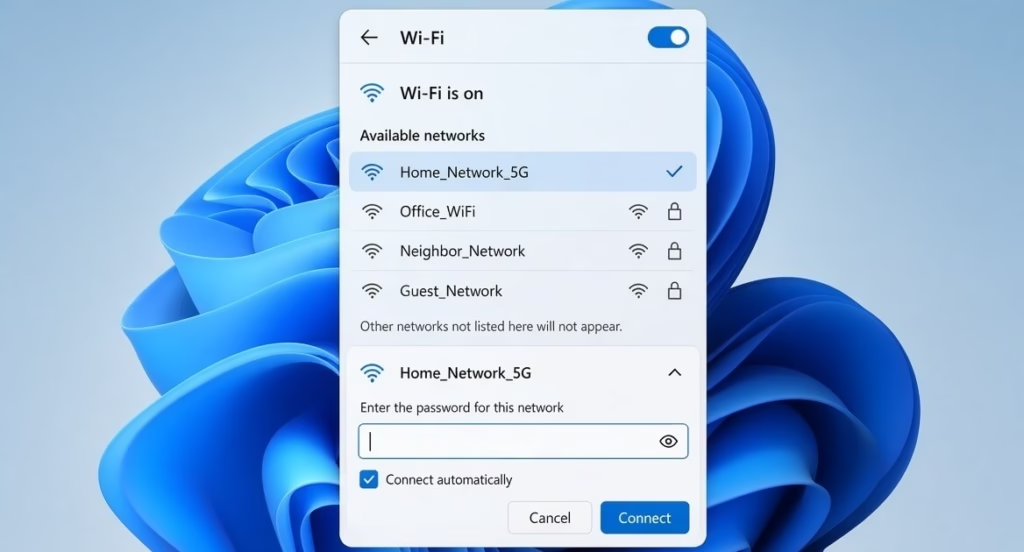
If the automatic detection does not appear, you can still save the snip and open it in any simple online QR reader or the Camera app’s barcode mode by pointing at the saved image on a second screen. This keeps the process fully inside Windows tools and gives you a reliable backup when the live camera route is not convenient.
Practical Tips That Improve Success Rate
Keep the QR code sharp and well lit. Blurry prints or high-glare screens cause the most failed scans. Update the Camera app through the Microsoft Store if barcode mode seems missing or unresponsive. Confirm that your Windows 11 installation is reasonably current; the polished QR sharing experience arrived with the 24H2 feature set. When sharing a home network with guests, consider creating a separate guest SSID on your router so the main password stays private. The QR code then points only at the guest network.
Security remains straightforward. The code carries the password in readable form inside the QR payload, so treat printed versions the same way you would treat a sticky note with the password. Place them where only intended people can scan them, and change the guest password periodically if the code sits in a public area for long periods.
Also know: Configure VPN and Advanced Sharing Settings in Windows 11
Troubleshooting: Connect to Wi-Fi Using a QR Code on Windows 11
Even with the built-in tools, a few common snags can stop the scan or the connection. Here are the practical fixes that solve most problems, drawn from Microsoft’s guidance and real-world behavior on Windows 11.
Camera App Does Not Detect the QR Code
Lighting and positioning cause the majority of failed scans. Move the code into brighter, even light and keep it flat. Clean the webcam lens with a soft cloth. Hold the code steady at a comfortable distance (usually 20–40 cm) so the entire square fills the view without glare. If the code is on a phone screen, lower the brightness a notch.
Confirm you are in barcode mode. Open the Camera app, look for the barcode or QR icon on the right side, and select it. If the icon is missing, open the gear icon inside the Camera app, expand Related settings, and turn on “Try out new experimental features.” Close and reopen the app. Updating the Camera app from the Microsoft Store often restores the option.
QR Code Generation (Show Button) Is Missing
This feature appears on Windows 11 version 24H2 and later. Check your version under Settings > System > About. If you are on an earlier release, go to Windows Update and install available updates. The PC must have previously connected to the network for the profile (and its QR code) to exist. You do not need to be connected at the moment you generate the code, but the network must be in the known list.
Conclusion
Connecting to Wi-Fi with a QR code on Windows 11 removes the friction of typing long keys and reduces the chance of mistakes when helping others join. The Camera app path is the most direct method Microsoft provides, while the ability to generate a shareable code from Settings makes the feature useful both for joining and for inviting other devices. When the automatic prompt does not appear, extracting the SSID and password from the decoded text still gets you online in a minute or two.
These steps rely on features already present in recent Windows 11 releases and on the standard Wi-Fi QR format that phones and cameras understand. Once you try the process a couple of times, scanning becomes faster than dictating a password. Keep a printed or digital copy of your home network code in a convenient spot, and the next time someone asks for Wi-Fi you can simply point them at the square.
FAQs
Q1. Can every Windows 11 PC scan a Wi-Fi QR code?
Most devices with a working webcam and the Camera app can use barcode mode. Older hardware or missing camera drivers may limit the feature. An external USB webcam often solves the problem.
Q2. Does the QR code work only for WPA networks?
The common format supports WPA (covering modern WPA2 and WPA3 networks), WEP, and open networks. Windows and most phones handle the standard WIFI: string correctly when the fields are filled properly.
Q3. What if the Camera app shows the text but does not open Settings?
Copy the network name and password from the displayed string, then join the network manually through Quick Settings or the full Settings app. The credentials remain valid even when the automatic link does not appear.

