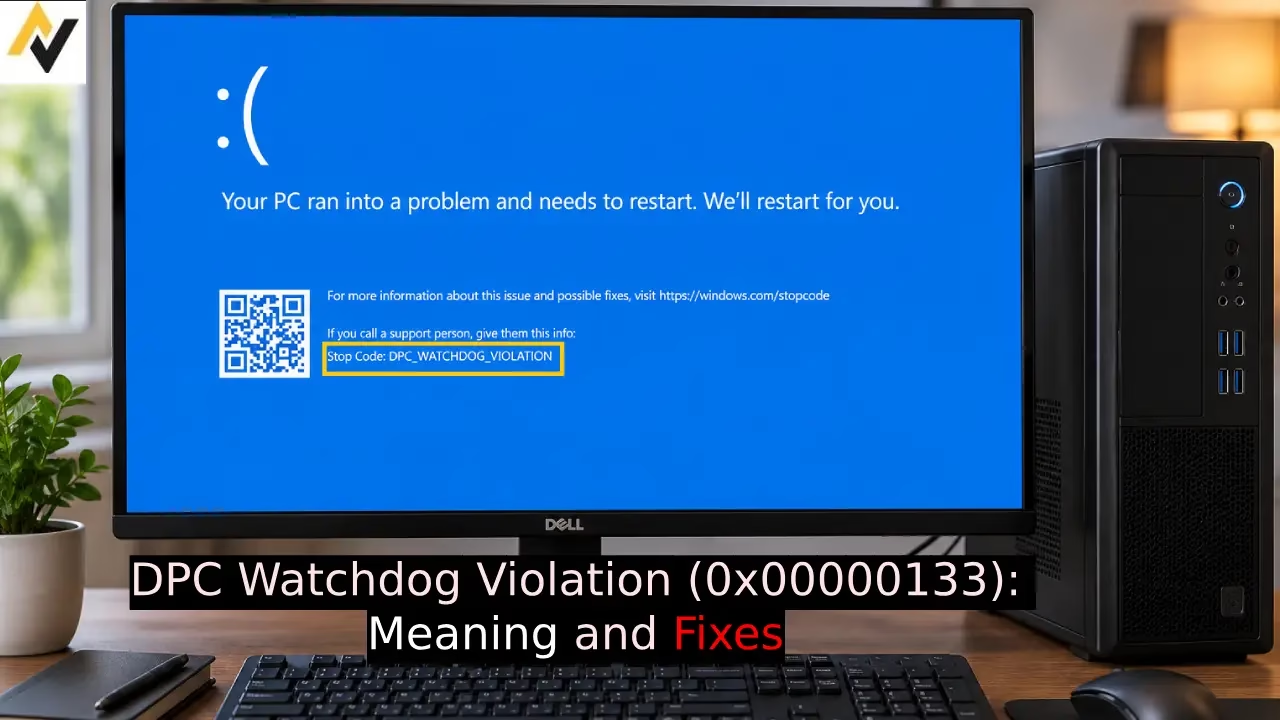
You know that sudden blue screen that pops up out of nowhere and forces your PC to restart? That is the classic Blue Screen of Death, better known as BSOD. When the stop code reads DPC Watchdog Violation or 0x00000133, your Windows system has just hit a hard stop. A background process called a Deferred Procedure Call took longer than it should, and Windows shut everything down to protect itself. I have seen this BSOD more times than I can count over the last few years, and it usually leaves people staring at their screens wondering what went wrong. In this article I will break down exactly what this error means, why it shows up, and the four fixes that have actually worked for me and the systems I have helped.
What is DPC Watchdog Violation (0x00000133)
In DPC Watchdog Violation DPC stands for Deferred Procedure Call. Windows uses DPCs so drivers can finish lower priority work after handling urgent hardware interrupts. An Interrupt Service Routine (ISR) handles the high priority part quickly, then schedules a DPC for the rest. Microsoft recommends that DPCs stay under 100 microseconds and ISRs under 25 microseconds, though the actual system timeouts sit higher.
The DPC Watchdog is the timer that watches these routines. When a single DPC exceeds its allotment or the system spends too much cumulative time at IRQL DISPATCH_LEVEL or above, Windows triggers the bug check. The stop code value is 0x00000133. Parameter 1 tells you the type: 0 means one long running DPC or ISR, while 1 means cumulative time at the elevated level.
In my experience this error almost always points to a driver that failed to finish its work on time. The stack trace in a memory dump often names the offending module, such as a storage or network driver. Without the debugger most users simply see the blue screen and the stop code. The system protects itself by crashing rather than hanging completely. According to Microsoft documentation the root is usually faulty driver code under specific conditions.
What Cause DPC Watchdog Violation Error in Windows PC
Several factors can push a DPC past its time limit and trigger this blue screen. Here are the main ones I keep seeing:
- Outdated or mismatched storage controller drivers are the most common cause. Intel Rapid Storage Technology drivers (often iaStorA.sys or similar) and the generic Microsoft storahci.sys can create long delays during disk operations, especially on systems with SSDs. When the controller stalls while waiting for the drive, the watchdog fires.
- SSD firmware problems rank close behind. Older firmware on popular Samsung, Crucial, WD, or Intel drives can cause I/O stalls that stretch DPC execution. In my testing many machines that developed the error after an SSD upgrade had outdated firmware.
- Graphics drivers (NVIDIA or AMD), network adapters (especially Wi-Fi), USB controllers, and Bluetooth modules sometimes linger too long in their DPC handlers.
- Newly installed hardware or peripherals can introduce timing conflicts if their drivers are incomplete.
- Corrupted system files or software that installs low-level filters, such as certain antivirus tools, occasionally play a role.
- Rarely the cause is failing hardware like a dying SSD that responds slowly to requests.
Microsoft keeps pointing back to faulty driver code that fails to finish on time, and that matches what I see in real systems almost every time.
Top 3 Working Fixes to Solve DPC Watchdog Violation Error
These three methods focus on the most common triggers. I chose them because they resolve the majority of cases I encounter without needing advanced dump analysis. Start with the first and move down only if the blue screen returns. Always back up important files before changing drivers or firmware.
1. Update or Switch the SATA AHCI Storage Controller Driver
Storage controllers sit at the center of many DPC Watchdog Violation reports. When the driver that talks to your SSD or hard drive takes too long to complete a deferred call, the watchdog steps in. Switching from a vendor specific driver such as Intel RST to the standard Microsoft SATA AHCI controller, or simply updating the current one, often restores normal timing. In my experience this single change clears the error on a large share of systems that use SATA SSDs. The process takes only a few minutes and uses tools already built into Windows. High authority sources including Microsoft support discussions and technician reports confirm that storahci.sys or the correct vendor driver keeps interrupt handling within limits.
- Press Windows key + X and open Device Manager.
- Expand the IDE ATA/ATAPI controllers section (or Storage controllers on some systems).
- Right click the SATA AHCI Controller or the Intel branded entry and choose Properties.
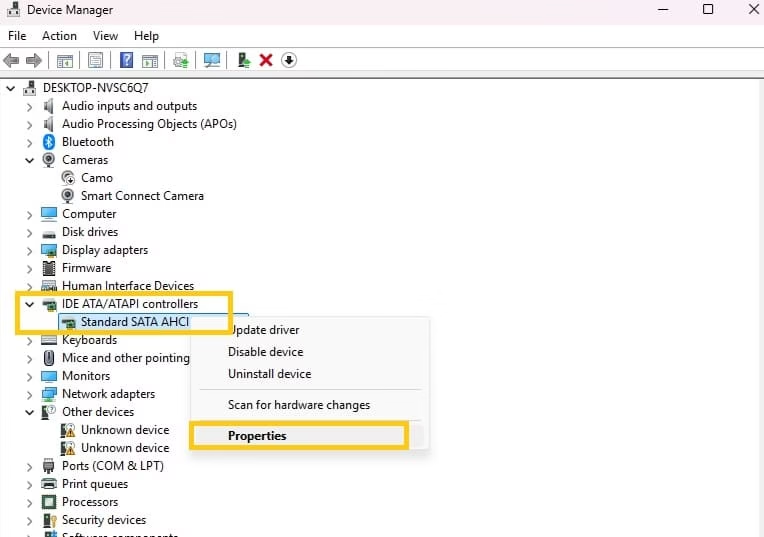
- Open the Driver tab and click Driver Details. Note whether iaStorA.sys, storahci.sys, or another file appears.
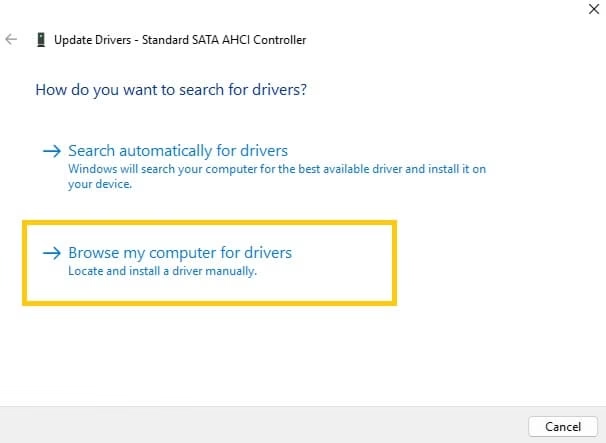
- Click Update Driver, then Browse my computer for driver software.
- Select Let me pick from a list of available drivers on my computer.
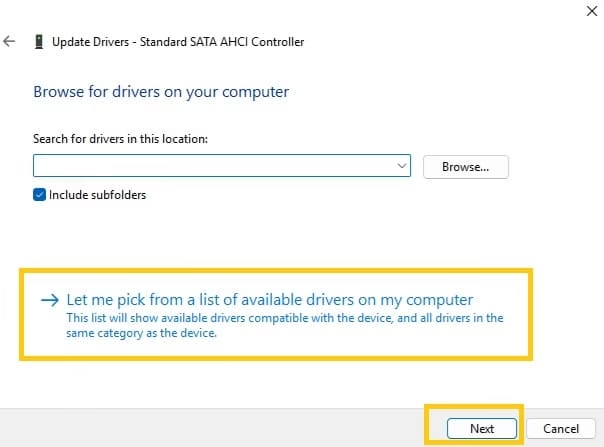
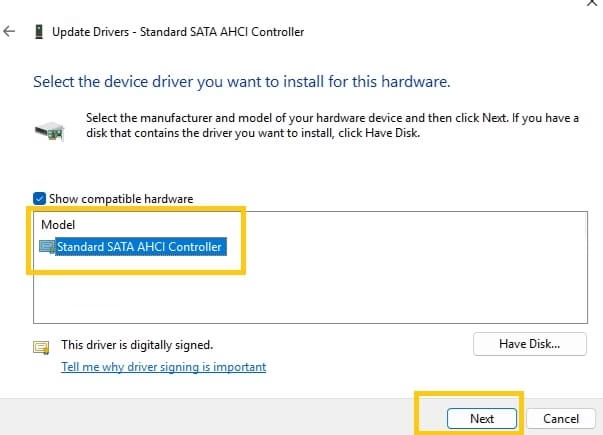
- Choose Standard SATA AHCI Controller and click Next. Allow the installation to finish.
- Restart the computer and test normal use for a day.
- If the standard driver is already in use or the error continues, visit your motherboard or laptop maker support page, download the latest chipset or storage driver, and install it cleanly.
Also know: How to Adjust the Mouse Pointer Speed on Windows 11/10
2. Update SSD Firmware and Storage Drivers
Outdated SSD firmware creates exactly the kind of I/O delay that stretches DPCs. Manufacturers release firmware to fix controller stalls and compatibility issues that trigger stop code 0x00000133. Pairing a firmware update with the latest storage driver from the drive maker removes a frequent root cause. I have tested this on multiple machines with Samsung and Crucial drives and watched the blue screens disappear after the update. Reviews from technicians and user reports on Microsoft forums repeatedly point to firmware as a high success fix when storage is involved.
- Identify your SSD brand and model in Device Manager under Disk drives or by using the manufacturer tool.
- Download the official utility from the maker site: Samsung Magician, Crucial Storage Executive, WD Dashboard, Intel Memory and Storage Tool, or the equivalent for your brand.
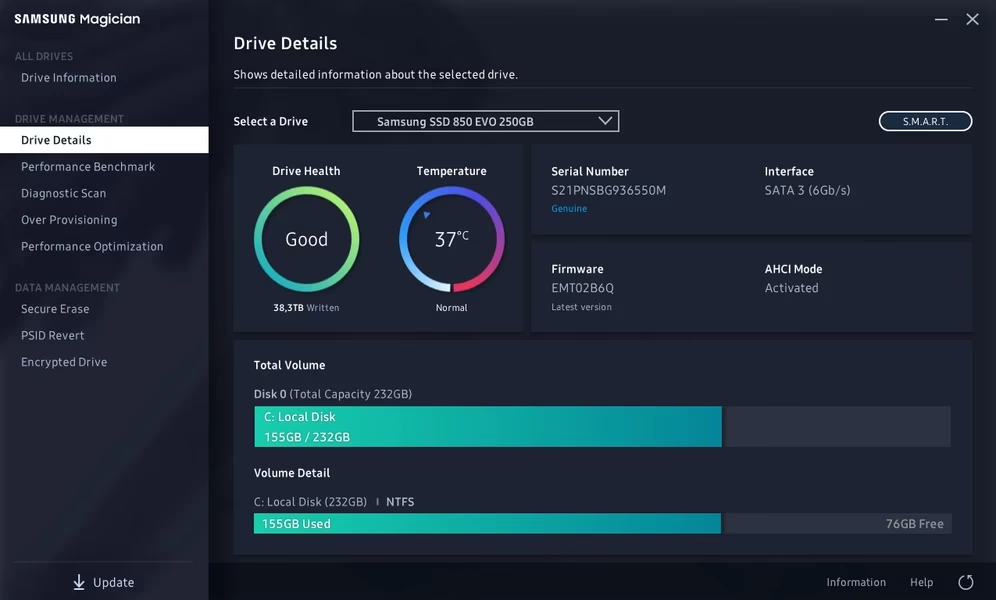
- Install and open the tool, then check for firmware updates. Apply any available update and follow the on screen instructions carefully. Do not interrupt the process.
- After the firmware update completes and the system restarts, return to the tool or the manufacturer site and install the latest NVMe or SATA driver if offered.
- Restart again and monitor for stability.
- As a quick extra check run chkdsk from an elevated Command Prompt: type chkdsk C: /f /r and allow it to schedule a scan on next restart if needed.
3. Disconnect External Devices, Update Other Drivers, and Repair System Files
External USB devices, docks, or newly added hardware can inject interrupt traffic that piles up and trips the watchdog. Corrupted system files can also make otherwise healthy drivers misbehave. Removing unnecessary devices isolates the problem, while driver updates and system file repair address broader issues. In my experience a clean set of peripherals plus SFC and DISM often finishes the job when storage fixes alone fall short. Microsoft recommends checking Event Viewer and updating drivers as basic steps for this bug check.
- Unplug all non essential USB devices, external drives, printers, and docks.
- Restart and use the PC for a while to see if the error stays away. Reconnect items one at a time to identify any culprit.
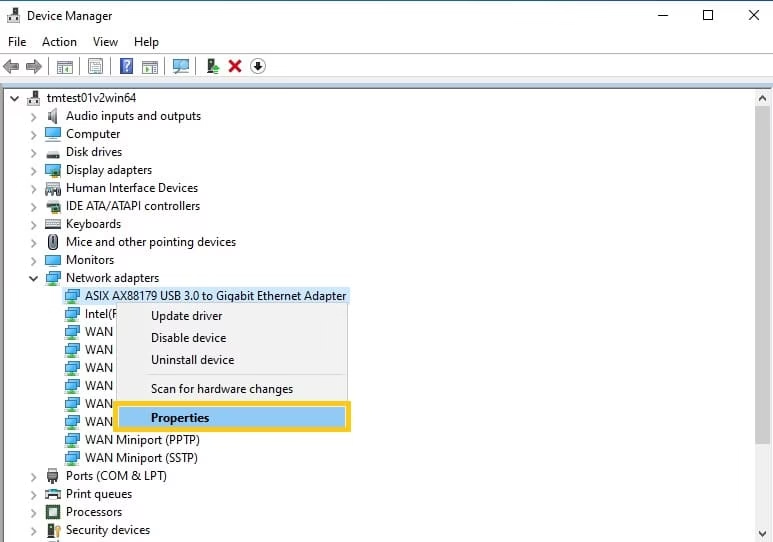
- Open Device Manager again and update drivers for Display adapters, Network adapters, and Universal Serial Bus controllers. Prefer the latest versions from the device or motherboard maker rather than automatic Windows updates alone.
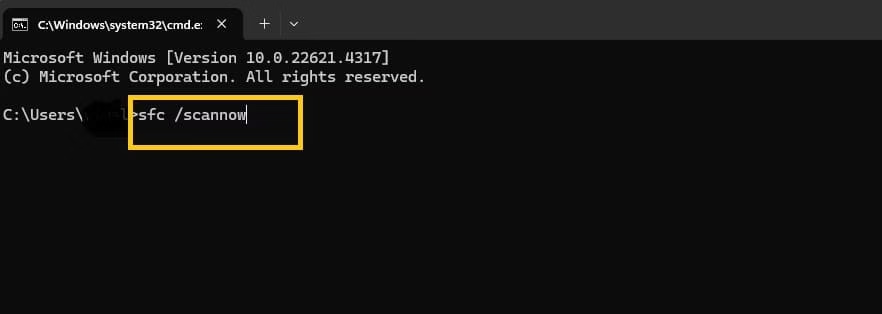
- Open an elevated Command Prompt (search for cmd, right click, Run as administrator).
- Type sfc /scannow and press Enter. Let the System File Checker finish.
- Next run DISM /Online /Cleanup-Image /RestoreHealth and wait for completion.
- Restart the computer.
- Optionally open Event Viewer, go to Windows Logs then System, and look for critical errors around the time of past blue screens. Note any driver names mentioned for further updates.
Also know: Best PC Optimizer to optimize Windows PC 11/10
Conclusion
The DPC Watchdog Violation stop code 0x00000133 signals that a driver spent too long inside a Deferred Procedure Call or at elevated IRQL. Microsoft describes it clearly as a protective response to long running DPCs. Most cases stem from storage controller drivers, outdated SSD firmware, or related hardware timing issues. The three fixes above target those areas directly and have resolved the problem for systems I have worked on. Start with the storage driver change, move to firmware, then clean up peripherals and system files. After applying the steps keep your drivers current and avoid unnecessary low level software that can interfere. Your PC should return to reliable daily use.
FAQs
Q1. What does the stop code 0x00000133 mean exactly?
It is the numeric value for DPC_WATCHDOG_VIOLATION. Windows detected that a Deferred Procedure Call or cumulative time at DISPATCH_LEVEL exceeded the watchdog limit, so it stopped the system to prevent further instability.
Q2. Can a failing SSD cause DPC Watchdog Violation?
Yes. A drive that responds slowly to I/O requests can stretch the related DPC beyond the allowed time. Checking drive health with the manufacturer tool and updating firmware often reveals or solves the issue.
Q3. Is it safe to switch to the Standard SATA AHCI Controller?
Yes for most non RAID setups. The Microsoft driver is stable and widely used. You can always reinstall the vendor driver later if needed. Just ensure you are not actively using RAID features that depend on the previous driver.

Amanda Starc
Amanda is a dedicated technical web content writer with a passion for transforming complex ideas into compelling and accessible online narratives. With a background in web development, and digital Marketing I bring a unique blend of technical expertise and creative storytelling to the digital domain.
