Few things kill productivity or ruin gameplay like sudden lag spikes. If you searched for How to Fix Lag on Pc, you are likely tired of frozen screens, delayed mouse movements, or choppy frame rates disrupting your flow. Lag appears in many forms. It might strike during video calls, heavy multitasking, or demanding game moments.
This comprehensive guide breaks down effective solutions tailored to different situations. We cover quick wins as well as deeper optimizations that deliver lasting improvements. Follow the steps carefully. Most require no advanced skills. Your PC can feel responsive again with the right adjustments.
How to Fix Lag on Pc in Different Scenarios
Lag manifests differently depending on your activity. A strategy that helps during office work may differ from one needed for gaming. We explore common scenarios with proven techniques. Each section includes background context so you understand the why behind every recommendation.
Take time to identify your main pain points first. Then apply relevant fixes. Combine several methods for the best outcome.
1. Optimizing Performance During Everyday Work Tasks
Office work often involves multiple browser tabs, documents, and background apps. Resource hogs quietly drain your system here.
Start by streamlining your workflow environment. These changes reduce CPU and memory pressure effectively.
- Close unnecessary programs and browser tabs before starting focused work.
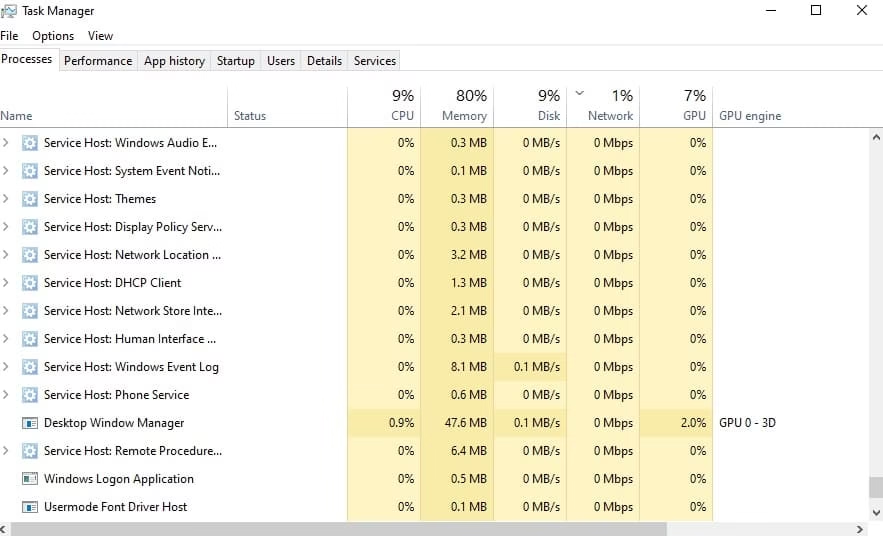
- Use Task Manager to identify and end high-resource processes. Press Ctrl Shift Esc to open it quickly.
- Switch to lighter alternatives like Microsoft Edge in efficiency mode for browsing.
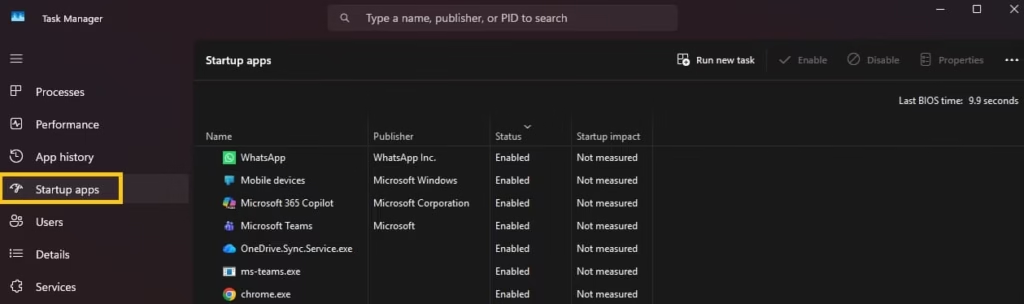
- Disable startup programs that launch automatically.
- Search for Startup Apps in Windows settings.
- Keep your desktop clean and avoid storing too many files directly on it.
- Schedule large downloads or updates outside work hours to maintain consistent speed.
These habits prevent background clutter from stealing resources. Many professionals notice immediate smoothness after implementing them.
Regularly review your running applications. Over time, this awareness becomes second nature and keeps lag at bay during important meetings or deadlines.
2. Resolving Lag in Gaming Sessions
Gaming pushes hardware harder than most activities. Shader compilation, high resolutions, and background processes create unique challenges.
Targeted graphics and system tweaks make a noticeable difference in frame rates and responsiveness.
- Update your graphics drivers from the official manufacturer site. Outdated drivers often cause stuttering.
- Lower in-game settings such as shadow quality or anti-aliasing if your hardware struggles.
- Enable Game Mode in Windows settings and turn on Hardware-accelerated GPU scheduling.

- Close all non-essential applications before launching a game.
- Use full-screen mode instead of borderless window whenever possible.
- Monitor temperatures with tools like HWMonitor to prevent thermal throttling.
Gamers frequently benefit from capping frame rates slightly below their monitor’s maximum. This reduces unnecessary load and creates more stable performance.
Experiment in each game individually. What works for one title may need adjustment in another due to different engine demands.
Also know: Customize Notifications and Quick Settings Windows 11
3. Fixing Lag During Multitasking and Streaming
Running a game while streaming or juggling several demanding apps amplifies lag. Balanced resource allocation becomes crucial here.
Prioritize critical tasks and limit simultaneous heavy loads.
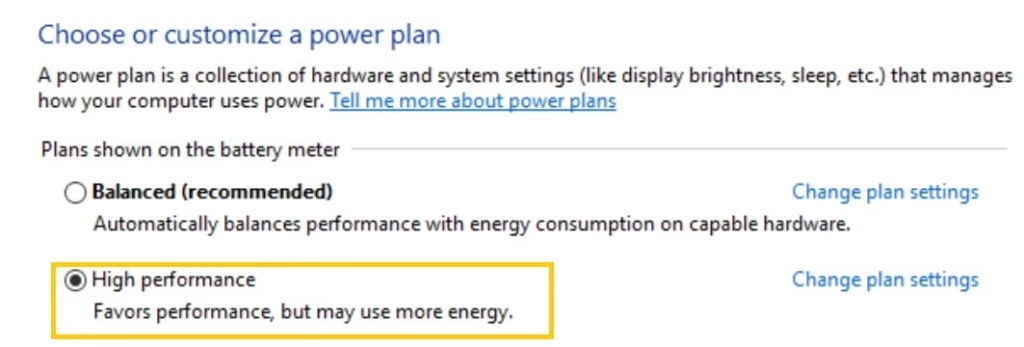
- Use Windows Power Options and set your plan to High Performance.
- Allocate more RAM to specific applications through their settings when available.
- Employ browser extensions that suspend inactive tabs automatically.
- Consider a second monitor for chat or monitoring tools instead of overlaying everything.
- Limit streaming quality or use hardware encoding if your GPU supports it.
- Check network stability since streaming relies heavily on consistent bandwidth.
Users who stream often discover that separating tasks across devices reduces strain significantly. Even simple changes like wired connections instead of Wi-Fi help dramatically.
4. Addressing Lag Caused by Overheating and Hardware Issues
Heat remains a silent performance killer. When components throttle to cool down, lag follows quickly.
Maintain good thermal conditions for sustained speed.
- Clean dust from vents, fans, and heatsinks every few months using compressed air.
- Repaste your CPU and GPU if your PC is several years old.
- Ensure proper airflow by elevating laptops or organizing desktop cables.
- Use cooling pads for laptops during extended sessions.
- Monitor temperatures and adjust fan curves through manufacturer software.
- Avoid blocking air intakes with blankets or cluttered desks.
Proper cooling often restores full performance without any software changes. It also extends the lifespan of your components.
Also know: How to Get Help with File Explorer in Windows 11
5. Improving System-Wide Responsiveness
Some lag stems from accumulated clutter across the entire operating system. Broader optimizations address root causes.
Focus on these foundational improvements for all scenarios.
- Run Disk Cleanup and Storage Sense to remove temporary files regularly.

- Defragment mechanical hard drives or optimize SSDs through built-in tools.
- Scan for malware using Windows Security or reputable third-party software.
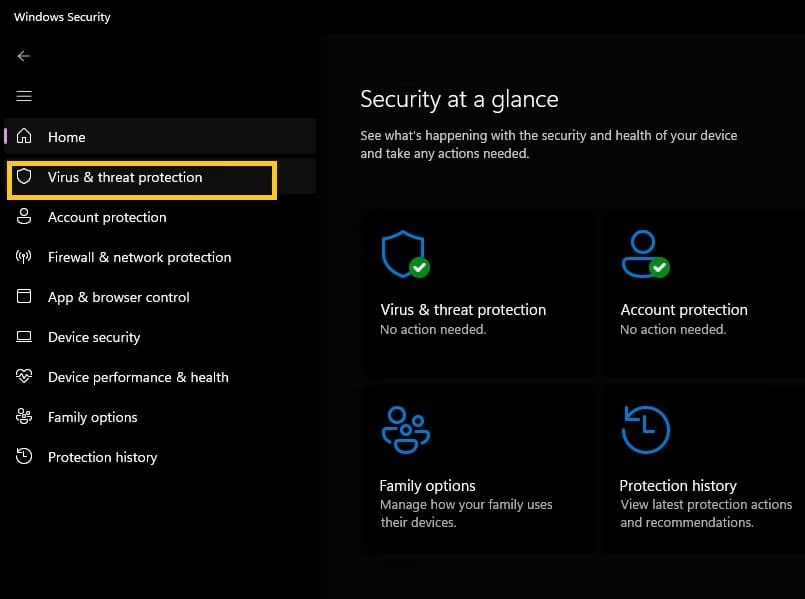
- Update Windows and all drivers through official channels.
- Increase virtual memory if you frequently run low on RAM.
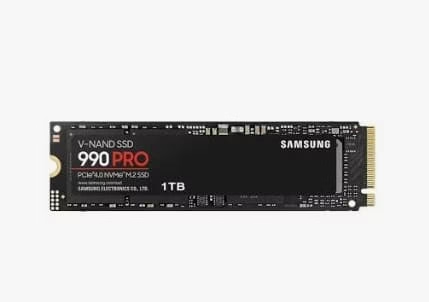
- Consider upgrading to an SSD if you still use a traditional hard drive.
These maintenance routines keep your PC feeling fresh longer. Perform them monthly to avoid gradual slowdowns.
6. Network-Related Lag Fixes for Online Activities
Online work and multiplayer gaming suffer when internet connections falter. Latency issues create input delays that feel like general lag.
Strengthen your network setup for reliable performance.
- Switch to a wired Ethernet connection instead of Wi-Fi when possible.
- Restart your router and modem periodically.
- Use Quality of Service settings in your router to prioritize gaming or work devices.
- Change DNS servers to faster public options like Google or Cloudflare.
- Close bandwidth-heavy applications during important sessions.
- Test your connection speed and contact your ISP if consistent problems appear.
Stable networks eliminate one major variable in the lag equation. Many users overlook this area until frustration builds.
7. Advanced Tweaks for Persistent Lag Problems
When basic steps fall short, deeper adjustments provide extra headroom.
Apply these carefully and create restore points first.
- Adjust visual effects in System Properties to Best performance.
- Disable unnecessary animations and transparency effects.
- Use Command Prompt to run SFC and DISM scans for system file integrity.
- Reset network settings if connectivity lag continues.
- Consider clean boot troubleshooting to identify conflicting software.
- Evaluate hardware upgrades such as additional RAM or a faster storage drive.
These techniques suit users comfortable with system modifications. They often resolve stubborn cases that resist simpler fixes.
Also know: Finding Your App-Wise Data Usage in Windows 11 & 10
Conclusion
Lag on your PC does not have to remain a constant annoyance. By addressing specific scenarios from daily work to intense gaming, you gain control over performance. The methods in this guide range from quick adjustments to thorough optimizations. Many require only minutes yet deliver hours of smoother operation.
Stay proactive with updates, cleaning, and cooling habits. Your machine will thank you with reliable responsiveness. At Avsoftlab we focus on real-world solutions that empower everyday users. Test these approaches and reclaim fluid computing experiences today. Share your favorite fix or remaining challenges in the comments.
FAQs
Q1: Why does my PC lag suddenly even with good hardware?
Background processes, outdated drivers, overheating, or cluttered storage often cause unexpected slowdowns despite solid specs.
Q2: Will upgrading RAM always fix lag?
It helps significantly with multitasking and gaming but may not solve issues rooted in drivers, heat, or storage speed.
Q3: How often should I clean my PC to prevent lag?
Physical dust cleaning every three to six months combined with monthly software maintenance works well for most systems.
Q4: Can background apps cause lag during gaming?
Absolutely. Antivirus scans, updates, or browser tabs compete for resources and create noticeable frame drops.
Q5: Is it better to use High Performance power mode all the time?
It reduces lag effectively but increases power consumption and heat. Use it mainly during demanding tasks.
Q6: What is the quickest way to reduce lag right now?
Close extra programs, restart your PC, and update graphics drivers. These steps resolve many immediate issues.
Q7: Does Windows 11 have more lag problems than older versions?
Some users report higher resource usage, but proper optimization and updates usually bring performance in line with expectations.

Amanda Starc
Amanda is a dedicated technical web content writer with a passion for transforming complex ideas into compelling and accessible online narratives. With a background in web development, and digital Marketing I bring a unique blend of technical expertise and creative storytelling to the digital domain.
