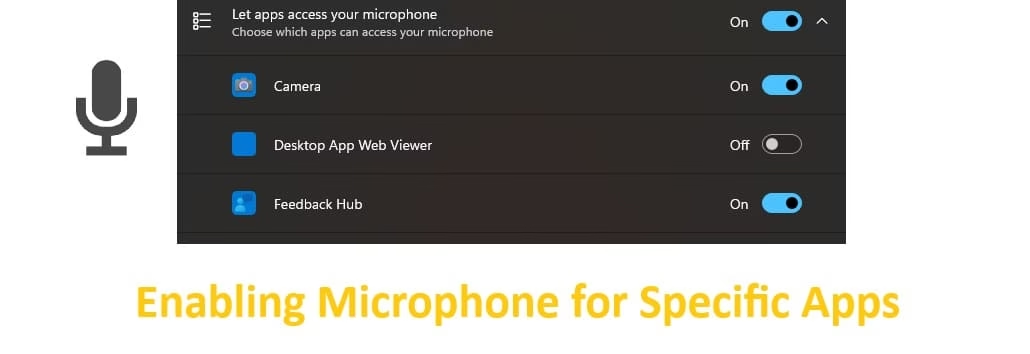
In today’s connected world, your microphone is essential for video calls on Zoom, gaming with friends on Discord, recording voiceovers, or using voice assistants. Yet, many Windows users face frustration when an app can’t access the mic—either due to privacy blocks or unrecognized hardware. This guide explains exactly how enabling microphone for specific apps works in Windows 11 (and Windows 10), so you can grant or revoke access confidently and securely.
We’ll cover compatible microphone types, the best privacy and sound settings, and clear step-by-step instructions to fix common issues. Whether you’re troubleshooting a silent mic in Teams or want to limit access for privacy, these practical tips will get you sorted quickly. No tech jargon overload—just straightforward, actionable advice tailored for everyday Windows users in the USA.
By the end, you’ll master Windows microphone controls, ensuring your apps work smoothly while keeping your privacy intact.
What Kind of Microphones Works with Your Windows System
Windows offers excellent compatibility with a wide range of microphones, making it versatile for different needs.
Built-in Microphones: Most laptops come with an integrated mic. These are convenient for quick calls and work right out of the box with Windows drivers. They’re usually sufficient for everyday video conferencing but can pick up more background noise.
Wired USB Microphones: Highly popular and plug-and-play. Simply connect them, and Windows typically recognizes them instantly. Great for podcasts, streaming, or clearer audio in professional calls. Examples include condenser USB mics from brands like HyperX or FIFINE.
Bluetooth Microphones and Headsets: Wireless freedom is a big plus. Pair your Bluetooth headset or standalone mic via Windows Bluetooth settings. They work well for mobility but may need occasional reconnection or driver updates for optimal performance.
XLR Microphones (with Audio Interface): For advanced users like content creators, these professional mics deliver studio-quality sound. You’ll need a USB audio interface to connect them to your PC. Windows supports them reliably once set up.
Other Options: 3.5mm analog mics (via headset jacks) or lavalier mics also function well. Always ensure your Windows is updated for the best driver support.
Best Settings to Set & Enable Microphone for Specific Apps
Windows handles microphone access through centralized Privacy & security settings. This gives you fine-grained control—perfect for security-conscious users who want Zoom to have access but not random apps.
Enable Overall Microphone Access
- Open Settings (press Windows key + I).
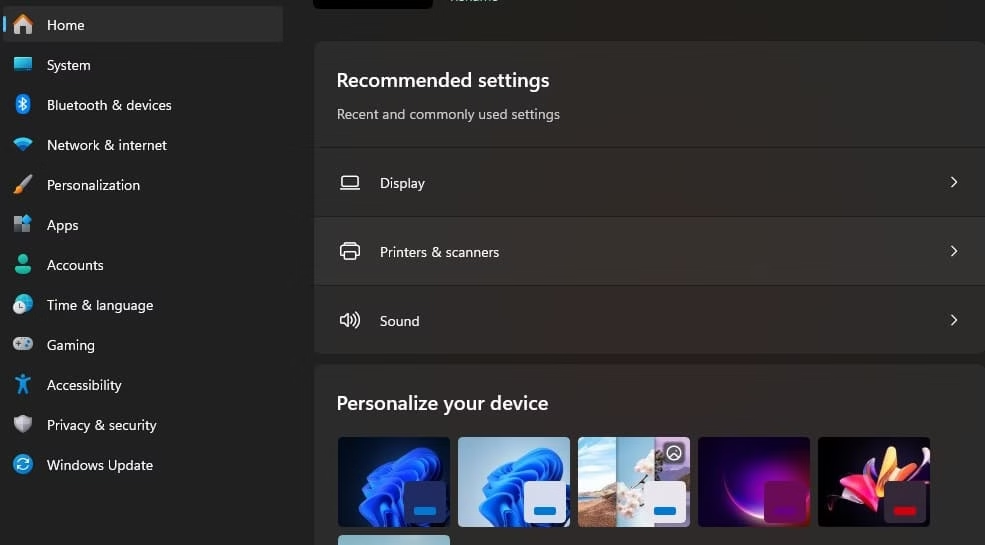
- Go to Privacy & security >App Permission> Microphone.
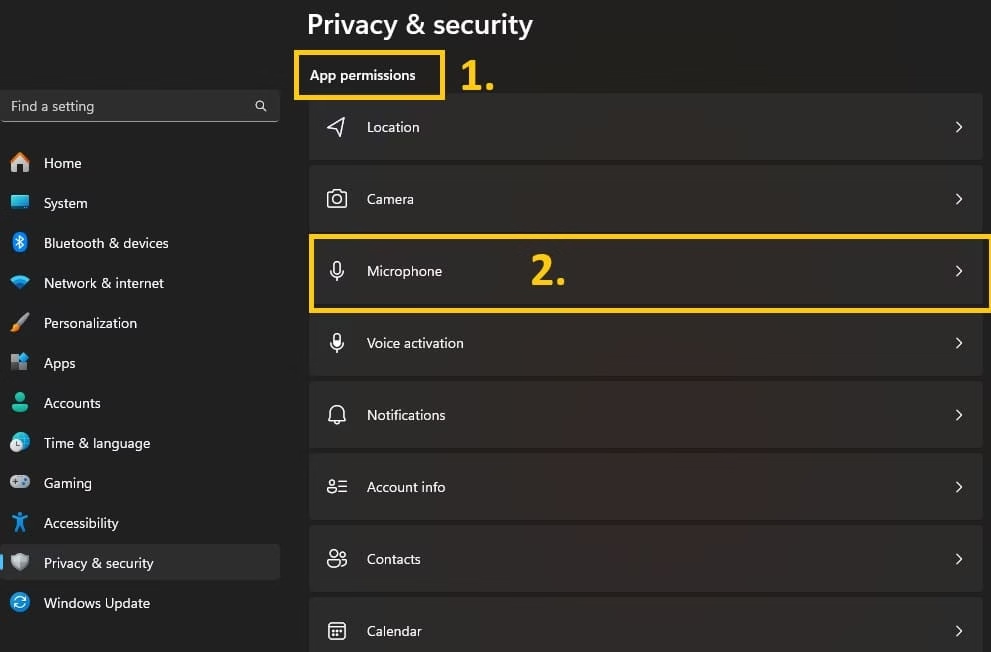
- Turn On the toggle for Microphone access.

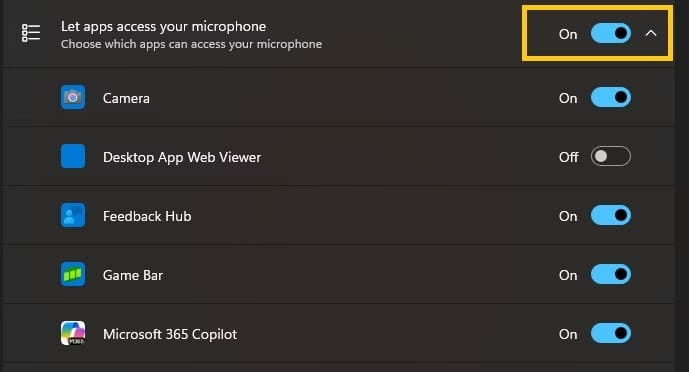
- Ensure Let apps access your microphone is also turned On.
Also know: Best USB Bluetooth Dongles for Windows PC
Allow or Block Specific Microsoft Store Apps:
- In the same Microphone settings page, scroll to Choose which apps can access your microphone.
- Toggle On or Off for each listed app (like Camera, Cortana, or Zoom if installed via Store).
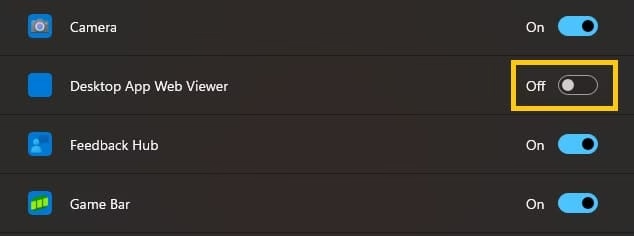
Enable Access for Desktop Apps:
Many popular programs (Discord, OBS Studio, etc.) are desktop apps. They won’t appear individually in the list.
- Scroll down and turn On Let desktop apps access your microphone.
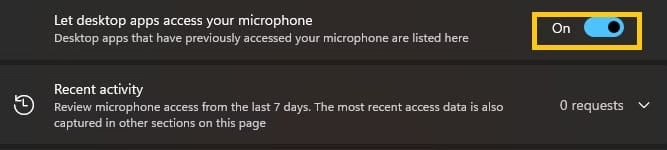
This setting acts as a master switch for non-Store apps.
2. Set Your Default Microphone and Test It
- Go to Settings > System > Sound > Input.
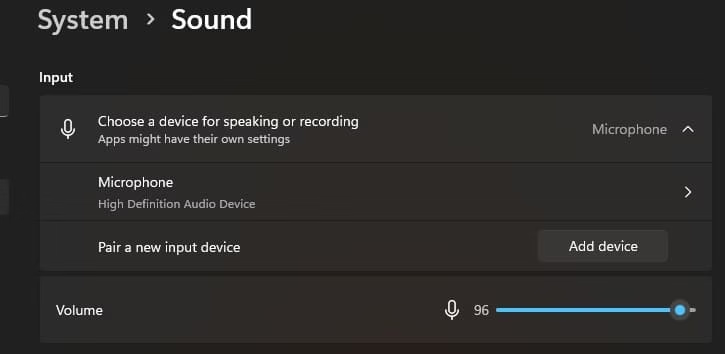
- Select your preferred microphone from the list.
- Click the arrow next to it to open properties, then run the Start test to check volume and clarity. Adjust the Input volume slider as needed.
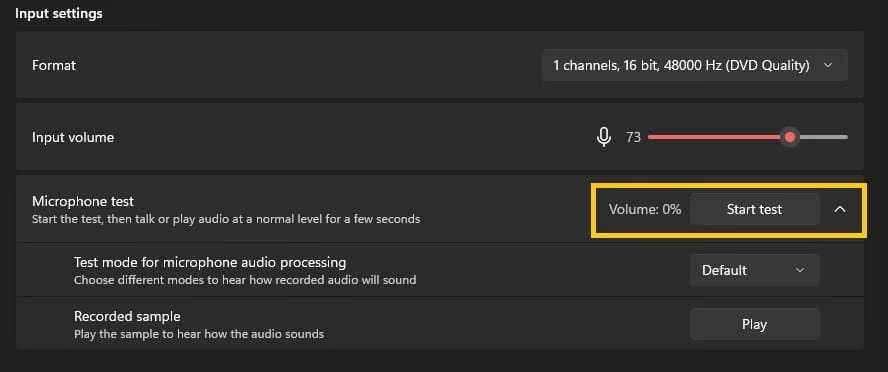
Pro tip: Restart the app after changing permissions for the changes to take effect.
Also know: Easy Ways to Run a Troubleshooter for PC Issues Windows 11
Conclusion
Mastering how enabling microphone for specific apps works in Windows puts you in full control of your audio experience. From choosing the right mic to tweaking privacy toggles, these steps resolve most access issues while protecting your privacy. Keep your Windows updated, test settings regularly, and you’ll enjoy crystal-clear communication every time.
If an app still won’t cooperate, double-check its internal audio settings or look for driver updates on the manufacturer’s site. Your voice deserves to be heard clearly!
Frequently Asked Questions
Q1: Why can’t I see my specific app in the microphone permission list in Windows 11?
Many desktop apps (like Discord, OBS Studio, or Zoom installed from their official website) do not appear individually in the Privacy settings. In this case, scroll down and enable the toggle “Let desktop apps access your microphone”. This acts as a master switch for all non-Microsoft Store apps. After enabling it, restart the app for the changes to take effect.
Q2: How do I allow microphone access for only one app while blocking others?
Windows gives you fine-grained control. Go to Settings > Privacy & security > Microphone, turn on overall microphone access, and then in the list of apps, toggle On only for the apps you want (e.g., Zoom or Teams) and keep others Off. This ensures your privacy remains protected while allowing necessary apps to use the mic.
Q3: My microphone works in some apps but not in others – what should I do?
This is usually a permission or default device issue. First, check that the app has microphone permission in Privacy settings. Then go to Settings > System > Sound > Input and make sure your preferred microphone is selected as default. Also try restarting the problematic app or your laptop. If the issue continues, update your audio drivers or run the built-in Sound troubleshooter.

