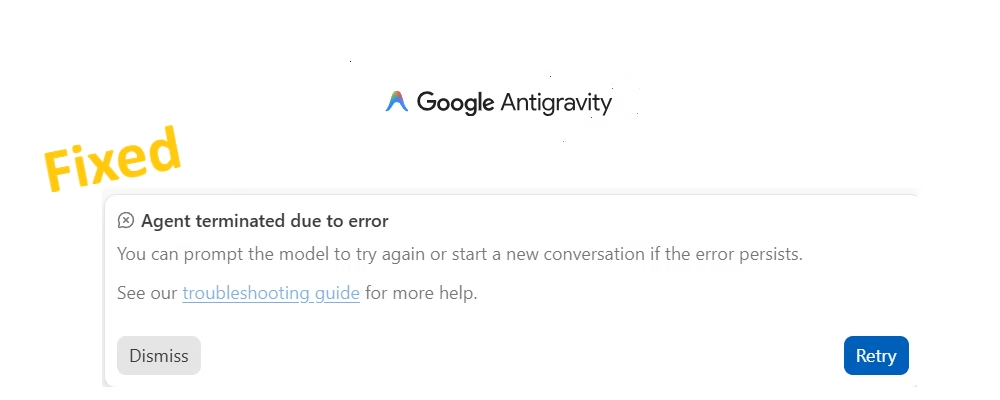
Ever hit a wall in Google Antigravity right when your agent starts building something useful? You enter a solid prompt. The thinking dots spin. Suddenly the whole flow crashes with this exact message: agent terminated due to error you can prompt the model to try again or start a new conversation if the error persists.
It feels maddening especially during a focused coding session. Many developers face this daily in 2026.
You will discover the real causes behind the error. You will follow clear, tested steps ranked by how often they solve the problem for real users. We cover everything from quick toggles to deeper resets. By the end you will know exactly how to handle agent terminated due to error you can prompt the model to try again or start a new conversation if the error persists next time it appears.
Ready to reclaim your workflow? Let’s dive straight in.
What is this Error and the reason Behind it?
This error pops up when Google Antigravity’s agent process fails mid-execution. The system stops the task and displays the warning instead of continuing.
In simple terms the agent tried to use tools, call functions, or process your request but something broke internally. It terminates to prevent crashes or bad behaviour.
Top reasons include:
- Active MCP servers clashing with certain models (especially Claude and some GPT versions).
- Model-specific bugs: Claude family triggers it far more than Gemini.
- Server-side capacity issues during high traffic or quota glitches.
- Corrupted session state after long chats or inactivity.
- Complex or tool-heavy prompts overwhelming the execution loop.
Gemini models usually dodge the problem entirely. That clue helps narrow fixes fast. Now let’s move to solutions that actually work.
Best Fixes for Agent Terminated Due to Error
Thousands of Antigravity users hit this error every week. Most solve it with the first few steps below. Start at the top and test after each one.
We ordered them by success rate based on forum threads, Reddit posts, and developer reports in early 2026.
1. Disable All MCP Servers (Fastest & Most Common Fix)
This method stands out because it is non-destructive (you can re-enable MCP later), requires no reinstalls or resets, and targets the most common documented trigger in 2026 reports.
Step-by-step instructions:
- Open Google Antigravity and jump into any agent chat (or start a fresh one if you prefer).
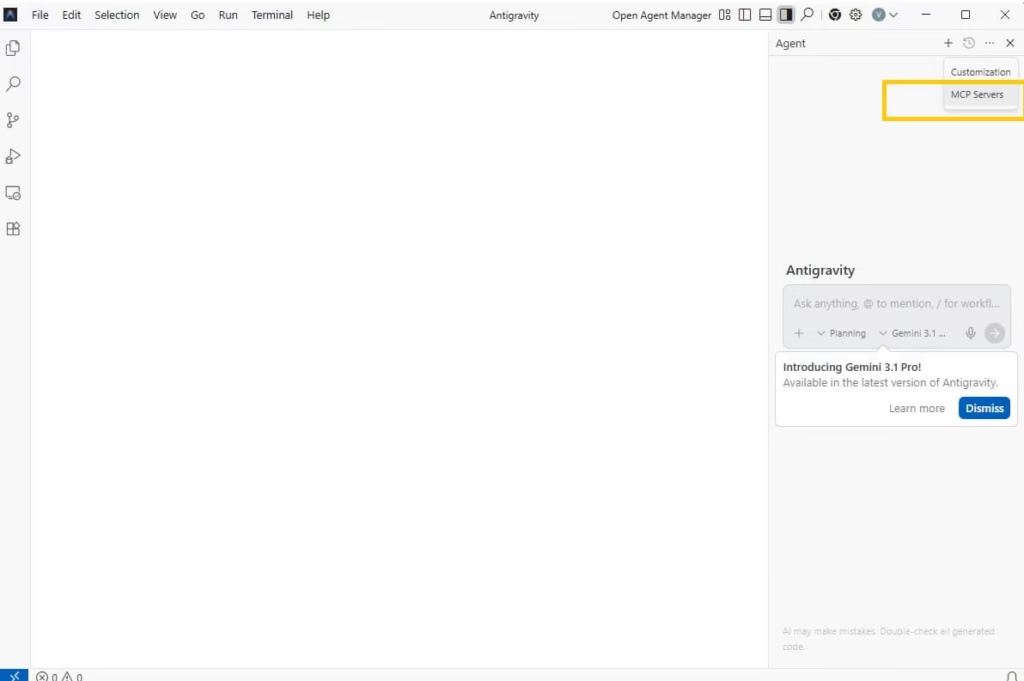
- Look up in the top-right corner of that agent window you’ll see the little three-dot menu (⋮). Give it a click.
- In the menu that pops up, find the option that says MCP Servers.
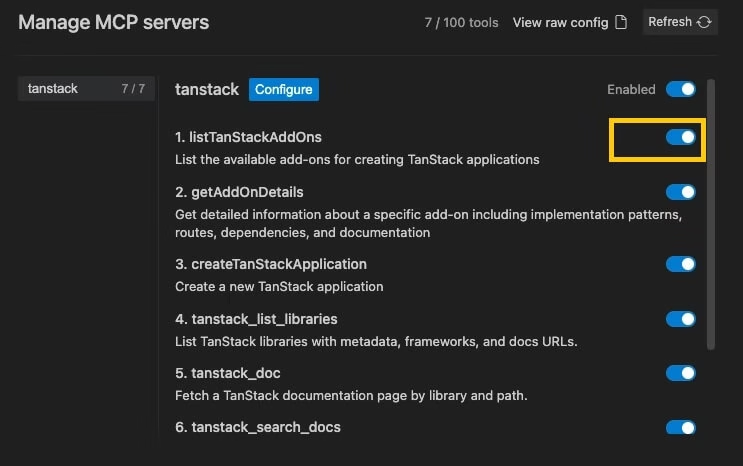
- You’ll see a list of whatever MCP servers or connections are currently turned on.
- Turn every single one of them off. Just flip each toggle to disabled. If you spot a big master “MCP” switch anywhere, kill that one too.
- Close the menu, then give the agent area a quick refresh either hit the refresh icon if you see one, or just click somewhere else in the app and then click back into the agent chat.
- Now try your original prompt again.
(Pro tip: if you want to be extra sure it’s working, first send something dead simple like “Write hello world in Python” if that goes through smoothly, you’re golden.)
Try it now it has rescued countless stalled coding sessions already. If it works for you, consider bookmarking this explanation for the next time the error sneaks up.
Also know: How to Run Python Code on an Android Device
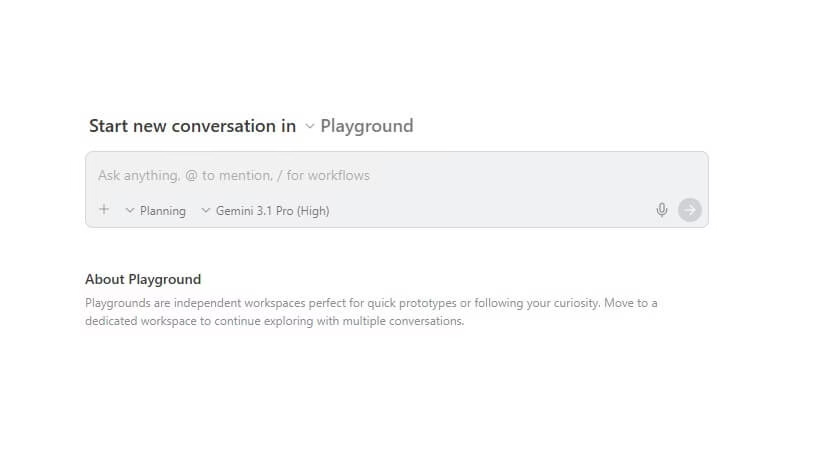
2. Start a Brand-New Conversation
Starting a brand-new conversation is one of the quickest ways to shake off that annoying “agent terminated” error. Here is step by step instructinon that you can follow to solve the problem.
- In the Antigravity window, look for the New Conversation button.
- It’s usually sitting near the top of the chat area or over in the left sidebar sometimes it’s a little + icon or says “New chat”. Just click that.
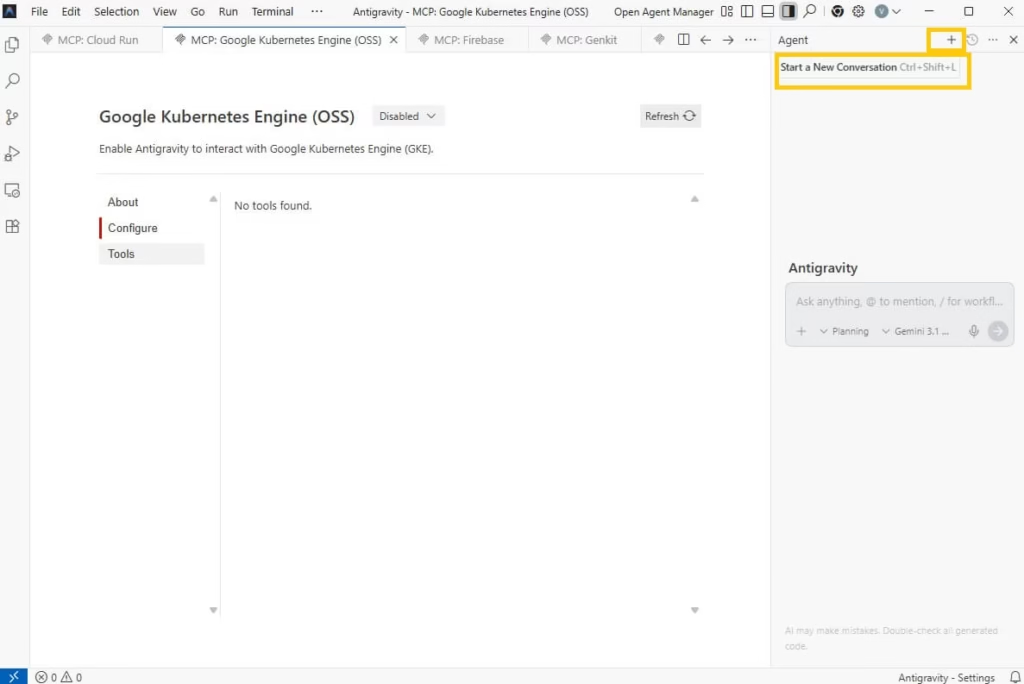
- If your project needs to be connected again (you’ll normally see a little folder/repo icon or a prompt asking to attach something), go ahead and re-attach your repository or the folder you were working in. It only takes a couple clicks.
- Now, instead of pasting your giant original prompt, type or paste a shorter, simpler version of what you were trying to do.
(Keeping it short the first time helps make sure the agent is actually responding normally.) - Hit Send (or press Enter) and watch what happens.
This clears temporary glitches without losing project files. Combine it with the MCP disable for near-perfect results.
3. Reset Onboarding via Command Palette
Resetting onboarding via the Command Palette is a powerful, built-in way to clear out stuck settings, authentication glitches, or corrupted session states. When the “agent terminated due to error” keeps coming back these step by step instructions will help you to solve the problem.
- Make sure Antigravity is open on your screen.
- Then press Ctrl + Shift + P if you’re on Windows or Linux, or Cmd + Shift + P if you’re on a Mac.
(That shortcut brings up the Command Palette it’s the same one you probably know from VS Code.) - As soon as that little search bar appears at the top, just start typing:
- Antigravity: Reset onboarding
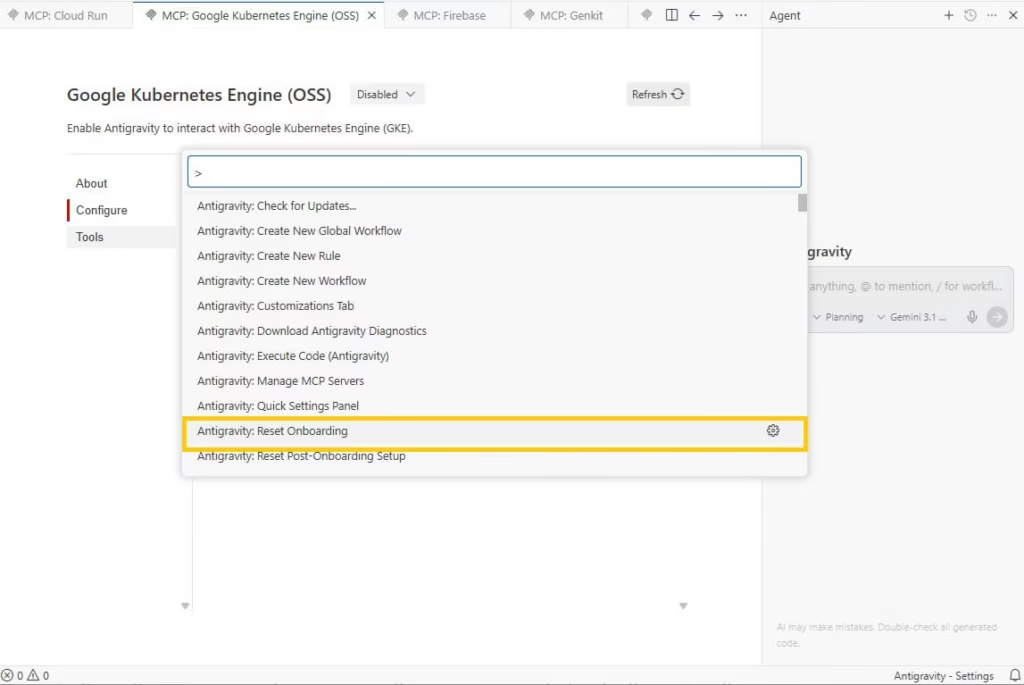
- You’ll usually see the full command show up after just a few letters.
- Click on it (or hit Enter) to run the command.
- The app will typically log you out right away and bounce you back to the welcome/setup screen like when you first installed it.
- Close Antigravity completely quit it fully (check your task manager or activity monitor if it’s still hanging in the background).
- Wait about 10-15 seconds, then launch it again.
- Sign back in with your Google account, pick your model if it asks, and jump into a new conversation to test.
- Try something easy first (“List three Python list methods” or whatever) to confirm the agent is responding normally.
Your workspace and files stay untouched. Many stubborn cases clear after this reset.
Ready to give it a go? Just follow the steps we walked through earlier and test a simple prompt right after you sign back in. Fingers crossed this is the one that makes your agent behave again!
Also know: How to Install Android Studio on a Windows, Linux & Ubuntu
Conclusion
You now have a complete playbook to defeat the frustrating agent terminated due to error you can prompt the model to try again or start a new conversation if the error persists message in Google Antigravity.
Start every time with disabling MCP servers it solves the problem for most users instantly. Pair it with starting a fresh conversation. Reset on boarding only when needed for deeper glitches.
These methods keep your coding momentum alive without hours of debugging. You deserve smooth agent performance.
Bookmark this page for the next surprise error. Share it with teammates or friends stuck on the same issue. Your future self will appreciate the quick reference.

Recent Posts

Best Fee AI Tattoo Generator Online in 2026
Editorial Team, 05 Mar 2026

Best Free Ambigram Tattoo Generator 2026
Editorial Team, 05 Mar 2026
Most Used Tags
Blog Category

Get amazing web and
app development deals
for your business from us.
