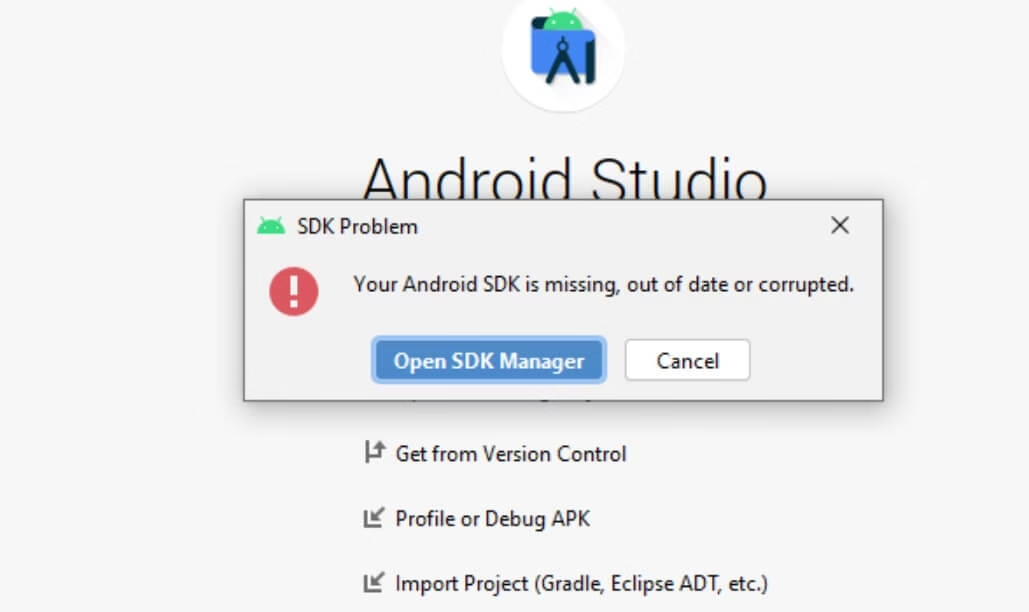
Seeing the “SDK Emulator Directory is Missing” error right after installing or updating Android Studio can stop your development workflow instantly. Developers often hit this snag during first-time setup, after upgrades, or when switching machines. The popup appears during component downloads and prevents emulator creation or launch.
This complete guide shares the most reliable, up-to-date methods to resolve the SDK Emulator Directory is Missing error in Android Studio.
Most cases clear up quickly with one or two steps below. These fixes apply to recent versions (including 2024–2025 builds) on Windows, macOS, and Linux.
You will discover solutions ranging from installing legacy tools to adjusting paths, freeing space, handling proxies, and refreshing installations. Follow them in sequence for the fastest results. By the end, your emulator should work without issues.
1. Install the Obsolete Android SDK Tools Package
This remains one of the top fixes because newer Android Studio versions removed the legacy tools folder that older setups expect.
- Launch Android Studio and reach the welcome screen or open any project.
- Head to Tools > SDK Manager.
- Switch to the SDK Tools tab.
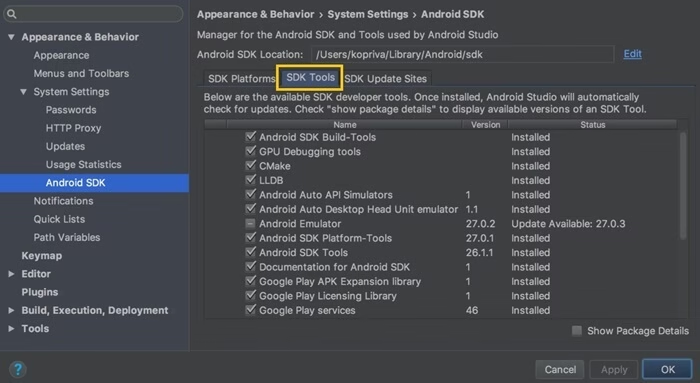
- At the bottom right, uncheck Hide Obsolete Packages.
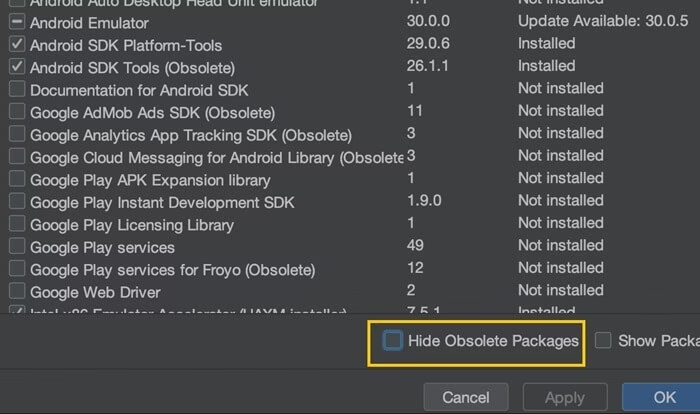
- Find Android SDK Tools (obsolete) in the list.
- Check the box beside it and click Apply or OK to download and install.
- Android Studio places the tools folder inside your SDK root (typically `C:\Users\YourName\AppData\Local\Android\Sdk` on Windows).
- Restart the IDE afterward. The missing directory warning usually vanishes immediately.
2. Verify and Free Up Disk Space
Low storage blocks SDK component extraction and causes silent failures that trigger this error.
- Before reinstalling anything, check available space on the drive holding your SDK (at least 5–10 GB free is ideal).
- If space runs low, delete temporary files, move large projects, or pick a different drive during setup.
- In SDK Manager, uninstall unused platforms or tools first if needed.
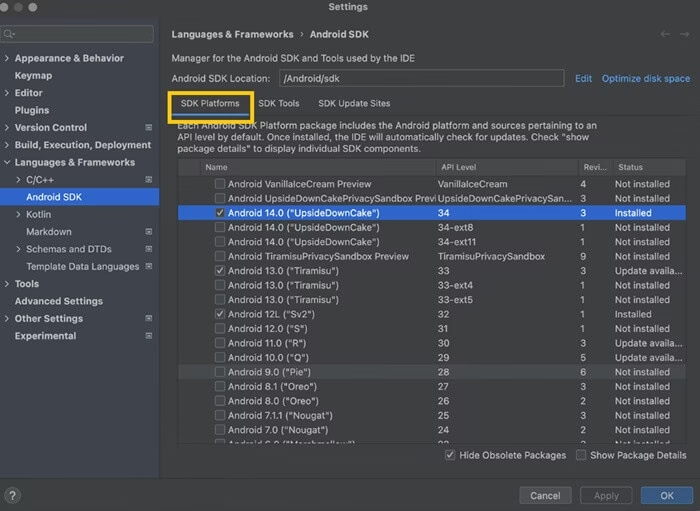
- Reinstall essential items like Android Emulator, Platform-Tools, and any required SDK platforms.
Confirm the emulator folder now exists under your SDK path after the process finishes.
Also know: Healthcare Mobile App Development: Complete Guide
3. Configure Proxy or Network Settings
Corporate firewalls, VPNs, or restricted networks often block downloads from Google’s servers, leading to incomplete installations.
- In Android Studio, select File > Settings (on macOS: Android Studio > Preferences).
- Go to Appearance & Behavior > System Settings > HTTP Proxy.
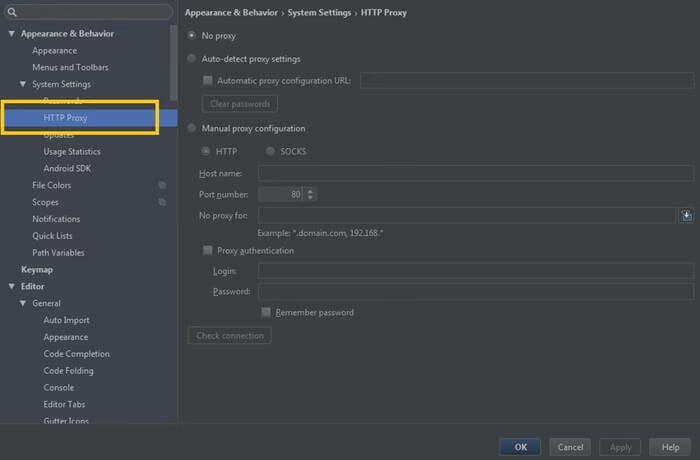
- Choose Auto-detect proxy settings if your system uses one automatically.
- For manual setup, select Manual proxy configuration and enter your details.
- If using a PAC file, pick Automatic proxy configuration URL and paste the correct address (find it in your OS network settings under proxies).
Apply changes, restart Android Studio, and retry component installation. This resolves most network-related failures.
4. Manually Set or Correct the SDK Location
Android Studio sometimes loses or mispoints the SDK path after moves, partial installs, or registry issues.
- On the error popup, avoid clicking Finish – choose Configure instead.
- Select Project Defaults > Project Structure.
- In the SDK Location field, click the folder icon and browse to your existing SDK directory.
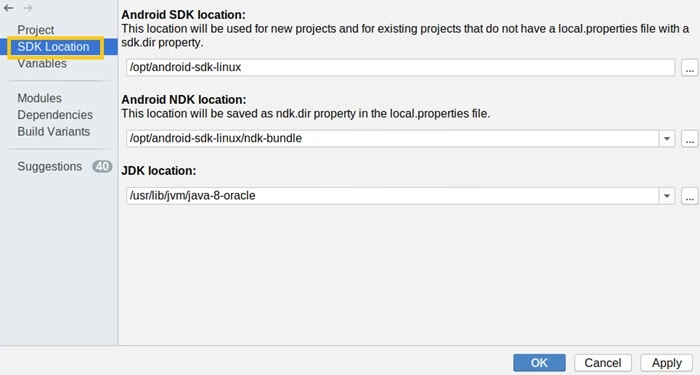
- Enable viewing hidden files if AppData or similar folders stay invisible.
- Apply the setting and restart.
This directs the IDE to recognize the installed components properly.
5. Reinitialize Components or Force a Fresh Setup
A simple reset clears corrupted configurations without full uninstalls.
- When the error dialog appears, click the close X button instead of Finish.
- Android Studio often suggests reinitializing components – accept it.
- Alternatively, open SDK Manager manually and ensure Android Emulator plus core SDK Tools are checked and updated.
- If issues persist, close the IDE, delete the `.android` cache folder in your user directory (back it up first), then relaunch.
This prompts a clean component fetch.
6. Update Android Studio and All SDK Components
Outdated IDE or mismatched tools frequently cause directory mismatches.
- Navigate to Help > Check for Updates and install every available patch.
- Return to SDK Manager afterward.
- Under SDK Platforms, update desired Android versions.
- Under SDK Tools, install or update Android Emulator, Android SDK
- Build-Tools, Platform-Tools, and Command-line Tools.
- Restart after updates complete.
Newer releases patch many legacy directory bugs.
7. Create a New Android Virtual Device (AVD) as a Quick Workaround
If the error lingers, bypass it by forcing emulator folder creation.
- From the welcome screen or Tools menu, open AVD Manager.
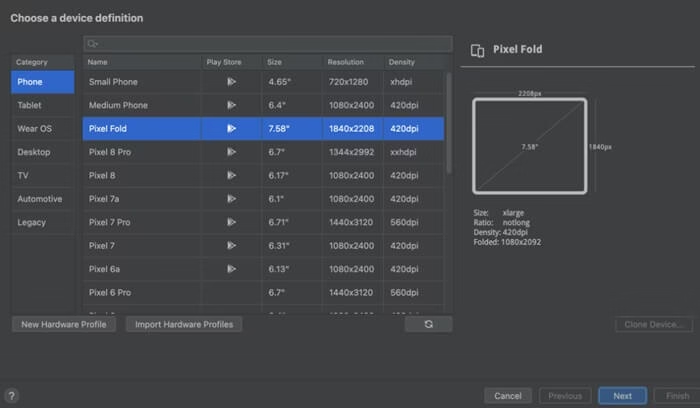
- Click Create Virtual Device.
- Pick any hardware profile, download a system image if prompted, and complete setup.
- The process generates necessary emulator directories automatically.
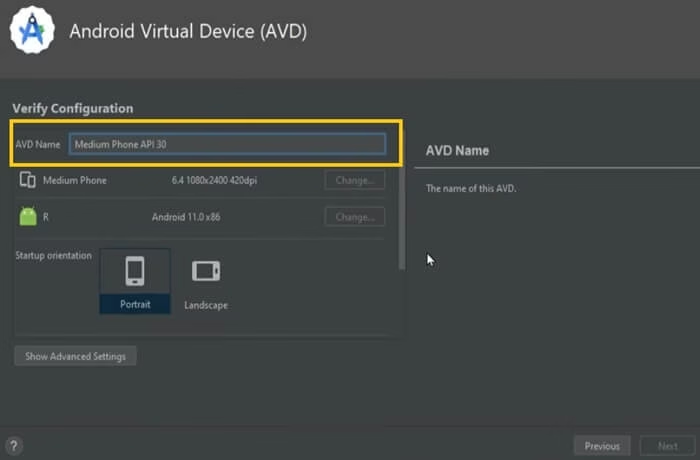
- Launch the new AVD to confirm everything works.
Also know: Doctor Booking App Development: Cost, Features & Examples
Conclusion
In conclusion, the SDK Emulator Directory is Missing error frustrates many Android developers, but these proven steps fix it reliably in most cases. Begin with installing the obsolete SDK Tools package or correcting your SDK path—these solve the problem fastest for the majority.
Progress through the methods one by one until your emulator launches without complaints. Once resolved, you can focus on building and testing apps again. These solutions stay relevant even in the latest Android Studio versions.
Bookmark this guide for future reference or share it with teammates facing the same issue. Happy coding!

Recent Posts
How to Transfer Photos from iPhone to Laptop
Editorial Team, 11 Mar 2026

Batman Arkham Games in Order of Release
Editorial Team, 10 Mar 2026

Medal Clipping Software: Is it Worth Using in 2026?
Editorial Team, 09 Mar 2026
Most Used Tags
Blog Category

Get amazing web and
app development deals
for your business from us.
